

DVI Cable Monitor Connections: What You Need to Know
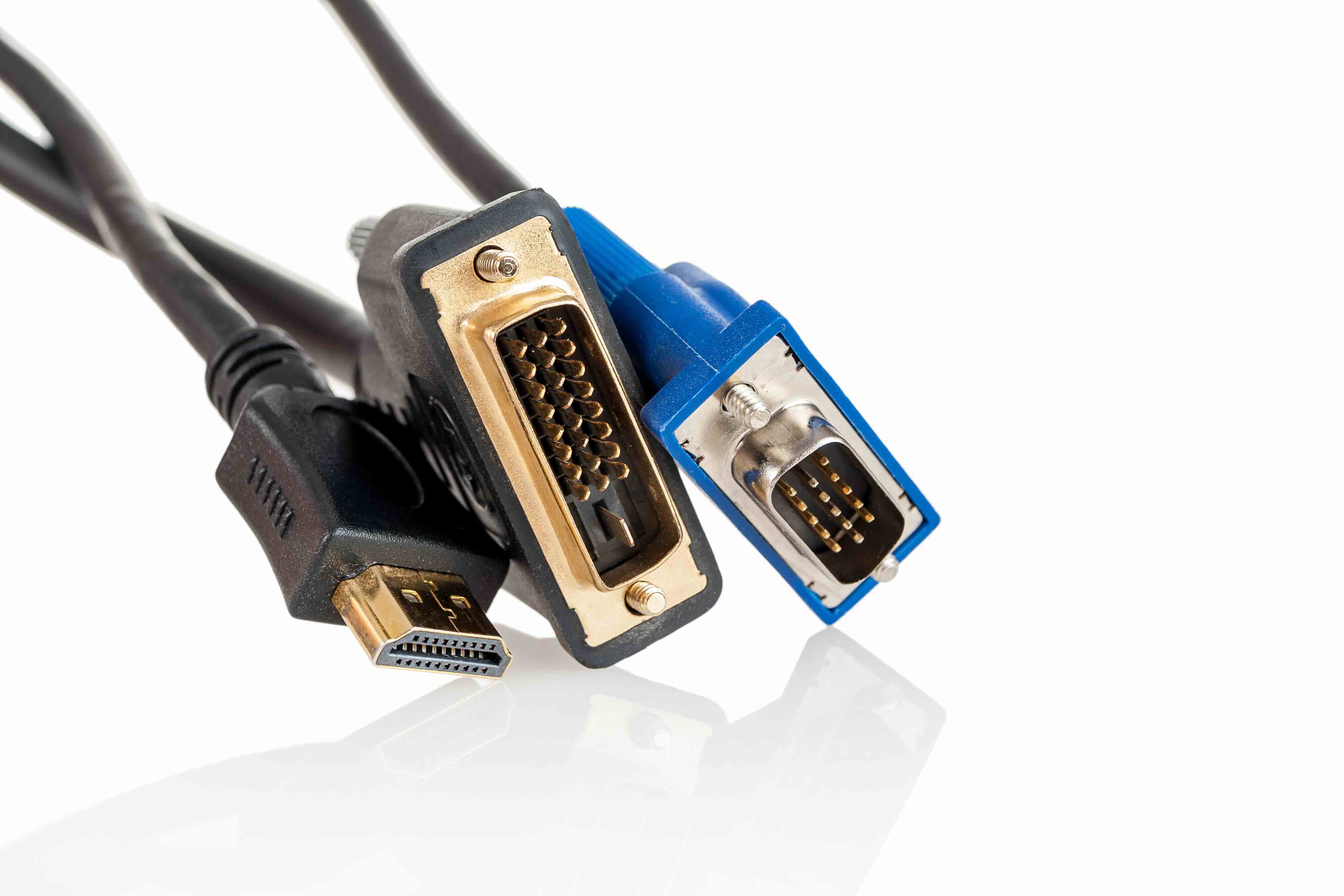
What Is a DVI Cable Monitor Connection and Why Does It Still Matter?
So you've got a monitor sitting on your desk, maybe an older display or even a newer budget panel, and you're staring at the back of it wondering what all those ports actually do. There's one in particular that shows up a lot -- a wide, flat connector with a grid of pins and sometimes a flat blade running through the middle. That's a DVI port. DVI stands for Digital Visual Interface, and while it's been around since 1999, it's still showing up in workstations, graphics cards, and displays across a wide range of professional and consumer environments. It's not the newest technology, but it's far from irrelevant. Understanding what a DVI cable monitor setup actually involves -- how it works, where it shines, and where it falls short -- can genuinely help you make smarter decisions about your display configuration, especially when you're trying to keep costs down without sacrificing image quality.
How DVI Technology Actually Works
DVI was developed by the Digital Display Working Group as a replacement for the older VGA standard, which transmitted analog signals. What makes DVI a step forward is its ability to carry a digital signal directly to your monitor, which eliminates the conversion loss that analog connections introduce. When data stays digital from the source to the display, you get a cleaner, sharper image. That's the core idea. DVI uses TMDS -- Transition Minimized Differential Signaling -- to transmit video data across the cable. The connector itself has several variations, and the type you're working with determines what's possible in terms of resolution and signal type. Some carry digital only, some carry both analog and digital, and some support higher resolutions through dual-link configurations. The physical connector is typically a 29-pin layout at maximum, though not all pins are populated in every version.
The Different Types of DVI Connectors Explained
This is where people often get confused, and honestly it's worth slowing down here because grabbing the wrong cable is a frustrating and avoidable problem. There are four primary DVI connector types you'll encounter in the field.
- DVI-D Single Link -- digital signal only, supports resolutions up to 1920x1200 at 60Hz
- DVI-D Dual Link -- digital signal only, supports higher resolutions up to 2560x1600
- DVI-A -- analog signal only, essentially a bridge between DVI and VGA equipment
- DVI-I Single Link -- carries both analog and digital, single link bandwidth
- DVI-I Dual Link -- carries both analog and digital, maximum bandwidth and compatibility
The distinction between single and dual link is about bandwidth. Dual link DVI uses more pins to transmit more data simultaneously, which is what you need if you're pushing resolutions above 1920x1200. For most standard 1080p or 1200p monitors, single link DVI-D does the job without any issues. The DVI-I variants are especially useful in mixed environments where you might need to connect to legacy analog displays through an adapter.
Key Advantages of Using a DVI Cable for Your Monitor
There are real, practical reasons why DVI connections have held on as long as they have. First and foremost, DVI delivers a clean digital signal at standard resolutions without the overhead or licensing requirements that come with some newer standards. If you're running a 1080p or 1200p monitor and your GPU has a DVI port, you're getting solid image quality with minimal setup friction. DVI connections are also well-suited for multi-monitor workstation setups that don't need audio passthrough, since DVI doesn't carry audio at all -- which in some infrastructure configurations is actually a feature rather than a limitation. Cable costs tend to be lower, compatibility with older professional displays is broad, and the connectors are mechanically secure with screw locks that keep the connection stable in environments where vibration or accidental bumps are a concern.
Common Drawbacks and Limitations to Know Before You Buy
Being straightforward about this matters. DVI has meaningful limitations that can affect your setup depending on what you're trying to do. The biggest one is resolution ceiling -- dual link DVI maxes out at 2560x1600, which means 4K displays are off the table entirely. There's no audio transmission, so if your monitor has built-in speakers and you want sound through the display, DVI won't get you there. Refresh rates above 60Hz at higher resolutions are also constrained, which matters significantly for gaming and video production workflows. The physical connector is also larger and less elegant than DisplayPort or HDMI, which can be a concern in tight cable management situations. And as newer GPUs and monitors continue to phase out DVI ports in favor of DisplayPort and HDMI, long-term compatibility is something to factor into purchasing decisions.
DVI vs HDMI vs DisplayPort: When to Choose What
This question comes up constantly, and it's worth addressing directly because the answer depends entirely on your use case. HDMI carries audio and video, supports 4K and beyond, and is universally found on consumer displays and televisions. DisplayPort offers the highest bandwidth of the three, supports daisy-chaining, high refresh rates, and is generally the preferred interface for PC gaming and professional monitor configurations. DVI sits in the middle -- better than VGA, simpler than HDMI or DisplayPort in terms of feature set, and still a viable choice when you're working with existing hardware that has DVI ports and displays that top out at 1200p. For a budget office workstation running a 1080p panel where audio through the monitor isn't needed, DVI is a perfectly rational choice. For a 4K editing suite or a high-refresh gaming rig, you want DisplayPort or HDMI.
Practical Tips for Setting Up a DVI Cable Monitor Connection
A few things are worth keeping in mind when you're actually running a DVI setup. Always check which DVI type your GPU output supports and match it to your monitor's input -- connecting a DVI-D cable to a DVI-A port will not work. Tighten the thumbscrews on the connector once it's seated; that's what they're there for, and a loose DVI connection can cause signal dropouts or display flickering. If you're using an adapter -- DVI to HDMI or DVI to VGA -- verify that the signal type is compatible before assuming it will work. Cable length matters too. DVI is generally reliable up to about 15 feet for standard resolutions; beyond that, signal degradation can become a factor, and you may need an active signal booster or a higher-quality shielded cable to maintain image integrity.
Who Still Uses DVI and Where It Makes Sense Today
DVI isn't going away overnight, and for specific contexts it remains a smart, cost-effective choice. IT departments managing large fleets of older workstations with existing DVI-equipped monitors have no practical reason to replace functional infrastructure when the display needs are met. Industrial and medical environments sometimes maintain DVI displays deliberately because the hardware has been validated and certified for specific use. Budget-conscious builds where the available GPU and monitor both have DVI outputs and 1080p resolution is the target -- there's no performance gain from replacing working DVI hardware. For integrators and procurement teams outfitting offices or labs at scale, DVI cables represent a low-cost, reliable solution that doesn't require rethinking the display chain from scratch.
Why Monoprice Is the Right Source for Your DVI Cable Monitor Needs
When you're sourcing display cables -- whether for a single workstation or a full office deployment -- quality and price both matter, and that's exactly where Monoprice delivers. The cable that connects your GPU to your monitor isn't a place to cut corners, but it's also not a place to overpay. Monoprice manufactures DVI cables built to industry spec, with proper shielding, precision-molded connectors, and consistent signal performance across the cable run. Whether you need DVI-D single link for a standard 1080p setup or dual link configurations for higher-resolution professional displays, the range is there. For IT managers, integrators, and individual buyers who want reliable connectivity without inflated pricing, exploring the full selection of display cables at Monoprice DVI cable and monitor connection solutions is a straightforward decision that holds up on both quality and value. The product breadth, competitive pricing, and consistent performance make Monoprice a trusted name for anyone serious about their display infrastructure.
Frequently Asked Questions About DVI Cable Monitor Connections
What does DVI stand for and what is it used for?
DVI stands for Digital Visual Interface. It is a video connection standard used to transmit video signals between a computer or graphics card and a monitor or display device.
Can a DVI cable carry audio to my monitor?
No. DVI does not support audio transmission. If you need audio delivered through your monitor, you will need to use HDMI or DisplayPort, or connect audio separately through a different cable or output.
What resolution does DVI support?
Single link DVI supports up to 1920x1200 at 60Hz. Dual link DVI extends that to 2560x1600 at 60Hz. DVI does not support 4K resolutions.
What is the difference between DVI-D and DVI-I?
DVI-D carries only a digital signal, while DVI-I carries both digital and analog signals. DVI-I connectors are more versatile and can work with adapters that connect to analog displays.
Is DVI better than VGA for monitor connections?
Yes. DVI delivers a digital signal, which avoids the quality degradation that comes with VGA's analog signal conversion. At equivalent resolutions, DVI will typically produce a sharper and more stable image.
Can I use a DVI to HDMI adapter?
Yes, a DVI to HDMI adapter can work for video, since both use compatible digital signal encoding. However, audio will not pass through the adapter because DVI does not carry audio.
Why is my DVI monitor flickering or losing signal?
Flickering or signal loss over DVI is often caused by a loose connector, a damaged cable, a cable that exceeds the recommended length, or a mismatch between cable type and port type. Check all connections and ensure the thumbscrews are fully tightened.
Does DVI support high refresh rates for gaming?
DVI has limited refresh rate support at higher resolutions. At 1080p, dual link DVI can reach up to 144Hz on some hardware, but this is configuration-dependent. For consistent high refresh rate gaming, DisplayPort is the more reliable and recommended option.
How long can a DVI cable be before signal quality degrades?
For most standard use cases, DVI cables perform reliably up to approximately 15 feet. Beyond that distance, signal quality can degrade, particularly at higher resolutions. Shielded cables and active signal boosters can help extend the usable range.
Is DVI still worth using in 2024 and beyond?
DVI remains a valid choice for setups where resolutions do not exceed 1440p, audio through the display is not required, and existing hardware already includes DVI ports. For new builds targeting 4K, high refresh rates, or audio passthrough, HDMI or DisplayPort is the better path forward.


