

DisplayPort Pinout Explained for Reliable AV Performance
What Is a DisplayPort Pinout and Why Does It Matter for AV Performance?
If you have ever set up a monitor, connected a GPU to a display, or tried to push 4K video through a cable and had it fail on you, you have probably wondered what is actually happening inside that connector. The DisplayPort pinout is essentially the internal wiring map of the DisplayPort interface, and understanding it is more useful than most people realize. Each pin has a specific job, and when they work together correctly, you get clean, crisp, high-bandwidth video and audio without signal loss or dropout. When something goes wrong, usually you can trace it back to pin configuration, cable quality, or a mismatch in how the pinout is being interpreted on one end of the connection. This article breaks down how the DisplayPort pinout works, what each group of pins actually does, and how all of it translates to real-world AV performance you can count on.
The Standard DisplayPort Connector: Full-Size vs. Mini DisplayPort
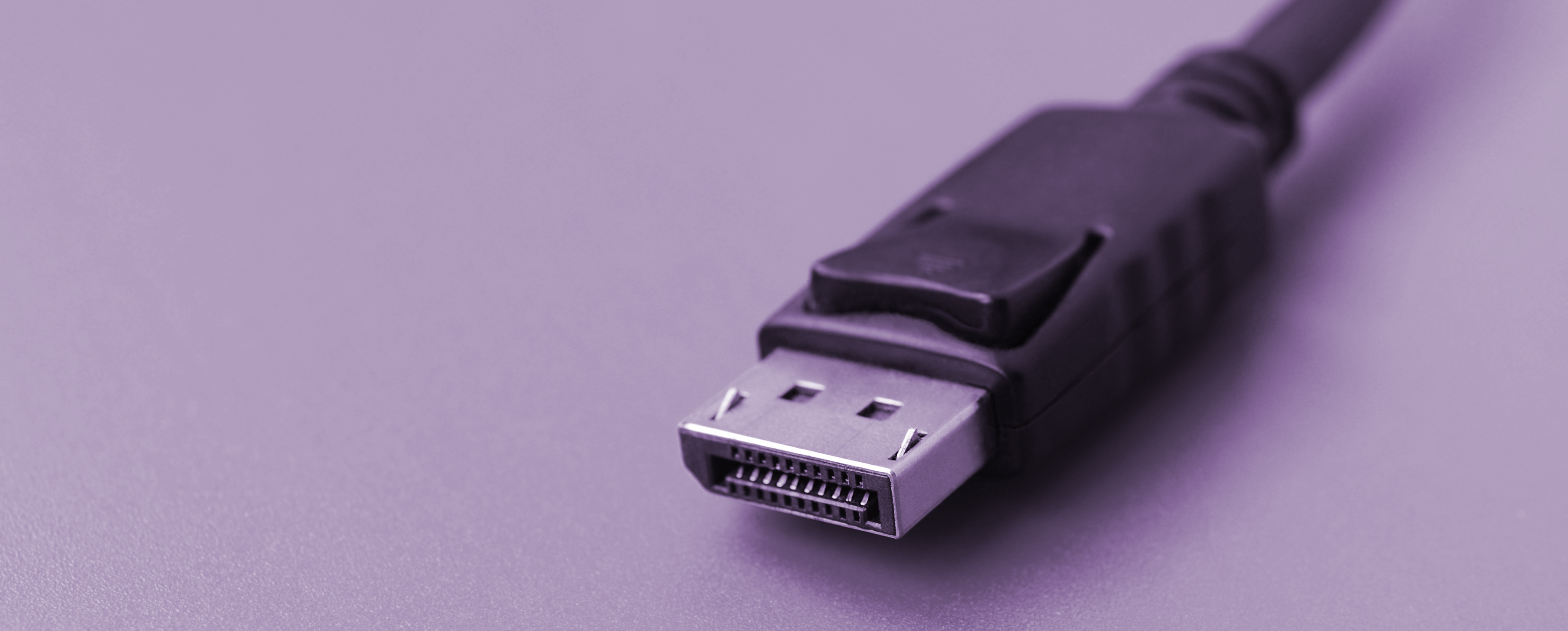
There are two common form factors to know here. The standard DisplayPort connector, also called the Type-A connector, has 20 pins. The Mini DisplayPort, which shows up a lot on older MacBooks and certain compact workstations, also carries 20 pins but in a significantly smaller housing. Both connectors carry the same signal types and support the same DisplayPort standard features, so from a functional standpoint they are equivalent. The difference is purely physical. If you are building out a workstation setup or a video production environment, knowing which form factor your GPU and monitor use is step one. Adapters exist for converting between the two, and most well-built passive adapters handle the pinout translation without signal degradation, as long as the cable and adapter quality are there.
Breaking Down the DisplayPort Pinout: What Each Pin Group Does
The 20-pin layout of DisplayPort is organized into several functional groups, and each one plays a distinct role in getting video and audio from source to display. Here is a clear look at the primary pin groupings and what they handle:
- Main Link Lanes (Pins 1, 2, 3, 6, 7, 8, 11, 12, 13, 16, 17, 18) — These carry the actual video and audio data, split across up to four differential pairs called lanes. Each lane moves data in both directions using a balanced signal approach to reduce interference.
- Hot Plug Detect, or HPD (Pin 18) — This pin tells the source device that a display has been connected. No hot plug detect signal, no handshake
- Auxiliary Channel (Pins 15 and 16) — The AUX channel is a bidirectional communication line used for device configuration, EDID negotiation, and DPCD access. This is how the source and display talk to each other before video starts flowing.
- Ground Pins (Pins 4, 5, 9, 10, 14, 19) — Grounding is not optional here. These pins stabilize the signal and reduce noise. Poor grounding in a cable or connector is one of the most common causes of flickering or unstable DisplayPort signals.
- Config Pins (Pins 19 and 20) — These handle sideband utility functions and connector orientation in newer reversible implementations.
Each of these groups depends on the others. If the AUX channel is unreliable, the display negotiation fails and you get nothing on screen. If ground pins are compromised due to cable damage or a low-quality connector, you get interference artifacts. It is a tightly coordinated system.
How the Main Link Lanes Enable High Bandwidth Video
The main link lanes are where the real performance story lives. DisplayPort uses a multi-lane architecture with up to four lanes, each capable of running at several data rates depending on the DisplayPort version. DisplayPort 1.4, for example, supports up to 32.4 Gbps of total bandwidth across all four lanes using High Bit Rate 3, or HBR3. DisplayPort 2.1 pushes this significantly further with Ultra High Bit Rate, reaching up to 80 Gbps. That bandwidth is what makes 8K at 60Hz or 4K at 240Hz actually possible. The lanes operate as differential pairs, meaning each signal is sent as a positive and negative version of itself, and the receiver reads the difference. This approach is extremely effective at rejecting common-mode noise, which is why DisplayPort can maintain signal integrity over longer cable runs compared to single-ended signal designs. For pro AV applications, that reliability matters more than raw spec numbers.
The Role of the AUX Channel in Display Negotiation
A lot of people underestimate what the AUX channel does. Before a single frame of video is transmitted, the source device and the display go through a structured handshake using this channel. The source reads the display's EDID data to understand its resolution capabilities, refresh rate limits, and color depth support. It then configures the main link accordingly. If this negotiation fails or the AUX channel signal is corrupted, you get a blank screen even when everything else looks fine. The AUX channel also handles DisplayPort Content Protection, or DPCP, authentication and is used by Multi-Stream Transport, or MST, to manage the signal routing when daisy-chaining multiple monitors. For anyone setting up an MST hub or a daisy-chain display configuration, a clean, low-noise AUX channel is non-negotiable.
Common Causes of DisplayPort Pinout Failures in Real Installations
Knowing the pinout map is useful precisely because it helps you diagnose failures more accurately. The most frequent issues in real-world installations tend to cluster around a few root causes. Damaged ground pins cause the most intermittent and frustrating problems because the signal looks structurally fine but is loaded with noise artifacts. A bent or oxidized HPD pin means the source never recognizes the display is there. Flimsy AUX channel contacts in low-grade cables cause negotiation failures that are often misattributed to driver or GPU issues. Using a cable rated for an older DisplayPort version in an application that requires HBR3 speeds is another common mismatch that produces artifacts or limits resolution output without any clear error message. Always verify that the cable version, connector quality, and device compatibility are aligned before assuming hardware failure.
DisplayPort Pinout vs. HDMI: Key Differences That Affect Your Setup
DisplayPort and HDMI both carry video and audio, but their pinout architectures are meaningfully different. HDMI uses a 19-pin layout for standard Type-A and relies on TMDS differential pairs for data, with a single dedicated DDC line for device communication. DisplayPort uses a packet-based protocol over its main link lanes, which is more flexible and generally more efficient for high-refresh-rate and multi-monitor configurations. DisplayPort also natively supports daisy-chaining displays through MST without requiring a separate hub device, something HDMI does not support in the same way. For gaming monitors at 144Hz or above, or for multi-display workstation setups, DisplayPort's pinout architecture typically delivers more headroom and better compatibility with adaptive sync technologies like FreeSync and G-Sync.
Practical Tips for Maintaining DisplayPort Pinout Integrity
Keeping the pinout performing reliably over time comes down to physical care and smart cable selection. A few things worth keeping in mind:
- Use cables that are certified for the DisplayPort version your devices require, especially if you are targeting HBR3 or UHBR data rates.
- Inspect connector housings before purchase or installation. Thin, lightweight housings often indicate minimal contact retention, which degrades over time.
- Avoid repeated insertion and removal cycles with budget connectors. The locking latch on DisplayPort connectors is functional but the contact pins themselves can wear with heavy cycling.
- For long runs in permanent installs, consider active DisplayPort cables, which include signal conditioning circuitry to compensate for attenuation.
- Store cables coiled loosely. Tight bends near the connector strain the internal wire pairs and can compromise differential signal balance over time.
None of this is complicated, but it is the kind of attention that separates a stable, long-running installation from one that produces intermittent issues every few months.
Why Monoprice Is the Right Source for DisplayPort Cables and Connectivity Solutions
When you understand how the DisplayPort pinout works, you start to understand why cable quality is not a place to cut corners. Every pin group, every differential pair, every ground contact contributes to the overall signal integrity of your AV chain. Monoprice builds DisplayPort cables engineered to meet those demands without inflating the price to absurd levels. Whether you are running a 4K gaming rig, a multi-monitor workstation, or a professional video production environment, the construction quality in a Monoprice cable reflects the kind of precision that the DisplayPort pinout actually requires. If you want cables, adapters, and AV connectivity products that are built to spec and priced for real-world budgets, you owe it to yourself to shop through a trusted source for high-performance DisplayPort cables and AV connectivity solutions like Monoprice, where performance and value consistently occupy the same shelf. For IT buyers, integrators, or anyone building out a serious display setup, Monoprice DisplayPort cables and professional AV connectivity products represent a straightforward decision: proven performance, fair pricing, and the product depth to handle almost any configuration you need.
Frequently Asked Questions About DisplayPort Pinout
How many pins does a standard DisplayPort connector have?
A standard full-size DisplayPort Type-A connector has 20 pins. The Mini DisplayPort connector also uses 20 pins in a smaller form factor. Both versions carry the same signal types and support the same DisplayPort feature set.
What do the main link lanes in the DisplayPort pinout do?
The main link lanes carry video and audio data between the source device and the display. DisplayPort uses up to four differential lane pairs that transmit data at high bit rates, enabling high resolutions and fast refresh rates depending on the DisplayPort version in use.
What is the AUX channel in DisplayPort and why does it matter?
The AUX channel is a bidirectional communication line that handles device negotiation before video transmission begins. It is used to read display capabilities, configure link settings, authenticate content protection, and manage multi-stream transport in daisy-chain setups.
What causes a DisplayPort signal to flicker or drop out?
Flickering and signal dropout are most commonly caused by damaged or low-quality ground pins, poor contact in the AUX channel, a cable that does not support the required data rate, or a failing hot plug detect signal. Cable quality and version compatibility are the first things to check.
What is the difference between DisplayPort 1.4 and DisplayPort 2.1 in terms of pinout?
The physical pinout is the same across DisplayPort versions. What changes between versions is the data rate each pin can carry. DisplayPort 1.4 supports up to 32.4 Gbps total bandwidth, while DisplayPort 2.1 supports up to 80 Gbps using the Ultra High Bit Rate standard.
Can a damaged ground pin in a DisplayPort connector affect video quality?
Yes. Ground pins stabilize the differential signal pairs and reduce electromagnetic noise. A compromised ground contact introduces common-mode interference that can appear as visual artifacts, color distortion, or intermittent signal loss even when the video data pins themselves are intact.
Is the Mini DisplayPort pinout different from the full-size DisplayPort pinout?
The Mini DisplayPort uses the same 20-pin signal layout as the full-size connector. The only difference is the physical size and connector housing. Passive adapters between the two form factors do not require signal conversion and generally work without signal degradation when cable quality is adequate.
How does the hot plug detect pin work in DisplayPort?
The hot plug detect pin, located at Pin 18, sends a signal to the source device indicating that a display has been physically connected. Without this signal, the source does not initiate the link training or device negotiation sequence, which means no video output occurs regardless of other conditions.
Does DisplayPort support daisy-chaining multiple monitors and how does the pinout enable that?
Yes, DisplayPort supports daisy-chaining through Multi-Stream Transport. The AUX channel handles the communication and routing logic for MST configurations, allowing multiple displays to share a single connection from the source. Each display in the chain passes the signal along using its outbound DisplayPort port.
How do I choose a DisplayPort cable that maintains full pinout performance?
Select a cable that is certified for the DisplayPort version your devices use, features robust connector housings with solid contact retention, and is rated for the data rate your resolution and refresh rate combination requires. For HBR3 applications like 4K at 144Hz or above, verify the cable is explicitly rated for that bandwidth level.


