4-Pin to 4-Pin FireWire Cable for Legacy DV Video Transfer
What Is a 4-Pin to 4-Pin FireWire Cable and Why Does It Still Matter?
So here is the thing -- a lot of people assume FireWire is completely dead. And yeah, it is not exactly showing up in new laptops anymore. But if you have a shelf, a closet, or a storage bin full of old DV camcorder tapes from family vacations, school plays, or milestone events from the late 1990s through the mid-2000s, FireWire is still very much alive in what it can do for you. The 4-pin to 4-pin FireWire cable is the connector that made DV video transfer possible on compact consumer camcorders, and it is still one of the most reliable ways to pull that footage off those legacy devices and onto a modern computer for editing, archiving, or sharing. This article breaks down what the cable actually is, how it works, what to watch for, and whether it is worth the investment -- which, honestly, it usually is.
A Quick Look at FireWire Technology and Its History
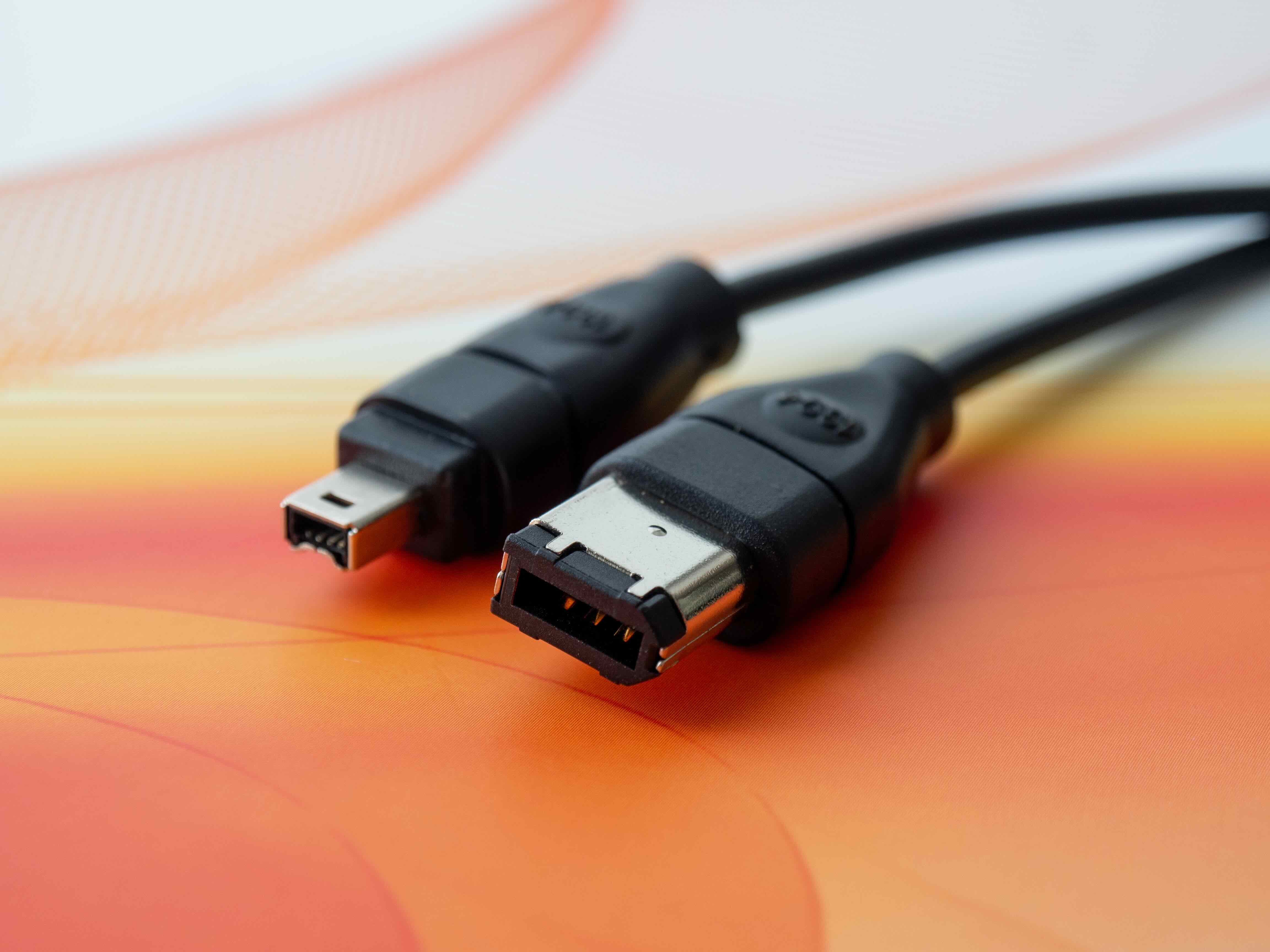
FireWire -- technically known as IEEE 1394 -- was developed by Apple and standardized in the early 1990s. It was built for high-speed data transfer and quickly became the go-to interface for digital video. Camcorder manufacturers adopted it widely, and for a solid decade it was the standard way to get DV footage from a camera into a computer without losing quality. The 4-pin connector was specifically designed for compact devices like camcorders, where space mattered. The 6-pin version showed up more on desktop connections. So when you are dealing with two camcorders or two compact DV devices, a 4-pin to 4-pin cable is exactly what you need. The interface supported transfer speeds up to 400 Mbps under the original IEEE 1394a spec -- fast enough to handle full-quality DV video in real time without compression artifacts or dropped frames.
How the 4-Pin to 4-Pin FireWire Cable Actually Works
Right, so let's talk mechanics for a second. DV camcorders recorded video directly to tape in a compressed digital format. That format preserved far more quality than analog video, which is part of why these recordings are worth saving in the first place. When you connect a 4-pin to 4-pin FireWire cable between two compatible devices -- typically a camcorder and another DV device or a computer equipped with a FireWire port -- you are creating a direct digital pipeline. The video data streams from the camcorder to the receiving device in real time. There is no analog conversion happening. What was recorded to tape is what arrives on your hard drive, frame for frame. The cable itself carries both data and control signals, which allows software on the receiving end to control playback on the camcorder -- play, pause, rewind -- directly from the computer. That level of integration made DV capture workflows very clean and efficient, and it still does, assuming you have the right hardware and software setup in place.
Key Advantages of Using a Dedicated FireWire DV Cable
There are a few reasons why using a proper 4-pin to 4-pin FireWire cable is still the preferred method for legacy DV transfer, even when other workarounds exist. Here is what makes it the right call:
- Lossless digital transfer with no generation loss
- Real-time playback and capture with frame-accurate timing
- Direct device control from your capture software via the same cable
- No analog conversion means no added noise or signal degradation
- Compatible with a wide range of legacy DV and HDV camcorder models
- Simple plug-and-play setup with most DV capture applications
That last point is worth emphasizing. A lot of people expect complicated driver setups or software configuration. In most cases, once the cable is connected and the camcorder is in playback mode, capture software recognizes the device immediately. The simplicity is part of what made FireWire so successful in the first place.
Common Drawbacks and Limitations to Be Aware Of
Now, let's be straightforward about the limitations, because they are real and they matter depending on your setup. First, FireWire ports are increasingly rare on modern computers. Most laptops and desktops manufactured after roughly 2012 to 2014 dropped FireWire support entirely. You will likely need a PCIe FireWire adapter card for a desktop or an ExpressCard adapter for older laptops if your machine does not have a built-in port. Second, not all operating systems handle FireWire DV capture equally well. Windows 10 and 11 removed the native DV capture driver that was present in earlier versions, which means you may need third-party software or a workaround to get capture working properly. Mac users historically had a smoother experience, though Apple has also phased out FireWire on newer hardware. Third, the cable itself only handles DV or HDV formats -- it is not a general-purpose video transfer interface. These are not deal-breakers, but they are things you need to plan for before you buy the cable and assume it will work without any additional setup.
What to Look for in a Quality 4-Pin FireWire Cable
Not all FireWire cables are built the same. When you are capturing irreplaceable footage from old tapes, signal integrity is not something you want to gamble on. A well-constructed cable should use shielded conductors to minimize electromagnetic interference during transfer. The connectors themselves should fit securely without wobble or loose contact, which can cause dropped frames or interrupted capture sessions. Cable length matters too -- longer cables can introduce signal degradation if they are not built to proper spec, so stick with quality-rated lengths appropriate for your workspace. Strain relief at the connector ends extends the life of the cable significantly, especially if it gets moved around between sessions. Basically, the cable is a relatively small investment compared to the cost of losing or permanently damaging irreplaceable footage, so it pays to get one that is actually built to perform.
Practical Tips for a Successful DV Video Transfer Session
Assuming you have the right cable and a FireWire-capable machine ready, here are a few practical things that will make your transfer session go a lot more smoothly. Clean the camcorder's tape heads before you start -- dirty heads cause dropouts and playback errors that no cable can fix. Use a dedicated capture application that supports device control over FireWire, as this gives you far better control over the capture process. Capture to an internal or fast external drive with enough free space, since DV video runs at approximately 13 gigabytes per hour of footage. Keep your computer plugged in and avoid running other intensive tasks during capture. And always do a quick test capture of a few minutes before committing to a full tape transfer, just to confirm everything is working correctly end to end.
Who Should Be Using a 4-Pin to 4-Pin FireWire Cable Today?
The audience for this cable is more specific than it used to be, but it is not small. Home users with collections of old DV camcorder tapes -- family memories, travel footage, events -- have an obvious and compelling reason to use one. Videographers and archivists working with historical or documentary footage shot on legacy DV equipment will find it indispensable. Small production houses that still maintain older DV or HDV camcorders for specific workflows also fall into this category. And there is a growing segment of people who are simply rediscovering the quality of early digital video formats and want to preserve or repurpose that content for modern platforms. If any of those descriptions fit your situation, a 4-pin to 4-pin FireWire cable is not a niche product -- it is the correct tool for a specific and important job.
Why Monoprice Is the Right Source for Your FireWire DV Transfer Needs
When you are dealing with legacy video transfer, the last thing you want is a cable that fails mid-session or introduces noise into your capture. Monoprice has built a reliable reputation for producing cables and connectivity products that deliver on their specifications without inflating the price. The Monoprice 4-pin to 4-pin FireWire cable is constructed with the shielding, connector quality, and build integrity that serious DV transfer work requires. If you are looking for a trusted source for a reliable 4-pin to 4-pin FireWire cable for legacy DV camcorder video transfer, Monoprice offers a straightforward solution backed by the kind of value that has made the brand a go-to for both consumers and professionals. Whether you are archiving decades of family footage or maintaining a legacy production workflow, you can find the right cable and supporting accessories at Monoprice FireWire cables and legacy video transfer solutions without overpaying for performance that should have been standard all along.
Frequently Asked Questions About 4-Pin to 4-Pin FireWire Cables
What devices use a 4-pin to 4-pin FireWire cable?
Most compact DV and HDV camcorders from the late 1990s through the mid-2000s use a 4-pin FireWire port. This includes popular models from Sony, Canon, Panasonic, and JVC. A 4-pin to 4-pin cable is used when connecting two of these compact devices together, such as two camcorders or a camcorder and a portable DV deck.
Can I use a 4-pin to 4-pin FireWire cable with a modern computer?
Most modern computers do not include a built-in FireWire port. However, you can add FireWire capability through a PCIe expansion card for desktops or, on older laptops, an ExpressCard adapter. Once the port is available, the cable and connected camcorder should be recognized by compatible capture software.
Is FireWire better than USB for DV video transfer?
For transferring DV video from legacy camcorders, FireWire is generally superior to USB because it provides a direct digital signal path without re-encoding the video. USB capture adapters often involve analog conversion, which can introduce quality loss. FireWire preserves the original DV data exactly as it was recorded to tape.
What software do I need to capture DV video over FireWire?
On Windows, popular options include OBS Studio with FireWire support, VirtualDub with the appropriate plugin, or dedicated legacy capture applications. On Mac, older versions of iMovie supported FireWire DV capture natively. Some users also rely on Adobe Premiere Pro, which historically included solid FireWire device control features.
How long can a 4-pin FireWire cable be without losing signal quality?
IEEE 1394 specifications recommend a maximum cable length of approximately 4.5 meters per segment, which is roughly 14.7 feet. Longer runs are possible with signal repeaters or active extension solutions, but for most home or studio setups, a standard-length cable well within the spec limit is sufficient and reliable.
Why does my computer not recognize my camcorder through the FireWire cable?
This is a common issue on Windows 10 and 11, which removed the legacy FireWire DV driver. You may need to manually install the legacy driver or use a third-party capture application that includes its own FireWire driver stack. Also ensure the camcorder is powered on and set to VCR or playback mode rather than camera mode before connecting.
Can a 4-pin to 4-pin FireWire cable transfer audio as well as video?
Yes. The FireWire DV transfer protocol carries both video and audio data simultaneously in a single stream. The audio recorded to the DV tape -- whether in 12-bit or 16-bit mode depending on the camcorder -- is transferred along with the video without requiring a separate audio connection.
Is there a difference between FireWire 400 and FireWire 800 for DV transfer?
FireWire 400, using the IEEE 1394a standard, is what virtually all consumer DV camcorders support. FireWire 800 under IEEE 1394b uses a different connector and offers higher bandwidth, but it is more common in professional storage applications than in consumer video. For DV transfer purposes, FireWire 400 via a 4-pin connector is entirely sufficient.
How much storage space does captured DV video require?
Standard DV video captured over FireWire runs at approximately 3.6 megabytes per second, which works out to roughly 13 gigabytes per hour of footage. HDV video at 1080i uses a similar data rate over FireWire but achieves higher resolution through more efficient compression. Plan your storage accordingly before starting a long capture session.
Will using a lower-quality FireWire cable affect my captured video?
Yes, it can. A poorly shielded or poorly constructed FireWire cable can cause dropped frames, interrupted capture sessions, or in some cases prevent device recognition entirely. Since DV transfer is a real-time digital stream, any interruption in the connection results in visible errors or gaps in the captured footage. Investing in a well-built cable is a straightforward way to protect the transfer process.