

Where to Plug in an Ethernet Cable for Faster, Stable Internet
Why Your Internet Connection Might Not Be the Problem — Your Setup Is
You are paying for fast internet. You have a decent router. And yet, things still buffer, lag, or just feel unreliable at the worst possible moment. Sound familiar? Here is something worth considering: the issue might not be your plan or your hardware — it might be where and how you are physically connecting to your network. An Ethernet cable, plugged into the right port on the right device, changes everything. This guide walks you through exactly where to plug in an Ethernet cable, why it matters, and how to get the most stable, high-speed connection out of your existing setup.
What an Ethernet Cable Actually Does
An Ethernet cable is a physical networking cable that transmits data between devices using a wired connection. Unlike Wi-Fi, which relies on radio frequencies that can be disrupted by walls, interference, and distance, Ethernet delivers a direct, dedicated signal between your device and your network. The cable connects via an RJ45 connector — that rectangular plastic plug — into matching ports on your router, modem, switch, or device. The result is faster speeds, lower latency, and a consistent connection that does not drop when your neighbor starts streaming or your microwave kicks on. It is a simple concept that makes a significant real-world difference.
Where to Plug In an Ethernet Cable: The Key Connection Points
This is the part that trips people up. There are multiple devices in your home network, and they each have different roles. Knowing which port to use on which device is how you get a wired connection working correctly. Here are the main connection points you need to know:
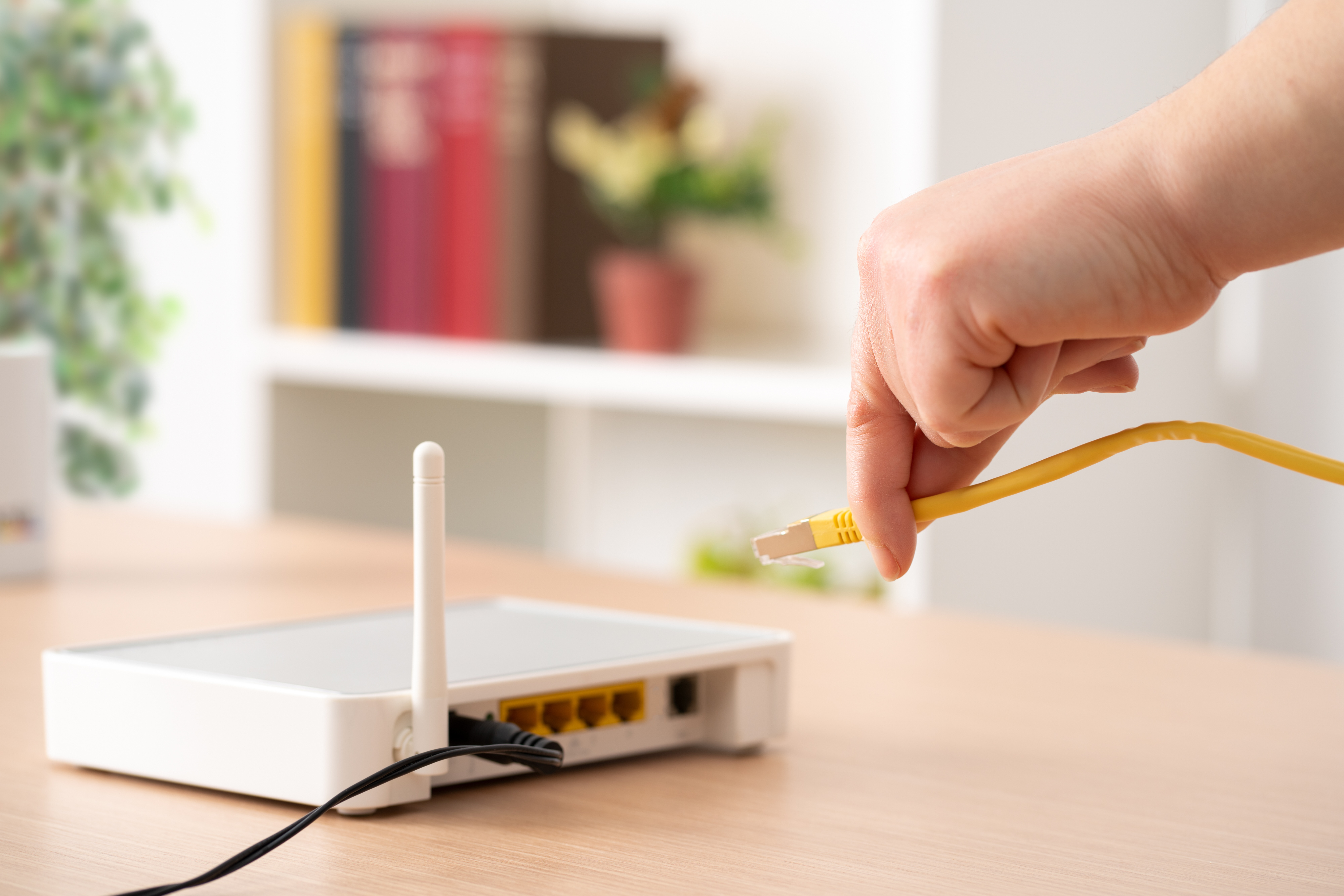
Router LAN ports — these are the ports labeled 1 through 4 on most home routers. This is where you plug in your computer, gaming console, smart TV, or any wired device. Each port on the LAN side feeds a direct connection from your router to that device. Modem to Router WAN port — the WAN port on your router connects to your modem using an Ethernet cable. This is the upstream link that brings internet service into your router from your ISP. Do not use this port for your devices. Network switch — if you need more wired ports than your router provides, plug an Ethernet cable from one of your router's LAN ports into the uplink port of a network switch. The switch then expands the number of available wired connections. Wall Ethernet jacks — in homes that are pre-wired for networking, you can plug into wall-mounted Ethernet ports. These typically route back to a central patch panel or switch, giving you a clean, cable-free desk setup. Device NIC port — every wired-capable device, whether a desktop PC, laptop with an Ethernet port, gaming console, or NAS drive, has a network interface card port. This is the final destination for your cable.
Router vs. Modem: Do Not Get These Confused
A lot of people plug into the wrong port because they mix up the modem and the router, especially when both are combined in a single gateway device provided by their ISP. The modem translates the signal from your ISP. The router manages traffic within your home network and assigns IP addresses to your devices. If you have a combo unit, look for ports labeled LAN — those are your go-to connections for wired devices. The port labeled WAN or Internet is reserved for the upstream connection. Plugging a computer into the WAN port will not give you internet access, and that is a frustrating mistake to troubleshoot if you do not know to check for it.
The Advantages of a Wired Ethernet Connection
There is a reason professional installers, competitive gamers, and remote workers consistently choose wired over wireless. The performance advantages are not marginal — they are substantial. Here is what you gain by plugging in:
Consistent speeds without signal degradation over distance Lower latency that directly improves gaming, video calls, and VoIP Higher bandwidth headroom for 4K streaming, large file transfers, and backups Greater network security since wired connections are harder to intercept than wireless Reduced interference from other devices operating on similar frequencies More predictable uptime with fewer random disconnects
Common Drawbacks to Know Before You Wire Everything
Wired connections are not without trade-offs. Physical cables have to run from point A to point B, and in older homes without built-in wall jacks, that can mean routing cables along baseboards or through walls. Devices like smartphones and tablets do not have Ethernet ports at all, so Wi-Fi will always be part of the equation for mobile use. Cable length also matters — standard Cat6 Ethernet runs are rated up to 328 feet before signal degradation becomes a factor. For most home setups, this is not an issue, but larger spaces may require switches at intermediate points. None of these drawbacks are deal-breakers, but they are worth planning around.
Choosing the Right Ethernet Cable Category
Not all Ethernet cables are built the same. Cat5e handles speeds up to 1 Gbps and is still widely used in residential settings. Cat6 improves on that with better shielding, reduced crosstalk, and supports up to 10 Gbps at shorter distances — making it the current standard for most home and small business installs. Cat6A extends that 10 Gbps performance to 328 feet and is the right choice for structured wiring projects or future-proofed builds. Cat8 is designed for data centers and high-density enterprise environments, supporting speeds up to 40 Gbps over very short runs. For everyday home use, Cat6 hits the sweet spot of performance, compatibility, and cost efficiency.
Pro Tips for Getting the Most Out of Your Wired Setup
Getting the connection right is only part of the equation. How you manage your cables and configure your network also affects long-term performance. Keep cable runs as short and direct as possible without creating tension or sharp bends at the connectors, since physical stress on the cable jacket can degrade performance over time. Use cable clips or raceways to keep runs organized and off the floor. If you are running cables through walls or ceilings, use in-wall rated cables to stay up to code. Test each connection after installation — a misaligned RJ45 crimp or a loose keystone jack is often the silent cause of intermittent drops. And always match your cable category to the capabilities of your router and switch; a Cat6 cable connected to a gigabit switch will only perform as fast as the weakest link in the chain.
When to Use a Network Switch Instead of Going Straight to the Router
Most home routers ship with four LAN ports, which fills up fast once you factor in a desktop, a gaming console, a smart TV, and maybe a NAS or streaming device. That is where an unmanaged network switch earns its place. Plug one cable from your router into the switch's uplink port, and you instantly expand to eight, sixteen, or more available wired connections. For home offices or entertainment rooms where multiple devices need reliable wired access, a compact switch mounted behind a media console or desk is one of the cleanest, most cost-effective network upgrades you can make. It requires no configuration and performs transparently within your existing network.
Why Monoprice Is the Right Source for Your Ethernet Cabling Needs
When it comes to building a reliable wired network, the quality of your cables and gear matters more than most people realize. Monoprice has built a well-earned reputation as a trusted source for high-performance networking products that deliver real results without inflated price tags. From Cat6 and Cat6A patch cables in bulk and pre-made lengths to keystone jacks, patch panels, and network switches, the product lineup is designed to support everything from a simple home wired connection to a fully structured in-wall installation. Whether you are setting up a home office, upgrading an entertainment system, or wiring a small business, you can find high-quality Ethernet cables and wired networking gear built for reliable, fast internet connections that meet the performance and budget requirements of both everyday users and professional integrators. The combination of consistent quality, broad product selection, and straightforward pricing makes Monoprice the practical, professional choice for anyone serious about getting their network right the first time.
Frequently Asked Questions About Where to Plug In an Ethernet Cable
Where exactly do I plug in an Ethernet cable on my router?
Plug your Ethernet cable into one of the LAN ports on your router, typically labeled 1 through 4. These ports connect your wired devices to the router. Avoid the WAN or Internet port, which is reserved for the upstream connection to your modem.
Can I plug an Ethernet cable directly into my modem?
Yes, but only if you are connecting a single device directly to the modem. This bypasses your router, which means no network sharing and no firewall. For most home setups, plugging into the router's LAN port is the better and safer option.
What port do I use on my computer for an Ethernet cable?
Look for the RJ45 port on your computer, which is slightly wider than a phone jack. It is usually found on the back or side of desktops and some laptops. If your laptop does not have one, a USB-to-Ethernet adapter adds that functionality.
Does it matter which LAN port I use on my router?
For most home routers, no. All LAN ports typically operate at the same speed and function identically. Some managed routers allow port-specific configurations, but for standard home use, any available LAN port will work equally well.
Why is my Ethernet connection slower than expected after plugging in?
Check the cable category, the port speed on your router, and the network adapter settings on your device. A Cat5e cable, an older router with 100 Mbps ports, or a device with a limited NIC can all bottleneck your connection regardless of your internet plan speed.
Can I use a wall Ethernet jack instead of running a cable directly to the router?
Yes, if your home is pre-wired and the wall jack is connected back to an active switch or patch panel. Plug one end of your cable into the wall jack and the other into your device. Verify the wall port is live by tracing it back to the network panel.
What is the maximum length I can run an Ethernet cable without losing performance?
The standard maximum for Cat5e, Cat6, and Cat6A cables is 328 feet, or 100 meters, per segment. Beyond that, signal quality degrades. For longer runs, use a network switch at the midpoint to repeat and maintain signal integrity.
Do I need a special Ethernet cable for faster internet speeds?
For most home use, Cat6 is more than sufficient and supports up to 1 Gbps at full length and 10 Gbps at shorter distances. Cat6A is recommended for future-proofed installs or runs longer than 165 feet at 10 Gbps. Cat8 is generally reserved for data center environments.
Can plugging in an Ethernet cable improve my streaming or gaming experience?
Significantly. Wired Ethernet eliminates the latency spikes, interference, and signal inconsistency associated with Wi-Fi. Gamers will notice lower ping times and more responsive gameplay. Streamers benefit from stable bandwidth that prevents buffering and quality drops.
What should I do if my Ethernet cable is plugged in but not working?
Start by checking both ends of the cable for secure seating in the ports. Try a different port on the router and a different cable to isolate the issue. Check your device's network settings to confirm the wired adapter is enabled. If lights on the router port are not illuminating, the cable or port may be faulty.


