

Video Monitor Connector Types: A Complete Display Guide
Video Monitor Connector Types Explained: A Complete Guide to Display Interfaces
If you have ever stared at the back of a monitor, a graphics card, or a projector and felt completely lost by all the ports staring back at you, you are not alone. Display connector types are one of those topics that sits right at the intersection of everyday frustration and genuine technical depth. Whether you are setting up a home office, building a multi-display workstation, or spec-ing out an AV deployment for a client, understanding which connector does what -- and why -- makes a real difference in the quality and reliability of what you end up with. Let us break it all down, from the legacy standards still in use to the modern interfaces pushing 8K and beyond.
What Is a Video Monitor Connector and Why Does It Matter
A video monitor connector is the physical and electrical interface that transmits display signals between a source device -- like a computer, media player, or gaming console -- and an output device like a monitor, television, or projector. These connectors carry video data, and depending on the interface, they may also carry audio, power, and control signals simultaneously. Choosing the right connector type affects image resolution, refresh rate, color depth, cable length limitations, and compatibility across devices. It is not just a plug. It is the pipeline for everything your display is capable of showing.
HDMI: The Universal Standard Most People Know
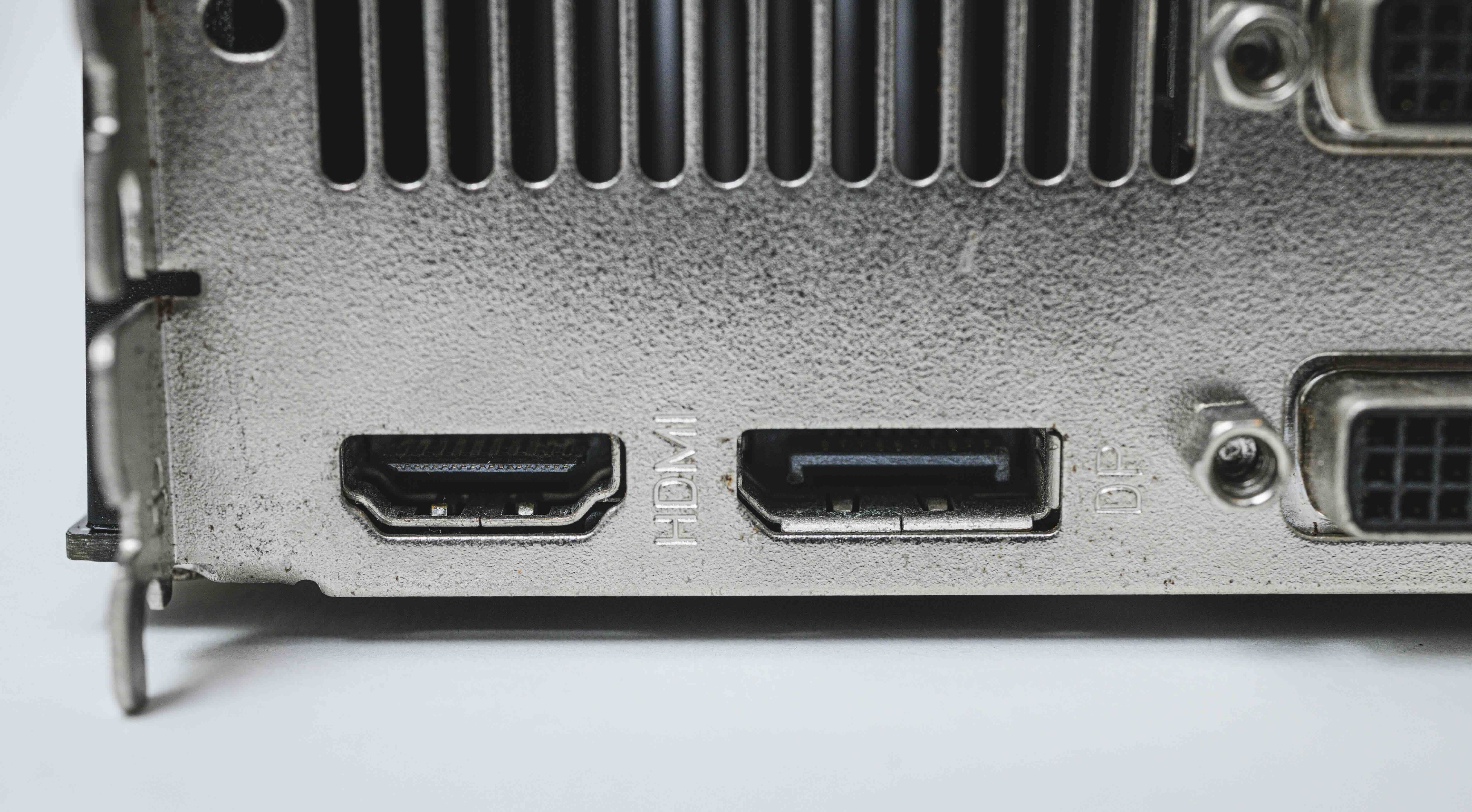
HDMI, or High-Definition Multimedia Interface, is probably the most recognizable connector in consumer electronics today. Introduced in 2002, it consolidated video and audio into a single cable and became the dominant standard for televisions, monitors, laptops, gaming consoles, and projectors. HDMI has gone through several version updates, with HDMI 2.1 being the current high-performance standard supporting up to 10K resolution, 4K at 120Hz, and 8K at 60Hz with HDR passthrough. There are also different physical form factors to know about -- Standard HDMI (Type A), Mini HDMI (Type C), and Micro HDMI (Type D) -- each suited to different device sizes. The main advantage of HDMI is its near-universal adoption, but older HDMI versions (1.4 and below) have real bandwidth limitations that can restrict high refresh rate or high resolution output.
DisplayPort: The Performance-Focused Alternative
DisplayPort was developed by VESA specifically for computer monitors and high-performance display applications. It is the connector you will find on most dedicated graphics cards and professional monitors, and it has some technical advantages over HDMI in certain contexts. DisplayPort 1.4 supports 8K at 60Hz and 4K at 120Hz, while the newer DisplayPort 2.1 standard pushes bandwidth significantly further to enable 16K output and higher. One of DisplayPort's standout features is Multi-Stream Transport, or MST, which allows a single DisplayPort output to daisy-chain multiple monitors. It also supports Adaptive Sync technologies, which matters a lot for gaming setups and motion-sensitive content work. Mini DisplayPort, often associated with older Apple hardware, carries the same signal in a smaller form factor. If resolution and refresh rate performance are priorities, DisplayPort is hard to beat.
USB-C and Thunderbolt: The Modern Multipurpose Interface
USB-C has quickly become one of the most versatile connectors in the industry, and when combined with the right alternate mode -- such as DisplayPort Alt Mode or Thunderbolt 3 and 4 -- it can carry full video signals alongside data and power delivery over a single cable. Thunderbolt 4, developed by Intel in collaboration with Apple, supports up to two 4K displays or a single 8K display, transfers data at 40Gbps, and can deliver up to 100W of power charging simultaneously. This makes USB-C and Thunderbolt particularly compelling for laptop users, content creators, and professionals who want a clean, minimal cable setup. The limitation is compatibility -- not every USB-C port supports video output, and not every monitor accepts USB-C input, so verifying specifications before purchasing is important.
VGA and DVI: Legacy Connectors Still in the Field
VGA, or Video Graphics Array, is an analog connector that dates back to 1987. It is still found in older monitors, projectors, and some budget displays. It does not support audio and its maximum practical resolution is limited, making it a poor fit for modern high-definition content. DVI, or Digital Visual Interface, was introduced in 1999 as an improvement, offering digital signal transmission with variants including DVI-D (digital only), DVI-A (analog only), and DVI-I (integrated, supporting both). DVI can support up to 2560x1600 resolution in its dual-link configuration. Both VGA and DVI are being phased out in newer hardware, but they remain relevant in commercial environments, education settings, and enterprise deployments where older infrastructure has not yet been updated. Adapters and converters can bridge these older standards to modern connectors when needed.
Composite, Component, and S-Video: Older Broadcast and Consumer Standards
These three connector types belong to an earlier era of consumer video and broadcast technology. Composite video combines all video signals into a single yellow RCA connector, which is simple but produces relatively low image quality. S-Video separates the luminance and chrominance signals for slightly better picture clarity than composite. Component video, which uses three separate RCA cables (typically red, green, and blue), was the high-definition standard before HDMI took over, capable of carrying 1080p signals in its best implementations. These connectors still appear in legacy AV setups, older gaming consoles, and certain commercial video systems. Understanding them is useful for integrators and AV technicians who regularly work with mixed-generation equipment.
Key Factors to Consider When Choosing a Video Connector
With so many connector types available, selecting the right one comes down to matching the interface to the intended use case. Here are the primary considerations worth working through before finalizing any display setup:
- Resolution and refresh rate requirements for the display
- Source device outputs and monitor inputs available
- Whether audio needs to travel through the same cable
- Cable length needs, since some interfaces have stricter distance limitations
- Future-proofing, particularly if upgrading hardware down the line
- Budget constraints, since newer cable standards can carry a price premium
- Compatibility with adaptive sync, HDR, or daisy-chaining features
Running through this checklist before purchasing cables or adapters saves a lot of headache. A mismatch between connector version and display capability is one of the most common and easily avoidable setup mistakes in both home and commercial environments.
Common Mistakes When Working With Display Connectors
Even experienced users run into connector-related issues that are easy to avoid with a bit of preparation. One frequent error is assuming all HDMI or DisplayPort cables are created equal -- cable versions matter, and an older HDMI 1.4 cable will bottleneck a monitor capable of 4K at 144Hz. Another common problem is using passive adapters where active adapters are required, particularly when converting between DisplayPort and HDMI at higher resolutions. It is also worth noting that not all USB-C ports carry video signals, and plugging a display cable into the wrong USB-C port on a laptop produces nothing. Always check the specification sheet for both the source device and the display before building out a connector solution.
Why Monoprice Is the Smart Choice for Video Monitor Cables and Adapters
When it comes to sourcing reliable, high-performance display cables and adapters across every connector type covered in this guide, Monoprice delivers on quality without the inflated price tag. From certified HDMI 2.1 cables with full 48Gbps bandwidth support to precision-engineered DisplayPort 1.4 cables built for demanding multi-monitor configurations, the product lineup is designed around real-world performance needs. Whether you are an AV integrator running cable across a commercial deployment or a home user building a clean desktop workstation, the depth of selection and value offered by Monoprice video monitor cables and display connector solutions makes it the practical, cost-effective choice for every type of display project. With a reputation built on consistent quality, transparent specifications, and fair pricing, Monoprice is the kind of supplier that earns long-term trust from both first-time buyers and seasoned IT professionals.
Frequently Asked Questions About Video Monitor Connector Types
What is the best video connector type for a 4K gaming monitor?
For 4K gaming at high refresh rates, HDMI 2.1 or DisplayPort 1.4 are the top choices. Both support 4K at 120Hz and HDR, though DisplayPort has a slight edge for PC gaming due to Adaptive Sync compatibility across a wider range of GPUs.
Can I use an HDMI cable for audio as well as video?
Yes, HDMI carries both audio and video signals over a single cable, which is one of its main advantages over older connector types like VGA and DVI that handle video only.
Is DisplayPort better than HDMI for monitors?
DisplayPort generally offers higher bandwidth and better support for multi-monitor daisy-chaining and high refresh rates in PC environments. HDMI has broader device compatibility and is the standard for televisions and consumer AV equipment.
What is the difference between HDMI 2.0 and HDMI 2.1?
HDMI 2.1 significantly increases bandwidth from 18Gbps to 48Gbps, enabling support for 4K at 120Hz, 8K at 60Hz, Variable Refresh Rate, and enhanced HDR formats that HDMI 2.0 cannot support.
Does USB-C support video output for monitors?
USB-C supports video output only when the port includes DisplayPort Alt Mode or Thunderbolt functionality. Not all USB-C ports carry display signals, so it is important to verify the specifications of your specific device.
Are VGA and DVI still worth using?
VGA and DVI are functional for lower resolution applications and older hardware but are not suitable for 4K or high refresh rate displays. They are being phased out and should be avoided in new builds when modern alternatives are available.
What does active vs passive adapter mean for display connectors?
A passive adapter simply remaps pins between two connector formats, while an active adapter includes circuitry to convert the signal type. Active adapters are required for certain conversions, such as DisplayPort to HDMI at 4K resolution.
Can I daisy-chain monitors using HDMI?
HDMI does not natively support daisy-chaining. DisplayPort with Multi-Stream Transport is the correct interface for daisy-chaining multiple monitors from a single output port.
What connector type should I use for a home theater projector?
HDMI is the standard recommendation for home theater projectors due to its universal support across source devices, combined audio and video transmission, and support for HDR and 4K signals in HDMI 2.0 and 2.1 versions.
How do I know which video connector my monitor supports?
The monitor's specification sheet or product listing will identify all available input ports. Physically inspecting the back panel of the monitor and comparing port shapes to reference diagrams is also a reliable way to identify connector types.


