USB Type-C Explained: Ports, Speeds, and What to Buy
USB Type-C Explained: What It Is, How It Works, and Why It Matters
If you have bought a laptop, smartphone, or tablet in the last few years, you have almost certainly run into USB Type-C. It is that small, oval-shaped port that seems to be showing up on just about everything now. And honestly, for good reason. USB-C is not just another connector update, it is a pretty significant rethink of how devices communicate, charge, and transfer data. But there is a lot of confusion out there about what USB-C actually does, what versions mean, and why two cables that look identical can perform completely differently. So let us walk through all of it, from the basics to the stuff that actually matters when you are buying cables, hubs, or devices.
What Is USB Type-C and Where Did It Come From
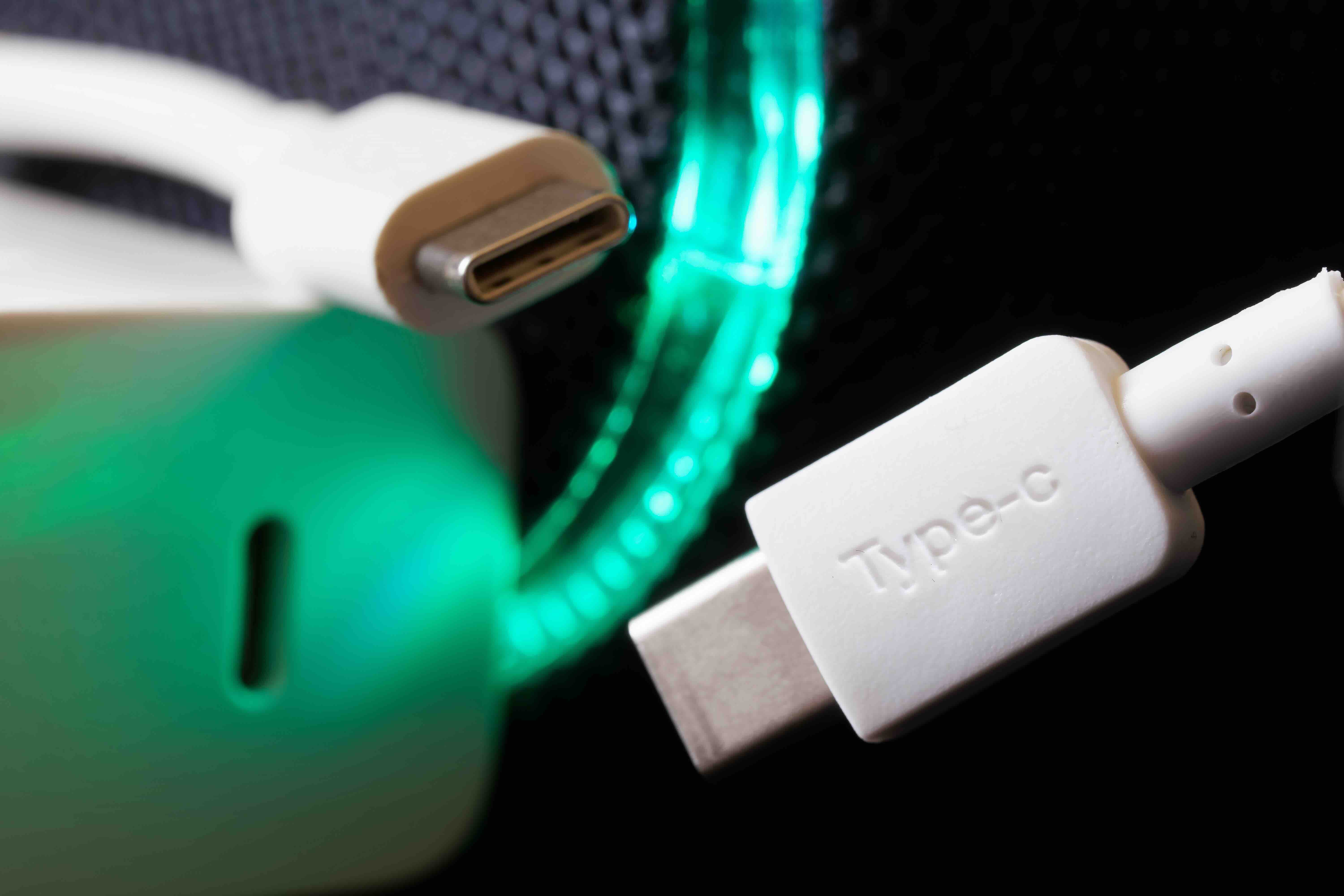
USB Type-C is a connector standard developed by the USB Implementers Forum and introduced around 2014. It was designed specifically to replace the fragmented mess of USB connectors that came before it, things like USB-A, USB-B, Micro-USB, Mini-USB, and so on. The goal was a single, universal connector that could handle power delivery, data transfer, and video output all through one small port. The physical design is symmetrical, meaning you can plug it in either direction without fumbling around. That alone was a massive improvement over its predecessors. USB-C adoption took a few years to really gain traction, but today it is the default on most premium laptops, Android smartphones, tablets, and a growing number of peripherals.
How USB Type-C Actually Works
The connector itself is just the physical interface. What makes USB-C powerful is what protocols it can carry. The port supports multiple data transfer standards, including USB 3.2 Gen 1, USB 3.2 Gen 2, USB4, and in some cases Thunderbolt 3 or Thunderbolt 4. It can also carry DisplayPort and HDMI signals through alternate mode, which is how you plug a monitor directly into a laptop using a single USB-C cable. Then there is USB Power Delivery, or USB-PD, which enables the port to negotiate voltage and current dynamically, supporting charging at up to 240 watts under the EPR specification. All of this happens over the same physical connector. The key thing to understand is that the port and the cable are separate from the protocol running through them. A USB-C port might only support USB 2.0 speeds despite looking identical to one that supports USB4. Always check the specs.
Key Advantages of USB Type-C
There is a reason USB-C has become the standard across the industry. The advantages are genuinely compelling and they stack up fast when you start using a setup built around it.
- Reversible connector design eliminates the frustration of incorrect insertion
- Single port capability for power, data, and video reduces cable clutter significantly
- USB Power Delivery supports high-wattage charging for laptops and professional equipment
- Thunderbolt 4 compatibility on supported hardware delivers up to 40 Gbps bandwidth
- Alternate mode support for DisplayPort and HDMI enables direct monitor connections
- Compact form factor works well across thin devices and mobile hardware
- Universal adoption means fewer adapters and more cross-device compatibility
Common Drawbacks and Limitations You Should Know About
USB-C is not perfect. The biggest source of frustration is that the connector standard does not guarantee capability. Two cables with identical USB-C ends can have wildly different performance. One might support 40 Gbps and 240 watts of power delivery, another might only handle USB 2.0 at 5 watts. There is no way to tell from looking at the cable alone. This has led to real-world problems, including damaged devices from underpowered or miscertified cables. On top of that, not every USB-C port on a device supports the same protocols. A laptop might have three USB-C ports but only one that supports Thunderbolt 4 and video output. Users who do not check documentation end up frustrated when a hub or monitor does not work on the port they assumed would support it. The fragmentation problem USB-C was supposed to solve has partially migrated from the connector shape to the underlying specs.
USB-C Versions and Specs: What the Numbers Actually Mean
Understanding the versioning is critical if you want to buy the right cable or hub. USB 3.2 Gen 1 delivers 5 Gbps transfer speeds. USB 3.2 Gen 2 pushes that to 10 Gbps. USB 3.2 Gen 2x2 doubles the lanes and hits 20 Gbps. USB4 Gen 2x2 reaches 20 Gbps, while USB4 Gen 3x2 tops out at 40 Gbps. Thunderbolt 4 also runs at 40 Gbps and adds mandatory support for dual 4K displays and specific minimum performance requirements that make it more consistent than USB4 alone. For everyday charging and basic data transfer, even a lower-spec USB-C cable is fine. For docking stations, 8K displays, fast external SSDs, or professional AV workflows, you want to match your cable and port specs carefully. The good news is that USB-IF has been working on clearer labeling, and reputable manufacturers include spec information on packaging.
Practical Tips for Getting the Most Out of USB Type-C
Buying the right gear starts with understanding what your device actually supports. Pull up the spec sheet for your laptop or phone and note which USB-C standard is supported on each port. From there, match your cables and accessories accordingly. For power delivery, look for cables rated for the wattage your charger outputs. For video, confirm that your USB-C port supports DisplayPort Alt Mode or Thunderbolt before buying a cable or dock. When shopping for hubs and docking stations, prioritize products that clearly list which host protocols they support. Avoid no-name cables for high-power or high-speed applications. Certified cables from established brands cost a bit more but eliminate compatibility guesswork and protect your devices.
USB-C in Professional and B2B Environments
In enterprise and professional AV environments, USB-C has become genuinely important infrastructure. IT departments managing hybrid workspaces rely on Thunderbolt 4 docks to give employees a single-cable connection to monitors, peripherals, and network. AV integrators are increasingly specifying USB-C for conference room setups where simplicity and bandwidth matter. For procurement teams, standardizing on USB-C across a device fleet simplifies accessory management and reduces support overhead. The push toward a single universal connector also aligns well with sustainability goals, reducing cable waste and adapter redundancy over device refresh cycles. USB-C is no longer just a consumer convenience, it is a serious infrastructure consideration for organizations building out modern workspaces.
USB-C vs. Thunderbolt 4: Understanding the Relationship
One of the more confusing aspects of USB-C is its relationship to Thunderbolt 4. Thunderbolt 4 uses the USB-C connector but is a separate protocol developed by Intel and licensed to device manufacturers. It runs at 40 Gbps, requires support for two 4K displays or one 8K display, mandates a minimum of 32 Gbps PCIe bandwidth, and supports daisy-chaining up to six devices. All Thunderbolt 4 ports are USB-C, but not all USB-C ports are Thunderbolt 4. Thunderbolt 4 cables are backward compatible with USB-C devices, but a standard USB-C cable will not unlock Thunderbolt 4 performance. For power users running high-resolution displays and fast storage simultaneously, Thunderbolt 4 is worth seeking out. For general use, USB4 or USB 3.2 Gen 2 is more than adequate.
Why Monoprice Is a Smart Choice for USB Type-C Cables and Accessories
When it comes to building a reliable USB-C setup without overspending, Monoprice delivers exactly what professionals and everyday users need. The product lineup covers everything from certified USB-C charging cables to Thunderbolt 4 hubs and docking stations, all built to clear performance standards and backed by transparent specifications. There is no guesswork about what you are getting. Whether you are outfitting a home office, a conference room, or an enterprise deployment, the range is deep enough to cover it. If you are looking for high-performance USB Type-C cables, hubs, and charging solutions from a brand that takes specs seriously, explore Monoprice USB-C cables and accessories built for real-world performance and see how far your dollar actually goes. The value proposition here is not about cutting corners, it is about delivering what the spec demands at a price that makes sense for the long haul.
Frequently Asked Questions About USB Type-C
What makes USB-C different from USB-A?
USB-C uses a smaller, oval, symmetrical connector that can be inserted in either orientation. It supports higher power delivery, faster data transfer speeds, and video output through a single port, capabilities that USB-A cannot match at the same level.
Can I use any USB-C cable with any USB-C device?
Physically yes, but performance will be limited by the lower-rated component in the chain. A USB 2.0 rated cable used with a USB4 device will only operate at USB 2.0 speeds. Always match cable specs to your device and use case requirements.
Does every USB-C port support video output?
No. Video output through USB-C requires support for DisplayPort Alternate Mode or Thunderbolt. Many USB-C ports, particularly on lower-cost devices or secondary ports on laptops, do not support video output at all. Check your device specifications before buying a cable or dock.
What is USB Power Delivery and how much can it charge?
USB Power Delivery is a charging protocol that allows a USB-C port to negotiate voltage and current with the connected charger. Standard USB-PD supports up to 100 watts, while the Extended Power Range specification increases that ceiling to 240 watts, suitable for high-performance laptops and professional equipment.
Is Thunderbolt 4 the same as USB4?
No, though they share the USB-C connector and some capabilities. Thunderbolt 4 is an Intel-developed protocol with stricter certification requirements, including mandatory 40 Gbps speeds, specific display support requirements, and PCIe bandwidth minimums. USB4 has more flexible requirements and is not always as consistently capable as Thunderbolt 4.
How do I know if my USB-C cable supports fast charging?
Look for cables certified for USB Power Delivery and rated for the wattage you need. Cables from reputable manufacturers will list wattage ratings and USB-PD compliance on the packaging. Uncertified cables may not support high wattage safely.
Can USB-C cables damage my device?
A poorly made or miscertified cable can potentially deliver incorrect voltage or current and damage connected devices. This is why buying from established brands with clear certification claims matters. Look for USB-IF certified cables when safety and reliability are priorities.
What is the maximum data transfer speed for USB-C?
It depends on the underlying protocol. USB 3.2 Gen 2 reaches 10 Gbps. USB4 Gen 3x2 and Thunderbolt 4 both hit 40 Gbps. The maximum theoretical speed today over a USB-C connector with the right protocol and cable is 40 Gbps, though real-world speeds vary based on hardware and workload.
Will USB-C eventually replace all other connectors?
That is the direction the industry is heading. Regulatory bodies in multiple regions have mandated USB-C as the common charging standard for consumer electronics. USB-A, HDMI, and other legacy connectors will remain in use for years, but new device designs are increasingly defaulting to USB-C as the primary or sole port.
What should I look for when buying a USB-C hub or docking station?
Check that the hub specifies which USB-C protocols it supports on the host side, how many and what type of ports it offers, maximum power passthrough for laptop charging, and whether it supports DisplayPort or HDMI at the resolution and refresh rate you need. Match the hub's host protocol requirement to what your laptop or device actually supports.