

USB Type-C Explained: Ports, Protocols, and What Matters
What Is a USB Type-C Port and Why Does It Matter?
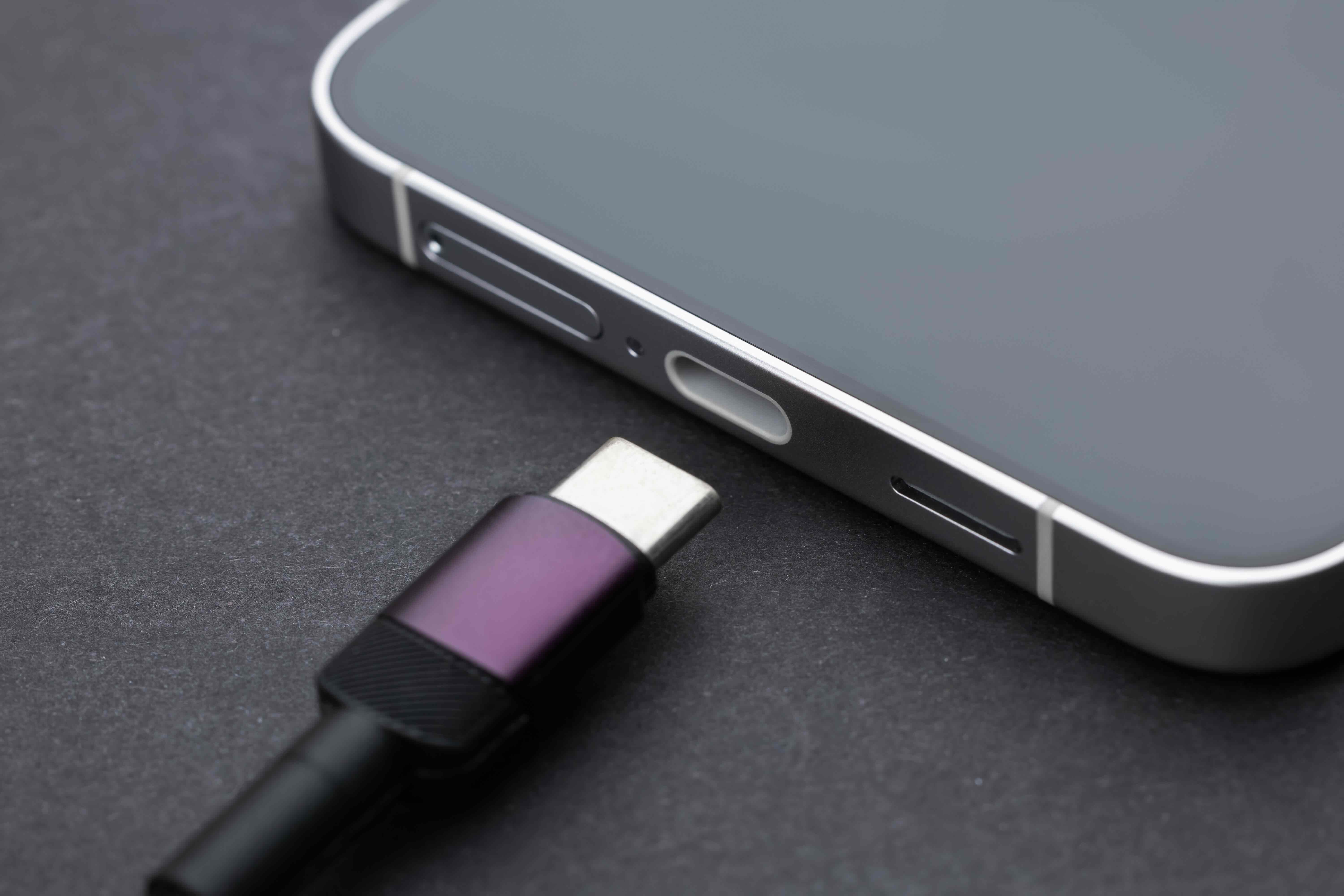
If you have purchased a laptop, smartphone, or tablet in the last few years, there is a good chance you have already encountered a USB Type-C port -- whether you realized it or not. It is that small, oval-shaped connector that looks almost identical on both ends. No more flipping the cable three times trying to get it in the right way. Type-C just... works. But beyond the convenience of an orientation-free plug, there is a lot more going on with this connector than most people take the time to understand. And honestly, understanding it properly can save you from buying the wrong cable, the wrong dock, or worse -- damaging your gear. So let us walk through what USB Type-C actually is, how it functions, and what you should know before making any purchasing decisions around it.
The Origin and Design of USB Type-C Connectors
USB Type-C -- often written as USB-C -- was developed by the USB Implementers Forum and introduced around 2014. The goal was pretty straightforward: create a universal connector that could handle power delivery, data transfer, and video output all through a single port. The physical connector itself is compact, symmetrical, and designed to replace the growing mess of connector types that had accumulated over the years -- Micro-USB, Mini-USB, USB Type-A, and so on. The symmetrical design means the plug inserts correctly regardless of which way it is oriented, which is a small quality-of-life improvement that anyone who has fumbled with a Micro-USB cable in the dark will genuinely appreciate. The connector has 24 pins internally, which is what enables it to carry so much data and power simultaneously.
How USB Type-C Actually Works
Here is where it gets a little layered, and this part matters. USB Type-C is a connector type -- not a protocol. That distinction trips people up constantly. The physical port might look the same on every device, but what it can actually do depends on the underlying protocol or standard it supports. A USB-C port might support USB 2.0 speeds on a budget device, or it might support USB 3.2 Gen 2, Thunderbolt 4, or DisplayPort Alternate Mode on a higher-end system. USB Power Delivery, also known as USB PD, is a separate protocol that enables the port to negotiate and transfer higher wattage for charging -- sometimes up to 240W with the newer PD 3.1 specification. So when you see a USB-C port, you need to ask: what version is it, and what protocols does it support? That determines everything from how fast your files transfer to whether you can run a 4K display through it.
Key Advantages of USB Type-C
There are real, practical reasons why USB-C has become the default connector across most modern devices. The advantages are not just marketing language -- they reflect genuine engineering improvements over previous generations.
- Universal compatibility across device types
- Reversible plug design eliminates orientation frustration
- Supports high-speed data transfer up to 40Gbps with Thunderbolt 4
- Capable of delivering up to 240W of power through USB PD 3.1
- Supports video output including 4K and 8K via DisplayPort and HDMI Alt Mode
- Enables single-cable docking solutions for laptops and workstations
- Compact form factor fits in thinner, lighter devices without compromise
The single-cable workstation setup is probably the most compelling use case for everyday users. Connect one USB-C cable to a dock, and you get power, display output, ethernet, and peripheral access all at once. For anyone working in a hybrid environment or moving between a home office and a desk at work, that kind of simplicity has real value.
Common Drawbacks and Things to Watch Out For
Right, so here is the part that does not always make it into the product listing. USB-C has a well-documented fragmentation problem. Because the physical connector is standardized but the underlying capabilities are not, two cables that look completely identical can perform very differently. A USB-C cable rated for USB 2.0 will not give you the fast transfer speeds you might expect. A cable that supports charging might not support video output. And some cables are rated for Thunderbolt 4 while others that look identical are not. This lack of visual differentiation is genuinely frustrating. Add to that the fact that not all USB-C ports on the same device are created equal -- some laptops have one full-featured USB-C port and one that only supports charging or basic data -- and you have a setup that requires a bit more homework than it probably should.
USB Type-C vs. Thunderbolt 4: Understanding the Relationship
This is one of the most common points of confusion, so it deserves its own section. Thunderbolt 4 uses the USB-C physical connector, but it is not the same as USB-C. Thunderbolt 4 is a specification developed by Intel that runs over the USB-C form factor and offers 40Gbps bandwidth, support for two 4K displays or one 8K display, and daisy-chaining of up to six devices. Every Thunderbolt 4 port is USB-C compatible, but not every USB-C port supports Thunderbolt 4. If you are building out a high-performance workstation or need to run multiple monitors through a single cable, Thunderbolt 4 is the relevant spec to look for. Devices with Thunderbolt 4 support will typically display a small lightning bolt icon next to the port, though that is not always consistent across manufacturers.
Choosing the Right USB Type-C Cable for Your Setup
Cable selection is where a lot of people unknowingly make mistakes, and it usually shows up as a frustrating experience rather than an obvious failure. A few practical points worth keeping in mind when shopping for USB-C cables:
- Look for cables that specify their USB version, not just the connector type
- Confirm wattage rating if you are using the cable for charging high-power devices
- For video output, verify that the cable supports DisplayPort Alt Mode or HDMI Alt Mode
- Thunderbolt 4 cables are backward compatible with USB-C and USB4 devices
- Longer cables may not support the same speeds or wattage as shorter cables
- Certified cables from reputable manufacturers reduce the risk of compatibility issues
The bottom line is that not all USB-C cables are equivalent, and paying a little more for a cable that is clearly spec-labeled and certified is almost always worth it. Cheap, unlabeled cables are a common source of charging failures, data errors, and in rare cases, hardware damage.
USB Type-C in the Context of Modern Workspaces and AV Integration
For integrators, IT managers, and anyone speccing out a hybrid workspace, USB-C has become the connective tissue of modern infrastructure. USB-C docking stations now serve as the central hub for entire workstation setups, replacing the tangled webs of adapters and individual cables that once cluttered every desk. In professional AV environments, USB-C with DisplayPort Alt Mode or Thunderbolt 4 enables clean, low-latency video over a single cable run -- which matters in conference rooms, classrooms, and production environments where signal quality and cable management are both priorities. The transition to USB-C across laptops, monitors, and peripherals is ongoing, but it is accelerating. Planning infrastructure around USB-C now is simply the smarter long-term decision.
Why Monoprice Is the Right Source for USB Type-C Cables and Accessories
When it comes to sourcing USB-C cables, docks, and adapters, the brand behind the product matters more than most people realize. Certified cables, clearly labeled specifications, and consistent build quality are not optional -- they are what separates reliable performance from frustrating guesswork. Monoprice has built a well-earned reputation in the technology industry for delivering exactly that: high-performance connectivity solutions at pricing that makes sense for both individual buyers and large procurement teams. Whether you are outfitting a single home office or speccing cables across an entire enterprise deployment, the consistency and value offered by USB Type-C cables and accessories from Monoprice make it a straightforward choice. Products are clearly spec-labeled, certifications are taken seriously, and the range covers everything from basic charging cables to full Thunderbolt 4 solutions. That kind of transparency is harder to find than it should be, and it is exactly what buyers need when navigating a connector ecosystem that can otherwise get complicated fast.
Frequently Asked Questions About USB Type-C
What is the difference between USB-C and USB 3.0?
USB-C refers to the physical connector shape, while USB 3.0 refers to the data transfer protocol and speed standard. A USB-C port can support USB 3.0 speeds, but it can also support older or newer protocols depending on the device.
Can I use any USB-C cable to charge my laptop?
Not all USB-C cables support high-wattage charging. You need a cable that specifies USB Power Delivery support and is rated for the wattage your laptop requires. Using an underpowered cable may result in slow or no charging.
Is USB-C the same as Thunderbolt 4?
No. Thunderbolt 4 uses the USB-C physical connector but is a separate, higher-performance specification developed by Intel. Not all USB-C ports support Thunderbolt 4, and not all Thunderbolt 4 cables are standard USB-C cables.
Can a USB-C port output video to a monitor?
Yes, if the port supports DisplayPort Alternate Mode, HDMI Alternate Mode, or Thunderbolt. Not all USB-C ports have video output capability, so it is important to check your device specifications before purchasing a cable or adapter.
Why does my USB-C cable charge slowly?
Slow charging through USB-C is typically caused by a cable that does not support USB Power Delivery, a charger with insufficient wattage output, or a cable that is too long and experiences power loss. Check that all components in the chain are rated appropriately.
How do I know if my USB-C port supports Thunderbolt 4?
Look for a small lightning bolt icon printed next to the port on your device. You can also check the manufacturer specifications for your laptop or device model to confirm Thunderbolt 4 support.
Are USB-C cables backward compatible with older USB standards?
Yes, USB-C cables and ports are generally backward compatible with older USB standards, though you may need an adapter to connect to devices with Type-A or Micro-USB ports. Performance will default to the lower of the two connected devices.
What is USB Power Delivery and how much power can it deliver?
USB Power Delivery is a protocol that allows USB-C connections to negotiate and transfer higher levels of electrical power. The latest version, USB PD 3.1, supports up to 240 watts, making it suitable for charging high-performance laptops and even some workstations.
Can I daisy-chain monitors using a USB-C connection?
Daisy-chaining monitors through USB-C is possible when using Thunderbolt 4, which supports connecting up to six devices in sequence. Standard USB-C with DisplayPort Alt Mode does not natively support daisy-chaining in the same way.
What should I look for when buying a USB-C hub or dock?
Look for clearly labeled port specifications, supported power delivery wattage, maximum data transfer speeds, and the number and type of ports included. Verified compatibility with your device and a reputable brand are also important factors in ensuring reliable performance.


