

USB Type-A Cables: Specs, Versions, and What to Buy
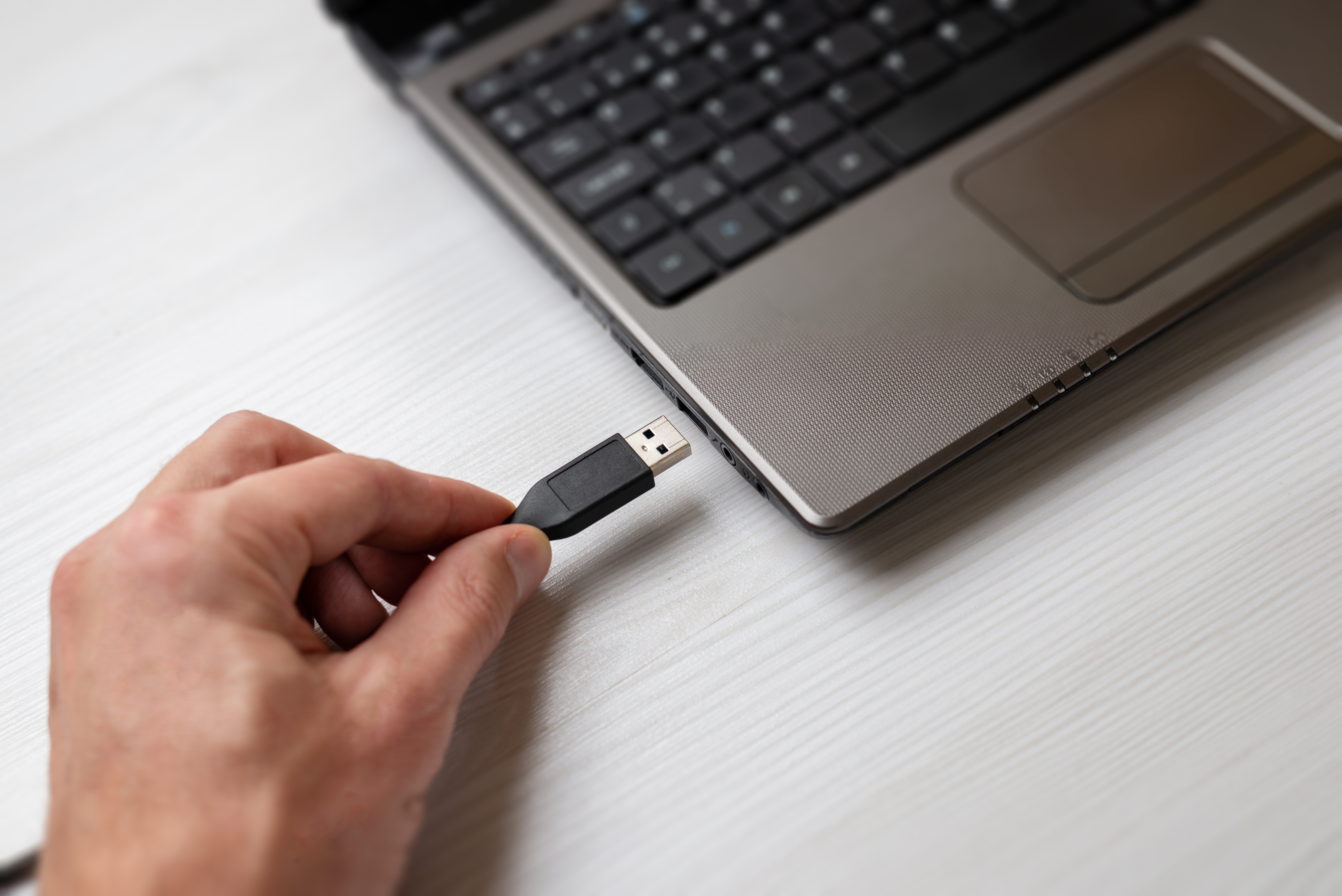
USB Type-A Explained: Everything You Need to Know About the World's Most Recognized Connector
If you have ever plugged a flash drive into a computer or charged a device using a rectangular connector, you have already used USB Type-A. It is one of those technologies so embedded in daily life that most people never stop to think about how it actually works or why it matters. But understanding USB Type-A, its capabilities, and its limitations can genuinely help you make smarter decisions when purchasing cables, hubs, adapters, and peripherals. So let us break it all down in plain terms, starting from the beginning.
What Is USB Type-A and Where Did It Come From
USB Type-A is the flat, rectangular connector that has been a fixture on computers, chargers, and peripherals since the mid-1990s. The USB standard, short for Universal Serial Bus, was introduced in 1996 as a way to unify the chaotic landscape of proprietary connectors and serial ports that defined personal computing at the time. Type-A was designated as the host-side connector, meaning it is the end that plugs into a power source or host device like a laptop or desktop. It was designed to be durable, easy to insert, and universally recognizable. Over the decades, it has survived multiple generations of the USB standard and remains one of the most widely deployed connectors on the planet.
How USB Type-A Works: The Technical Basics Without the Jargon
USB Type-A connectors house four pins inside that rectangular housing. Those pins handle power delivery, data transfer, and ground connections. When you plug a USB Type-A cable into a host device, the connection establishes communication between the host and whatever peripheral is on the other end. The connector itself has not changed much physically over the years, which is one of its most underrated strengths. What has changed significantly is the version of USB running through it. USB 1.1 offered transfer speeds up to 12 Mbps. USB 2.0 pushed that to 480 Mbps. USB 3.0 and its revisions, now labeled USB 3.2 Gen 1 and Gen 2, deliver speeds from 5 Gbps up to 10 Gbps depending on the cable and device. The connector looks the same on the outside, but the performance difference between a USB 2.0 port and a USB 3.2 Gen 2 port is substantial.
USB Type-A Versions at a Glance
Keeping the different versions straight can be genuinely confusing because the naming conventions have changed multiple times. Here is a quick reference to help you identify what you are working with based on typical color coding and specs:
- USB 1.1 -- up to 12 Mbps, white or no color designation, older devices only
- USB 2.0 -- up to 480 Mbps, black port color, still extremely common
- USB 3.2 Gen 1 (formerly USB 3.0) -- up to 5 Gbps, blue port color
- USB 3.2 Gen 2 (formerly USB 3.1) -- up to 10 Gbps, often teal or red port color
- USB 3.2 Gen 2x2 -- up to 20 Gbps, rare in Type-A form factor, mostly seen in Type-C
Port color is not always a reliable indicator since manufacturers do not all follow the same conventions, but it is a reasonable starting point when you are trying to figure out what you are dealing with on an older piece of equipment or a budget device.
Key Advantages of USB Type-A Connectivity
The reasons USB Type-A has stayed relevant for nearly three decades come down to a few core strengths that are difficult to dismiss. First is universal compatibility. An enormous installed base of devices, from keyboards and mice to external hard drives and webcams, rely on Type-A connectors. You are not going to have trouble finding something that works with it. Second is physical durability. The connector is designed to withstand thousands of insertion cycles, and the rectangular shape prevents incorrect insertion, which actually extends the life of both the port and the cable. Third is backward compatibility across USB generations, meaning a USB 2.0 device will still function when plugged into a USB 3.2 port, albeit at reduced speeds. Fourth is widespread availability of quality cables and accessories at accessible price points, which matters especially for businesses managing large deployments.
Common Drawbacks You Should Know About
USB Type-A is not without its frustrations. The most frequently cited is the lack of reversibility. Unlike USB Type-C, the Type-A connector only inserts one way, and somehow everyone manages to get it wrong on the first attempt. That is a minor annoyance but worth mentioning because it does contribute to wear over time with repeated fumbled insertions. More significant from a performance standpoint is that Type-A has a ceiling. The connector physically cannot support the full bandwidth of USB4 or Thunderbolt 4 protocols, which require the Type-C form factor. For everyday tasks like transferring documents, connecting input devices, or powering accessories, this is irrelevant. For high-demand workflows involving large video files or daisy-chained devices, the limitations become more tangible. There is also no native video output capability through Type-A alone, which limits its utility for display connectivity without adapters.
USB Type-A vs USB Type-C: Understanding the Difference
This comparison comes up constantly and for good reason. USB Type-C is the newer standard and offers meaningful advantages including reversible insertion, higher maximum data transfer speeds, video output, and greater power delivery capacity. However, Type-C has not replaced Type-A in most real-world environments, and likely will not for years. Many monitors, printers, desktop computers, and enterprise peripherals still rely on Type-A ports. The practical approach for most users and IT teams is to work with both, using adapters or cables with Type-A on one end and Type-C on the other where needed. That flexibility is something that quality cable manufacturers have addressed directly with hybrid cable options designed to bridge the gap between older and newer ecosystems.
Practical Tips for Getting the Most Out of USB Type-A
There are some straightforward things you can do to maximize performance and longevity when working with USB Type-A connections in any environment:
- Always match your cable version to the port version for optimal data transfer speeds
- Use USB 3.2 Gen 1 or Gen 2 cables for external storage drives to avoid unnecessary bottlenecks
- Invest in quality cables with proper shielding to reduce interference in high-density setups
- Use powered USB hubs when connecting multiple devices to avoid insufficient power distribution
- Label or color-code cables in professional or rack-mounted environments for easier management
- Avoid forcing connectors -- if it resists, flip it and try again to prevent pin damage
These habits sound simple but they genuinely extend the life of your hardware and prevent the kind of subtle performance degradation that comes from using mismatched or low-quality cables in demanding setups.
Where USB Type-A Fits in Modern Technology Environments
Despite the rise of USB-C and Thunderbolt, USB Type-A remains deeply embedded in professional and consumer environments alike. Most desktop computers still ship with multiple Type-A ports. USB-A flash drives are standard in offices and educational institutions. Keyboards, mice, headsets, and legacy peripherals continue to use the format because there is no pressing reason to replace them when they function reliably. In commercial AV, USB-A ports appear on presentation systems, video conferencing hardware, and control systems. In IT infrastructure, USB-A connections appear on KVM switches, server management tools, and network devices. The format is not disappearing -- it is evolving alongside newer standards while holding its ground in the spaces where it performs without compromise.
Why Monoprice Is the Right Source for Your USB Type-A Cable and Accessory Needs
When you are sourcing USB Type-A cables, hubs, adapters, or accessories for your home office, commercial AV setup, or enterprise environment, the quality and value of what you buy genuinely matters. Monoprice has built a well-earned reputation as a trusted supplier for both individual consumers and B2B buyers who need reliable connectivity solutions without inflated pricing. Whether you need a straightforward USB-A to USB-B printer cable or a high-speed USB 3.2 Gen 2 setup for external storage, the selection is broad and the specs are clearly presented so you are never guessing about what you are getting. You can explore a full range of USB Type-A cables and connectivity accessories at Monoprice and find options that fit precisely what your setup demands, at a price point that respects your budget without compromising on build quality. This is the kind of straightforward, performance-first sourcing that IT teams, integrators, and everyday users have come to rely on.
Frequently Asked Questions About USB Type-A
What does USB Type-A look like?
USB Type-A is a flat, rectangular connector typically found on host devices like laptops, desktops, wall chargers, and USB hubs. It is wider than it is tall and only inserts in one orientation.
Is USB Type-A the same as USB 3.0?
No. USB Type-A refers to the physical shape of the connector. USB 3.0 refers to the data transfer standard. A USB Type-A port can support USB 1.1, 2.0, 3.0, 3.1, or 3.2 depending on the device it is built into.
Can I use a USB Type-A cable with a USB-C device?
Not directly, but you can use a USB-A to USB-C cable or an adapter to connect the two. These are widely available and work well for charging and data transfer within the speed limitations of the USB-A side.
How do I know if my USB Type-A port is USB 3.0 or 2.0?
USB 3.0 ports are commonly colored blue on the inside, while USB 2.0 ports are typically black or white. You can also check your device specifications or system settings to confirm port versions.
Is USB Type-A being phased out?
Not imminently. While USB-C is increasingly standard in newer devices, USB Type-A remains prevalent in desktops, peripherals, and enterprise hardware. It will coexist with newer formats for the foreseeable future.
What is the maximum data transfer speed for USB Type-A?
USB Type-A supports up to 10 Gbps with USB 3.2 Gen 2. Some implementations reach 20 Gbps under specific conditions, though this is uncommon in the Type-A form factor.
Can USB Type-A deliver power for charging devices?
Yes. USB Type-A ports can deliver power for charging smartphones, tablets, and other accessories. Standard ports deliver around 5V at 0.5A to 0.9A, though some support USB Battery Charging profiles for faster output.
What is the difference between USB-A and USB-B?
USB-A is the host connector found on computers and chargers. USB-B is the square-shaped device-side connector commonly found on printers and some audio interfaces. They serve different roles within the same cable.
Do USB Type-A cables affect transfer speeds?
Yes, absolutely. Using a USB 2.0 cable on a USB 3.2 port will limit speeds to USB 2.0 maximums. Always match your cable version to the port and device to avoid unnecessary bottlenecks.
Are all USB Type-A connectors the same size?
Standard USB Type-A connectors are the same size, but there are also Mini-USB and Micro-USB variants with different form factors. These are not the same as full-size USB Type-A and are typically found on smaller devices and older accessories.


