

USB-C 3.2 Explained: Speeds, Specs, and Smart Buying
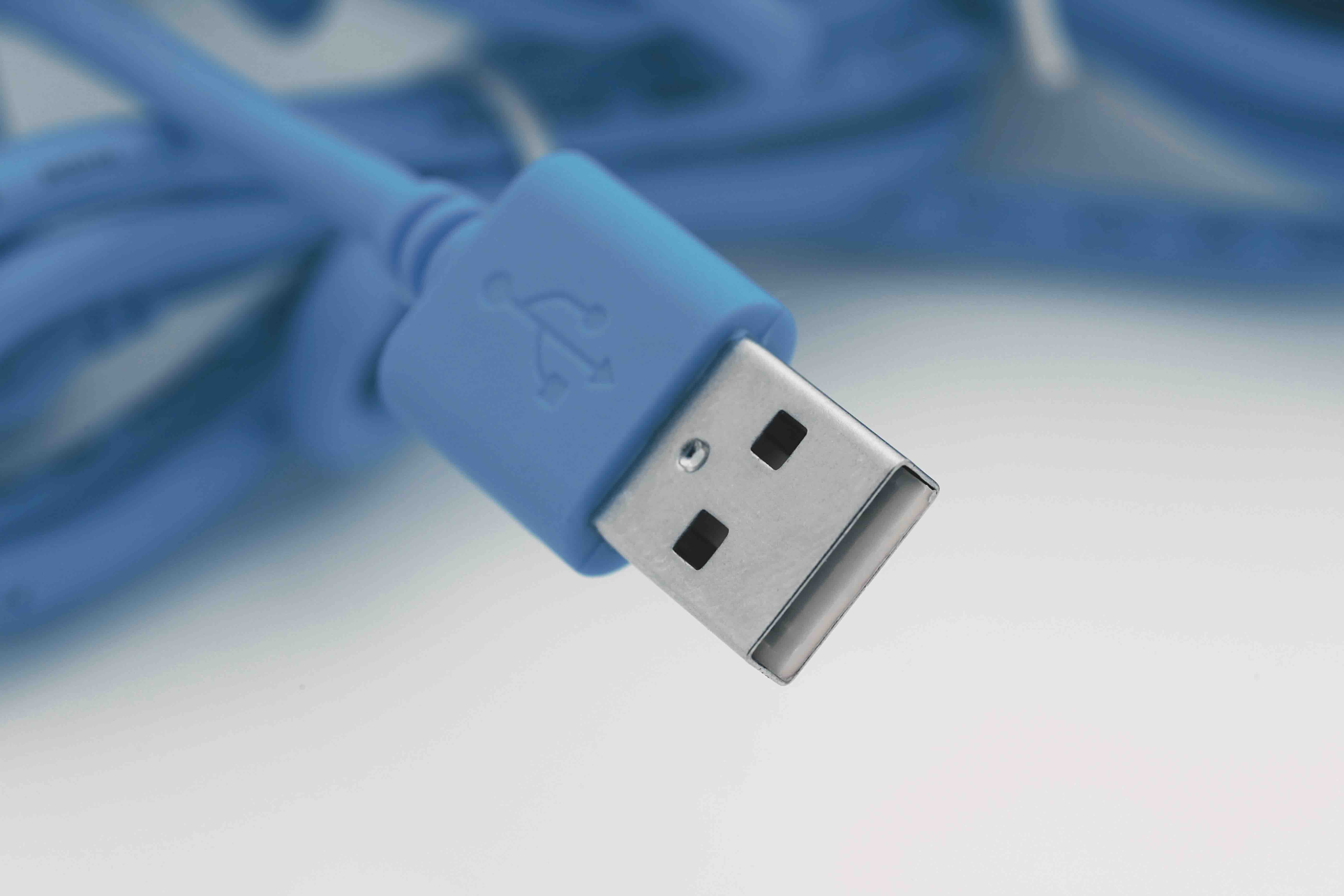
USB-C 3.2 Explained: What It Is, How It Works, and Why It Matters for Your Setup
USB-C 3.2. You have probably seen those letters and numbers stamped on a cable package or listed in a laptop spec sheet, and maybe you glossed right over them. Totally fair. The USB naming situation has been, honestly, a bit of a mess over the years. But here is the thing: USB-C 3.2 is genuinely worth understanding, especially if you are building out a workstation, speccing a conference room, or just trying to figure out why your new cable is not performing the way you expected. This guide breaks it all down in plain language, covers the specs that actually matter, and helps you make smarter purchasing decisions the first time around.
What Is USB-C 3.2 and Where Did It Come From?
USB 3.2 is a specification developed by the USB Implementers Forum, or USB-IF, and it defines how data moves through a USB connection at specific speeds. The "C" in USB-C refers to the physical connector shape, which is that small, oval, reversible plug that has become standard on most modern devices. So when you see USB-C 3.2, that means you are looking at a USB-C connector running on the USB 3.2 protocol. The standard was finalized in 2017 and introduced a multi-lane operation mode, which was a significant engineering step. Previous generations used a single data lane, but USB 3.2 introduced the ability to run two lanes simultaneously, effectively doubling throughput without requiring a completely new physical interface. This matters more than it might sound at first.
Breaking Down the USB 3.2 Speed Tiers
Here is where things get a little technical but stay with it because this is the part most buyers get wrong. USB 3.2 is not a single speed. It is actually a family of three performance tiers, each with a distinct throughput ceiling. Understanding which tier your cable or device supports is critical before you commit to a purchase.
- USB 3.2 Gen 1 -- also called USB 3.1 Gen 1 or USB 3.0 -- delivers up to 5 Gbps over a single lane
- USB 3.2 Gen 2 -- also called USB 3.1 Gen 2 -- delivers up to 10 Gbps over a single lane
- USB 3.2 Gen 2x2 -- the newest tier -- delivers up to 20 Gbps by running two 10 Gbps lanes simultaneously
That 20 Gbps ceiling on Gen 2x2 is the headline number, and it represents a real performance leap for workflows that involve large file transfers, external storage arrays, or high-resolution video capture. The catch is that both your cable and your host device need to support Gen 2x2 to hit that ceiling. A Gen 2x2-capable drive plugged into a Gen 1 port will only perform at Gen 1 speeds. Always check both ends of the connection.
How USB-C 3.2 Actually Works
At the physical level, USB-C 3.2 uses the SuperSpeed USB architecture, which is the technical name for the high-speed data paths built into the USB-C connector. The connector itself has 24 pins, and several of those are dedicated to the high-speed data lanes that enable 3.2-tier throughput. The multi-lane operation in Gen 2x2 works by bonding two separate 10 Gbps channels, which requires the controller chips on both ends to coordinate that lane aggregation. It is a bit like adding a second lane to a highway: the road looks the same from the outside, but the total traffic capacity doubles. This architecture also means that USB-C 3.2 cables are backward compatible with older USB standards, though performance will always default to the lowest common denominator in the chain.
Key Advantages of USB-C 3.2
There are several practical reasons USB-C 3.2 has become a go-to standard for power users, IT teams, and integrators building scalable infrastructure.
- Reversible connector design eliminates orientation guesswork during cable connections
- Backward compatibility with USB 3.1, USB 3.0, and USB 2.0 devices protects existing hardware investments
- Up to 20 Gbps throughput on Gen 2x2 supports demanding storage and video workflows
- Power delivery support up to 100W on compatible cables enables single-cable charging for laptops
- Compact connector footprint works across phones, tablets, laptops, hubs, and docking stations
- Alternate mode support allows the same port to carry DisplayPort or HDMI signals alongside data
That last point deserves a little extra attention. Alternate mode is one of the features that makes USB-C 3.2 uniquely flexible in professional environments. A single port can carry data, power, and video simultaneously through the right cable and adapter combination, which simplifies cable management in tight installs and reduces the port count required on devices. For integrators and IT pros managing large deployments, that kind of flexibility translates directly into cost and time savings.
Common Limitations to Know Before You Buy
USB-C 3.2 is a capable standard, but it is not without real-world constraints. The biggest issue most users run into is cable certification and labeling confusion. Not every cable marketed as USB-C 3.2 is built to the same spec. Some cables that carry the USB-C connector are only wired for USB 2.0 speeds, which means they will never hit 3.2-tier throughput regardless of your hardware. Checking for USB-IF certification markings or purchasing from a supplier that clearly states the cable's rated speed tier is essential. Additionally, Gen 2x2 at 20 Gbps requires a cable rated for that speed, and not all USB-C cables qualify. Cable length also plays a role: passive USB-C 3.2 cables generally max out reliable performance at around one meter, with signal integrity degrading at longer runs without active cable technology. For installations requiring longer spans, active optical cables or signal-boosted solutions may be necessary.
USB-C 3.2 vs. Thunderbolt 4 and USB4: Understanding the Landscape
This comparison comes up constantly, and it makes sense that people are confused. Thunderbolt 4 and USB4 both use the USB-C connector and operate at speeds that overlap with or exceed USB 3.2 Gen 2x2. Thunderbolt 4 mandates a minimum of 40 Gbps throughput and strict certification requirements, making it more consistent but also more expensive. USB4, released in 2019, incorporates the USB 3.2 protocol as a subset and can scale up to 40 Gbps on capable hardware. USB-C 3.2 remains the most widely supported and cost-accessible tier in the ecosystem, which is exactly why it continues to dominate in mainstream professional and consumer products. For most workflows that do not require Thunderbolt-specific features like daisy-chaining external displays or eGPU support, USB-C 3.2 Gen 2 or Gen 2x2 is more than sufficient and considerably more affordable to deploy at scale.
Practical Tips for Choosing the Right USB-C 3.2 Cable or Device
Getting the right product comes down to a few straightforward checks that take less time than most people think. First, identify what speed tier your host device supports by checking the manufacturer specs, not just the physical port shape. Second, match your cable rating to that tier. A Gen 2x2 workflow needs a Gen 2x2-rated cable. Third, if power delivery is part of your use case, confirm the cable is rated for the wattage you need. Fourth, look for USB-IF certified products when possible, since that certification reflects tested compliance with the standard. Finally, consider cable length relative to your install. Passive cables work well for short desktop runs, but rack installations or wall-panel deployments may require active solutions to maintain signal quality across longer distances.
Real-World Use Cases for USB-C 3.2
It helps to anchor all of this in actual applications. USB-C 3.2 Gen 2 at 10 Gbps is well-suited for external SSDs used in video editing workflows, NVMe enclosures, and high-speed peripheral connections in creative and production environments. Gen 2x2 at 20 Gbps starts making sense for professionals transferring very large raw video files, high-capacity backup operations, or any scenario where sustained read and write speeds against fast external storage are a daily requirement. On the device side, modern docking stations leveraging USB-C 3.2 can support multiple monitors, gigabit Ethernet, USB-A peripherals, and charging through a single cable run to a laptop, which is the kind of desk setup efficiency that justifies the investment in quality cabling from the start.
Why Monoprice Is a Smart Source for USB-C 3.2 Cables and Accessories
When you are building out a reliable USB-C 3.2 infrastructure, the cable quality and supplier credibility matter just as much as the spec on paper. Monoprice has spent years earning the trust of IT professionals, AV integrators, and value-conscious consumers by delivering certified, high-performance connectivity products at prices that do not demand a premium just for a logo. Whether you need a single Gen 2 cable for a home workstation or a bulk order of Gen 2x2-rated cables for an enterprise deployment, the selection depth and transparent product specifications make the buying process straightforward. For anyone ready to invest in dependable USB-C 3.2 connectivity without overpaying, exploring high-speed USB-C 3.2 cables and accessories from Monoprice is a practical next step that delivers real value from the first order. The combination of performance-rated products, clear specifications, and accessible pricing is exactly what professional buyers and everyday users need when navigating a connector ecosystem that rewards precision over guesswork.
Frequently Asked Questions About USB-C 3.2
What is the maximum data transfer speed of USB-C 3.2?
USB-C 3.2 Gen 2x2 supports a maximum throughput of 20 Gbps by running two 10 Gbps lanes simultaneously. Gen 2 tops out at 10 Gbps, and Gen 1 delivers up to 5 Gbps.
Is every USB-C cable compatible with USB 3.2 speeds?
No. Many USB-C cables are only wired for USB 2.0 speeds despite using the same connector shape. Always verify the cable's rated speed tier before purchasing for high-throughput applications.
Can USB-C 3.2 cables charge laptops?
Yes, provided the cable supports USB Power Delivery and is rated for the required wattage. Cables supporting up to 100W are available and capable of charging most USB-C laptops.
What is the difference between USB-C 3.2 and Thunderbolt 4?
Thunderbolt 4 uses the USB-C connector but operates at a mandatory 40 Gbps minimum with stricter certification requirements. USB-C 3.2 maxes out at 20 Gbps and is more broadly supported across mainstream hardware at lower cost.
Does USB-C 3.2 support video output?
Yes. Through alternate mode, USB-C 3.2 ports can carry DisplayPort or HDMI signals, enabling video output over the same connector used for data and power.
How long can a USB-C 3.2 cable be before signal quality degrades?
Passive USB-C 3.2 cables generally maintain reliable performance up to about one meter. For longer runs, active cables or signal-boosted solutions are recommended to preserve data integrity.
Is USB-C 3.2 backward compatible with older USB devices?
Yes. USB-C 3.2 is backward compatible with USB 3.1, USB 3.0, and USB 2.0 devices. Performance will default to the highest speed supported by the lowest-rated component in the connection chain.
What does USB 3.2 Gen 2x2 mean?
Gen 2x2 indicates that the connection uses two lanes of 10 Gbps each, running simultaneously for a combined throughput of 20 Gbps. Both the cable and connected devices must support this tier to achieve that speed.
How do I know if my device supports USB 3.2 Gen 2x2?
Check the manufacturer's specification sheet for your laptop, hub, or host controller. The port may be labeled or documented as USB 3.2 Gen 2x2 or SuperSpeed USB 20Gbps to indicate support for that tier.
Is USB-C 3.2 suitable for connecting external NVMe drives?
Yes. USB-C 3.2 Gen 2 at 10 Gbps and Gen 2x2 at 20 Gbps are both well-suited for NVMe enclosures, offering fast enough throughput to take advantage of modern external SSD read and write speeds in professional workflows.


