

USB A vs USB B: Choose the Right Connector for Your Gear
USB A vs USB B: What These Connectors Actually Are and Why It Matters
So you've got a cable in your hand and you're staring at both ends trying to figure out which is which. It happens more than people admit. USB A and USB B -- two of the oldest, most widely used connector types in the world -- and yet there's still a surprising amount of confusion around them. Understandable, honestly. The USB standard has expanded dramatically over the years, and the physical connector landscape has gotten more crowded. But here's the thing: USB A and USB B each have a specific job, and once you understand what that job is, choosing the right one for your setup becomes a lot more straightforward. Let's break it down properly.
What Is USB Type A
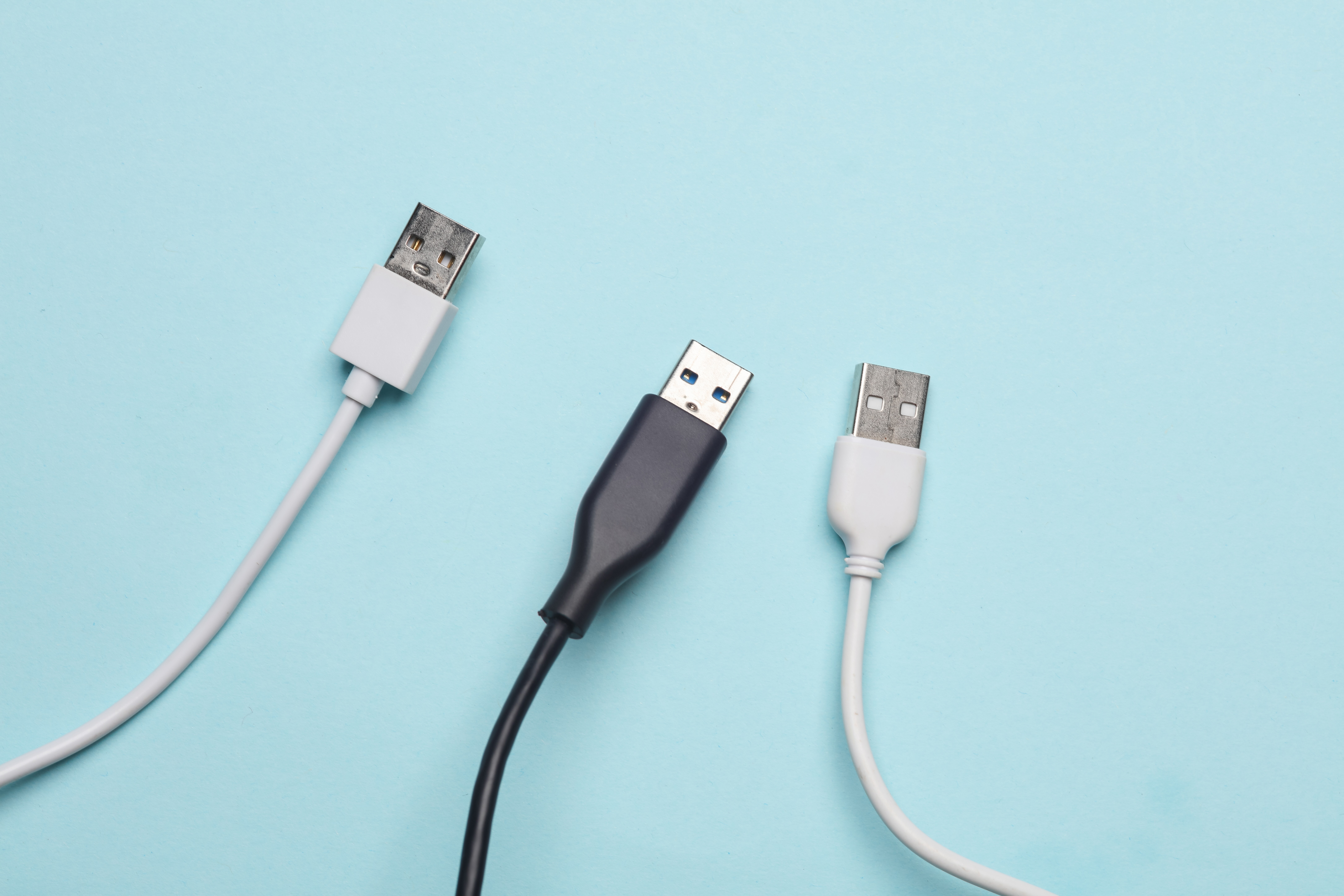
USB Type A is probably the connector you've interacted with more than any other in your life. It's the flat, rectangular plug -- the one on your laptop, your desktop tower, your wall charger, your car's USB port. USB A is the host connector. That means it's the output side, the side that delivers power and data from a host device to something downstream. Think of it as the source end. It's been around since USB 1.0 launched back in 1996, and even though USB-C is making serious ground, Type A is still everywhere. The design is simple, durable, and -- let's be real -- almost annoyingly hard to plug in correctly on the first try. That asymmetry is kind of its defining flaw, which is part of why USB-C eventually came along. But for backward compatibility and sheer ubiquity, Type A isn't going anywhere fast.
What Is USB Type B
USB Type B is the other end of that cable. It's the squarish connector -- slightly beveled at the top corners -- and it plugs into peripheral devices. Printers. Scanners. External hard drive docks. Audio interfaces. MIDI controllers. USB B was designed specifically for devices that receive the connection rather than initiate it. That's an important distinction. The logic behind having two different connector shapes was intentional: it prevents you from accidentally connecting the wrong devices together in ways that could cause problems. USB B's form factor is bulkier than Type A, which makes it easy to identify, though it also means it's not exactly compact. Still, for stationary devices that sit on a desk and stay plugged in, the size is rarely an issue.
How USB A and B Work Together
The basic use case is this: USB A on one end connects to your computer or power source, and USB B on the other end connects to your peripheral. The host -- usually the computer -- manages the communication. It sends power through the cable, establishes a data connection, and the peripheral responds accordingly. This host-to-device architecture is what USB was built around. A USB A to USB B cable is extremely common in professional and home office environments. If you've ever connected a laser printer to a desktop PC, you've almost certainly used one. Same goes for connecting a USB audio interface to a DAW setup, or running a USB hub with a legacy port configuration. The pairing is reliable, time-tested, and still entirely relevant in a lot of real-world applications.
USB A vs USB B: Key Differences at a Glance
It helps to have a clear side-by-side view of what separates these two connector types, because the differences go beyond just physical shape.
USB Type A Flat, rectangular shape Found on host devices like computers, chargers, and hubs Delivers power and data to connected peripherals Widely used across consumer electronics and enterprise hardware Supports USB 1.1, 2.0, and USB 3.0 in the updated blue variant USB Type B Square shape with beveled top corners Found on peripheral devices like printers, scanners, and audio gear Receives power and data from a host connection Common in professional and desktop-based equipment Also available in USB 3.0 variant with additional pins for faster transfer speedsUSB 3.0 Variants: What Changes with the B Connector
Here's something worth knowing if you're dealing with faster transfer speeds or newer equipment. USB 3.0 introduced updated versions of both connectors. The USB 3.0 Type A still looks nearly identical to its 2.0 predecessor -- just with a blue tab inside. But the USB 3.0 Type B connector is noticeably larger than the standard USB 2.0 Type B, with an added section on top that houses the additional pins needed for SuperSpeed data transfer. They are not interchangeable from the B side. A USB 2.0 Type B cable will not fit into a USB 3.0 Type B port. That matters if you're spec-ing out a setup with external hard drives or high-throughput peripherals where you want the full 5 Gbps throughput that USB 3.0 provides. Always verify which version your device supports before buying cables.
Common Use Cases and Where You'll Find Each Connector
USB A shows up in practically every corner of a modern tech environment. Wall adapters, computers, laptops, gaming consoles, smart TVs, car dashboards -- it's the default output connector for power and data delivery across consumer and professional gear. USB B, on the other hand, is more concentrated in specific device categories.
Office and professional printers Flatbed and document scanners USB audio interfaces and MIDI keyboards External hard drive enclosures and docking stations Laboratory and industrial instrumentation Older USB hubs with upstream portsIf your workflow involves any of these device types, there's a good chance a USB A to USB B cable is already somewhere in your environment -- or needs to be. Knowing this upfront saves time when you're sourcing replacements or expanding a setup.
Advantages and Limitations Worth Knowing
USB A's biggest advantage is compatibility. It is supported across virtually every generation of USB hardware, and billions of devices worldwide have USB A ports. The connector is also physically robust -- the design holds up well over repeated connections. The limitation is the lack of reversibility. You have to orient it correctly, which is a minor but persistent annoyance. USB B's advantage is clarity of purpose. Because it's only used on peripheral devices, there's no ambiguity about how a device using USB B connects to a system. Its limitation is bulk. The connector is larger than what modern compact peripherals tend to prefer, which is part of why USB-C and Micro-USB took over in smaller devices. For desktop equipment, though, the size trade-off is rarely a real concern.
Picking the Right Cable for Your Setup
The choice is actually simpler than it might seem at first. If you're connecting a computer to a stationary peripheral -- a printer, a scanner, an audio interface -- you need a USB A to USB B cable. Check whether your peripheral uses USB 2.0 or USB 3.0 ports, and match the cable accordingly. Don't assume a USB 2.0 cable will work in a USB 3.0 Type B port; verify the port shape before purchasing. Also consider cable length. For desk setups, a 6-foot cable is usually sufficient. For larger workstations or equipment racks, 10-foot or longer runs may be necessary. Cable quality matters too -- shielding, conductor gauge, and connector build quality all affect signal integrity and longevity, especially in environments where cables are regularly handled or repositioned.
Why Monoprice Is the Smart Choice for USB A and USB B Cables
When it comes to sourcing USB cables that actually perform -- not just look good on a product page -- the quality of construction is what separates reliable gear from frustrating failures. Monoprice has built a well-earned reputation in the technology industry for delivering high-performance cables and connectivity solutions at prices that make sense for both individual buyers and large-scale procurement teams. Whether you're outfitting a home office with a reliable printer connection or building out a professional AV rack that depends on consistent, error-free data transfer, the right cable is a foundational investment. Browsing the full range of USB A to USB B cables and professional connectivity solutions at Monoprice gives you access to verified specifications, multiple length options, and USB 2.0 and 3.0 variants -- all backed by the kind of quality assurance that organizations and individual users have come to rely on. It's practical, value-driven sourcing without compromise.
Frequently Asked Questions About USB A and USB B
What is the main difference between USB Type A and USB Type B?
USB Type A is the host connector found on computers and chargers, while USB Type B is the peripheral connector found on devices like printers and scanners. They serve opposite roles in a USB connection.
Can I plug a USB Type B cable into a USB Type A port?
No. USB A and USB B are physically incompatible with each other's ports. A USB A to USB B cable has one of each connector type -- one end plugs into the host and the other into the peripheral.
Is USB 3.0 Type B the same size as USB 2.0 Type B?
No. USB 3.0 Type B is larger than USB 2.0 Type B due to additional pins required for SuperSpeed data transfer. A USB 2.0 Type B cable will not fit into a USB 3.0 Type B port.
What devices typically use USB Type B connectors?
USB Type B connectors are most commonly found on desktop printers, flatbed scanners, USB audio interfaces, MIDI controllers, external hard drive docks, and some USB hubs.
Does USB A support USB 3.0?
Yes. USB 3.0 uses an updated Type A connector that is backward compatible with USB 2.0 ports. USB 3.0 Type A ports are typically identified by a blue tab inside the connector.
Can a USB A to USB B cable transfer both power and data?
Yes. A standard USB A to USB B cable supports both power delivery and data transfer simultaneously, which is why it works for devices like printers that need both a connection and power from the host.
What length USB A to USB B cable do I need for a desktop printer?
For most desktop setups, a 6-foot cable is sufficient. If the printer is located further from the computer or in a rack environment, a 10-foot or 15-foot cable may be more appropriate.
Is USB Type B being phased out?
USB Type B is less common in new compact devices, but it remains widely used in professional and desktop equipment like printers, audio interfaces, and industrial hardware where port durability and size are not limiting factors.
What happens if I use a low-quality USB A to USB B cable?
Poor cable construction can result in inconsistent data transfer, dropped connections, slower speeds, and in some cases signal interference. For reliable performance, cable shielding and conductor quality both matter.
Is USB A or USB B faster?
Speed is determined by the USB version, not the connector type itself. Both USB A and USB B are available in USB 2.0 and USB 3.0 variants, with USB 3.0 supporting up to 5 Gbps data transfer rates regardless of which end of the cable you are referring to.


