

Thunderbolt Cable Types: Every Generation Explained
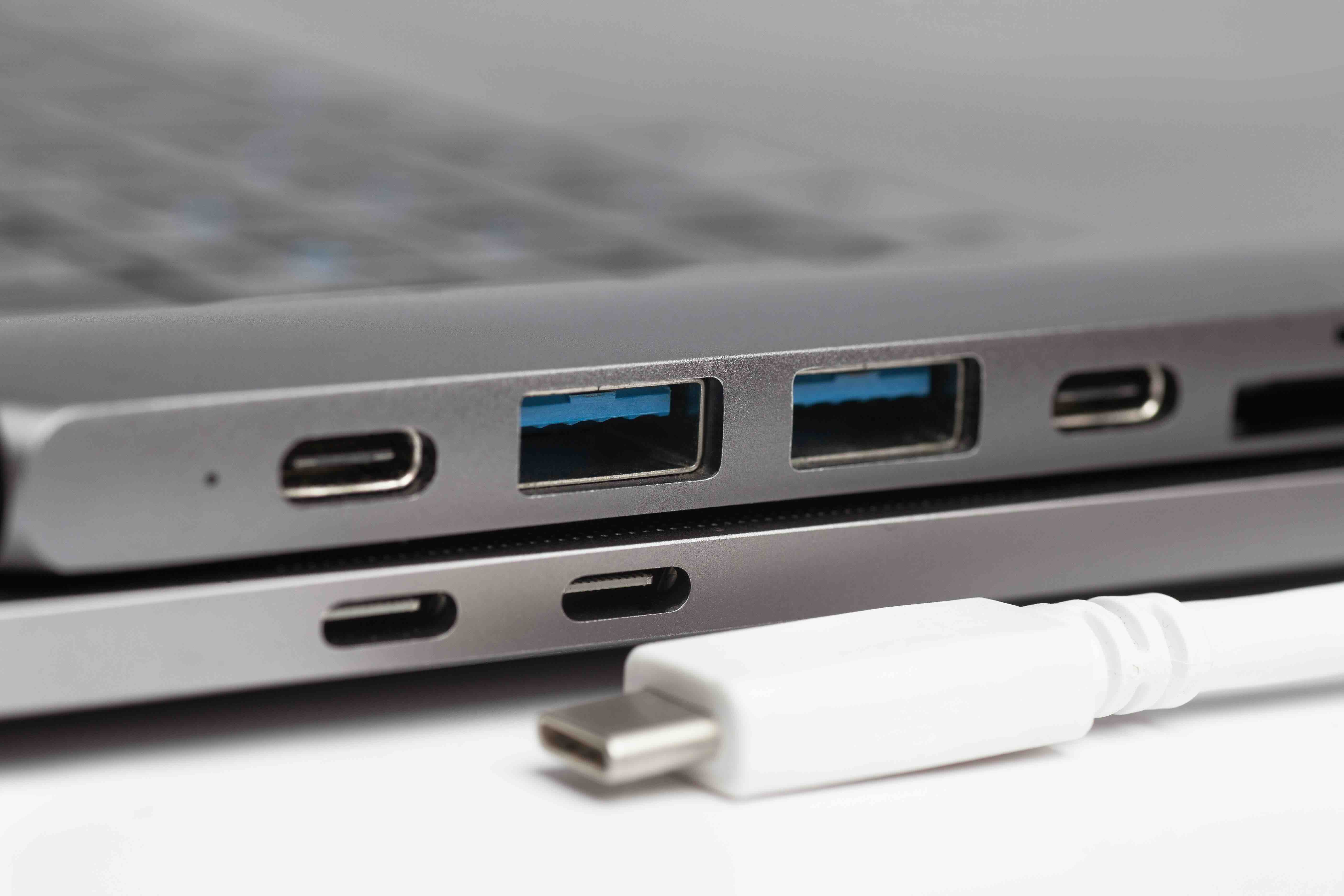
Thunderbolt Cable Types Explained: What They Are, How They Work, and Which One You Actually Need
If you have ever stared at the back of a laptop or workstation and wondered why so many ports look identical but behave completely differently, you are not alone. Thunderbolt cables are one of those topics that sounds more complicated than it is, but once you understand the basics, everything clicks. This guide breaks down every major Thunderbolt cable type, from the original to the latest generation, so you can stop guessing and start connecting with confidence.
What Is Thunderbolt Technology and Why Does It Matter
Thunderbolt is a hardware interface developed through a collaboration between Intel and Apple, and it has grown into one of the most capable connectivity standards available for consumer and professional hardware. It combines data transfer, video output, and power delivery into a single cable and port. That is genuinely useful, especially in modern setups where desk space and cable clutter are real concerns. Thunderbolt operates over both fiber optic and copper cable depending on the generation and length, and it supports daisy chaining, which means you can connect multiple devices through a single port. Not many standards can claim that kind of flexibility, which is part of why it became so embedded in professional workflows and high-performance computing environments.
Thunderbolt 1 and Thunderbolt 2: Where It All Started
Thunderbolt 1 launched in 2011 with a maximum bandwidth of 10 Gbps split across two channels. It used a Mini DisplayPort connector, which was a reasonable choice at the time since Apple was already using it widely. Thunderbolt 2 arrived in 2013 and doubled that bandwidth to 20 Gbps by combining those two channels into one, making it much more useful for high-resolution video workflows. Both generations used the same physical connector, so cables were largely interchangeable in terms of form factor, though not always in performance. These older generations are mostly legacy at this point, but plenty of professional audio interfaces, older storage arrays, and legacy Apple hardware still rely on them. If you are working in a studio or production environment with older gear, knowing this distinction matters.
Thunderbolt 3: The USB-C Era Begins
Thunderbolt 3 was a significant leap. It moved to the USB-C connector, which was a major shift that caused a lot of confusion at first because USB-C cables and Thunderbolt 3 cables look exactly the same from the outside. The performance difference, though, is substantial. Thunderbolt 3 delivers up to 40 Gbps of bandwidth, supports dual 4K displays or a single 5K display, allows up to 100W of power delivery, and enables the use of external GPU enclosures. That last one was a big deal for laptop users who wanted desktop-level graphics performance without buying an entirely separate machine. The catch is that not every USB-C cable supports Thunderbolt 3 speeds. You need a certified Thunderbolt 3 cable to unlock the full performance, and passive cables max out at 40 Gbps only up to about 0.5 meters. Active cables extend that range but at a higher cost.
Thunderbolt 4: Consistent Standards, Better Reliability
Thunderbolt 4 did not dramatically increase raw bandwidth over Thunderbolt 3, which surprised some people. It still runs at 40 Gbps. What changed were the minimum requirements. With Thunderbolt 3, manufacturers had some flexibility in what features they actually implemented. Thunderbolt 4 tightened that up significantly. Every certified Thunderbolt 4 device must support at least two 4K displays or one 8K display, 32 Gbps PCIe data transfer, 100W power delivery, and Intel VT-d based direct memory access protection. So even if the ceiling did not move much, the floor got a lot higher. For buyers and IT decision-makers, that consistency is valuable because you can trust that certified Thunderbolt 4 hardware will actually deliver what it promises, every time.
Thunderbolt 5: The Current Generation Worth Knowing
Thunderbolt 5 is the most recent generation and it is where things get genuinely exciting again. Bandwidth jumps to 120 Gbps in one direction using a technology called Bandwidth Boost, which allocates more capacity toward display output when needed. It supports 8K displays, external graphics, and high-refresh-rate gaming monitors at resolutions that were not practical over previous generations. Power delivery also increases, with support for up to 240W. This matters for high-performance laptops that actually need real charging throughput, not just a trickle. Thunderbolt 5 continues to use the USB-C connector form factor, so from a physical standpoint it looks the same as everything before it. Compatibility with previous generations is maintained, though you will only see peak performance when both ends of the connection are Thunderbolt 5 certified.
Key Advantages of Thunderbolt Cables Across All Generations
Understanding the practical benefits helps put all of this in context. Here is what consistently sets Thunderbolt apart from standard USB-C or DisplayPort connections:
- Higher bandwidth ceiling compared to standard USB protocols
- Single-cable connection for power, data, and video simultaneously
- Daisy chaining support allows up to six devices through one port
- PCIe tunneling enables external GPU and high-speed storage enclosures
- Backward compatibility with USB and DisplayPort devices
- Strong certification standards that guarantee performance specifications
Common Drawbacks and Considerations Before You Buy
Thunderbolt is genuinely impressive, but it is not without trade-offs. Cost is the most obvious one. Certified Thunderbolt cables and accessories cost noticeably more than standard USB-C equivalents, and the devices that support Thunderbolt tend to carry a premium as well. Cable length is another consideration. Passive copper Thunderbolt cables perform best at short distances, typically under one meter for full bandwidth. Longer runs require active cables or fiber, which adds expense. There is also the ongoing confusion between Thunderbolt and USB-C. Because they share a connector, users frequently plug in a standard USB-C cable expecting Thunderbolt speeds and then wonder why performance is underwhelming. Always check for the lightning bolt icon on ports and cables to confirm Thunderbolt certification.
How to Choose the Right Thunderbolt Cable for Your Setup
The right cable depends on what you are connecting and how far apart the devices are. For most users with modern laptops and docking stations, a certified Thunderbolt 4 cable at 0.8 meters is a solid all-around choice. If you are working with an 8K display pipeline or high-throughput external storage, Thunderbolt 5 is worth the investment. For legacy setups using older Apple hardware or professional audio gear, Thunderbolt 2 with Mini DisplayPort is still the standard. Always verify that both the host device and peripheral are Thunderbolt certified at the same generation for full performance. Mixing generations works due to backward compatibility, but you will be capped at the lower generation's performance ceiling.
Why Monoprice Is a Smart Choice for Thunderbolt Cables and Accessories
When it comes to sourcing reliable Thunderbolt cables without overpaying, Monoprice delivers exactly what IT professionals, integrators, and everyday users need. The product lineup is built around real-world performance requirements, not spec sheet theater. Whether you are outfitting a home office, a production studio, or an enterprise deployment, Monoprice offers certified options that hold up under daily use. If you are looking for high-performance Thunderbolt cables and connectivity accessories that balance certified reliability with practical pricing, Monoprice is a brand that has consistently earned that trust across both consumer and B2B markets. The combination of quality manufacturing standards, transparent specifications, and competitive pricing makes it a rational choice for anyone who needs dependable connectivity solutions without inflating their budget unnecessarily.
Frequently Asked Questions About Thunderbolt Cable Types
What is the difference between a Thunderbolt cable and a USB-C cable?
Both use the same physical USB-C connector, but Thunderbolt cables are certified to carry higher bandwidth, support PCIe tunneling, and handle power delivery simultaneously. A standard USB-C cable cannot deliver Thunderbolt speeds even if it fits the port.
Are Thunderbolt 3 and Thunderbolt 4 cables interchangeable?
Yes, they use the same USB-C connector and are physically compatible. A Thunderbolt 4 cable can be used in a Thunderbolt 3 port and vice versa, though performance will be limited to the lower generation's specifications.
How do I know if my port supports Thunderbolt?
Look for a small lightning bolt icon next to the port. If there is no icon, it is likely a standard USB-C port. You can also check your device specifications or system information to confirm Thunderbolt support.
Can I use a Thunderbolt cable with a non-Thunderbolt USB-C device?
Yes. Thunderbolt cables are backward compatible with USB-C devices. You will simply operate at USB-C speeds rather than Thunderbolt speeds since the connected device sets the performance ceiling.
What is the maximum cable length for Thunderbolt performance?
Passive copper Thunderbolt cables reliably support full bandwidth up to about 0.5 to 0.8 meters. For longer runs, active cables or optical Thunderbolt cables are required, which can extend range up to 2 meters or more depending on the product.
Does Thunderbolt 5 work with Thunderbolt 4 devices?
Yes, Thunderbolt 5 is backward compatible with Thunderbolt 4, 3, and USB4 devices. When connecting a Thunderbolt 5 host to a Thunderbolt 4 peripheral, performance is capped at Thunderbolt 4 levels.
Is Thunderbolt the same as USB4?
They are related but not identical. USB4 is based on the Thunderbolt 3 protocol and shares performance characteristics, but not all USB4 devices support every Thunderbolt feature. Thunderbolt certification enforces stricter minimum performance requirements than USB4 alone.
Can Thunderbolt cables charge a laptop?
Yes. Thunderbolt 3 and 4 cables support up to 100W power delivery, and Thunderbolt 5 increases that to 240W. This makes them capable of charging most laptops while simultaneously transferring data and video output.
How many monitors can I connect through a single Thunderbolt port?
With Thunderbolt 3 and 4, you can support dual 4K displays or one 5K display through a single port using daisy chaining or a compatible dock. Thunderbolt 5 expands this to support 8K displays or multiple high-refresh-rate monitors.
What should I look for when buying a Thunderbolt cable?
Always look for official Thunderbolt certification from Intel, confirm the generation matches your hardware, check the cable length against your setup requirements, and verify power delivery wattage if you plan to charge a device through the same cable.


