

RCA to PC Audio Guide: Grounding, Gear, and Setup Tips
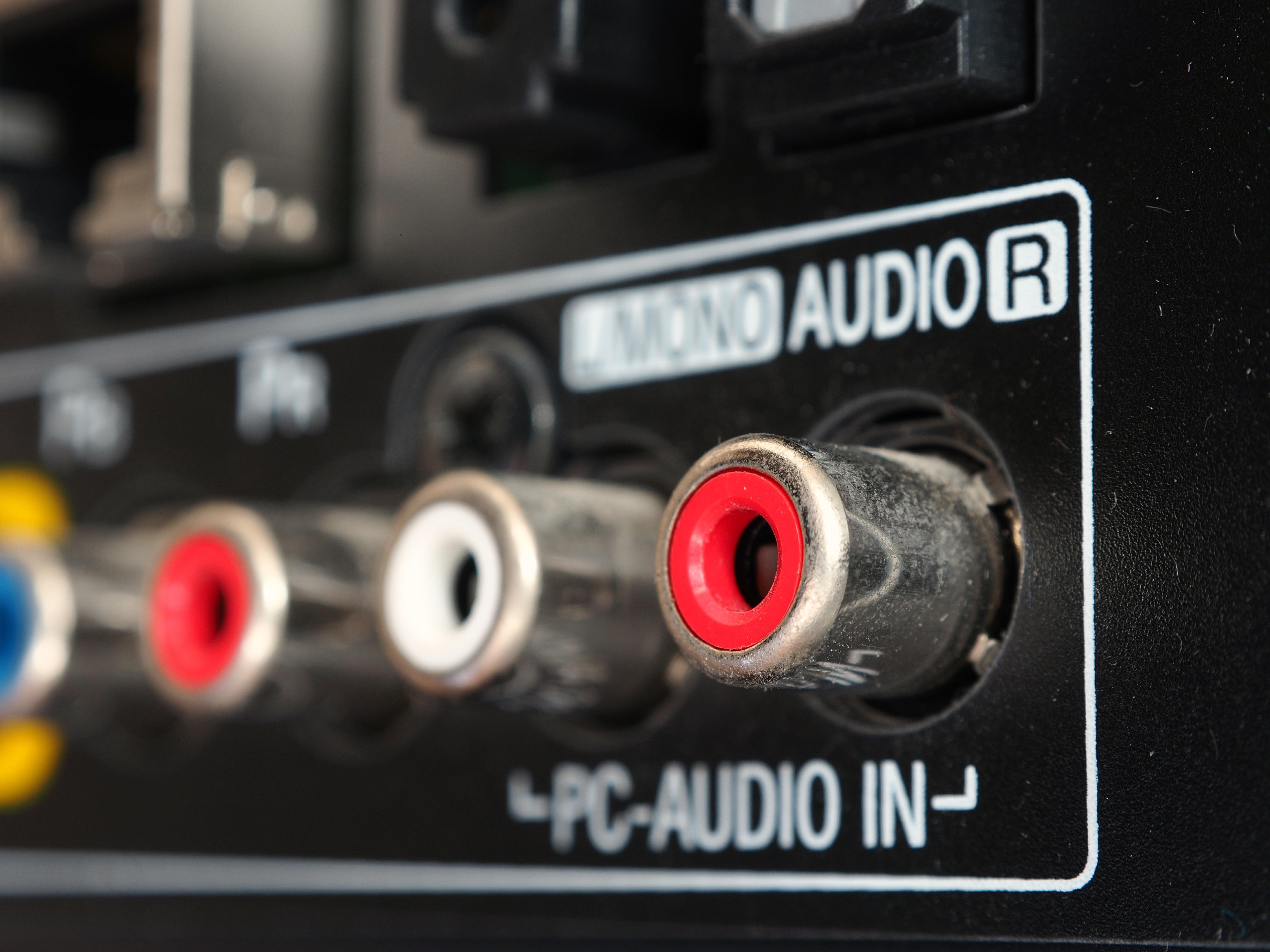
What Is an RCA to PC Audio Connection and Why Does It Matter
So you have a turntable, a vintage receiver, or maybe an older home theater component sitting right there on your shelf, and your PC has no idea what to do with it. That is exactly where RCA to PC audio connections come in. RCA connectors, those familiar red and white plugs, were the standard for analog audio in consumer electronics for decades. Your computer, on the other hand, typically deals in 3.5mm stereo jacks or USB audio. Bridging that gap is not complicated, but it does require the right understanding of how analog and digital audio interact, what gear you actually need, and how to avoid the grounding hum that has ruined more than a few late-night listening sessions. This guide covers it all clearly, without overcomplicating anything.
How RCA Audio Signals Actually Work
RCA audio is an unbalanced analog signal format. Each connector, one for the left channel and one for the right, carries a single audio signal between a center pin and an outer ground ring. The red connector typically handles the right channel, and the white or black one handles the left. That is the standard, and it has been consistent across gear for a long time. The signal level from most consumer RCA outputs is called line level, which sits around minus ten decibels. That is different from what a microphone puts out and different again from what a speaker expects. When you are routing this into a PC, you need something that can accept that line level signal and convert it cleanly to a digital format the computer can read. Most onboard PC soundcards technically accept line-level input through a 3.5mm jack, but the actual conversion quality varies quite a bit depending on the hardware.
The Gear You Need to Connect RCA to a PC
Getting the right equipment upfront saves a lot of frustration. Here is what a complete, functional RCA to PC setup typically requires:
- RCA to 3.5mm stereo adapter cable for direct connection to a PC line-in jack
- A USB audio interface with RCA inputs for cleaner signal conversion and better noise isolation
- An RCA stereo audio cable with adequate shielding to reduce interference
- A ground loop isolator if you are running into hum or buzzing issues
- Optionally, a phono preamp if your source is a turntable without a built-in preamp
The simplest path is using an RCA to 3.5mm cable and plugging directly into your PC's line-in port if it has one. Many desktops do. Most laptops, however, only have a combination headphone and microphone jack, which means a direct line-level RCA connection will not work cleanly without additional gear. That is when a USB audio interface becomes the smarter, more reliable solution. It bypasses your PC's onboard audio entirely and gives you dedicated, clean analog-to-digital conversion. For anyone doing more than just casual listening, it is absolutely worth it.
Step-by-Step RCA to PC Setup Process
Once you have your gear sorted, the actual connection process is fairly straightforward. Start by identifying the audio output on your source device. It will typically be labeled as Line Out, Audio Out, or in some cases just Output. Connect your RCA cable to those jacks, red to right and white to left, and run the other end to your adapter or interface. If you are using a USB audio interface, plug it into a USB port on your PC and let the drivers install. Most modern interfaces are class-compliant, meaning no additional driver installation is required on Windows 10 or later, and macOS handles them natively as well. From there, go into your system audio settings and set the USB interface as your input device. Open your audio software, whether that is a DAW, a recording tool, or even just the sound mixer built into your OS, and confirm the input signal is coming through. Adjust your input gain until the signal peaks comfortably without clipping.
Grounding Issues and How to Fix the Hum
Here is where people run into trouble. A low-frequency hum or buzz showing up in your audio is almost always a ground loop issue. This happens when there are multiple paths to ground in your signal chain, each carrying a slightly different electrical potential, and the difference creates an audible artifact. In RCA-based setups it is especially common because RCA is unbalanced, meaning it is more susceptible to interference than balanced XLR connections. The fix is usually straightforward. A ground loop isolator inserted between your source and your PC input will break the loop without significantly degrading your signal. Another common fix is to make sure all your equipment is plugged into the same power strip or outlet. Mixing power sources across different wall sockets in a room is a frequent cause of hum. Also, keep your RCA cables away from power cables whenever possible. Crossing them at a ninety degree angle if you absolutely must run them parallel is the accepted method for minimizing induced noise.
Common Drawbacks to Know Before You Start
RCA to PC connections work well, but there are a few limitations worth knowing about going in. Unbalanced RCA signal paths are inherently more noise-prone over longer cable runs. If you are routing audio across a room, cable quality and shielding matter more than most people assume. Cheap, poorly shielded RCA cables pick up radio frequency interference and electromagnetic noise, which shows up as hiss or static in your recordings or playback. Beyond that, onboard PC audio input quality is genuinely inconsistent. Budget motherboards often use entry-level audio codecs that introduce noise of their own. If audio fidelity is a priority, onboard is not the right tool. And finally, matching impedance and levels between your source and your input matters. Connecting a phono-level turntable directly to a line-level input without a preamp will result in extremely low volume and poor tonal balance. That is not a cable problem, it is a signal chain problem.
Tips for Getting Clean Audio from Your RCA Setup
A few practical adjustments make a noticeable difference in real-world performance. First, use quality cables with proper shielding. The outer braid or foil layer in a well-made RCA cable is doing real work keeping interference out. Second, keep cable runs as short as reasonably possible. Third, if you are monitoring audio through your PC while recording, watch out for latency. Onboard audio has higher latency than a dedicated USB interface, which creates an annoying delay in headphone monitoring. A good USB interface addresses this directly. Fourth, always set your input levels conservatively at first and then adjust up. It is easier to recover a quiet signal in software than it is to fix a clipped, distorted one. And fifth, if you are recording from vinyl, invest in a decent phono preamp before the signal ever reaches your interface. It will make a significant difference in the final output.
RCA to PC for Home Audio vs Professional Installs
The use cases differ more than people expect. For home audio, the goal is usually playback convenience, digitizing a vinyl collection, or routing a receiver's output into a computer for streaming or recording. In those scenarios, a solid USB audio interface and a good RCA cable is really all you need. For professional or semi-professional installs, like a recording studio, a broadcast setup, or a live venue that uses a mix of legacy and modern gear, the considerations get more detailed. You may be dealing with longer cable runs, multiple signal sources, rack-mounted equipment, and the need for consistent, repeatable signal levels across sessions. In those contexts, balanced signal paths are preferred wherever possible, and the RCA connections are typically limited to specific legacy components that have no balanced output option. Ground management becomes a formal part of the installation plan rather than an afterthought.
Why Monoprice Is the Smart Choice for Your RCA to PC Audio Setup
When you are building out an RCA to PC audio connection, whether it is a simple home setup or a more complex install, the cables and adapters you choose have a real impact on signal quality and long-term reliability. Monoprice has built a well-earned reputation for delivering high-performance audio cables and accessories at prices that make sense for both home users and professional integrators. Their RCA cables are properly shielded, well-terminated, and consistent across batches, which matters when you are speccing gear for a recurring project. If you are ready to stop guessing and start building a setup that actually works, explore the full line of RCA audio cables and PC audio connection solutions at Monoprice and find exactly what your signal chain needs without overspending on brand markup. The performance is there. The price makes it easy to commit.
Frequently Asked Questions About RCA to PC Audio
Can I connect RCA directly to a PC without an adapter?
Not without some form of conversion. Most PCs have a 3.5mm line-in or combo jack, so you need at least an RCA to 3.5mm cable to make the physical connection. A USB audio interface is the cleaner and more reliable option for quality audio.
What is the difference between line-in and mic-in on a PC?
Line-in accepts a stronger, unamplified signal from devices like receivers or mixers. Mic-in is designed for low-level microphone signals and applies additional gain internally. Plugging an RCA line-level source into a mic-in port will result in distortion and clipping.
Why is there a humming noise when I connect RCA to my PC?
That hum is almost certainly a ground loop. It happens when multiple devices share different ground potentials in the same signal chain. A ground loop isolator placed in line between your RCA source and your PC input will eliminate it in most cases.
Do I need a phono preamp to connect a turntable via RCA to a PC?
Yes, unless your turntable already has a built-in preamp. Phono-level output from a cartridge is much lower than standard line level and requires a phono stage to bring it up to the correct level and apply the RIAA equalization curve before it reaches your interface or PC input.
Is a USB audio interface better than using onboard PC audio for RCA input?
In most cases, yes. A dedicated USB audio interface provides cleaner analog-to-digital conversion, better noise isolation from the PC's internal electronics, lower latency for monitoring, and more reliable input level control. It is a worthwhile investment for any serious audio work.
How long can an RCA cable run be before signal quality degrades?
For typical home setups, runs up to about 25 feet are generally fine with a quality shielded cable. Beyond that, you may notice increased noise and signal degradation because RCA is an unbalanced format. For longer runs, consider a balanced signal conversion solution.
Can I record audio through an RCA to PC connection?
Yes. Once your RCA source is connected to your PC's line-in or a USB audio interface, you can use recording software to capture the signal. Applications like Audacity, Adobe Audition, or any DAW will recognize the input and allow you to record directly to your drive.
What kind of RCA cable should I buy for connecting to a PC?
Look for a cable with oxygen-free copper conductors, a full shielding layer, and quality connectors with reliable contact. Cable length should match your actual setup without excess slack. Avoid extremely cheap cables, as they typically have inadequate shielding that introduces noise into the signal path.
Why does my audio sound quiet when I connect RCA to my PC?
This usually means your input gain is set too low or your source output level is too weak. It can also happen if you have connected a phono-level source without a preamp. Check your audio software input levels, confirm you are using the correct input port, and verify your source device is set to line output rather than a headphone or variable output.
Does cable shielding really make a difference in RCA to PC audio connections?
It makes a meaningful difference, particularly in environments with other electronics nearby. Shielding blocks electromagnetic interference and radio frequency noise from entering the signal path. In a clean, isolated setup the effect is minimal, but in a typical home office or studio with multiple devices running, quality shielding is a practical necessity.


