

PC to TV HDMI: Cables, Setup, and What Actually Works
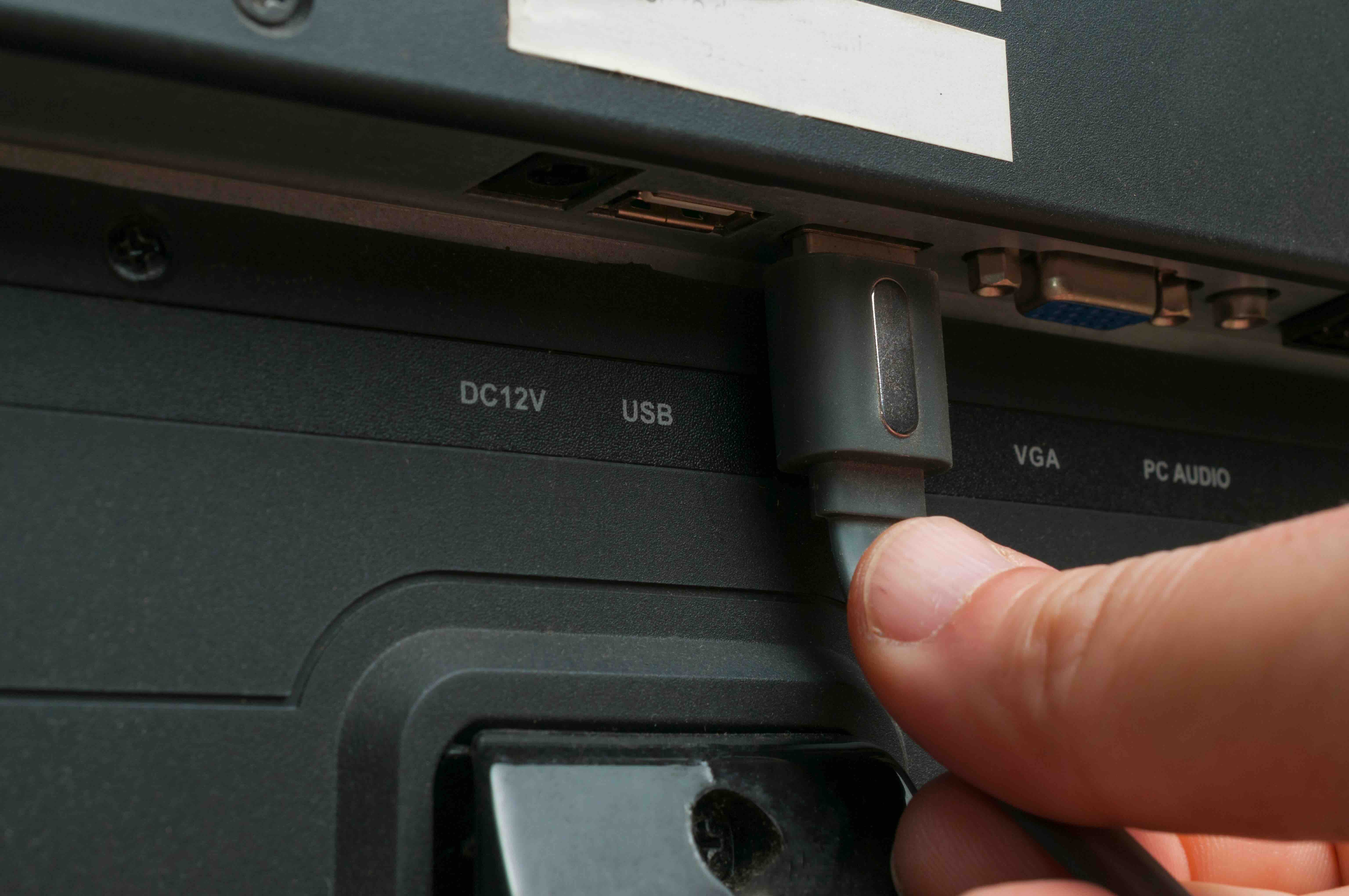
Connecting Your PC to Your TV With HDMI: What You Need to Know
So you want to use your TV as a monitor for your PC. Makes sense. Whether you are trying to stream content on a bigger screen, set up a home theater PC situation, work from the couch, or just mirror your display for a presentation, connecting a PC to a TV via HDMI is one of the more straightforward moves in the consumer tech world. And yet -- people still run into problems. Wrong cable, wrong settings, wrong expectations. This guide is designed to walk you through everything clearly, from how HDMI actually works to what cables matter and when. It is more practical than theoretical, because that is what actually helps.
What Is HDMI and Why Does It Matter for PC to TV Connections
HDMI stands for High-Definition Multimedia Interface. It is a single cable standard that carries both audio and video signals simultaneously, which is actually kind of a big deal if you think about how AV setups used to work with separate cables for every signal type. When it comes to connecting a PC to a TV, HDMI is by far the most common and reliable method available on the market today. The standard has gone through several revisions over the years -- HDMI 1.4, 2.0, and now 2.1 -- each one adding support for higher resolutions, faster refresh rates, and more robust bandwidth. Your typical 1080p setup works fine on HDMI 1.4, but if you are pushing 4K content or running a high refresh rate display, you need to be paying closer attention to which version your hardware and cable actually support. Mismatching any one of those elements is where people tend to get tripped up.
How the PC to TV HDMI Connection Actually Works
At its core, the process is straightforward. Your PC has a GPU -- either discrete or integrated -- and that GPU outputs a signal. HDMI is one of the standard output formats for that signal. The cable carries encoded audio and video data from the source device, your PC, to the sink device, your TV. The TV then decodes and displays that signal. The handshake process between devices is handled by HDCP, which is a content protection protocol, and EDID, which tells your PC what resolutions and refresh rates the TV supports. Most of the time this all just works. But occasionally your TV gets confused or your PC outputs the wrong resolution, and you end up with a blank screen or a squished image. That is almost always fixable through display settings, but it helps to understand why it happens in the first place.
HDMI Versions Explained: Which One Do You Actually Need
This part matters more than most people realize going into it. Here is a quick breakdown of the three main versions you are likely to encounter when shopping for cables or checking your hardware specs.
- HDMI 1.4 -- supports up to 4K at 30Hz and 1080p at 120Hz, includes basic audio return channel (ARC)
- HDMI 2.0 -- supports 4K at 60Hz, HDR, and expanded color depth; handles most home theater setups with ease
- HDMI 2.1 -- supports up to 10K resolution, 4K at 120Hz and 8K at 60Hz, includes enhanced ARC (eARC), and delivers up to 48Gbps of bandwidth
If you are running a gaming PC with a modern GPU and you want to take advantage of 4K at 120Hz or variable refresh rate on a newer TV, HDMI 2.1 is the only version that supports those features. For everyday productivity use or standard media streaming, HDMI 2.0 or even 1.4 may be more than sufficient. The key is matching your cable version to what your GPU output and your TV input actually support. Buying a premium cable when your TV only has HDMI 1.4 ports is not going to unlock features that are not there.
Key Advantages of Connecting a PC to a TV With HDMI
There are real, practical benefits to this kind of setup that go beyond just having a bigger screen to look at.
- Single cable simplicity -- one cable handles audio and video without needing separate adapters or splitters
- Broad compatibility -- virtually every modern TV and GPU includes at least one HDMI port
- Plug-and-play functionality -- no driver installs, no complicated configuration in most cases
- Support for HDR and high refresh rates on newer hardware -- HDMI 2.1 specifically opens up a strong gaming experience on large screens
- Audio passthrough -- formats like Dolby Atmos and DTS:X can be passed through HDMI to a compatible TV or AV receiver
For home theater PC setups especially, HDMI is essentially the default choice. It consolidates the signal path, reduces cable clutter, and performs reliably across a wide range of content types and use cases.
Common Drawbacks and Limitations to Be Aware Of
Nothing is perfect. HDMI has a few limitations worth understanding before you commit to a setup. Cable length is one of them -- passive HDMI cables start to degrade signal quality beyond about 25 feet, and for longer runs you need either active cables or a signal booster. HDCP handshake failures are another recurring annoyance, particularly with some streaming applications that require content protection compliance. Some TVs also introduce input lag that would not exist on a dedicated PC monitor, which matters significantly for gaming. And if your PC only has DisplayPort or USB-C outputs, you will need an adapter or an active converter to get to HDMI, which adds a small layer of complexity. None of these are dealbreakers, but they are worth knowing upfront.
Practical Tips for Getting the Best Performance From Your HDMI Connection
Getting a clean, high-quality signal from your PC to your TV through HDMI usually comes down to a few small but important decisions. First, always connect to a dedicated HDMI port on your TV rather than a shared or ARC-only port unless you specifically need ARC functionality. Second, make sure your TV is set to the correct input and, if available, enable any PC or game mode settings that reduce post-processing and lower input lag. Third, configure your display settings in Windows or your OS of choice to output the correct resolution and refresh rate for your TV -- this is a step a lot of people skip. Fourth, use a quality cable rated for the bandwidth your setup requires. A poorly shielded or counterfeit cable will cause signal issues that are frustrating to diagnose. And finally, if you are running a long cable run, invest in an active HDMI cable rather than hoping a passive one will hold up over distance.
PC to TV HDMI for Gaming: What You Should Set Up
Gaming through a TV via HDMI is genuinely excellent when the setup is done right. Modern televisions with HDMI 2.1 support -- especially those with variable refresh rate and auto low latency mode -- can deliver a gaming experience that rivals or exceeds dedicated gaming monitors in some scenarios, particularly for large-screen immersion. The GPU side of things matters too. NVIDIA and AMD both expose HDMI 2.1 outputs on their latest discrete cards, so if your hardware is current, you can take full advantage of 4K at 120Hz without much hassle. Set your TV to game mode, confirm VRR is enabled if your TV and GPU support it, and make sure your cable is legitimately rated for 48Gbps. That last point -- cable quality -- gets overlooked more than it should.
Why Monoprice Is a Smart Choice for Your PC to TV HDMI Setup
When it comes to building a reliable, high-performance PC to TV connection, the cable and hardware quality you use directly affects the outcome. Monoprice has built a well-earned reputation for delivering high-performance HDMI cables and connectivity solutions at prices that genuinely make sense for both consumers and professionals. Whether you need an HDMI 2.0 cable for a clean 4K streaming setup or an ultra high speed HDMI 2.1 cable capable of handling 48Gbps for a demanding gaming rig, Monoprice engineers products to real performance standards rather than marketing ones. Every cable in the lineup is designed with attention to shielding, bandwidth integrity, and build quality -- the things that actually determine whether your picture holds up at distance and resolution. If you are putting together a home theater PC, upgrading a workstation display output, or just trying to stop second-guessing your cable choices, exploring high-speed HDMI cables for PC to TV connections from Monoprice is a practical first step toward a setup that simply works the way it should, without overpaying for it.
Frequently Asked Questions About PC to TV HDMI
Can I connect any PC to any TV using HDMI?
In most cases, yes. As long as your PC has an HDMI output and your TV has an HDMI input, the connection is straightforward. If your PC only has DisplayPort or USB-C, you will need an appropriate adapter to connect to an HDMI-equipped TV.
Will my TV display audio from my PC when connected via HDMI?
Yes. HDMI carries both audio and video over a single cable. After connecting, you may need to set your TV as the default audio output device in your operating system's sound settings for audio to route correctly.
What resolution can I get when connecting my PC to a TV via HDMI?
This depends on the HDMI version your GPU and TV support. HDMI 1.4 supports up to 4K at 30Hz, HDMI 2.0 supports 4K at 60Hz, and HDMI 2.1 supports up to 4K at 120Hz and 8K at 60Hz.
Why is my TV showing a black screen after connecting my PC via HDMI?
This is usually caused by an HDCP handshake failure, an incorrect input selection on the TV, or a mismatch between the resolution output from the PC and what the TV can accept. Try switching to a different HDMI port on the TV and checking your PC display settings.
Does HDMI cable length affect picture quality?
Yes, it can. Passive HDMI cables are generally reliable up to about 25 feet. Beyond that length, signal degradation can occur, resulting in image artifacts or a dropped connection. Active HDMI cables or a signal booster are recommended for longer runs.
Do I need a special HDMI cable for 4K or gaming?
For 4K at 60Hz, you need at minimum a Premium High Speed HDMI cable rated for 18Gbps. For 4K at 120Hz or 8K content, you need an Ultra High Speed HDMI cable rated for 48Gbps. Standard HDMI cables may not reliably carry higher bandwidth signals.
Can I use my TV as a second monitor for my PC via HDMI?
Yes. Once connected, you can configure your operating system to extend your desktop to the TV, effectively using it as a second monitor. This is done through your display settings in Windows or your operating system of choice.
Is there input lag when using a TV as a PC monitor over HDMI?
TVs typically process the image signal in ways that introduce latency compared to dedicated PC monitors. Most modern TVs include a game mode or PC mode that reduces this processing and lowers input lag significantly, making the experience more suitable for interactive use.
Can I pass Dolby Atmos or surround sound through HDMI from my PC to my TV?
Yes, HDMI supports advanced audio formats including Dolby Atmos and DTS:X. Your PC needs to be configured to output the correct audio format, and your TV or connected AV receiver must support decoding those formats to hear the full effect.
What HDMI version do I need for a gaming PC connected to a 4K 120Hz TV?
You need HDMI 2.1 for 4K at 120Hz. Both your GPU and the TV's HDMI port must support HDMI 2.1, and the cable itself must be rated as Ultra High Speed at 48Gbps. Any mismatch in the chain will cap your output at lower performance levels.


