

Motherboard Connectors: Types, Uses, and Build Tips
What Are Computer Motherboard Connectors and Why Do They Matter?
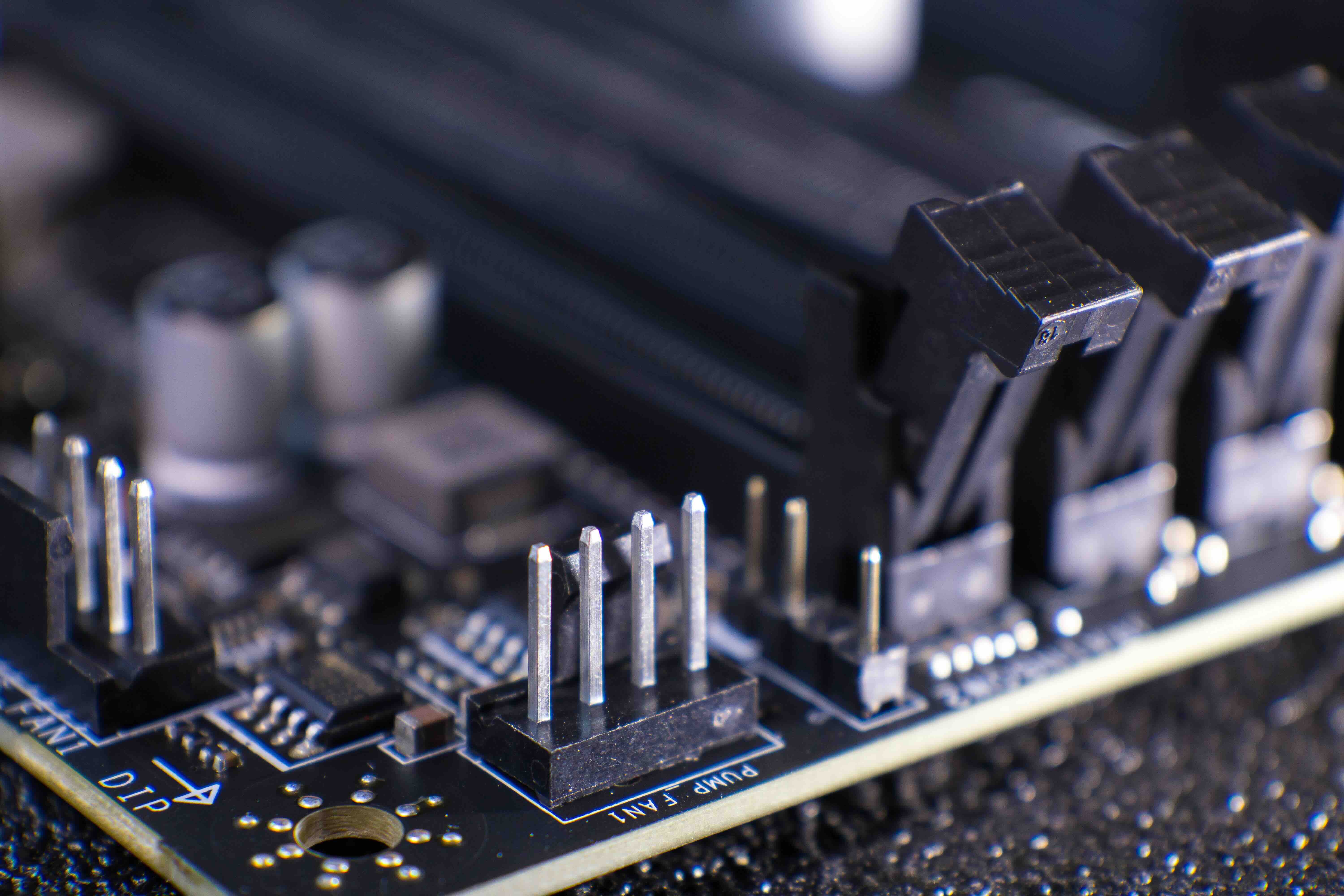
If you have ever cracked open a desktop PC or watched someone build one from scratch, the first thing that probably hits you is the sheer density of cables, slots, and pins running across that main green or black board. That board is the motherboard, and all those connection points are its connectors. They are, without exaggeration, the nervous system of your entire computer. Every component that wants to communicate, draw power, or transfer data has to do it through some kind of connector on the motherboard. Getting familiar with them is not just useful knowledge for builders or technicians. It helps anyone, whether you are upgrading a home workstation or sourcing hardware for a business deployment, make smarter, more confident decisions. So let us walk through the major types, what they do, and what to watch out for.
Power Connectors: The Foundation of Every Build
Before anything else works, the motherboard needs power. The primary connector here is the ATX 24-pin connector, which has been the standard for over two decades and supplies the board with multiple voltage rails. Most modern motherboards also require an additional 4-pin or 8-pin CPU power connector, sometimes labeled EPS12V, that sits near the top left corner of the board and feeds power specifically to the processor. High-performance or enthusiast-grade boards occasionally feature dual 8-pin CPU connectors, especially on platforms designed for workloads like content creation, 3D rendering, or server-grade computing. Skipping or misconnecting these is a surprisingly common mistake, and the system simply will not post if they are wrong. Worth noting: always check the power supply wattage and connector compatibility before finalizing any build or upgrade.
PCIe Slots: Where Expansion Cards Live
PCI Express, or PCIe, slots are the long rectangular slots running horizontally across the motherboard, and they are where you install graphics cards, network cards, sound cards, NVMe storage adapters, and more. They come in different sizes: x1, x4, x8, and x16. The x16 slot, the largest one, is almost always reserved for the primary GPU. Smaller slots handle auxiliary cards. The PCIe standard itself has gone through multiple generations including PCIe 3.0, 4.0, and now 5.0, with each generation roughly doubling bandwidth compared to the previous one. Backward compatibility is maintained, so a PCIe 4.0 card will work in a PCIe 3.0 slot, just at reduced speeds. For anyone building a gaming rig or a professional workstation, slot generation and lane availability should be factored into the motherboard selection early.
Storage Connectors: SATA vs. M.2 Explained
Storage connectors are where things start to get a little more nuanced. The two dominant types you will encounter are SATA and M.2. SATA, which stands for Serial ATA, has been around since the early 2000s. It uses a narrow L-shaped data connector paired with a separate power connector from the PSU. SATA is reliable, widely compatible, and still perfectly capable for HDDs and SATA-based SSDs, though it maxes out at around 600 MB/s. M.2 is newer and considerably faster when paired with an NVMe drive. The M.2 slot is a small, horizontal slot on the motherboard surface that accepts a card-style drive, no cables needed. Depending on the board and the drive, it might run on SATA or PCIe lanes, so matching the drive type to the slot type matters. M.2 PCIe NVMe drives can hit sequential read speeds upwards of 7,000 MB/s on PCIe 4.0, which is a meaningful upgrade for any storage-heavy workflow.
RAM Slots: Understanding DIMM Connectors
Memory slots, technically called DIMM slots (Dual Inline Memory Module), are the tall parallel slots that hold your RAM sticks. Most consumer motherboards feature two or four DIMM slots. The slot type must match the RAM generation: DDR4 and DDR5 are not interchangeable, and the notch position on the module physically prevents incorrect installation. Dual-channel configurations, which require populating specific slot pairs, offer a meaningful bandwidth improvement over single-channel setups. Always consult the motherboard manual for the recommended slot configuration before installing RAM. It is a small detail that makes a real difference in memory performance.
Front Panel Connectors: Small Pins, Big Frustration
Here is the section that trips up almost every first-time builder. The front panel connectors are a cluster of tiny two-pin headers near the bottom of the motherboard that connect to your case's power button, reset button, HDD activity LED, and power LED. There is no universal keyed connector here, so each tiny cable has to be placed individually and in the correct orientation. The motherboard manual is indispensable at this stage. Additionally, the front panel USB headers (USB 2.0 and USB 3.0/3.1/3.2 Gen 1 and Gen 2) connect the case's front-facing USB ports to the board. There is also a dedicated USB Type-C header on many newer boards for cases that include a front panel USB-C port.
Key Advantages and Common Drawbacks of Modern Motherboard Connectors
Understanding the benefits and limitations of motherboard connectors helps you plan smarter and avoid costly mistakes. Here is a practical breakdown of both sides.
- Standardized form factors allow broad hardware compatibility across brands and generations
- PCIe backward compatibility protects your investment in expansion cards
- M.2 slots eliminate cable clutter and deliver exceptional data transfer speeds
- DIMM slot configurations support flexible memory upgrades over time
- Onboard USB headers reduce the need for external hubs in well-designed builds
- Connector generations can limit performance if mismatched, such as PCIe 4.0 drives in PCIe 3.0 slots
- Front panel headers lack universal keying, increasing the chance of installation errors
- M.2 slot availability varies widely across budget and mid-range boards
- Thermal throttling can affect M.2 drives installed without heatsink support
- Legacy SATA ports are being reduced on newer platform designs, limiting older drive integration
Tips for Choosing the Right Motherboard Based on Connector Needs
Shopping for a motherboard without a connector checklist is a gamble. Start by identifying your storage strategy: if NVMe is in the plan, count the M.2 slots and confirm the PCIe lane version. Check the number of SATA ports if you are retaining legacy drives. Verify that the CPU power connector configuration matches your power supply. Look at the PCIe slot layout, especially if you intend to run multiple expansion cards simultaneously. For systems that will support a front-facing USB-C port on the case, confirm the board includes the appropriate header. These are not exotic considerations. They are the practical details that determine whether a build works smoothly from day one or requires a frustrating parts swap later.
Why Monoprice Is a Smart Choice for Your Connectivity and Cabling Needs
Building or upgrading a system around a well-specced motherboard only goes so far if the cables and accessories connecting it all together are unreliable or overpriced. That is where the value proposition becomes very clear. Whether you need SATA data cables, reliable power extension cables, or high-quality USB headers and adapters, sourcing from a trusted supplier makes the difference between a clean, stable build and one that introduces unnecessary variables. Professionals and enthusiasts who want high-performance computer cables and connectivity accessories at fair prices know that cutting corners on the small stuff can undermine even the most carefully selected components. Monoprice has built its reputation precisely by delivering on the details, the cables, adapters, and accessories that most people overlook until something goes wrong. For home builders, IT departments, and AV integrators alike, having a dependable source for the supporting hardware is not optional. It is part of getting the job done right.
Frequently Asked Questions About Motherboard Connectors
What is the most important connector on a motherboard?
The 24-pin ATX power connector is arguably the most critical because it supplies the board with all primary voltage rails. Without it, the system will not power on at all.
Can I use a PCIe 4.0 graphics card in a PCIe 3.0 slot?
Yes, PCIe slots are backward compatible. A PCIe 4.0 GPU will operate in a PCIe 3.0 x16 slot, but the available bandwidth will be limited to PCIe 3.0 speeds, which may slightly reduce performance in bandwidth-intensive workloads.
What is the difference between M.2 SATA and M.2 NVMe?
Both use the same physical M.2 slot, but M.2 SATA drives use the SATA interface and max out around 600 MB/s, while M.2 NVMe drives use PCIe lanes and can reach several gigabytes per second in sequential transfer speeds.
How do I know which RAM is compatible with my motherboard?
Check the motherboard specifications for supported memory generations (DDR4 or DDR5), maximum capacity, and supported speeds. Most manufacturers also publish a qualified vendor list (QVL) of tested and approved memory kits.
What happens if I install RAM in the wrong DIMM slots?
The system may still boot, but it will likely run in single-channel mode rather than dual-channel, which reduces memory bandwidth and can affect overall system performance, particularly in memory-sensitive applications.
Are all M.2 slots on a motherboard the same?
No. M.2 slots can differ in the PCIe generation they support, whether they support SATA or NVMe drives, and the physical key type. Always verify slot specifications in the motherboard manual before purchasing an M.2 drive.
What is a front panel USB header?
It is an internal connector on the motherboard that links to the USB ports built into the front of your PC case. Different headers support different USB standards, including USB 2.0, USB 3.0, and USB Type-C, depending on board and case specifications.
Why does my motherboard have two CPU power connectors?
High-end and enthusiast-grade motherboards sometimes include dual 8-pin CPU power connectors to support processors with high TDP ratings or for overclocking scenarios where stable, high-current power delivery is critical.
Can I add more SATA ports if my motherboard does not have enough?
Yes. A PCIe SATA expansion card can be installed in an available PCIe slot to add additional SATA ports, which is a practical solution for builds that require multiple drives without upgrading the entire board.
Does the number of PCIe lanes matter for everyday builds?
For most consumer builds, lane availability is not a bottleneck. However, in workstation or multi-GPU configurations, insufficient PCIe lanes can force slots to operate at reduced speeds or become unavailable entirely, making platform selection more important.


