

Mini DisplayPort vs Thunderbolt: Know the Real Differences
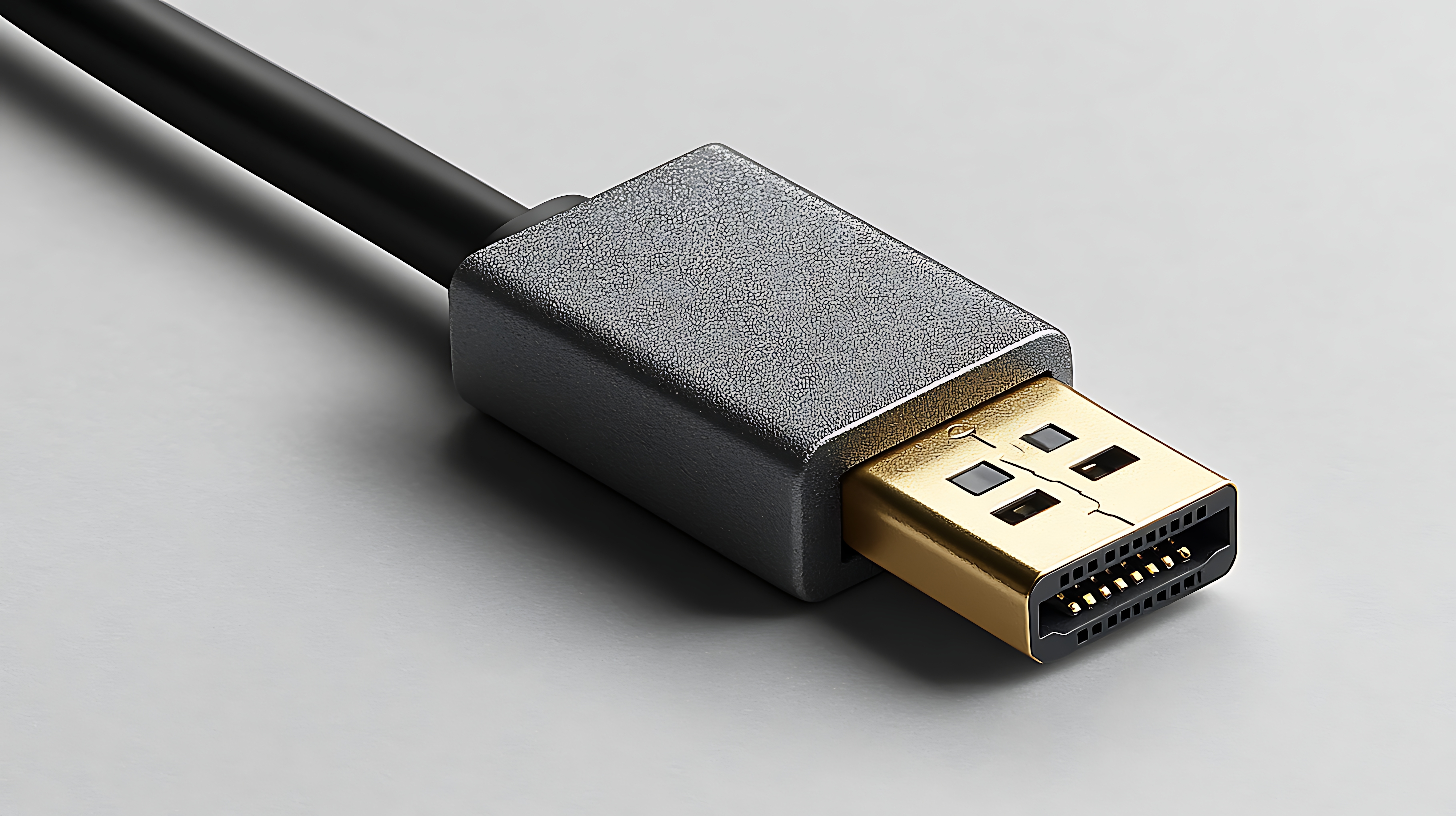
Mini DisplayPort vs Thunderbolt: What Most People Get Wrong
So here is a question that comes up constantly -- and honestly, it is a fair one to be confused about. Mini DisplayPort and Thunderbolt look identical. Like, physically the same port. Same shape, same size, same little connector. You plug something in and it just... works. Or doesn't. And that's kind of the whole problem. A lot of people assume they're the same thing, swap cables without thinking, and then wonder why their external drive isn't showing up or why their display is only getting half the signal it should. The confusion is understandable, but the differences matter -- especially when you're building out a workstation, upgrading your home office, or sourcing gear for a professional AV setup. Let's break this down properly.
Where the Confusion Comes From
Apple introduced Mini DisplayPort in 2008, and it was adopted as an open standard by VESA shortly after. Fast forward to 2011, and Intel alongside Apple launched Thunderbolt -- using the exact same physical connector as Mini DisplayPort. That decision made a lot of practical sense at the time, since it allowed Thunderbolt ports to remain backward compatible with Mini DisplayPort devices. But it also seeded years of confusion because, from the outside, there is genuinely no way to tell them apart without reading the fine print or looking for a small lightning bolt symbol near the port. That's it. That's the only visual cue. And plenty of manufacturers didn't even bother labeling it clearly.
What Mini DisplayPort Actually Does
Mini DisplayPort is a video and audio interface. That's its lane and it stays in it. It was designed to carry display signals from a source device -- like a laptop or desktop GPU -- to an external monitor or projector. It supports high resolutions and was actually quite capable when it launched, handling 1080p and eventually 4K output depending on the version and the hardware involved. The protocol it operates on is DisplayPort, which is a strong standard developed for digital display connectivity. Mini DisplayPort does its job well. The limitation is that it is strictly for display output and audio passthrough. It doesn't carry data for storage devices, it doesn't charge peripherals, and it doesn't daisy-chain complex devices in the way that a broader protocol might. Clean, purposeful, but limited in scope.
What Thunderbolt Brings to the Table
Thunderbolt is a different category of technology entirely, even though it shares that same compact connector in its first two generations. It was co-developed by Intel and Apple as a high-speed multipurpose interface that could handle data transfer, video output, power delivery, and daisy-chaining -- all through a single cable and port. Thunderbolt 1 and 2 used the Mini DisplayPort form factor. Thunderbolt 3 and later versions moved to USB-C. The bandwidth Thunderbolt offers is significantly higher than what Mini DisplayPort handles on its own. Thunderbolt 2 delivers up to 20 Gbps of throughput, while Thunderbolt 3 pushes 40 Gbps. This makes it viable for connecting external SSDs, high-resolution displays, capture cards, audio interfaces, and even external GPU enclosures -- all at the same time, through a single port.
Key Differences You Should Know Before You Buy
Breaking this down practically, because the spec sheets can get dense fast. Here is what actually matters when you're choosing between Mini DisplayPort and Thunderbolt for your setup:
Mini DisplayPort supports video and audio output only Thunderbolt supports video, audio, high-speed data transfer, and power delivery Mini DisplayPort cables work in Thunderbolt ports for display output Thunderbolt cables do not unlock Thunderbolt features in a Mini DisplayPort-only port Thunderbolt 1 and 2 use the Mini DisplayPort connector physically Thunderbolt 3 and 4 use USB-C Mini DisplayPort does not support daisy-chaining multiple monitors through the port natively Thunderbolt supports daisy-chaining up to six devices in a single chainThat last point is significant if you're running a multi-monitor setup or managing a workspace with multiple connected peripherals. Thunderbolt gives you that flexibility in a way that plain Mini DisplayPort simply cannot match.
Compatibility and Backward Compatibility Explained
Here is where people get tripped up most often. A Thunderbolt port will accept a Mini DisplayPort cable and work just fine for display output -- because Thunderbolt was designed with that backward compatibility in mind. The reverse is not true. Plugging a Thunderbolt device into a non-Thunderbolt Mini DisplayPort port will not give you Thunderbolt functionality. The port just doesn't have the controller or bandwidth for it. So if someone hands you a Thunderbolt cable and your laptop only has a Mini DisplayPort output, you might get a display signal but you will not get data transfer speeds or the other Thunderbolt features. Always check what your host device actually supports before assuming compatibility beyond basic display output.
When Mini DisplayPort Is the Right Choice
Mini DisplayPort is not outdated technology -- it still serves a clear purpose. If your primary goal is connecting a laptop or desktop to an external display and you don't need to push data through that same connection, Mini DisplayPort does the job cleanly and at a lower cost. It's widely supported across monitors, projectors, and display adapters. For straightforward video output in a fixed workspace -- a conference room setup, a classroom display, or a secondary monitor on a home workstation -- Mini DisplayPort is practical and cost-effective. There's no reason to overpay for Thunderbolt infrastructure if display output is all you need from that port.
When Thunderbolt Is Worth the Investment
If your workflow demands more from a single connection point, Thunderbolt justifies the cost. Video editors working with external NVMe drives, audio engineers running professional interfaces, and power users managing multi-display environments with simultaneous data access will all feel the difference. The ability to daisy-chain devices, the raw bandwidth, and the power delivery capability make Thunderbolt a legitimate productivity multiplier in the right context. It is also important for future-proofing. As display resolutions increase and peripheral demands grow, Thunderbolt's headroom gives you room to scale without tearing apart your cable management and starting over.
Common Mistakes to Avoid
A few things that tend to go wrong when people are working through this decision without the full picture:
Assuming all Mini DisplayPort cables support Thunderbolt features -- they do not Buying Thunderbolt-certified peripherals without confirming the host port is actually Thunderbolt-enabled Overlooking the connector generation -- Thunderbolt 3 uses USB-C, not Mini DisplayPort Confusing Thunderbolt bandwidth with DisplayPort bandwidth, which operates differently Paying for Thunderbolt cables when only display output is needed, which adds cost without benefitThese are fixable mistakes, but they cost time and money when you're sourcing gear for a professional setup. The cleaner your understanding of what each interface does, the better your purchasing decisions will be.
Why Monoprice Should Be Your First Stop for Display and Thunderbolt Cables
This is where it gets practical. You now understand the difference between Mini DisplayPort and Thunderbolt. The next question is where to source reliable cables and adapters without overcomplicating your budget. Monoprice has built a well-earned reputation for delivering high-performance connectivity solutions at prices that make sense -- whether you're outfitting a single home office or speccing out cables across an enterprise deployment. The quality is not a tradeoff; it's the whole point. From Mini DisplayPort to HDMI adapters to certified Thunderbolt cables, the product line is designed by people who understand the technology and the real-world environments where it has to perform. If you are serious about getting your display and data connections right, shopping at Monoprice for Mini DisplayPort and Thunderbolt cables means you are not guessing on quality or overpaying for a brand name that adds nothing to signal integrity. It is the smarter, more value-conscious approach to building a reliable connected workspace.
Frequently Asked Questions
Are Mini DisplayPort and Thunderbolt the same port?
They share the same physical connector shape in Thunderbolt generations 1 and 2, but they are not the same. Mini DisplayPort handles video and audio only, while Thunderbolt also supports high-speed data transfer, power delivery, and daisy-chaining.
Can I use a Mini DisplayPort cable in a Thunderbolt port?
Yes. Thunderbolt ports are backward compatible with Mini DisplayPort cables. You will get video and audio output, but you will not access Thunderbolt-specific features like high-speed data transfer through that cable.
Can I use a Thunderbolt cable in a Mini DisplayPort port?
You can physically connect it, but the Mini DisplayPort port does not have the controller needed for Thunderbolt functionality. At best, you may get basic display output. Thunderbolt data speeds and advanced features will not work.
How do I know if my port is Mini DisplayPort or Thunderbolt?
Look for a small lightning bolt symbol next to the port. That symbol indicates Thunderbolt. If the port has no symbol or only a display icon, it is likely Mini DisplayPort only. Checking your device specifications is always the most reliable method.
Does Thunderbolt support 4K displays?
Yes. Thunderbolt supports high-resolution displays including 4K and beyond, depending on the generation and the connected display hardware. It also allows daisy-chaining multiple monitors through a single port.
Is Thunderbolt 3 the same connector as Mini DisplayPort?
No. Thunderbolt 3 and Thunderbolt 4 use a USB-C connector, not the Mini DisplayPort connector. Only Thunderbolt 1 and 2 used the Mini DisplayPort form factor.
What is the maximum data transfer speed for Thunderbolt?
Thunderbolt 1 supports up to 10 Gbps, Thunderbolt 2 supports up to 20 Gbps, and Thunderbolt 3 and 4 both support up to 40 Gbps. Mini DisplayPort does not carry data beyond display signals.
Can Mini DisplayPort support dual monitors?
Mini DisplayPort on its own does not natively support daisy-chaining monitors. Some setups using DisplayPort 1.2 Multi-Stream Transport can drive multiple displays, but this requires compatible hardware and is more limited than Thunderbolt daisy-chaining.
Is Thunderbolt worth it if I only need to connect a monitor?
If display output is your only need, Mini DisplayPort is sufficient and more cost-effective. Thunderbolt's value becomes clear when you need data transfer, power delivery, and multiple device connections through a single port simultaneously.
Are Thunderbolt cables more expensive than Mini DisplayPort cables?
Yes, Thunderbolt cables are generally more expensive due to the active electronics often built into the cable and the certified components required to deliver full Thunderbolt performance. Mini DisplayPort cables are passive and more affordable for display-only use cases.


