

DVI-D Max Resolution: Single Link vs Dual Link Explained
What Is DVI-D Max Resolution and Why Does It Matter?
If you have ever plugged a monitor into a computer and wondered what that flat, rectangular connector with all the pins actually does, you are looking at DVI, which stands for Digital Visual Interface. More specifically, if your cable or port is labeled DVI-D, that D means it carries a purely digital signal. No analog. Just clean, digital data from your graphics card to your display. The question that comes up constantly, though, is what the actual maximum resolution limit is for DVI-D, and whether it is still worth using in a world full of HDMI and DisplayPort options. Let's get into it, because the answer depends on a few things people usually overlook.
Understanding DVI-D: Single Link vs. Dual Link
Here is where it gets a little technical, but stick with it because this distinction changes everything. DVI-D comes in two forms: Single Link and Dual Link. Single Link DVI-D uses one set of TMDS transmitter pairs and can support resolutions up to 1920x1200 at 60Hz. That covers Full HD and WUXGA, which is totally workable for everyday tasks. Dual Link DVI-D, on the other hand, uses two sets of TMDS pairs and effectively doubles the available bandwidth. This pushes the maximum supported resolution up to 2560x1600 at 60Hz, sometimes referenced as WQXGA. That is the ceiling for DVI-D under the specification. You will not get 4K through a DVI-D connection, at least not at any practical refresh rate, and that is an important thing to know before you commit to a cable or display setup.
The Maximum Resolution in Real Numbers
To be direct about it, the DVI-D maximum resolution figures break down like this:
- Single Link DVI-D: up to 1920x1200 at 60Hz
- Dual Link DVI-D: up to 2560x1600 at 60Hz
- Neither supports 4K UHD (3840x2160) at acceptable refresh rates
- Maximum pixel clock for Dual Link DVI-D is approximately 330 MHz
- Higher refresh rates at lower resolutions, such as 1920x1080 at 144Hz, are generally not supported through standard DVI-D
Some enthusiasts have pushed DVI-D to higher refresh rates through specific hardware configurations, but the specification itself does not formally support it. If you are aiming for 4K content, gaming at high frame rates, or HDR output, DVI-D is genuinely not the right path. That is not a knock against the technology; it is just honest spec talk.
How DVI-D Actually Works
DVI-D transmits video data using Transition Minimized Differential Signaling, or TMDS. This method encodes pixel data and sends it across the cable with minimal interference and signal degradation. The reason it is called Differential Signaling is that it sends each bit of data along two wires simultaneously, with one carrying the inverted version of the signal. At the receiving end, the display subtracts the two signals, which cancels out any noise that crept in along the way. The result is a cleaner picture than analog VGA can typically produce. Dual Link DVI-D adds a second channel of TMDS pairs, essentially creating two data pathways that carry half the pixel data each and then reconstruct the full image at the monitor. This is why Dual Link cables have more pins and why they can handle higher resolutions.
Key Advantages of DVI-D
Even in a market dominated by newer interfaces, DVI-D holds some genuine practical value, particularly in professional and commercial environments where older hardware is still actively in use. The technology is mature, stable, and well understood. Here is what works in its favor:
- Widely compatible with monitors, graphics cards, and KVM switches produced between 2000 and 2015
- No audio channel means no licensing overhead, which can simplify certain AV installations
- Dual Link DVI-D delivers excellent image quality at 2560x1600 without compression artifacts
- Long cable runs with quality cables maintain signal integrity effectively
- Locking connectors available in some DVI configurations help prevent accidental disconnections in rack environments
For users running workstations, control rooms, or legacy display setups, DVI-D can still be a completely valid and reliable choice. It does what it does well.
Common Drawbacks You Should Know About
The limitations are real and worth addressing upfront. DVI-D does not carry audio, so you cannot run sound through the same cable the way you can with HDMI. It also does not support HDCP 2.2, which means some protected 4K content will not pass through it. The physical connector is large and somewhat unwieldy compared to a slim HDMI or DisplayPort cable, which matters in tight cable management situations. And as mentioned, 4K resolution is off the table at any usable frame rate. Modern gaming monitors with high refresh rates at 1440p or above require interfaces that DVI-D simply was not designed to support. Manufacturers have largely phased it out of newer graphics cards, which means you may already be dealing with an adapter situation if you are trying to maintain a DVI-D connection on recent hardware.
DVI-D vs. HDMI vs. DisplayPort: A Quick Comparison
Putting DVI-D alongside the two dominant modern video interfaces helps clarify where it fits and where it falls short. HDMI, particularly version 2.1, supports resolutions up to 10K and carries both audio and video over a single cable. DisplayPort 2.1 supports up to 16K resolution through its full bandwidth configuration and handles high refresh rate gaming scenarios that were not even imaginable when DVI was designed. DVI-D at Dual Link sits comfortably at 2560x1600 and 60Hz, which was impressive when it launched but does not compete today for cutting-edge display performance. That said, if your entire infrastructure runs on DVI-D and the resolution requirements fall within its range, there is no urgent need to replace it just for the sake of it. Infrastructure decisions should be based on actual requirements, not spec sheet anxiety.
Practical Tips for Getting the Most Out of DVI-D
If you are working with DVI-D equipment and want to maximize performance within its capabilities, there are a few things worth keeping in mind. Always verify whether your ports and cables support Single Link or Dual Link before purchasing a monitor rated at 2560x1600. Using a Single Link cable with a Dual Link monitor will cap your resolution at the lower threshold and people miss this more often than you would expect. Keep cable runs as short as practical; DVI-D signal quality can degrade over very long distances, particularly at higher resolutions. Use quality shielded cables, especially in environments with significant electromagnetic interference. And if your graphics card no longer has a DVI-D port, invest in a properly rated active adapter rather than a passive one, since passive adapters often introduce resolution and refresh rate limitations of their own.
Why Monoprice Is the Right Source for Your DVI-D and Display Cable Needs
When you are making infrastructure decisions, whether for a home office, a professional studio, or a large commercial deployment, the quality of your cables and connectivity solutions matters more than most people initially realize. Monoprice has built a long-standing reputation for delivering reliable, high-performance cables and AV accessories at pricing that does not punish you for buying right. If you are sourcing Dual Link DVI-D cables, adapters, KVM switches, or any of the supporting hardware that keeps your display infrastructure running cleanly, you can find dependable options backed by rigorous quality standards. For professionals and everyday users alike, shopping for high-quality DVI-D cables and digital display connectivity solutions at Monoprice means you get the performance you need without overspending on brand markup. The product range covers the full spectrum of display connectivity needs, from legacy DVI-D setups to modern HDMI 2.1 and DisplayPort configurations, so wherever your setup sits today or wherever it is headed, Monoprice has the infrastructure to support it.
Frequently Asked Questions About DVI-D Max Resolution
What is the maximum resolution supported by DVI-D?
Dual Link DVI-D supports a maximum resolution of 2560x1600 at 60Hz. Single Link DVI-D is limited to 1920x1200 at 60Hz. Neither variant supports 4K UHD resolution at practical refresh rates.
Can DVI-D support 4K resolution?
No. The DVI-D specification does not support 4K UHD resolution at usable refresh rates. The bandwidth ceiling of Dual Link DVI-D is approximately 330 MHz, which is insufficient for 3840x2160 at 60Hz.
What is the difference between Single Link and Dual Link DVI-D?
Single Link DVI-D uses one TMDS transmitter channel and supports up to 1920x1200 at 60Hz. Dual Link DVI-D uses two TMDS channels, effectively doubling bandwidth and supporting up to 2560x1600 at 60Hz.
Does DVI-D carry audio?
No. DVI-D is a video-only interface and does not transmit audio signals. If audio output is required, a separate cable or interface such as HDMI must be used alongside it.
Can I use a DVI-D to HDMI adapter?
Yes, passive DVI-D to HDMI adapters work for video signal conversion since both use TMDS encoding. However, because DVI-D does not carry audio, only the video signal will pass through such an adapter.
What is the maximum refresh rate for DVI-D at 1080p?
Standard DVI-D connections support 1920x1080 at 60Hz reliably. Some users have achieved higher refresh rates through specific hardware combinations, but this is not guaranteed by the official DVI specification.
How can I tell if my DVI cable is Single Link or Dual Link?
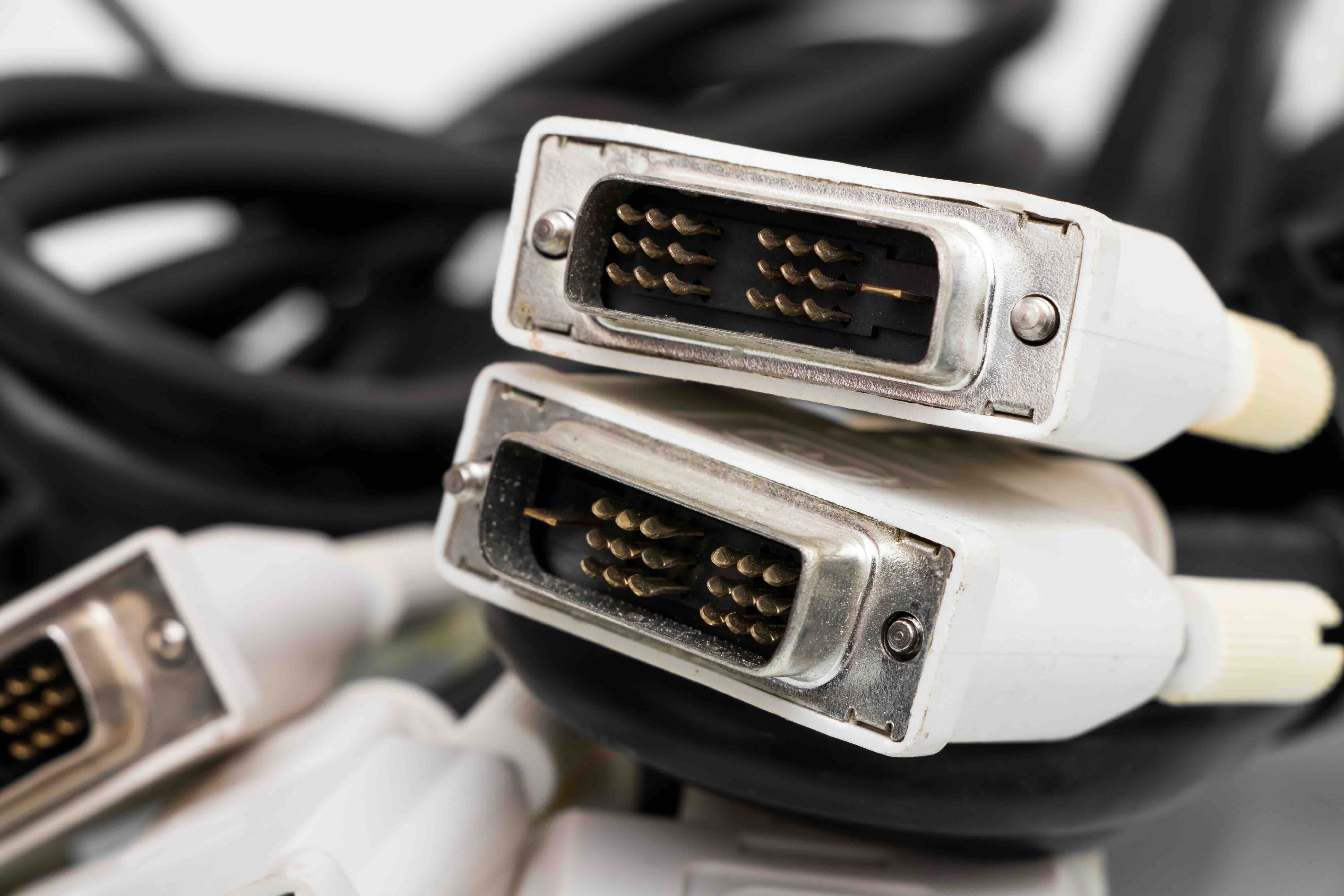
You can identify a Dual Link DVI-D cable by its connector pin layout. Dual Link connectors have a denser arrangement of pins, including a full 3x3 block of pins in the center cluster, while Single Link cables have fewer pins in that area.
Is DVI-D still worth using in 2024 and beyond?
DVI-D remains a valid option for setups that do not require 4K resolution, HDR output, or high refresh rate gaming. For legacy hardware environments and workstations operating within its resolution range, it continues to deliver stable, high-quality digital video output.
Does cable length affect DVI-D resolution or image quality?
Yes. Longer DVI-D cable runs can result in signal degradation, particularly at higher resolutions. For best results at 2560x1600, use quality shielded cables and keep runs as short as your installation allows.
Can DVI-D support HDR content?
No. DVI-D does not support HDR metadata or the HDCP 2.2 content protection required for HDR-enabled streaming and Blu-ray content. For HDR output, HDMI 2.0 or higher, or DisplayPort 1.4 or higher, is required.


