

Display Cables Explained: Find the Right Connection Fast
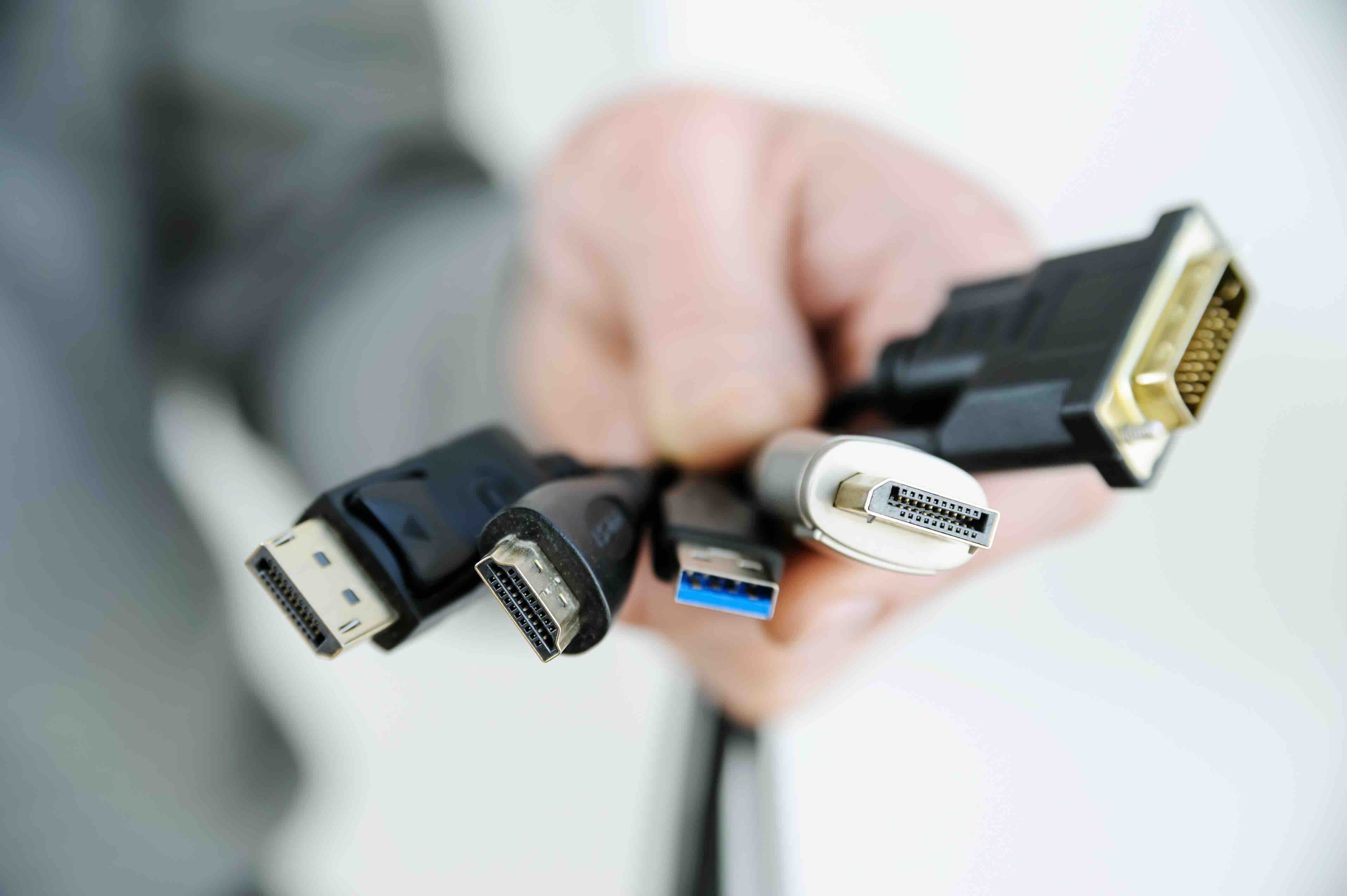
Display Cables Explained: Your Complete Guide to Choosing the Right Connection
So you are staring at the back of your monitor or TV, maybe a new graphics card just arrived, and suddenly there are four different ports and none of them match. That situation is incredibly common. Display cables are one of those categories that most people ignore until something does not work, and then the whole setup feels frustrating. The good news is that once you understand what each cable type actually does, the decision becomes straightforward. This guide breaks down every major display cable standard, what it supports, where it excels, and what its limitations are, so you can make a confident and informed call before spending anything.
Why the Type of Display Cable You Use Actually Matters
It is easy to assume that a cable is just a cable, but that is genuinely not the case here. Display cables are the physical pathway between your source device and your screen, and the type you choose directly determines the maximum resolution, refresh rate, color depth, and audio capability you can achieve. A cable that maxes out at 1080p is not going to unlock 4K performance no matter how high-end your monitor is. Similarly, a cable that cannot carry audio means you are routing sound separately, adding unnecessary complexity to your setup. For gamers pushing 144Hz or higher, for content creators working in HDR, or for AV integrators building enterprise display walls, the cable specification is not a footnote. It is a foundational decision.
HDMI: The Universal Standard Most People Already Know
HDMI is probably the most recognized display interface in consumer electronics, and for good reason. It handles both audio and video over a single cable, which simplifies installation dramatically. Over the years, HDMI has evolved through several versions, each expanding bandwidth and capability. HDMI 1.4 supports 4K at 30Hz, which is usable but limited. HDMI 2.0 brought 4K at 60Hz with HDR support, making it a significant leap for home theater setups. HDMI 2.1 is the current flagship version, supporting resolutions up to 10K, 4K at 120Hz, 8K at 60Hz, and features like Variable Refresh Rate and Auto Low Latency Mode. If you are building a gaming or home theater setup and you want the full performance envelope, HDMI 2.1 certified cables are the clear choice. One thing to watch out for is that not all cables labeled HDMI 2.1 are actually certified to deliver the full 48Gbps bandwidth, so checking certification matters more than you might think.
DisplayPort: The Professional and Gaming Standard Worth Knowing
DisplayPort does not get as much attention in casual conversations, but in the professional monitor and high-refresh-rate gaming world it is dominant. DisplayPort 1.4 supports 8K at 30Hz or 4K at 120Hz with HDR, and DisplayPort 2.1 pushes that ceiling significantly higher, supporting up to 16K resolution and 4K at 240Hz depending on configuration. One major advantage DisplayPort has over HDMI is daisy-chaining, which allows you to connect multiple monitors in a chain from a single output port using Multi-Stream Transport. For workstation users, video editors, and anyone managing a multi-display setup, that is a real practical benefit. DisplayPort is also the standard found on most PC graphics cards and professional monitors, so if you are building a desktop workstation or gaming rig, this interface is almost certainly in your workflow already.
USB-C and Thunderbolt: Modern Versatility in a Single Port
USB-C has quietly become one of the most capable display interfaces available, especially on modern laptops, tablets, and smartphones. When a USB-C port supports DisplayPort Alt Mode, it can carry full display signals without any adapter beyond a simple cable or dock. Thunderbolt 3 and Thunderbolt 4, which use the same physical USB-C connector, add even more bandwidth and support for daisy-chaining displays, high-speed data transfer, and power delivery simultaneously. This is the cable type that makes a one-cable docking station possible, which is a genuinely big deal for hybrid workers and mobile professionals. The catch is that not every USB-C port supports display output, so checking your device specs before purchasing a cable or hub is an important step most people skip.
VGA and DVI: Legacy Interfaces Still Showing Up in the Wild
VGA and DVI are older standards that still appear in office environments, education settings, and with older hardware. VGA is an analog signal, which means image quality degrades over distance and it offers no audio capability at all. It maxes out practically around 1080p, though even that can look soft compared to digital alternatives. DVI improved on VGA by offering a digital signal path, and DVI-D dual link supports up to 2560x1600, which was impressive for its time. Neither standard is relevant for new builds in 2024, but understanding them matters because you may encounter projectors, older monitors, or legacy workstations that still use them. Adapters exist to bridge these formats to HDMI or DisplayPort, though signal quality and compatibility vary depending on the conversion involved.
Key Factors to Consider When Choosing a Display Cable
Picking the right cable is less about brand loyalty and more about matching specs to your actual use case. Here are the primary factors that should drive your decision:
- Resolution and refresh rate requirements for your display
- Audio over cable support if you need a single-cable solution
- Cable length, since longer runs may need active or higher-quality cables to maintain signal integrity
- Source and display port compatibility before purchasing anything
- Future-proofing considerations if you plan to upgrade your monitor or GPU within the next few years
- Certification and build quality, particularly for HDMI 2.1 and Thunderbolt cables where counterfeit or underspec products are common
Common Mistakes People Make with Display Cables
One of the most frequent issues is assuming that a cable version printed on packaging guarantees performance. HDMI 2.1 cables are a good example because poorly manufactured or uncertified versions may not deliver full bandwidth, resulting in flickering, signal drops, or resolution caps that should not exist. Another common mistake is using a cable that is too long without understanding signal degradation. Passive HDMI and DisplayPort cables have practical length limits, typically around 15 feet for reliable performance, after which active cables or signal extenders become necessary. People also frequently buy adapters expecting seamless conversion between standards, only to discover that certain combinations like VGA to HDMI require signal processing that cheap adapters cannot reliably provide.
Quick Comparison of Display Cable Types at a Glance
If you want a fast-reference breakdown before making a purchase, here is how the major display cable types stack up across the most important categories:
- HDMI 2.1 supports up to 48Gbps bandwidth, 10K resolution, 4K at 120Hz, HDR, and carries audio
- DisplayPort 2.1 supports up to 80Gbps bandwidth, 16K capability, ideal for multi-monitor and high refresh rate gaming
- USB-C with DisplayPort Alt Mode offers up to 4K at 60Hz or higher depending on port and cable spec, combined with power and data
- Thunderbolt 4 offers 40Gbps bandwidth with daisy-chain support, power delivery, and display output
- DVI-D Dual Link supports up to 2560x1600 with no audio, declining relevance but still present in legacy setups
- VGA is analog only, no audio, softened image quality, maximum practical use at 1080p
Why Monoprice Is the Smart Choice for Display Cables
When you are outfitting a home theater, building a gaming rig, or speccing cables for a commercial installation, you need products that perform as advertised without the inflated price tags that come with over-marketed brands. That is exactly where Monoprice delivers. The full lineup of high-performance display cables and AV connectivity solutions covers every standard discussed in this article, from certified HDMI 2.1 cables built for 8K passthrough to DisplayPort options optimized for high-refresh-rate gaming and professional multi-display setups. Monoprice products are engineered to spec, tested for real-world reliability, and priced so that doing the job right does not require a budget compromise. Whether you are a first-time buyer trying to sort out a home setup or an integrator sourcing cables for an enterprise deployment, the product depth and certification standards Monoprice maintains make it a genuinely trusted source in the AV and connectivity space.
Frequently Asked Questions About Display Cables
What is the difference between HDMI 2.0 and HDMI 2.1?
HDMI 2.0 supports 4K resolution at up to 60Hz with HDR and carries audio over a single cable. HDMI 2.1 significantly expands bandwidth to 48Gbps, enabling 4K at 120Hz, 8K at 60Hz, Variable Refresh Rate, and Auto Low Latency Mode. For modern gaming consoles and high-refresh displays, HDMI 2.1 is the more capable choice.
Can I use a DisplayPort cable on an HDMI monitor?
Not directly without an adapter. DisplayPort and HDMI are separate standards with different signal protocols. A passive DisplayPort to HDMI adapter works in many cases for standard resolutions, but for higher bandwidth scenarios like 4K at 60Hz you may need an active adapter to ensure proper signal conversion.
Does cable length affect display quality?
Yes. Passive display cables, including standard HDMI and DisplayPort cables, can experience signal degradation over longer distances, typically beyond 15 feet. For longer runs, active cables that include signal boosting circuitry are recommended to maintain full resolution and refresh rate performance.
Is USB-C the same as Thunderbolt?
They share the same physical connector but are not the same technology. Thunderbolt 3 and 4 are Intel-developed standards built on top of the USB-C form factor, offering higher bandwidth and additional features including daisy-chaining and enhanced display support. Not all USB-C ports support Thunderbolt, and not all support display output at all.
What display cable is best for gaming at 144Hz or higher?
For 1080p or 1440p at 144Hz, DisplayPort 1.4 or HDMI 2.0 are both capable. For 4K at 144Hz or above, you need DisplayPort 1.4 with Display Stream Compression or DisplayPort 2.1, and HDMI 2.1 also supports 4K at 120Hz natively. Check your GPU and monitor specs to confirm which interface they support before choosing.
Do display cables affect audio quality as well as video?
HDMI carries both audio and video and supports high-definition audio formats including Dolby Atmos and DTS:X over a single cable. DisplayPort also supports audio output but is less commonly used for that purpose. VGA carries no audio at all, and DVI has no audio capability either.
What does HDR support in a cable actually mean?
HDR, or High Dynamic Range, requires sufficient bandwidth to transmit the additional color and brightness data the format relies on. HDMI 2.0 and higher, as well as DisplayPort 1.4 and higher, support HDR signal passthrough. The cable needs to meet the bandwidth specification for the HDR standard your display and source device use.
Are expensive display cables worth it compared to budget options?
For standard use at common resolutions and refresh rates, mid-range cables from reputable manufacturers perform reliably. Where build quality and certification matter most is at the high end, specifically HDMI 2.1 and Thunderbolt 4 cables, where uncertified or poorly manufactured products frequently fail to deliver their stated specifications.
Can a display cable limit the performance of a high-end monitor?
Absolutely. If your monitor supports 4K at 144Hz but the cable you are using only supports 4K at 60Hz, your display will be capped at the lower performance level regardless of your monitor or GPU capabilities. Always match your cable specification to the maximum performance your display and source device support.
What should I look for when buying an HDMI 2.1 cable?
Look for cables that are certified by HDMI.org and rated for the full 48Gbps Ultra High Speed specification. The cable should clearly state it supports 8K and 4K at 120Hz. Avoid cables that carry HDMI 2.1 labeling without visible certification or bandwidth ratings, as these frequently underperform in real-world testing.


