

Computer Cords Explained: Every Cable Type You Need
Understanding Computer Cords: A Complete Guide to Every Cable Type You Need to Know
If you have ever stared at a drawer full of tangled cables and wondered what half of them actually do, you are not alone. Computer cords are one of those things people interact with every single day but rarely stop to think about. And honestly, that is kind of a problem, because choosing the wrong cable can mean slow data transfers, a monitor that will not display properly, or a device that just refuses to charge. This guide breaks down every major type of computer cord, explains how each one works, and helps you figure out exactly what you need without the guesswork.
What Are Computer Cords and Why Do They Matter
Computer cords are the physical cables that connect your devices to each other, to power sources, or to external peripherals. They carry electrical signals, data, video, audio, or some combination of all of those things depending on the cable type. The technology inside a cable, including the shielding, conductors, and connector design, directly impacts how well it performs. A budget cable with poor shielding can introduce interference into a signal chain. A cable rated for USB 2.0 will bottleneck a USB 3.2 device. These are not small details. The right cable makes your entire setup more reliable, faster, and a whole lot less frustrating to deal with on a daily basis.
Power Cords and AC Adapters: The Foundation of Every Setup
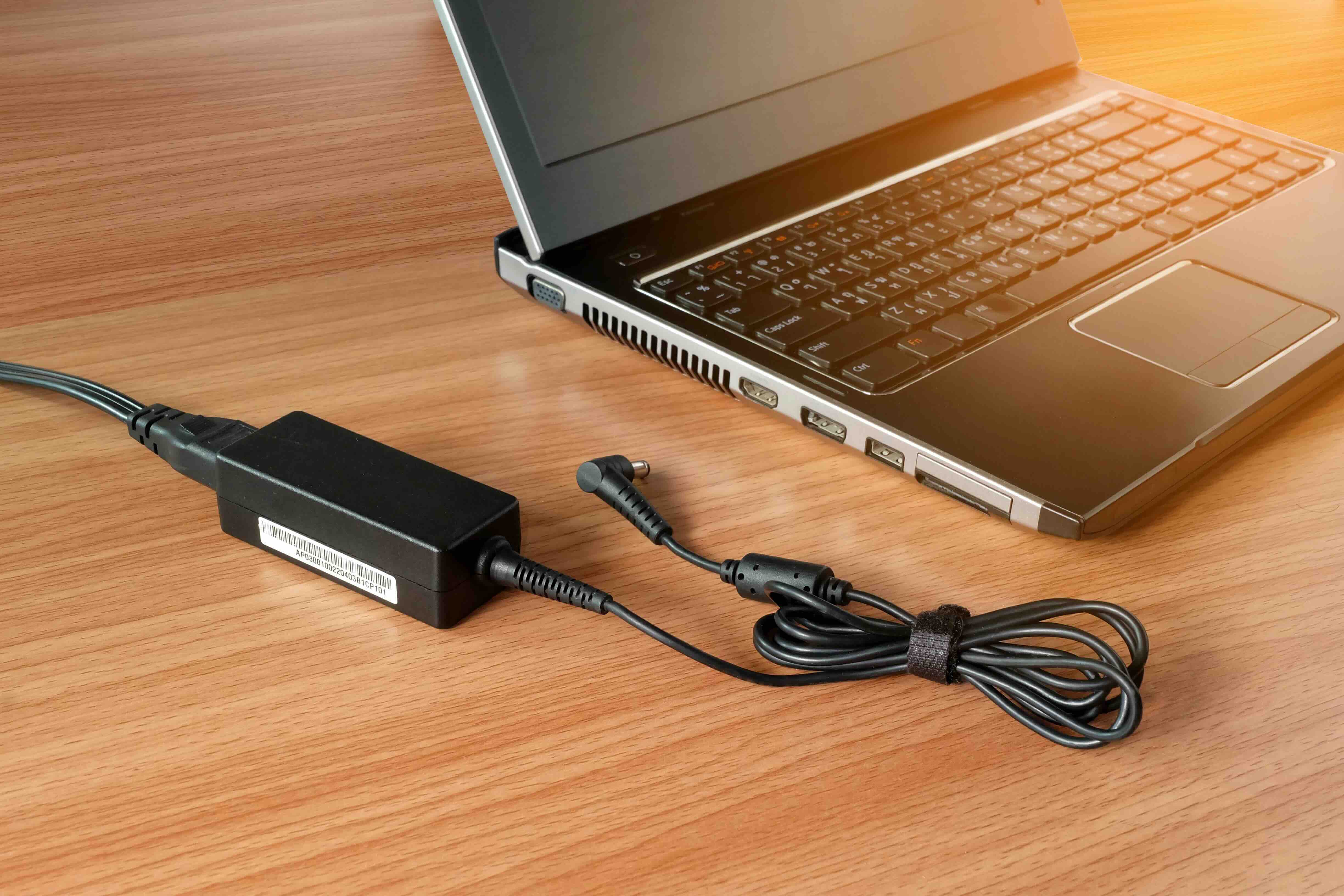
Before anything else works, it needs power. Power cords and AC adapters are the most fundamental computer cables in any setup. Standard desktop computers typically use a three-prong IEC C13 power cord that connects directly to the power supply unit. Laptops use proprietary or standardized DC barrel connectors, or increasingly, USB-C Power Delivery cables that can charge devices at up to 100W or more with the right adapter. What matters here is wattage rating and build quality. An underpowered adapter can cause unstable performance or failed charging cycles. Always match the wattage to the device requirements and make sure the cable itself is rated for the current it is carrying.
USB Cables: The Most Common Computer Cord on the Market
USB cables are everywhere, and there are more versions than most people realize. Here is a breakdown of what you will encounter most often:
- USB Type-A: The classic rectangular connector, used for keyboards, mice, flash drives, and older peripherals
- USB Type-B: Square-shaped, found on older printers and some audio equipment
- Micro-USB: Smaller connector used in older smartphones, cameras, and accessories
- Mini-USB: Even older, still found occasionally on legacy devices
- USB Type-C: The current standard, reversible connector used for charging, data, video, and more
- USB 2.0: Up to 480 Mbps transfer speed
- USB 3.0 / 3.1 / 3.2: Ranges from 5 Gbps up to 20 Gbps depending on the generation
- USB4: Up to 40 Gbps, often sharing the Thunderbolt 4 specification
The shift toward USB-C has been significant. A single USB-C cable on a modern system can handle data, power delivery, and video output simultaneously, which is a massive convenience factor. However, not all USB-C cables are created equal. A cable that only supports USB 2.0 speeds will not benefit a USB 3.2 device, even if the physical connector fits perfectly. Always check the spec rating before you buy.
Video and Display Cables: Connecting Monitors and Screens
Display cables transmit video and audio signals from your computer to a monitor, television, or projector. The main types in use today include HDMI, DisplayPort, DVI, and VGA. HDMI is the most widely recognized and supports high-resolution video up to 10K in its latest 2.1 specification, along with multi-channel audio. DisplayPort, which is common in professional and gaming monitor configurations, supports high refresh rates and daisy-chaining multiple displays from a single port. DVI is an older digital standard that you will still encounter on some legacy monitors and graphics cards, though it has largely been replaced. VGA is fully analog and should be considered end-of-life for most modern applications. If you are building or upgrading a workstation or home theater setup today, HDMI 2.1 or DisplayPort 1.4 are the standards worth investing in.
Thunderbolt Cables: High-Performance Connectivity for Power Users
Thunderbolt is a hardware interface developed by Intel in collaboration with Apple that uses the USB-C physical connector but operates on a completely different and significantly more capable protocol. Thunderbolt 3 and Thunderbolt 4 both support up to 40 Gbps bandwidth, with Thunderbolt 4 adding mandatory certifications for video output, charging minimums, and wake-from-sleep capabilities. These cables are essential for content creators, engineers, and anyone running high-demand peripherals like external GPUs, docking stations, or 4K dual-monitor setups. The key drawback is cost. Thunderbolt cables are noticeably more expensive than standard USB-C cables. They are also limited in length without active repeaters, typically maxing out around 2 meters for passive designs before signal degradation becomes an issue.
Ethernet and Networking Cables: Wired Connectivity for Speed and Stability
Ethernet cables connect computers directly to routers, switches, and network infrastructure. They remain the most reliable option for high-speed, low-latency networking compared to wireless connections. The main categories you need to know are Cat5e, Cat6, Cat6A, and Cat8. Cat5e supports up to 1 Gbps at 100 meters. Cat6 supports 1 Gbps at 100 meters and up to 10 Gbps at shorter distances. Cat6A extends that 10 Gbps capability to the full 100-meter range. Cat8 is designed for data center environments and supports 25 to 40 Gbps at shorter runs. For most home and small office setups, Cat6 is the practical sweet spot. For enterprise environments or future-proofing a structured cabling installation, Cat6A is worth the investment.
Audio Cables and Serial Connectors: Specialty Cords Still in Active Use
Not every computer cord fits neatly into the data or video category. Audio cables like the 3.5mm TRS analog jack and optical TOSLINK cables are still widely used for connecting headphones, speakers, and audio interfaces. On the serial side, RS-232 and DB9 connectors are still actively deployed in industrial, medical, and point-of-sale environments where legacy communication protocols remain essential. These are specialized cables with specific use cases, and getting the wrong one can mean an incompatible connection or signal mismatch. It is worth knowing they exist even if you will not encounter them in typical consumer setups.
Common Mistakes When Buying Computer Cables
There are a few consistent errors that buyers make when sourcing computer cords, and they are all easy to avoid once you know what to look for. Assuming all USB-C cables are the same is probably the most expensive mistake, given how differently they can perform. Buying the shortest cable available to save money and then realizing it does not reach is another common issue. Overlooking shielding quality in environments with lots of electrical interference can result in degraded signal quality over time. And skipping cable management entirely leads to setups that are harder to troubleshoot and maintain. Taking the time to spec your cables correctly upfront saves real money and hassle in the long run.
Why Monoprice Is the Smart Choice for All Your Computer Cable Needs
When it comes to sourcing reliable, high-performance computer cords without overpaying, Monoprice has built a reputation as one of the most trusted names in the industry. Whether you are a home user trying to set up a clean workstation, an IT professional running structured cabling across an office, or an AV integrator spec-ing out a commercial installation, the depth and quality of Monoprice's cable lineup is genuinely hard to match at comparable price points. From USB-C and Thunderbolt cables to Cat6A networking solutions and DisplayPort display cables, every product is built to deliver dependable performance. If you are ready to stop guessing and start building smarter, explore the full range of high-performance computer cables and connectivity solutions at Monoprice and see how far your budget can actually take you.
Frequently Asked Questions About Computer Cords
What is the difference between USB 3.0 and USB-C?
USB 3.0 refers to a data transfer speed standard, while USB-C refers to the physical connector shape. A USB-C cable can support USB 2.0, USB 3.0, USB 3.2, or even Thunderbolt speeds depending on how it is built and certified. Always check the spec rating, not just the connector type.
Can I use any USB-C cable for charging a laptop?
Not necessarily. Laptop charging over USB-C requires Power Delivery support, and the cable must be rated for the appropriate wattage. Using an underpowered cable may result in slow charging or no charging at all.
What is the best Ethernet cable for home use?
Cat6 is the recommended standard for most home networking setups. It supports 1 Gbps at standard lengths and offers headroom for 10 Gbps at shorter distances, making it a reliable and cost-effective choice for the majority of residential applications.
How long can an HDMI cable be before signal quality degrades?
Passive HDMI cables can reliably run up to about 25 feet in most installations. Beyond that, signal degradation can become an issue. For longer runs, active HDMI cables or fiber optic HDMI solutions are the appropriate choice.
What is the difference between Thunderbolt and USB-C?
Thunderbolt uses the same USB-C connector but operates on a different protocol with significantly higher bandwidth, up to 40 Gbps, and supports additional features like daisy-chaining devices and external GPU connectivity. Not every USB-C port or cable supports Thunderbolt.
Is DisplayPort better than HDMI for gaming monitors?
For high refresh rate gaming, DisplayPort 1.4 generally offers advantages including higher bandwidth, support for 144Hz and above at 4K resolution, and compatibility with adaptive sync technologies. HDMI 2.1 has closed much of that gap and is preferred for console gaming and home theater use cases.
Why does my USB device work slower when I use a different cable?
The cable itself has a speed rating. If a USB 3.2 device is connected with a cable only rated for USB 2.0 speeds, data transfers will be limited to the lower specification. Always match the cable's rated speed to the device's capability for optimal performance.
What does cable shielding actually do?
Shielding in a cable reduces electromagnetic interference from external sources and prevents signal leakage from the cable itself. In environments with motors, fluorescent lighting, or dense electrical equipment, shielded cables maintain more consistent signal integrity than unshielded alternatives.
Can I use a VGA cable with a modern monitor?
Only if both the output device and the monitor have VGA ports, which is increasingly rare in modern hardware. VGA is an analog standard with limited resolution support compared to HDMI or DisplayPort. Adapters exist, but they often introduce latency and image quality issues. Upgrading to a digital connection is strongly recommended.
How do I know which power cord to use with a device?
Check the device's power input rating, which is typically printed on a label near the port or on the unit itself. Match the voltage and amperage requirements to the adapter or cable you select. Using an incorrect power cord can damage the device or create a safety hazard.


