

Why No Black USB Ports Means Faster, Smarter Connections
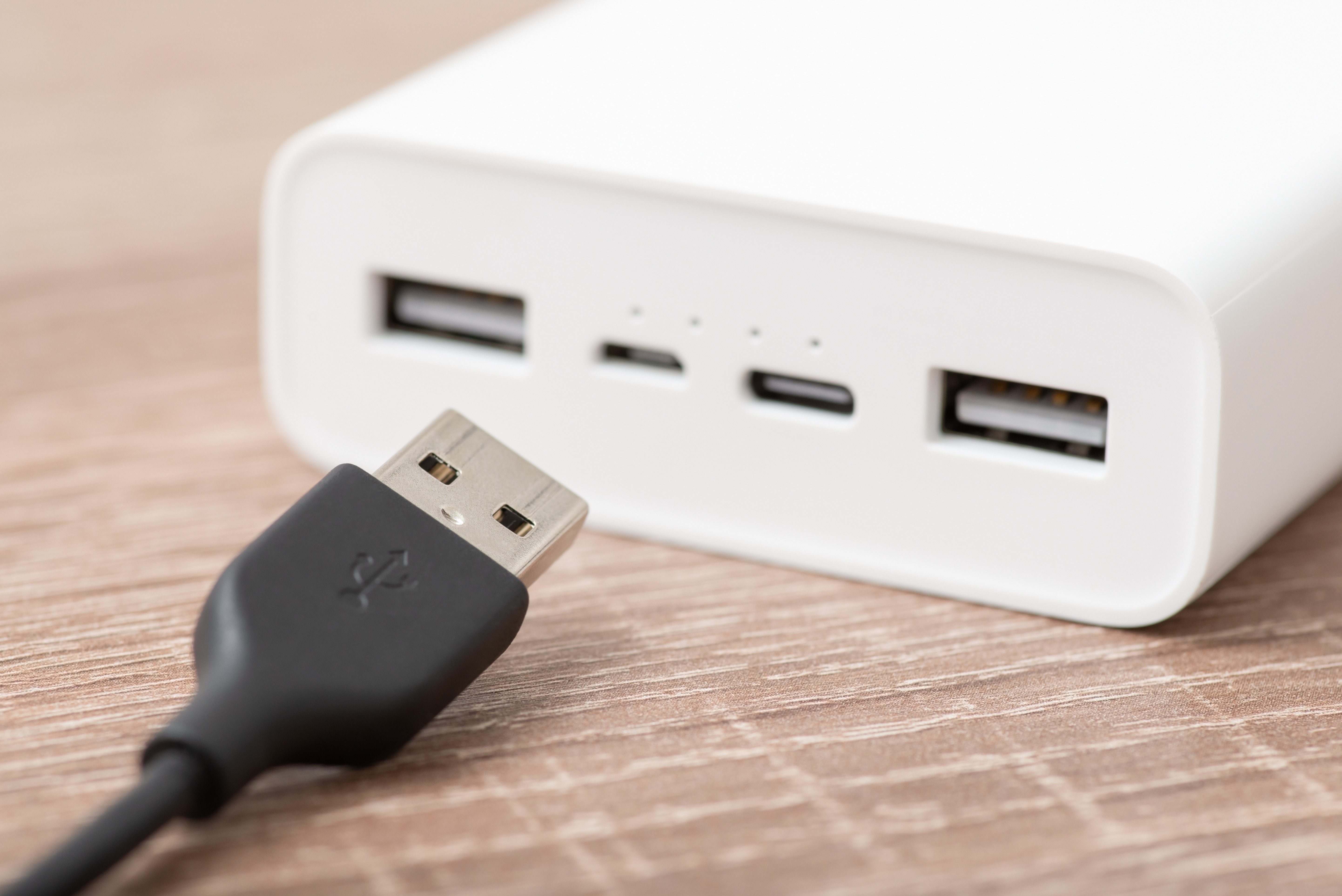
What It Means When There Are No Black USB Ports on Your Device
So you just got a new laptop, hub, or desktop and you are staring at the ports trying to figure out what connects where. No black USB ports anywhere. Maybe you are thinking something is missing or the manufacturer cut corners. Actually, it is kind of the opposite. The absence of black USB ports is one of the better signals that what you are looking at is a more modern, capable piece of hardware. Color coding in USB has been a quiet but consistent part of how the industry communicates port capability to users, and once you understand the system, it starts to make a lot of sense. This article breaks down what USB port colors mean, why black is largely being phased out, and what you should actually look for when connecting your devices today.
A Quick History of USB Port Color Coding
USB has been around since the mid-1990s, and color coding came in to help users identify port capabilities at a glance. Black ports were among the earliest standard colors used, typically indicating USB 1.x or USB 2.0 support. These ports offered relatively modest data transfer speeds, generally around 480 Mbps at best for USB 2.0. At the time that was perfectly adequate for keyboards, mice, and basic flash drives. But technology moved quickly, and as USB 3.0 arrived with its dramatically faster speeds, a new color was needed to distinguish the upgrade. That color was blue. Blue ports became the visual shorthand for USB 3.0 and its successors, signaling faster data throughput and improved performance. From there, the color vocabulary kept expanding as USB standards evolved further.
What the Different USB Port Colors Actually Tell You
It is worth understanding each color and what it means before assuming your setup is missing something. Here is a general breakdown of common USB port colors and their associated standards:
Black ports: USB 1.x or USB 2.0, up to 480 Mbps data transfer Blue ports: USB 3.0 or USB 3.1 Gen 1, up to 5 Gbps Teal or light blue ports: USB 3.1 Gen 2, up to 10 Gbps Red or orange ports: USB 3.2 or powered charging ports that supply power when the system is off Yellow ports: Sleep-and-charge ports that deliver power regardless of system state Gray ports: Often USB 3.2 Gen 2x2, offering up to 20 Gbps
Black, as you can see, sits at the bottom of the performance ladder. If your device does not have them, it likely means those older, slower standards were skipped entirely in favor of something more capable. That is a good thing for anyone who cares about speed and efficiency.
Why Newer Devices Are Dropping Black USB Ports Entirely
Modern hardware manufacturers are building for where technology is going, not where it has been. USB 2.0 ports are technically still useful for low-bandwidth peripherals like mice or basic keyboards, but they create a bottleneck for almost everything else. External drives, high-resolution webcams, audio interfaces, fast-charging accessories, and data-heavy peripherals all benefit significantly from higher-speed connections. Designing a product around USB 3.x or USB-C exclusively allows engineers to optimize the entire data pipeline without accommodating a slower legacy standard. The result is a cleaner, more capable device with ports that are actually suited to how people use technology right now. Dropping the black port is not a compromise, it is a deliberate performance decision.
The Rise of USB-C and What It Changes
There is one more port that deserves its own conversation: USB-C. This oval-shaped connector has become increasingly dominant across devices of all types. Unlike the older Type-A ports that had a defined top and bottom, USB-C is reversible, which removes the frustrating trial-and-error of plugging in a cable. More importantly, USB-C can carry USB 3.2, USB4, Thunderbolt, video signals, and substantial power delivery all through a single port. Many modern devices feature USB-C exclusively or as the primary connection interface. This is part of why black ports are disappearing. When a device supports USB-C with full USB4 or Thunderbolt 4 capability, there is very little reason to include a slower black USB-A port alongside it. The architecture has simply moved forward.
Smart Charging and Power Delivery: Another Reason Color Matters
Beyond data transfer, USB port color also speaks to power delivery. Standard USB 2.0 black ports output around 500 milliamps at 5 volts, which is barely enough to charge a phone slowly and certainly not enough for power-hungry tablets or laptops. Newer ports with higher specifications deliver substantially more power. USB Power Delivery, or USB PD, can push up to 240 watts through a properly rated USB-C cable and port. Orange and yellow ports, as mentioned earlier, are specifically engineered to deliver charging capability even when a device is off or in standby. Understanding port color lets users make smarter decisions about which port to use when time or power management actually matters.
Common Misconceptions About USB Ports and Compatibility
One thing that trips people up is assuming that if a cable fits, the connection is working at full speed. That is not always true. A USB 3.0 device plugged into a USB 2.0 port will only operate at USB 2.0 speeds. The physical connector may accept the cable, but the bandwidth is capped by the slower port. This is why knowing your port color and what it represents is genuinely useful, not just trivia. Additionally, not all USB-C ports are equal. Some USB-C ports on budget devices only support USB 2.0 speeds despite the modern connector shape. Always check the specifications rather than relying solely on port shape. A reputable manufacturer will clearly document what each port supports.
Practical Tips for Getting the Most Out of Your USB Ports
Now that the color system makes sense, here are a few practical ways to make smarter use of your ports every day:
Use blue or higher-rated ports for external storage drives to get full transfer speeds Reserve older or lower-rated ports only for peripherals that do not require bandwidth, like a wired mouse Match your cable rating to your port rating for accurate performance Check your device specifications online if port colors are unclear or unlabeled Invest in a USB hub that matches your port generation so you are not creating a bottleneck at the hub level
Small adjustments in how you connect devices can have a real impact on productivity, especially if you regularly move large files or work with audio and video hardware.
Why This All Matters for Long-Term Tech Performance
Future-proofing is a phrase that gets used a lot, but in this context it actually applies. Devices built around USB 3.2, USB4, and USB-C are better positioned to remain compatible with upcoming peripherals, storage media, and displays. Black USB 2.0 ports are not going to support the next generation of high-resolution external monitors or fast NVMe enclosures. Buying or working with hardware that has moved past those legacy ports means your setup has more room to grow without requiring complete replacement. Whether you are building out a workstation, managing a hybrid office setup, or just trying to get reliable performance from your personal setup, modern USB standards deliver a meaningful advantage over what black ports can offer.
Where Monoprice Fits Into Your Modern USB Setup
If you are rethinking your cable and connectivity setup after understanding what USB port colors actually mean, this is a good time to look at what you are working with. Outdated cables, mismatched hubs, and underpowered adapters can undermine even the most capable ports. Monoprice has built a well-earned reputation as a reliable source for high-performance connectivity products at pricing that does not require a procurement argument to justify. From USB-C cables with verified Power Delivery ratings to USB hubs that support USB 3.2 speeds without bottlenecking your workflow, the product lineup is built around real-world performance and tested specifications. If you are ready to connect everything properly and stop leaving speed on the table, explore the full range of high-speed USB cables and connectivity solutions at Monoprice and see what a well-matched setup actually feels like. The right cable and the right port working together is not a small thing, it is the foundation of a setup that performs the way it should every single time.
Frequently Asked Questions About USB Port Colors and Modern Connectivity
Why does my new device have no black USB ports?
Black USB ports correspond to USB 1.x or USB 2.0 standards, which are older and slower. Newer devices skip these entirely in favor of faster USB 3.x or USB-C ports, which offer significantly better data transfer speeds and power delivery capabilities.
Is it bad that my laptop only has USB-C ports?
Not at all. USB-C is the current standard for modern devices and supports faster data transfer, video output, and high-wattage power delivery. You may need an adapter or hub for older accessories, but the performance trade-off is worth it.
What does a blue USB port mean?
A blue USB port typically indicates USB 3.0 or USB 3.1 Gen 1 support, offering data transfer speeds up to 5 Gbps. This is significantly faster than the 480 Mbps maximum of a black USB 2.0 port.
Can I plug a USB 2.0 device into a USB 3.0 blue port?
Yes. USB is backward compatible, so a USB 2.0 device will work in a USB 3.0 port. However, the connection will operate at USB 2.0 speeds, so you will not gain any speed advantage from the faster port.
What is the difference between a red USB port and a yellow USB port?
Red or orange ports often indicate enhanced charging or USB 3.2 support. Yellow ports are specifically designed as sleep-and-charge ports, meaning they continue supplying power to connected devices even when the host system is powered off or in sleep mode.
Do all USB-C ports support fast data transfer?
No. Some USB-C ports, particularly on budget devices, only support USB 2.0 data speeds despite having the modern connector shape. Always review the device specifications to confirm what data transfer standard the port actually supports.
How do I know what speed my USB port supports?
Check the manufacturer's documentation or product specification page for your device. Port color is a helpful indicator but is not always consistent across brands. Labels near the port, such as SS for SuperSpeed, can also help identify the standard.
Will using an old USB cable slow down my connection even on a new port?
Yes. Cable quality and rating directly affect performance. If your cable is rated for USB 2.0 speeds, plugging it into a USB 3.2 port will still limit you to USB 2.0 throughput. Always match your cable specification to your port capability.
What USB standard should I look for when buying a new hub or dock?
Look for hubs that explicitly support USB 3.2 Gen 1 or higher, and USB-C with Power Delivery if you need to charge devices through the hub. A hub that only supports USB 2.0 will bottleneck faster devices regardless of which port you plug it into.
Are there any downsides to not having black USB 2.0 ports on a device?
The primary consideration is compatibility with older peripherals that use USB Type-A connectors. A simple USB-A to USB-C adapter or a quality USB hub resolves this in most cases without sacrificing the performance benefits of a more modern port configuration.


