

Where to Plug Ethernet Cables and Why Grounding Really Matters
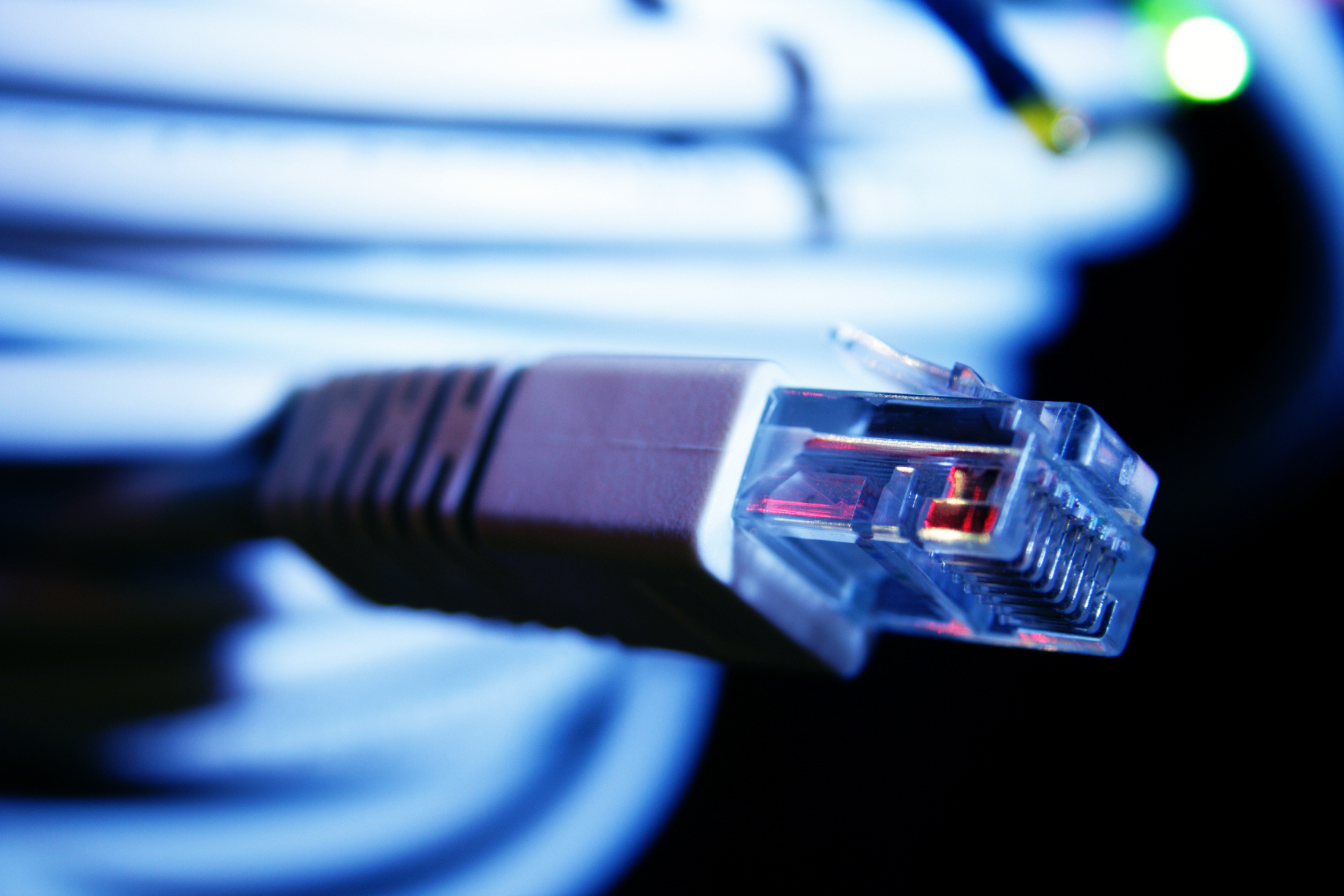
Where to Plug In Your Ethernet Cable and Why It Matters More Than You Think
So you've got an Ethernet cable in hand and you're staring at the back of your router, maybe your PC, maybe a wall plate -- and honestly, it should be obvious, but sometimes it just isn't. And that's fine. Plugging in an Ethernet cable correctly is one of those things that seems simple until you're dealing with signal drops, interference, or a network setup that just refuses to cooperate. Let's walk through the basics, get into grounding, and cover the stuff most setup guides skip entirely.
What Is an Ethernet Port and Where Do You Find One
An Ethernet port is a rectangular data port that accepts an RJ45 connector -- the plastic clip-ended plug at the end of your network cable. It's slightly wider than a standard phone jack and you'll find it on routers, switches, modems, desktop computers, laptops (on older and professional-grade models), wall jacks, smart TVs, gaming consoles, and network-attached storage devices. The port typically has two small indicator lights: one for connection status, one for activity. When a cable is seated properly, at least one of those lights will illuminate. If neither lights up, the cable may not be fully clicked in, the port may be faulty, or the device on the other end isn't powered on or configured correctly.
Where Exactly Do You Plug In the Ethernet Cable
This depends entirely on what you're connecting and what role each device plays. Here's the short version of how it works in most setups:
Modem to router: plug one end into the modem's output port (sometimes labeled WAN or Internet) and the other end into the WAN port on your router -- this is usually a different color than the LAN ports Router LAN ports to devices: use the numbered LAN ports (typically labeled 1 through 4) to connect your computers, consoles, or switches Wall jack to device: if your home or office is wired with structured cabling, plug one end into the wall plate and the other directly into your device or a nearby switch Switch expansion: if you need more wired connections than your router provides, plug a network switch into one of the router's LAN ports, then connect devices to the switch
The router is the central hub of most home setups. The modem brings internet in. The router distributes it. Switches extend the number of available wired ports. It's a clean chain once you see how it flows.
Wired vs Wireless: Why Ethernet Still Wins
Wi-Fi is convenient, no argument there. But wired Ethernet delivers something wireless simply can't guarantee: consistency. A Cat6 cable running from your router to a gaming PC or a work-from-home workstation eliminates the packet loss, latency spikes, and bandwidth competition that come with wireless connections. In a household with multiple users streaming, gaming, and video conferencing simultaneously, dedicated wired connections for high-demand devices make a measurable difference. Ethernet doesn't care how many walls are between you and the router. It doesn't get disrupted by neighboring networks or microwave interference. It's the infrastructure choice that holds up over time.
Understanding Network Grounding and Why It Matters
Here's where a lot of DIY network setups fall short. Grounding is not optional in professional environments, and it becomes increasingly relevant in home setups as well -- especially when you're running longer cable runs, using PoE (Power over Ethernet) devices, or operating in areas prone to electrical storms. Grounding your network gear means connecting the metal chassis of switches, patch panels, and server enclosures to the building's electrical ground. This creates a path for unwanted electrical energy -- static discharge, induced voltage from nearby power lines, lightning surge -- to safely dissipate rather than travel through your data cables and into connected equipment.
Ungrounded switches and patch panels can act as antennas, picking up electromagnetic interference that degrades signal quality. In worst-case scenarios, an ungrounded rack in a lightning-prone area can result in damaged hardware across an entire network. Proper grounding is the difference between a resilient network and a vulnerable one.
How to Ground Your Network Equipment Correctly
For most home setups, grounding starts with the wall outlet. If your router and switch are plugged into a properly grounded surge protector connected to a grounded outlet, that covers the basic electrical safety requirement. But for structured cabling installations -- wall plates, patch panels, and rack-mounted equipment -- you need to take additional steps:
Use shielded Ethernet cable (STP or FTP) when running cable near electrical conduit or in commercial environments Connect the patch panel's grounding lug to a grounding bar in your network rack Bond the rack's grounding bar to the building's main electrical ground using an appropriately rated grounding conductor Verify ground continuity with a multimeter before commissioning the installation Avoid daisy-chaining surge protectors, which can compromise the effectiveness of the ground path
For residential setups, investing in a quality surge protector with proper grounding and clamping ratings is a practical starting point. For pro environments, consult a licensed electrician when establishing structured ground bonding.
Common Ethernet Setup Mistakes and How to Avoid Them
The most frequent issues in home and small office network setups are surprisingly preventable. Running cable too close to power lines or inside the same conduit as electrical wiring introduces interference -- use shielded cable or maintain physical separation. Exceeding the 100-meter maximum run length for copper Ethernet is another common mistake that results in degraded performance or complete signal loss. Crimping your own cables incorrectly -- misaligned wire pairs, insufficient strain relief -- creates intermittent faults that are genuinely difficult to diagnose. And plugging into the wrong port on a router, like inserting a LAN device into the WAN port, will leave you puzzled as to why the connection won't work. These aren't complex problems. They just require knowing what to look for.
Ethernet Cable Categories and Which One You Actually Need
Not all Ethernet cables perform equally, and the category rating tells you a lot about what a cable can handle. Cat5e supports speeds up to 1 Gbps over 100 meters and remains adequate for general home use. Cat6 improves on that with reduced crosstalk, better performance at high frequencies, and supports 10 Gbps over shorter runs -- a solid choice for most residential and small business applications. Cat6A extends 10 Gbps capability to the full 100-meter run, making it the standard for structured cabling in commercial environments. Cat8 targets data center use with 25 to 40 Gbps speeds over short distances. For most homes and small offices, Cat6 is the practical sweet spot -- capable enough to support current and near-future network demands without unnecessary cost overhead.
Setting Up Ethernet in a Home or Professional Environment
Planning a wired network, whether for a single room or a full building, starts with understanding traffic patterns. Identify which devices benefit most from a wired connection -- workstations, NAS drives, smart TVs, VoIP systems -- and prioritize runs to those locations. Use keystone jacks and wall plates for permanent installations rather than leaving cable ends exposed. Label every run at both ends during installation; that discipline pays off immediately when troubleshooting. In rack environments, cable management panels and proper patch cord lengths prevent the kind of tangled mess that makes moves and changes unnecessarily painful. A structured approach from the beginning saves time and cost at every phase after.
Why Monoprice Is the Right Source for Your Ethernet and Networking Needs
When you're putting together a reliable wired network -- whether it's a clean home office setup or a full rack deployment -- the quality of your cable, connectors, and switching gear matters more than most people realize until something fails. That's exactly where Monoprice delivers. From Cat6 and Cat6A patch cables to shielded bulk cable, keystone jacks, patch panels, and network switches, the product lineup is built around real performance at a price point that makes sense for both individual buyers and procurement teams. If you've been piecing together a network with generic, unrated cable and wondering why performance is inconsistent, the fix is often simpler than you'd expect. Starting with properly rated, reliable infrastructure from a source you can trust is the foundation of any network that's actually going to hold up. For everything from a single patch cable to a fully spec'd rack solution, shop high-performance Ethernet cables and networking gear at Monoprice and see exactly why IT professionals and home network builders keep coming back.
Frequently Asked Questions About Ethernet Cables and Network Setup
Where do I plug in an Ethernet cable on my router?
Plug your Ethernet cable into one of the LAN ports on your router, typically numbered 1 through 4 and located on the back of the device. The WAN or Internet port is reserved for your modem connection and is usually a different color.
Can I plug an Ethernet cable directly into a wall jack?
Yes, if your home or office has structured cabling installed. The wall jack connects through in-wall cable back to a patch panel or switch, giving you a clean wired connection without running cable across the floor.
What happens if I plug Ethernet into the wrong port on my router?
Plugging a device into the WAN port instead of a LAN port will result in no network connection for that device. The WAN port is specifically for the incoming internet connection from your modem and is not interchangeable with LAN ports.
Does grounding really matter for a home network?
Yes. While it's less critical in a small setup, grounding protects equipment from static discharge and electrical surges. At minimum, use a properly rated surge protector with a verified ground connection for all network hardware.
What is the maximum length I can run an Ethernet cable?
The maximum recommended run length for standard copper Ethernet (Cat5e, Cat6, Cat6A) is 100 meters or approximately 328 feet. Exceeding this distance can cause significant signal degradation and unreliable connections.
What is the difference between Cat6 and Cat6A cable?
Cat6 supports 10 Gbps over shorter runs up to around 55 meters under ideal conditions. Cat6A supports 10 Gbps over the full 100-meter run with better shielding against crosstalk, making it the preferred choice for permanent structured cabling installations.
Do I need shielded Ethernet cable for my home network?
In most residential environments, unshielded Cat6 performs well. Shielded cable becomes important when running cable parallel to power lines, inside walls near electrical wiring, or in commercial environments with higher levels of electromagnetic interference.
Why does my Ethernet connection keep dropping?
Common causes include a loose or damaged connector, a cable that exceeds the maximum run length, a faulty port on the router or switch, or cable that is pinched, bent sharply, or routed near interference sources. Testing with a known-good cable is the fastest first step.
Is it better to use a switch or a router for adding more wired connections?
If you need more wired ports beyond what your router provides, a network switch is the right tool. Connect the switch to one of your router's LAN ports and use the switch's ports to connect additional devices. The router continues to handle DHCP and traffic routing.
How do I know if my Ethernet cable is properly connected?
A properly connected Ethernet cable will produce an audible click when inserted into the port, and the indicator lights on the port should illuminate within a few seconds. A solid light typically indicates a live connection while a blinking light indicates active data transmission.


