

What Is an HDMI Adapter and Why Your Setup Needs One
What Is an HDMI Adapter and Why Does It Matter?
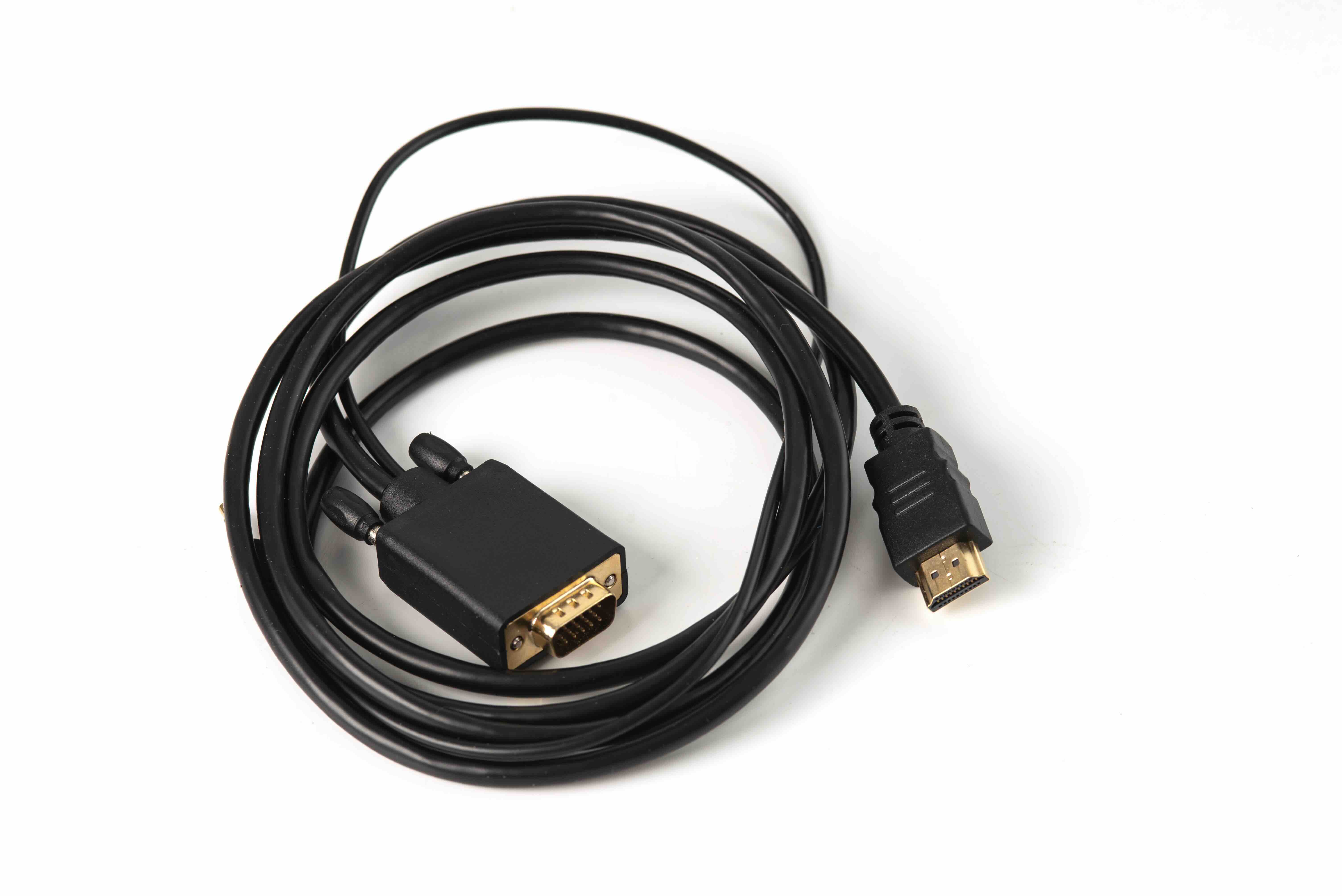
If you have ever tried connecting a laptop to a monitor, a gaming console to a projector, or a streaming device to an older television, there is a reasonable chance you have run into the need for an HDMI adapter. It is one of those small pieces of technology that tends to get overlooked until the moment you actually need it -- and then it becomes the most important thing in the room. An HDMI adapter is a compact connector that bridges two different port types or form factors, allowing devices to communicate audio and video signals that they otherwise could not share directly. Think of it as a translator between two devices that technically speak the same language but use different dialects based on their hardware design. The market for these adapters has grown considerably as devices have diversified -- thinner laptops dropped full-size HDMI ports, new display standards emerged, and older equipment stuck around longer than anyone planned for. Understanding what an HDMI adapter actually is, how it works, and what to look for when buying one can save a lot of frustration and unnecessary spending.
How HDMI Adapters Work: The Basics Explained
HDMI stands for High-Definition Multimedia Interface. It is the industry-standard connection type used to transmit uncompressed video and audio data between devices. The standard itself has evolved through several versions -- HDMI 1.4, 2.0, 2.1 -- each one expanding bandwidth capacity and support for higher resolutions, frame rates, and features like HDR and eARC. An HDMI adapter does not change the signal itself. It converts the physical connector type so that two compatible devices can exchange that signal without requiring a new cable from scratch. So if your laptop has a USB-C port and your monitor uses a standard HDMI input, a USB-C to HDMI adapter bridges that physical gap. The signal passes through, the devices handshake, and the display works. Some adapters are purely passive, meaning they just reroute the physical connection with no active processing involved. Others, particularly those converting from non-native signal types like DisplayPort or VGA, include active chipsets that handle the signal conversion. That distinction matters more than most people realize, especially when chasing higher resolutions or refresh rates.
Common Types of HDMI Adapters Available Today
The variety of HDMI adapter types on the market directly reflects how many different devices exist in homes and offices right now. Each type serves a specific pairing of hardware, and knowing which one you need comes down to identifying the ports on both ends of your connection.
- USB-C to HDMI Adapter
- Mini HDMI to HDMI Adapter
- Micro HDMI to HDMI Adapter
- DisplayPort to HDMI Adapter
- VGA to HDMI Adapter
- DVI to HDMI Adapter
- HDMI to VGA Adapter
- Thunderbolt to HDMI Adapter
USB-C to HDMI is probably the most commonly purchased type right now, given how many modern laptops, tablets, and phones have shifted entirely to USB-C connectivity. Mini HDMI and Micro HDMI adapters are frequently used with cameras, camcorders, and older tablets. DisplayPort to HDMI adapters are popular in desktop PC and professional monitor setups. VGA and DVI conversions are legacy territory but still relevant in environments running older projectors or enterprise-grade displays that have not been replaced yet.
Key Advantages of Using an HDMI Adapter
There is a reason these adapters have become such a standard item in tech kits and desk drawers. The advantages are real, practical, and often immediately felt. Compatibility is the obvious one -- an adapter extends the useful life of both a source device and a display by making them work together regardless of port mismatch. That alone can delay a hardware upgrade by months or years, which adds up in terms of cost savings. Portability is another strong point. A small USB-C to HDMI adapter fits in a laptop bag with essentially no added bulk, which makes it genuinely useful for professionals who present from laptops in conference rooms or classrooms that use HDMI-equipped displays. Adapters are also generally far more affordable than purchasing new cables with proprietary ends or investing in docking stations when a simpler solution exists. For anyone working in AV installation or IT infrastructure, having the right adapters on hand is just part of doing the job efficiently without over-engineering the solution.
Potential Drawbacks to Keep in Mind
No technology solution is without its limitations, and HDMI adapters are no exception. Signal degradation is a real concern, particularly with lower-quality adapters or longer passive cable runs. When the adapter is handling an active conversion -- say, from an analog VGA source to a digital HDMI output -- the quality of the chipset inside matters significantly. Cheap adapters with poor internal components can introduce latency, color inaccuracies, or outright signal failure. Resolution and refresh rate support is another area where adapters can fall short if they are not rated for the output you are targeting. An adapter that works fine at 1080p may not reliably support 4K at 60Hz, and that matters if you are connecting to a high-resolution display and expecting full performance. Compatibility with specific HDCP content protection protocols can also cause issues, particularly when streaming protected media through adapters that are not fully certified. Buying from a trusted source with clearly documented specifications is the most reliable way to avoid these frustrations.
How to Choose the Right HDMI Adapter for Your Setup
Choosing the right adapter starts with a clear-eyed look at what you are actually connecting and what performance you need from that connection. Start by identifying the output port on your source device and the input port on your display or receiver. Then match those against the adapter type that bridges them. From there, resolution and refresh rate support should be the next filter. If you are working with a 4K display, verify that the adapter explicitly supports 4K output -- ideally at 60Hz or better. For gaming setups or high-refresh-rate monitors, this becomes even more critical. Check whether the adapter needs to be active or passive based on the signal conversion involved. Look at the HDMI version supported by the adapter, since HDMI 2.0 and 2.1 handle bandwidth very differently. And when in doubt, prioritize adapters that come with documented specs and certifications rather than generic unbranded options that leave too many questions unanswered.
HDMI Adapters in Professional and Business Environments
Beyond home setups and personal use, HDMI adapters play a meaningful role in professional AV and IT environments. Conference rooms, training facilities, digital signage installations, and broadcast setups frequently require adapter solutions to accommodate a mix of older infrastructure and newer devices. An integrator walking into a facility with a mix of legacy DVI projectors and modern USB-C laptops needs reliable, certified adapters that perform consistently across dozens of connection events without failure. In these environments, build quality and specification accuracy are non-negotiable. Procurement teams evaluating adapters for enterprise deployment need the same clarity that individual consumers do, but at higher stakes and larger quantities. The cost savings from choosing value-driven, performance-verified adapters over premium-branded equivalents can be substantial across a full facility rollout, without any compromise in reliability or output quality.
Practical Tips for Getting the Most Out of Your HDMI Adapter
A few straightforward habits can make a real difference in how well your HDMI adapter performs over time. First, always verify that the adapter's rated resolution and HDMI version align with what both your source device and display actually support -- a mismatch in either direction limits performance to the lowest common denominator. Second, keep connections clean and secure. Loose connections at the adapter junction are a common cause of intermittent signal loss that gets misdiagnosed as a cable or device problem. Third, for active adapters with chipsets, make sure any required drivers are installed on the host device, particularly in Windows environments where USB-C to HDMI adapters may need driver support to initialize correctly. Fourth, avoid extending an already-adapted signal through additional cheap adapters or long passive cable runs. Each step in a signal chain introduces a potential point of failure. Keep the path clean, short, and spec-appropriate.
Why Monoprice Is a Smart Choice for HDMI Adapters
When it comes to sourcing HDMI adapters that actually deliver on their specifications, Monoprice has built a well-earned reputation among consumers, IT professionals, and AV integrators alike. The product line covers the full range of adapter types -- USB-C to HDMI, Mini HDMI, DisplayPort to HDMI, and more -- with clearly documented support for resolutions up to 8K and HDMI versions through 2.1 where applicable. Every product is backed by transparent specifications, so you know exactly what you are getting before it ships. For individuals outfitting a home office or a gaming setup, and for teams deploying adapters across an enterprise environment, the value proposition is consistent: high-performance connectivity without inflated pricing. You can explore the full range of HDMI adapters and display connectivity solutions at Monoprice to find exactly the right fit for your resolution requirements, port types, and budget. Whether you are purchasing one adapter for a conference room laptop or sourcing a hundred units for a facility upgrade, Monoprice delivers the quality, certification, and pricing structure that makes the decision easy.
Frequently Asked Questions About HDMI Adapters
What does an HDMI adapter actually do?
An HDMI adapter converts one physical connector type to another, allowing two devices with different port formats to share audio and video signals without replacing cables or hardware.
Is there a difference between an HDMI adapter and an HDMI converter?
Yes. An adapter typically changes the physical connector shape without altering the signal. A converter actively processes and translates the signal from one format to another, such as converting analog VGA to digital HDMI.
Will an HDMI adapter reduce video quality?
A well-made, properly rated adapter should not reduce video quality. Low-quality adapters or those not rated for your target resolution can introduce signal degradation, color issues, or resolution limitations.
Can I use a USB-C to HDMI adapter with any USB-C device?
Not necessarily. The USB-C port on your device must support DisplayPort Alt Mode or Thunderbolt in order to output video through a USB-C to HDMI adapter. Standard USB-C data-only ports will not work for video output.
What HDMI adapter do I need for 4K resolution?
You need an adapter that explicitly supports 4K output, ideally at 60Hz, and is rated for HDMI 2.0 or higher. Always check the product specifications before purchasing to confirm 4K compatibility.
Do HDMI adapters support audio as well as video?
Yes, in most cases HDMI adapters pass both audio and video signals. However, adapters converting from analog sources like VGA may only carry video, since VGA does not natively transmit audio.
What is the difference between Mini HDMI and Micro HDMI?
Mini HDMI is slightly larger and commonly found on older DSLR cameras and tablets. Micro HDMI is smaller and used in more compact devices like action cameras and newer tablets. They require different adapters and are not interchangeable.
Can I daisy-chain multiple HDMI adapters together?
Technically possible in some setups, but not recommended. Each additional adapter introduces another potential point of signal failure, and the combined effect can cause resolution drops, latency, or connection instability.
Do HDMI adapters work with HDR content?
They can, provided the adapter supports HDMI 2.0 or 2.1 and is rated for HDR passthrough. Adapters that are not HDR-certified may pass a signal but strip HDR metadata in the process.
How do I know if my HDMI adapter is causing a display problem?
Test by swapping the adapter with a known-good unit or connecting the source device directly to the display with a standard HDMI cable. If the issue disappears, the adapter is likely the source of the problem.


