

What Is a Computer Adapter and How Do You Choose One
What Is a Computer Adapter? A Complete Guide for Every User
If you have ever tried to plug a new monitor into an older laptop and realized the ports simply do not match, you have already encountered the exact problem a computer adapter is designed to solve. It is one of those things that sounds overly technical until you actually need one, and then it becomes immediately obvious why they exist. A computer adapter is essentially a hardware interface converter that allows two otherwise incompatible devices, ports, or technologies to communicate with each other. That is the short answer. The longer answer involves understanding why they matter, how they actually function, and what to look for when you are shopping for one, because not all adapters are built the same.
The Core Definition: What Does a Computer Adapter Actually Do
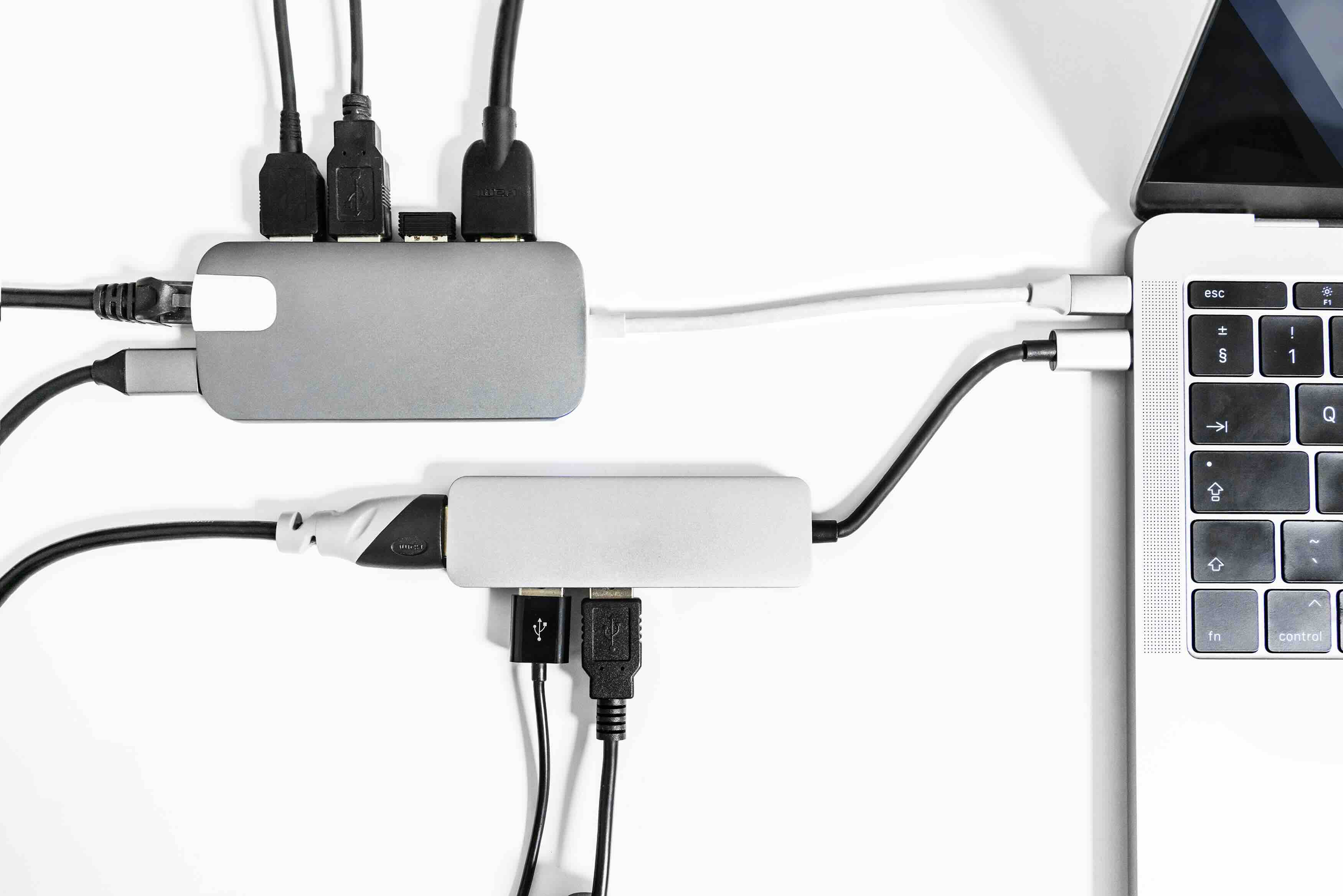
At its most fundamental level, a computer adapter bridges a gap between two different standards, connectors, or protocols. Think of it like a universal translator for hardware. Your device speaks one language, the peripheral or display speaks another, and the adapter handles the conversion in real time. This can mean converting a USB-C port to HDMI, translating DisplayPort signals to VGA, or even allowing a Thunderbolt-equipped MacBook to connect to a legacy Ethernet network. The physical form can vary widely, ranging from a small dongle that fits in your palm to a larger docking station style hub that handles multiple connections simultaneously. The underlying principle, though, stays consistent: signal in, conversion applied, compatible signal out.
Types of Computer Adapters You Will Encounter
The category is broader than most people initially assume. Once you start looking, adapters show up everywhere across a modern tech setup. Here is a breakdown of the most common types you are likely to need at some point:
- Video and Display Adapters (HDMI to DisplayPort, USB-C to HDMI, VGA to DVI)
- USB Adapters (USB-A to USB-C, USB 3.0 to USB 2.0, USB to Ethernet)
- Audio Adapters (3.5mm to USB-C, optical to analog, balanced to unbalanced)
- Power and Charging Adapters (AC power converters, laptop power adapters, barrel connector adapters)
- Network Adapters (wireless USB adapters, PCIe network cards, Bluetooth adapters)
- Storage Adapters (SATA to USB, M.2 to USB, SD card readers)
- Thunderbolt Adapters (Thunderbolt 3 to USB-A, Thunderbolt 4 docks)
Each of these serves a specific purpose within a specific part of your workflow. A video adapter is useless if you need to add Wi-Fi to a desktop that lacks a wireless card. Knowing which category you need is the first practical step before making any purchase.
How a Computer Adapter Works: The Signal Conversion Process
The internal mechanics of an adapter depend heavily on the type and complexity of the conversion required. Passive adapters are the simpler variety. These work when the underlying signal format is already compatible between the two standards, and the adapter just physically rearranges or re-pins the connection. A standard DisplayPort to HDMI passive adapter works this way because DisplayPort natively carries a compatible signal that HDMI can accept with minimal translation. Active adapters are a different story. These contain their own chipsets and internal circuitry that actively convert the signal from one format to another. USB-C to HDMI active adapters, for example, are pulling the DisplayPort Alternate Mode signal from the USB-C port and converting it properly for HDMI output. Active adapters are more reliable for longer cable runs and more demanding signal requirements, though they tend to cost more as a result.
Key Advantages of Using a Computer Adapter
The practical benefits here are real and worth spelling out clearly, especially if you are managing a mixed environment of older and newer hardware.
- Extended hardware lifespan, allowing legacy peripherals to work with modern systems
- Reduced infrastructure cost by avoiding full hardware replacement
- Flexibility to work across multiple display types, platforms, and environments
- Portability, especially with compact dongles that travel easily
- Simplified connectivity for multi-monitor setups without expensive KVM infrastructure
- Support for remote work and hybrid office setups where standardization is inconsistent
For businesses in particular, the ROI on a quality adapter is straightforward. Instead of replacing an entire workstation or monitor because port standards shifted, a well-chosen adapter closes that gap at a fraction of the cost.
Common Drawbacks and Limitations to Know Before You Buy
Adapters are not a perfect solution for every scenario, and it is worth being honest about that. Passive adapters can fail when the source signal is not natively compatible, leading to no display output or degraded audio quality. Active adapters introduce slight latency in some cases, which is usually imperceptible but can matter in high-refresh-rate gaming or professional AV applications where signal timing is critical. Cheap, unbranded adapters are a genuine risk. They often lack proper shielding, use substandard chipsets, and can cause intermittent drops or compatibility errors that are genuinely frustrating to troubleshoot. Resolution and refresh rate limits are also real. Not every USB-C to HDMI adapter supports 4K at 60Hz. Some cap out at 1080p or 4K at 30Hz, so reading the specs carefully before purchasing is not optional. It is essential.
How to Choose the Right Computer Adapter for Your Setup
Start with the ports you have, not the ports you wish you had. Identify what your source device outputs and what your destination device requires. From there, confirm whether a passive or active adapter is appropriate for the conversion. Check maximum supported resolution and refresh rate, especially if you are running a 4K or 144Hz monitor. Verify bandwidth requirements if you are dealing with Thunderbolt or USB4 devices, since not all adapters support the full bandwidth those interfaces provide. For professional or commercial use, look for adapters that carry certification marks and come from manufacturers with documented compatibility testing. Warranty coverage also matters more than most buyers realize until something fails during a critical installation.
Computer Adapters in Professional and Enterprise Environments
In commercial settings, whether that is a corporate AV integration, a broadcast facility, or an IT-managed office deployment, adapter selection becomes a more systematic decision. Integrators working with mixed signal chains need adapters that are field-tested, consistently available, and backed by supplier support. The ability to source the same adapter reliably across multiple project deployments is not a minor detail; it is a procurement reality. Enterprise buyers also tend to look at adapter solutions that scale cleanly, meaning a USB-C multiport adapter or a Thunderbolt dock that handles power delivery, video output, and data transfer simultaneously from a single connection, reducing cable clutter and improving workstation standardization across a fleet of devices.
Why Monoprice Is the Smart Choice for Computer Adapters and Connectivity Solutions
When it comes to sourcing adapters that actually perform, the brand behind the product matters significantly. Monoprice has built a well-earned reputation for delivering high-performance connectivity products at pricing that does not force you to compromise between quality and budget. Whether you are outfitting a single workstation or standardizing adapters across an enterprise deployment, the product depth is there. From USB-C to HDMI active adapters supporting 4K resolution to Thunderbolt-compatible docking solutions, the catalog is built around real-world use cases and documented compatibility. If you are ready to stop second-guessing your connectivity choices, explore the full range of high-quality computer adapters and connectivity products at Monoprice computer adapters and connectivity solutions and see exactly what confident, value-driven performance looks like. The combination of technical precision, accessible pricing, and genuine product reliability is what makes Monoprice a trusted source for both everyday consumers and professional integrators who need gear that simply works.
Frequently Asked Questions About Computer Adapters
What is the difference between a passive and active computer adapter?
A passive adapter physically reroutes a compatible signal without any internal conversion circuitry. An active adapter contains a built-in chipset that converts the signal from one format to another, making it necessary when the two standards are not natively compatible.
Can a computer adapter affect display quality or resolution?
Yes. The adapter you choose directly impacts maximum supported resolution and refresh rate. Always verify that the adapter explicitly supports the resolution and refresh rate your display requires before purchasing.
Is a USB-C to HDMI adapter the same as a Thunderbolt to HDMI adapter?
Not exactly. Thunderbolt ports use the USB-C physical connector, but not all USB-C ports support Thunderbolt. A Thunderbolt to HDMI adapter will work in a USB-C port, but a standard USB-C adapter may not fully utilize a Thunderbolt port's capabilities.
Do I need an active or passive adapter for 4K video output?
For 4K at 60Hz, an active adapter is typically recommended to ensure proper signal conversion and stable output. Passive adapters may support 4K but are more likely to cap at lower refresh rates depending on the source and destination standards involved.
Will a cheap generic adapter damage my laptop or monitor?
While a low-quality adapter is unlikely to cause immediate hardware damage, it can create signal instability, intermittent disconnections, or in the case of power delivery adapters, potential risks to charging circuits. Purchasing from a reputable manufacturer is the safer and more cost-effective long-term choice.
Can I use multiple adapters in a chain to achieve a complex conversion?
Technically possible in some cases, but generally not recommended. Chaining adapters increases the risk of signal degradation, compatibility errors, and resolution loss. A single adapter designed for your specific conversion is always the better solution.
What is a multiport adapter or hub, and how is it different from a single adapter?
A multiport adapter, sometimes called a hub or dock, provides multiple output connections from a single source port. This allows one USB-C or Thunderbolt port to simultaneously support HDMI output, USB-A peripherals, Ethernet, and power delivery in a single compact unit.
Do computer adapters work across different operating systems?
Most adapters are plug-and-play and work across Windows, macOS, ChromeOS, and Linux without requiring driver installation. However, some specialized adapters or docking stations may have firmware or software components with OS-specific support considerations.
How do I know if an adapter supports HDR or high refresh rate output?
Check the product specifications sheet carefully. The adapter should explicitly list support for the relevant standards, such as HDMI 2.1 for 4K at 120Hz with HDR, or DisplayPort 1.4 for similar performance. If the spec sheet does not list it, assume it is not supported.
Are computer adapters covered by warranties?
Warranty coverage varies by manufacturer. Entry-level adapters from discount brands may offer no warranty at all. Quality manufacturers typically back their adapter products with at least a limited one-year warranty, with some offering extended coverage that reflects greater confidence in their product durability.


