

What Does an HDMI Cable Look Like? Types and Sizes
What Does an HDMI Cable Look Like? A Complete Visual and Technical Guide
If you have ever stared at the back of a TV, a monitor, or a game console and wondered which port or cable is which, you are not alone. HDMI cables are everywhere, and yet a surprising number of people are not entirely sure what they look like, what the different types mean, or why it matters which one they grab off the shelf. So let us slow down and actually walk through this. HDMI -- High-Definition Multimedia Interface -- has been a cornerstone of consumer electronics since the early 2000s, and understanding what it looks like physically is genuinely useful knowledge, whether you are setting up a home theater or managing a conference room installation.
The Basic Shape and Physical Appearance of an HDMI Cable
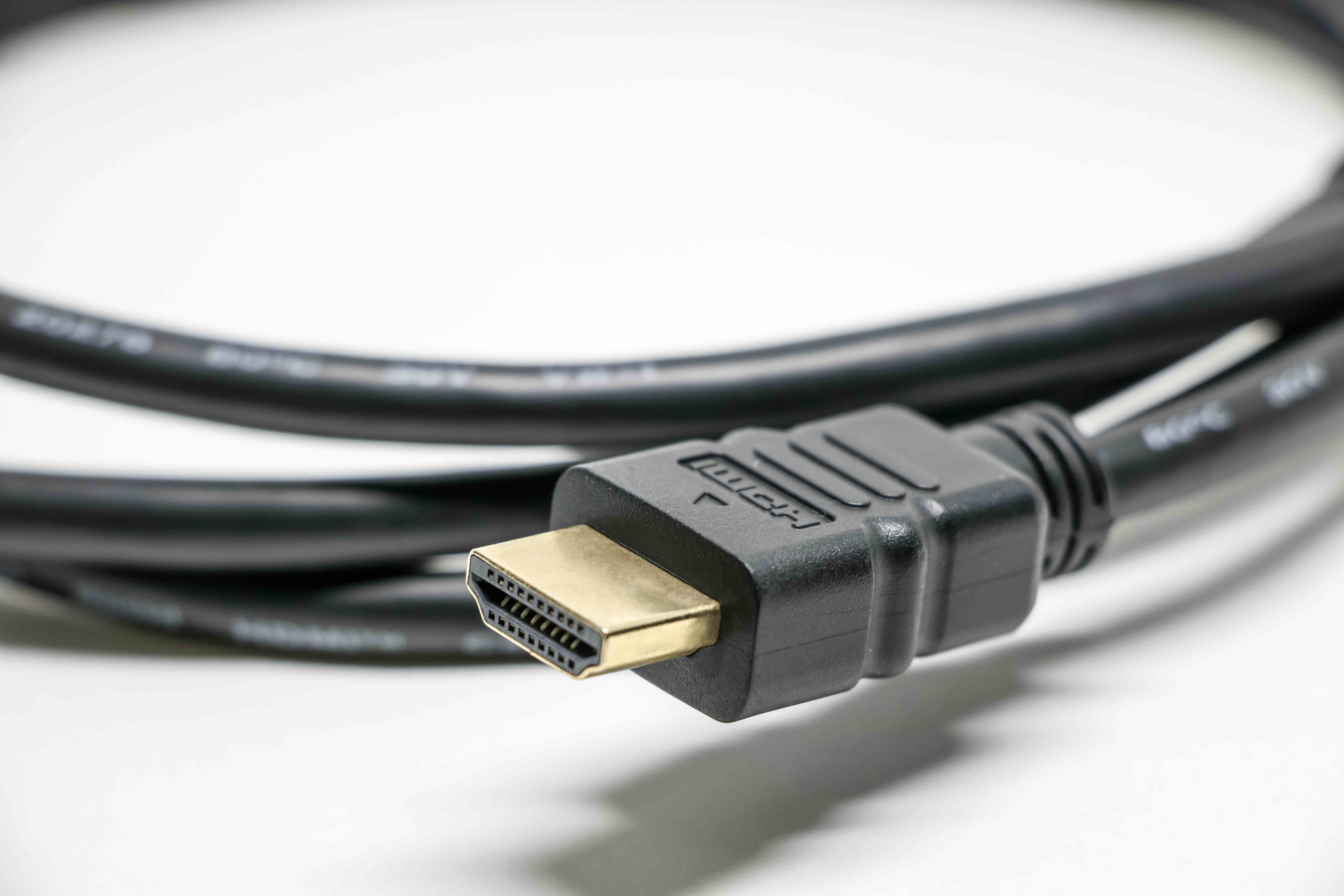
An HDMI cable, at its most recognizable, is a relatively slim cable with a trapezoidal connector on each end. The connector is wider at the top and slightly narrower at the bottom -- kind of like a squished hexagon, or honestly, just a rectangle with two corners shaved off. Inside that connector housing you will find 19 pins, though you cannot really see those without squinting. The cable body itself is usually black and flexible, wrapped in a smooth or braided outer jacket, and the connectors are typically metallic or plastic-capped depending on the build quality. A standard HDMI connector is about 13.9mm wide and 4.45mm tall. It is not huge, but it is also not something you would confuse with a USB or audio jack once you know what you are looking at.
The Different Types of HDMI Connectors Explained
Here is where it gets a little more layered -- because HDMI does not come in just one connector size. There are actually five connector types defined by the HDMI specification, and knowing the difference matters when you are buying or replacing a cable.
- Type A (Standard HDMI): The most common. This is the one you see on TVs, desktop monitors, gaming consoles, and streaming sticks. Full size, easy to handle.
- Type B (Dual-Link HDMI): Rarely seen in consumer products. It was designed for very high-resolution displays and never gained real traction.
- Type C (Mini HDMI): Smaller than Type A, often found on older laptops, DSLR cameras, and certain tablets.
- Type D (Micro HDMI): Even smaller -- about the size of a micro USB. Common on compact cameras and some smartphones.
- Type E (Automotive HDMI): Designed for in-vehicle use with a locking tab to prevent vibration-related disconnects. You will not see this one at a regular electronics store.
HDMI Cable Versions and What They Support
The physical appearance of an HDMI cable does not always tell you which version it is. That is actually one of the more frustrating things about shopping for cables -- a 2.0 and a 1.4 cable can look virtually identical. The version determines what the cable can carry in terms of bandwidth, resolution, and features. HDMI 1.4 supports 4K at 30Hz and introduced the Audio Return Channel. HDMI 2.0 pushed things to 4K at 60Hz and added support for HDR content. HDMI 2.1 is the current high watermark, supporting up to 10K resolution, 4K at 120Hz, and 8K at 60Hz, along with Dynamic HDR and enhanced Audio Return Channel. If you are building out a modern home theater or doing professional AV work, knowing the version your cable supports is just as important as knowing what it looks like.
Build Quality Differences You Can Actually See
Not all HDMI cables are built the same, and this is where the visual inspection gets more meaningful. Entry-level cables will have basic plastic connectors, a smooth PVC jacket, and minimal strain relief where the cable meets the connector head. That is fine for low-stress, stationary setups. On the other end of the spectrum, higher-quality cables feature braided nylon or aluminum-wrapped jackets, gold-plated connector pins for improved conductivity and corrosion resistance, reinforced strain relief boots, and sometimes even locking mechanisms for professional installs. If you are routing a cable through a wall, mounting equipment in a rack, or running a permanent installation, the build quality of that cable is not a minor detail -- it directly affects long-term reliability.
How to Identify an HDMI Port on Your Device
The HDMI port on a device looks like a small rectangular slot with that same angled trapezoid profile. It is usually labeled "HDMI" directly on the device, though on older or more compact gear the label might be tiny or even absent. On TVs, you will often see multiple HDMI ports labeled HDMI 1, HDMI 2, and so on, sometimes with one port specifically noted as supporting ARC or eARC for audio return. On laptops, if the port is smaller than what you are used to, that is probably a Mini HDMI (Type C) or possibly a USB-C port with HDMI compatibility via an adapter. Pay attention to those labels -- they save a lot of troubleshooting time later.
Common Misconceptions About HDMI Cables
One of the most persistent myths in the consumer electronics space is that an expensive HDMI cable automatically delivers a better picture. For digital signals, that is not really how it works. Either the signal transfers cleanly or it does not. What you are actually paying for in a higher-priced cable is build durability, shielding quality, and sometimes certified bandwidth support for higher specs like 48Gbps needed for HDMI 2.1 performance. Another misconception is that all HDMI cables are interchangeable regardless of length. Signal degradation over longer runs is a real issue -- typically anything over 25 feet may require an active cable or signal booster to maintain integrity. And no, the gold plating on connectors does not dramatically improve signal quality, but it does help resist oxidation over time, which matters in humid or demanding environments.
Practical Tips for Choosing the Right HDMI Cable
Before buying, take a few minutes to think through your actual use case. Matching the cable spec to what your equipment actually supports is the smartest move you can make.
- Check what HDMI version your source device and display support before purchasing.
- Measure the distance you need to cover -- stay under 25 feet for passive cables when possible.
- Choose braided or shielded cables for permanent or professional installations.
- Look for cables certified by HDMI Licensing Administrator for verified performance.
- If your setup involves 4K at 120Hz or 8K content, you need HDMI 2.1 certified cables.
- For camera or field work, confirm whether you need a Mini or Micro HDMI connector on one end.
HDMI vs. Other Cable Types: A Quick Comparison
It helps to understand where HDMI sits in relation to other cable standards you might encounter. DisplayPort, which looks similar to HDMI but has one squared-off corner instead of two angled ones, is common in PC monitor setups and supports higher refresh rates in some configurations. USB-C with Thunderbolt or DisplayPort Alternate Mode can carry HDMI-equivalent signals but requires adapters. Older standards like DVI carry video only, no audio, and VGA is an analog format that simply cannot handle the resolution and quality demands of modern displays. HDMI wins out in the consumer AV space largely because it handles both audio and video in a single cable and has become the universal standard across TVs, projectors, receivers, consoles, and streaming devices.
Why Monoprice Is the Smart Choice for HDMI Cables
When you understand what an HDMI cable actually is and what separates a reliable one from a frustrating one, the buying decision becomes a lot clearer. Monoprice has spent years building a reputation as one of the most trusted sources for performance-grade cables at prices that do not punish you for needing more than one. Whether you are outfitting a single room or speccing out an entire AV deployment, the range covers everything from standard HDMI 1.4 runs to ultra-high-speed HDMI 2.1 cables with 48Gbps bandwidth support and braided jackets built for real-world durability. Backed by rigorous quality standards and a commitment to delivering genuine value without unnecessary markup, Monoprice is the kind of supplier that earns repeat business. If you are ready to stop guessing and start building with confidence, explore the full lineup of high-performance HDMI cables and AV connectivity solutions at Monoprice and find exactly what your setup actually needs.
Frequently Asked Questions About HDMI Cables
What does a standard HDMI connector look like?
A standard HDMI connector is a trapezoidal shape, wider at the top and narrower at the bottom, with 19 pins inside. It is approximately 13.9mm wide and 4.45mm tall, usually housed in a metallic or plastic shell at the end of a flexible cable.
How is HDMI different from USB or DisplayPort visually?
HDMI has a distinct trapezoid profile with two angled bottom corners. USB connectors are rectangular or oval depending on the type. DisplayPort looks similar to HDMI but has one straight corner and one angled corner, making it easy to tell apart once you know what to look for.
What are the different sizes of HDMI connectors?
There are five HDMI connector types: Type A (standard), Type B (dual-link, rare), Type C (mini), Type D (micro), and Type E (automotive). Type A is the most common in home and professional AV use.
Does a more expensive HDMI cable look or perform differently?
Visually, premium cables often feature braided jackets, gold-plated connectors, and reinforced strain relief. Performance-wise, for digital signals, the key factor is whether the cable meets the bandwidth certification for your resolution and refresh rate needs, not price alone.
Can I use any HDMI cable for 4K or 8K content?
No. For 4K at 60Hz you need an HDMI 2.0 rated cable. For 4K at 120Hz or 8K content, you need an HDMI 2.1 certified ultra-high-speed cable that supports 48Gbps bandwidth. Using an older cable may result in a downgraded signal or no signal at all.
What is the maximum length for an HDMI cable without signal loss?
Passive HDMI cables generally perform reliably up to about 25 feet. Beyond that, signal degradation can become an issue, and you may need an active HDMI cable or an inline signal booster to maintain picture quality.
How do I know which HDMI version my cable supports?
Check the cable packaging or product label for bandwidth ratings. Ultra-high-speed HDMI cables supporting 48Gbps are HDMI 2.1 compliant. If the cable is unlabeled and older, it is likely HDMI 1.4 or 2.0, which may not support the highest modern resolutions and refresh rates.
What does an HDMI port look like on a TV or monitor?
An HDMI port on a device is a small rectangular slot shaped to match the trapezoidal HDMI connector. It is typically labeled "HDMI" and may include a number to indicate which input it is. Some ports are also labeled ARC or eARC to indicate audio return functionality.
Is a braided HDMI cable better than a standard one?
Braided HDMI cables offer better durability, improved resistance to kinking, and more professional aesthetics. They are a practical choice for permanent installations, rack systems, or any setup where the cable experiences frequent movement or stress.
Do HDMI cables carry both audio and video?
Yes. One of the primary advantages of HDMI over older standards like DVI or VGA is that it carries both high-definition audio and video through a single cable, simplifying installation and reducing cable clutter significantly.


