

Video Connector Types: HDMI, DisplayPort & More
Video Connector Types Explained: A Complete Guide to Choosing the Right Cable
So here is the thing — most people do not think about video connectors until they absolutely have to. Maybe you just bought a new monitor, or you are setting up a projector for a conference room, or your old cable stopped working and now you are staring at a wall of options at the store wondering what any of it means. Video connectors have been around in various forms for decades, and the landscape has changed significantly. Understanding the differences between them is not just useful — it is genuinely important for getting the best image quality out of your display setup. This guide breaks down the most common video connector types, explains how they work, and helps you figure out which one actually fits your needs.
What Is a Video Connector and Why Does It Matter
A video connector is the physical interface that carries visual signal data — and sometimes audio — between a source device and a display. That source could be a laptop, desktop GPU, gaming console, Blu-ray player, or any number of media devices. The display on the receiving end might be a monitor, television, projector, or capture card. The connector type you use directly affects the maximum resolution, refresh rate, and color depth your setup can support. Using the wrong connector, or an outdated one, can bottleneck an otherwise capable system. It is one of those things that sounds technical but has very real, visible consequences on your screen.
HDMI: The Universal Standard Most People Already Know
HDMI — High-Definition Multimedia Interface — is probably the connector you have used the most without thinking about it. It carries both video and audio over a single cable, which is part of why it became so dominant in consumer electronics. But HDMI is not one static thing. The version matters quite a bit. HDMI 1.4 supports 4K at 30Hz, while HDMI 2.0 bumps that to 4K at 60Hz with HDR. HDMI 2.1, the current high-end standard, supports 8K at 60Hz and 4K at 120Hz — which is huge for gaming setups and next-gen displays. If you are running a 4K HDR TV or a high-refresh-rate gaming monitor, you want to confirm the cable and the ports on both ends support HDMI 2.1. A lot of people miss that and end up confused about why they are not getting the performance they expected.
DisplayPort: Built for Monitors and High-Performance Workstations
DisplayPort is the connector of choice in professional and gaming monitor environments, and for good reason. It was designed specifically for PC displays and offers some capabilities HDMI has historically lagged behind on. DisplayPort 1.4 supports 8K at 30Hz or 4K at 120Hz with DSC compression. DisplayPort 2.0 pushes those numbers even further, supporting 16K resolution in theory — though real-world implementations are still catching up. One standout feature is Multi-Stream Transport, which lets you daisy-chain multiple monitors from a single DisplayPort output. That is a meaningful advantage for multi-display workstation setups. DisplayPort also supports Adaptive Sync natively, which ties into FreeSync and G-Sync technology for smoother gaming visuals. If you are building or upgrading a desktop workstation or gaming rig, DisplayPort is worth prioritizing.
USB-C and Thunderbolt: The New Generation of Versatile Connectivity
USB-C has become something of a Swiss Army knife for connectivity. Depending on the device and port, a USB-C connection can carry video, audio, data, and power all through a single cable. When paired with DisplayPort Alt Mode or Thunderbolt protocol, USB-C ports can output high-resolution video — including 4K and even 8K in Thunderbolt 4 configurations. Thunderbolt 4, developed by Intel, supports up to two 4K displays or one 8K display, along with 40Gbps data transfer. The catch is that not every USB-C port supports video output. This trips up a lot of users. You need to check whether your device's USB-C port explicitly supports DisplayPort Alt Mode or Thunderbolt before assuming it will drive a monitor. The physical connector looks identical regardless of capability, which is a common source of frustration.
VGA and DVI: Legacy Connectors Still Showing Up in the Wild
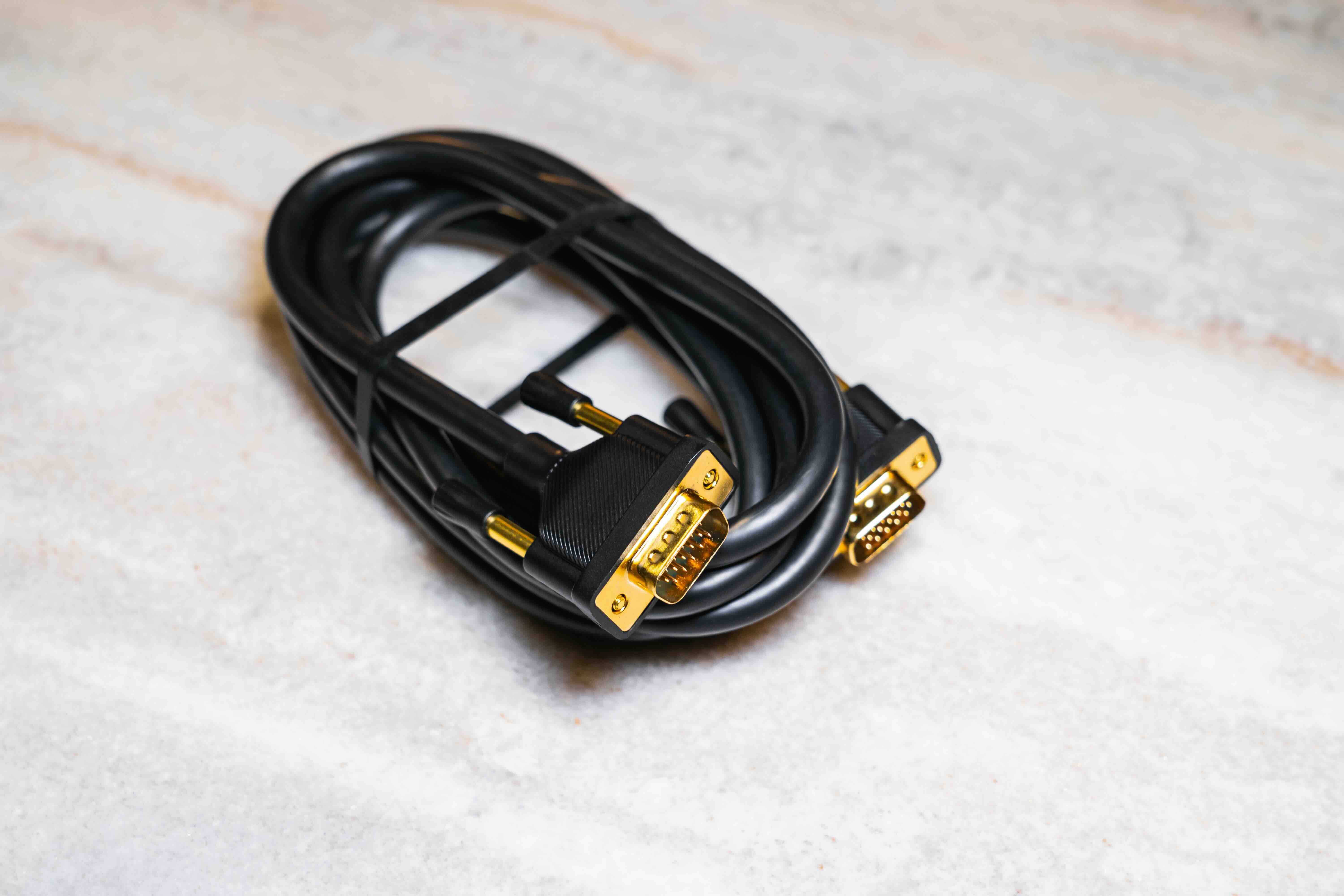
VGA — Video Graphics Array — is an analog connector that dates back to 1987. It is still showing up in older office environments, classroom projectors, and budget monitors. The image quality is noticeably softer compared to digital alternatives, and it does not support audio. If you are still using VGA, an upgrade is worth considering whenever the hardware allows it. DVI — Digital Visual Interface — sits somewhere between VGA and modern digital standards. DVI-D carries a pure digital signal and supports resolutions up to 1920x1200 at 60Hz on a single link, or higher on dual link configurations. It is better than VGA but lacks audio support and tops out well below what modern displays demand. Both connectors are increasingly rare on newer hardware, but knowing how to adapt them is still useful in mixed environments.
Composite, Component, and S-Video: Understanding Older Analog Standards
These connectors predate the HD era entirely and are primarily relevant if you are working with older video equipment, retro gaming setups, or legacy broadcast gear. Composite video combines all video signals into a single yellow RCA connector — functional but limited in resolution and image clarity. Component video splits the signal across three cables and supports up to 1080i, making it substantially better than composite. S-Video falls somewhere in between, separating luminance and chrominance for a cleaner image than composite without matching component quality. None of these support resolutions beyond 1080i, and none carry audio natively. If you are dealing with these connectors today, it is almost certainly for a legacy integration scenario, and an adapter or upscaler is typically part of the equation.
Common Drawbacks and Compatibility Challenges to Watch For
Even with the right connector type, compatibility issues show up more often than they should. Here are the most common problems users run into:
- Version mismatches between cable and port can silently cap performance
- USB-C ports that look identical may or may not support video output
- HDMI and DisplayPort cables marketed for high resolutions often lack certification
- Adapters and converters can introduce signal degradation, especially analog-to-digital
- Daisy-chaining monitors requires DisplayPort and source devices that support MST
- Passive adapters between HDMI and DisplayPort often only work in one direction
The practical solution to most of these issues is to verify specifications before purchasing — both on the cable and on the hardware. A cable that is built to spec and clearly labeled eliminates a lot of guesswork.
How to Choose the Right Video Connector for Your Setup
Choosing the right connector comes down to matching what your source device outputs to what your display accepts, while making sure the connection supports your target resolution and refresh rate. A few practical guidelines:
- For gaming at 4K or higher refresh rates, prioritize HDMI 2.1 or DisplayPort 1.4 and above
- For multi-monitor workstation setups, DisplayPort with MST support is the stronger choice
- For modern laptops connecting to external displays, check for USB-C with DisplayPort Alt Mode or Thunderbolt
- For home theater systems and consumer AV, HDMI remains the most universally compatible option
- For legacy hardware or mixed environments, adapters may be necessary but verify directionality and signal type
Getting this right at the start saves a lot of troubleshooting later. Mismatched connectors or undersized cables are one of the most overlooked reasons a display setup underperforms.
Why Monoprice Is the Right Source for Video Cables and Connectors
When it comes to sourcing video cables and connectors, the difference between a reliable connection and a frustrating one often comes down to build quality and specification accuracy. Monoprice has built a long-standing reputation for delivering exactly that — cables and connectivity products that perform to spec without the inflated price tags. Whether you need a certified HDMI 2.1 cable for a 4K gaming setup, a high-bandwidth DisplayPort cable for a professional workstation, or adapters to bridge legacy and modern hardware, Monoprice offers a wide selection with clearly documented specifications. For IT professionals, AV integrators, and everyday users alike, high-performance video cables and display connectors from Monoprice represent a smarter, cost-conscious way to equip any setup without compromise. The product range covers everything from basic connectivity to enterprise-grade infrastructure, backed by the kind of quality and value that has made Monoprice a trusted name in the industry for years.
Frequently Asked Questions About Video Connector Types
What is the difference between HDMI and DisplayPort?
HDMI is more common in consumer electronics and home theater setups, while DisplayPort is favored in PC monitors and workstations. DisplayPort supports daisy-chaining multiple monitors and often offers higher bandwidth in equivalent versions. Both support high resolutions and refresh rates in their latest iterations.
Can I use a USB-C cable to connect my laptop to a monitor?
Yes, but only if your laptop's USB-C port supports DisplayPort Alt Mode or Thunderbolt. Not all USB-C ports output video. Check your device specifications before purchasing a cable or adapter.
What HDMI version do I need for 4K at 120Hz?
You need HDMI 2.1 to support 4K at 120Hz. Earlier versions like HDMI 2.0 max out at 4K at 60Hz. Both the cable and the ports on your source device and display must support HDMI 2.1.
Is VGA still usable in modern setups?
VGA can still function in environments with older hardware, but it is an analog signal limited in resolution and sharpness. It does not support audio and is not suitable for HD or 4K content. Upgrading to a digital connector is recommended whenever possible.
What does DisplayPort daisy-chaining mean?
DisplayPort daisy-chaining uses Multi-Stream Transport to connect multiple monitors in a chain from a single DisplayPort output on your GPU or workstation. Each monitor in the chain passes the signal to the next, reducing cable clutter in multi-display setups.
What is the difference between DVI-D and DVI-I?
DVI-D carries only a digital signal, while DVI-I carries both digital and analog signals. DVI-D is the more common type found on modern graphics cards. DVI-I offers broader compatibility with older analog displays through adapters.
Do HDMI and DisplayPort cables need to be certified?
Certified cables have been tested to confirm they meet the performance standards advertised. For HDMI 2.1 especially, certification from HDMI.org matters because uncertified cables may fail to support full bandwidth at higher resolutions and refresh rates.
Can I convert HDMI to DisplayPort with an adapter?
Active adapters can handle HDMI to DisplayPort conversion, but passive adapters typically only work in one direction — DisplayPort source to HDMI display. Always verify the adapter type and directionality before purchasing.
What video connector is best for gaming?
For modern gaming at high resolutions and refresh rates, HDMI 2.1 and DisplayPort 1.4 or 2.0 are the top choices. HDMI 2.1 is ideal for console gaming on a 4K TV, while DisplayPort is generally preferred for PC gaming monitors, especially for variable refresh rate features.
What is Thunderbolt and how does it differ from USB-C?
Thunderbolt is a high-speed protocol developed by Intel that uses the USB-C physical connector. It supports significantly higher bandwidth than standard USB-C, enabling 4K or 8K video output, fast data transfer, and daisy-chaining of devices. Not all USB-C ports are Thunderbolt-enabled.


