

USB Type-A Cables and Ports: What You Need to Know
USB Type-A Explained: Everything You Need to Know About the World's Most Recognized Connector
If you have ever plugged in a flash drive, connected a mouse, or charged a device from a laptop port, you have already used USB Type-A. It is arguably the most ubiquitous connector in the history of consumer electronics, and yet most people do not give it much thought until something goes wrong or they need to buy a new cable. So let us actually break this down -- what USB Type-A is, how it works, why it has lasted this long, and what to watch out for when you are shopping or setting up a workspace.
What Is USB Type-A and Where Did It Come From
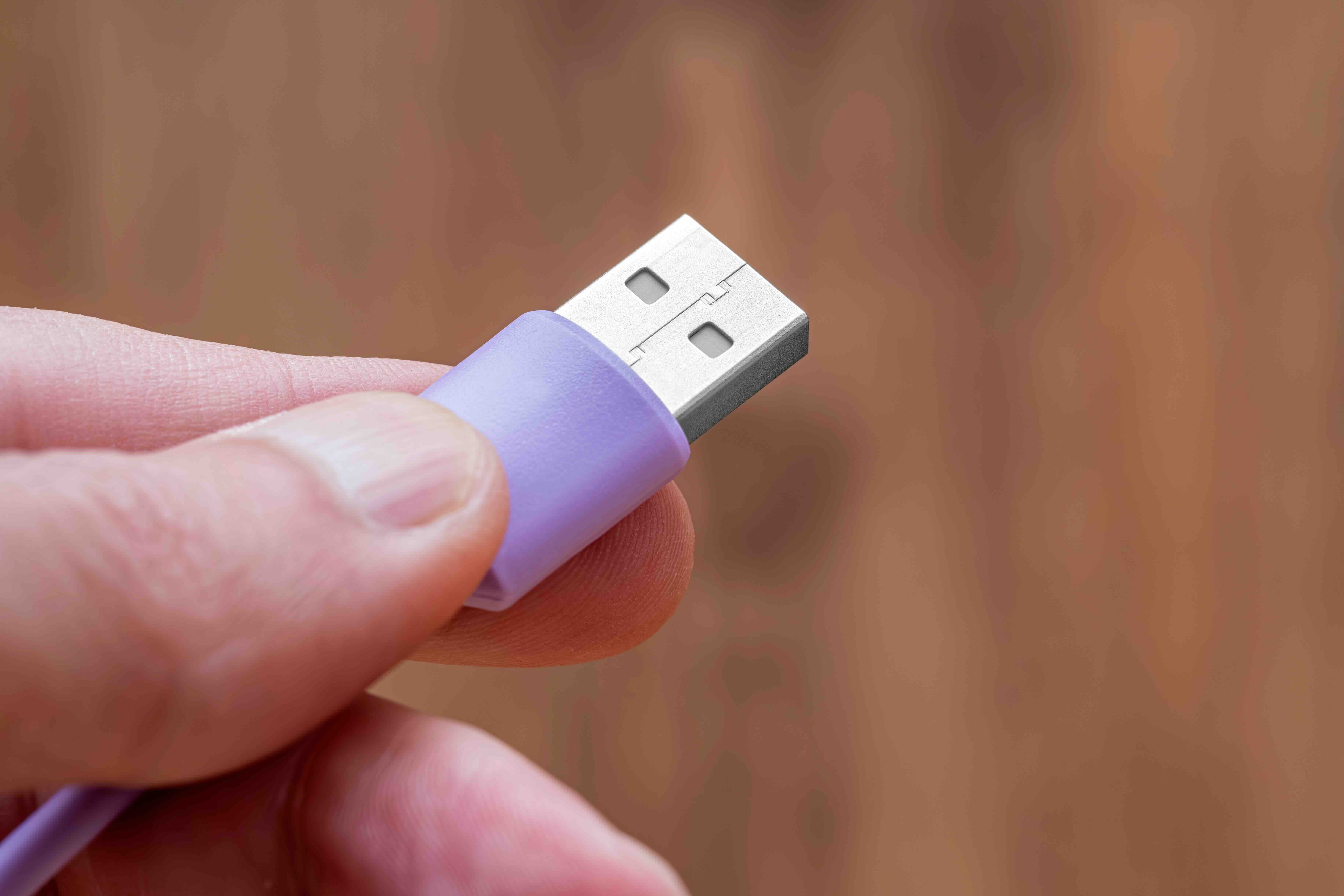
USB Type-A is the rectangular, flat connector that has been standard on computers, hubs, wall chargers, and peripherals since the mid-1990s. When the Universal Serial Bus specification launched in 1996, USB Type-A was defined as the host-side connector -- the one that lives on your computer or power source. That design has barely changed in nearly three decades, which is honestly kind of remarkable when you think about how much everything else in tech has shifted. The shape is instantly recognizable: flat on top, slightly beveled edges, and just wide enough that you always seem to plug it in the wrong way on the first try. That frustration is nearly universal at this point.
How USB Type-A Actually Works
At its core, USB Type-A uses a four-pin configuration in the original specification -- one for power, one for ground, and two for data transfer. Later versions expanded internal signaling while keeping the same physical shell. The connector acts as the downstream interface, meaning it receives devices rather than acting as the device itself. When you plug something into a USB Type-A port, the host system negotiates the connection speed and power delivery protocol automatically. That negotiation happens fast and mostly invisibly, which is part of why USB became so dominant. The system was designed to be plug-and-play, and for the most part, it delivers on that promise without requiring any configuration from the user.
USB Type-A Versions and Speed Differences
Not all USB Type-A ports are equal, and this is where a lot of confusion creeps in. The physical connector looks the same whether it is USB 2.0, USB 3.0, USB 3.1, or USB 3.2 Gen 1 -- but the internal wiring, signaling, and throughput are completely different. Here is a quick breakdown of what each version actually delivers in practical terms:
- USB 2.0 -- Max transfer speed of 480 Mbps; still common on budget peripherals and older systems
- USB 3.0 (also called USB 3.2 Gen 1) -- Max transfer speed of 5 Gbps; typically identified by a blue port or SS marking
- USB 3.1 (USB 3.2 Gen 2) -- Max transfer speed of 10 Gbps; less common in Type-A form factor
- USB 3.2 Gen 2x2 -- Tops out at 20 Gbps but is rarely implemented in Type-A
The color coding and labeling have gotten inconsistent across manufacturers, which makes it worth checking the spec sheet on any device or hub before assuming what you are working with. If the port is black, it is almost certainly USB 2.0. Blue generally signals USB 3.0 or faster. Some manufacturers use teal or red to indicate charging-specific ports.
Key Advantages of USB Type-A
The staying power of USB Type-A is not accidental. There are real, practical reasons why this connector has survived multiple generations of technology transition. Universal compatibility is probably the biggest one -- virtually every peripheral made in the last two decades has either a Type-A plug or a cable that terminates in one. Backward compatibility is built into the USB specification, so a USB 3.0 device will still function when plugged into a USB 2.0 port, just at reduced speed. Beyond that, Type-A ports are mechanically durable, widely supported in hubs and docking stations, and easy to source at every price point. For enterprise environments, that consistency is genuinely valuable. You are not retraining staff or replacing infrastructure every time a new device enters the workflow.
Common Drawbacks Worth Knowing About
USB Type-A is not without its frustrations, and it is worth being honest about them. The biggest limitation is directionality -- the connector only inserts one way, and the design offers no tactile feedback to tell you which way is correct before you try. USB Type-C solved this with a reversible oval design, and once you get used to that, going back to Type-A feels noticeably clunky. Type-A also has a ceiling on power delivery. While USB Power Delivery protocols have been extended into USB 3.x, the connector itself is not rated for the higher wattage that USB-C handles natively. For charging laptops or powering demanding peripherals, that is a real constraint. And while 10 Gbps is available in some Type-A implementations, the ceiling is lower than what USB4 and USB-C enable at the high end.
USB Type-A vs USB Type-C: Which One Do You Actually Need
This comparison comes up constantly, and the honest answer is that it depends entirely on your use case. USB Type-C is the future -- it is faster at the high end, reversible, capable of delivering more power, and doubles as a DisplayPort or Thunderbolt interface on compatible hardware. But USB Type-A is still the present for a massive portion of installed devices. Most keyboards, mice, USB flash drives, legacy audio interfaces, and basic hubs still use Type-A. In a real-world office or studio environment, you are likely running both. The smarter approach is not choosing one over the other but rather investing in a hub or docking station that accommodates both connector types, so you are not creating bottlenecks on either end of your setup.
Practical Tips for Buying USB Type-A Cables and Accessories
Cable quality matters more than most people realize, especially at USB 3.0 speeds and above. A poorly shielded or cheaply manufactured cable can drop transfer speeds significantly, cause intermittent disconnects, or fail to deliver rated power output. When shopping for USB Type-A cables or hubs, look for these indicators of quality:
- Certified compliance with the USB-IF specification for your target speed
- Foil and braid shielding on data cables used in electrically noisy environments
- Gold-plated contacts for improved conductivity and corrosion resistance
- Molded strain relief at both ends to prevent cable failure at the bend point
- Clearly labeled amperage on charging cables so you know what you are actually getting
For hubs and docking stations, pay attention to whether the device uses a shared bandwidth architecture or individual controllers per port. Shared bandwidth means multiple devices are competing for the same throughput, which matters a lot if you are running external drives or video capture hardware simultaneously.
Where USB Type-A Still Makes Sense in Modern Setups
It would be a mistake to write off USB Type-A as obsolete. In managed IT environments, conference rooms, educational institutions, and anywhere with legacy infrastructure, Type-A remains the practical standard. Most USB hubs deployed in commercial settings still center around Type-A ports because that is what the connected devices require. Industrial peripherals, point-of-sale hardware, barcode scanners, and basic input devices are not going to switch to USB-C overnight. The install base is simply too large. For integrators and facilities managers, maintaining Type-A compatibility in new deployments is not a step backward -- it is pragmatic planning that prevents unnecessary compatibility gaps.
Why Monoprice Is the Smart Choice for USB Type-A Cables and Accessories
When you are building out a reliable connectivity setup -- whether for a home office, a conference room, or a full enterprise installation -- the quality and consistency of your cables and hubs directly affect performance. Cutting corners on those components is where a lot of setups quietly fail. Monoprice has built a reputation precisely because it does not make you choose between performance and affordability. The full lineup of high-quality USB Type-A cables and connectivity accessories is engineered to meet real-world demands, not just spec-sheet checkboxes. Every cable is built with the shielding, contact quality, and strain relief that actually matters in day-to-day use, and the pricing reflects a genuine commitment to accessible performance rather than inflated margins. Whether you are sourcing a single cable or outfitting an entire facility, Monoprice delivers the reliability and value that both individual users and procurement teams can depend on.
Frequently Asked Questions About USB Type-A
What does USB Type-A look like?
USB Type-A is a flat, rectangular connector typically measuring about 12mm wide by 4.5mm tall. It is the standard port found on most computers, wall chargers, hubs, and power banks, and it only inserts in one direction.
Is USB Type-A the same as USB 3.0?
No. USB Type-A refers to the physical shape of the connector, while USB 3.0 refers to the transfer speed specification. A USB Type-A port can support USB 2.0, USB 3.0, or USB 3.1 speeds depending on the hardware.
Can I plug a USB 3.0 device into a USB 2.0 Type-A port?
Yes. USB is backward compatible, so a USB 3.0 device will function when connected to a USB 2.0 port, but it will operate at USB 2.0 speeds rather than the faster USB 3.0 rate.
Why do I always plug USB Type-A in the wrong way?
The connector has no reversible design or tactile orientation indicator, so users have to visually confirm the correct side before inserting it. This is a known limitation that USB Type-C resolved with its symmetrical, reversible design.
How much power can a USB Type-A port deliver?
Standard USB Type-A ports deliver 5V at 0.5A (2.5W) for USB 2.0 and up to 5V at 0.9A (4.5W) for USB 3.0. Charging-spec ports can deliver more, but USB Type-A does not natively support the higher wattage available through USB Power Delivery on USB-C.
What is the maximum data transfer speed for USB Type-A?
The fastest USB Type-A implementations support USB 3.2 Gen 2, which delivers up to 10 Gbps. Some specifications push to 20 Gbps, but that configuration is uncommon in Type-A hardware in practice.
Is USB Type-A being phased out?
Gradually, yes. USB Type-C is the direction the industry is moving, especially in mobile and high-performance devices. However, USB Type-A remains dominant in peripherals, hubs, enterprise hardware, and legacy infrastructure, so full replacement will take many years.
Does cable quality affect USB Type-A performance?
Significantly. Low-quality cables can reduce transfer speeds, cause connection drops, and underdeliver on rated charging amperage. Cables with proper shielding, quality contacts, and certified compliance perform noticeably better in demanding use cases.
What is the blue USB port on my computer?
A blue USB Type-A port indicates USB 3.0 or faster. The color coding was introduced to help users visually identify higher-speed ports at a glance, since the physical shape is identical to USB 2.0 ports.
Can a USB Type-A hub reduce performance for connected devices?
Yes, particularly if the hub uses shared bandwidth across multiple ports. When several high-throughput devices are connected simultaneously to a shared-bandwidth hub, the available speed is distributed among them, which can bottleneck performance for data-intensive devices like external drives or capture cards.


