

USB SS SuperSpeed Explained: Speed, Standards & What It Means
USB SuperSpeed Explained: What Is USB SS and Why Does It Matter?
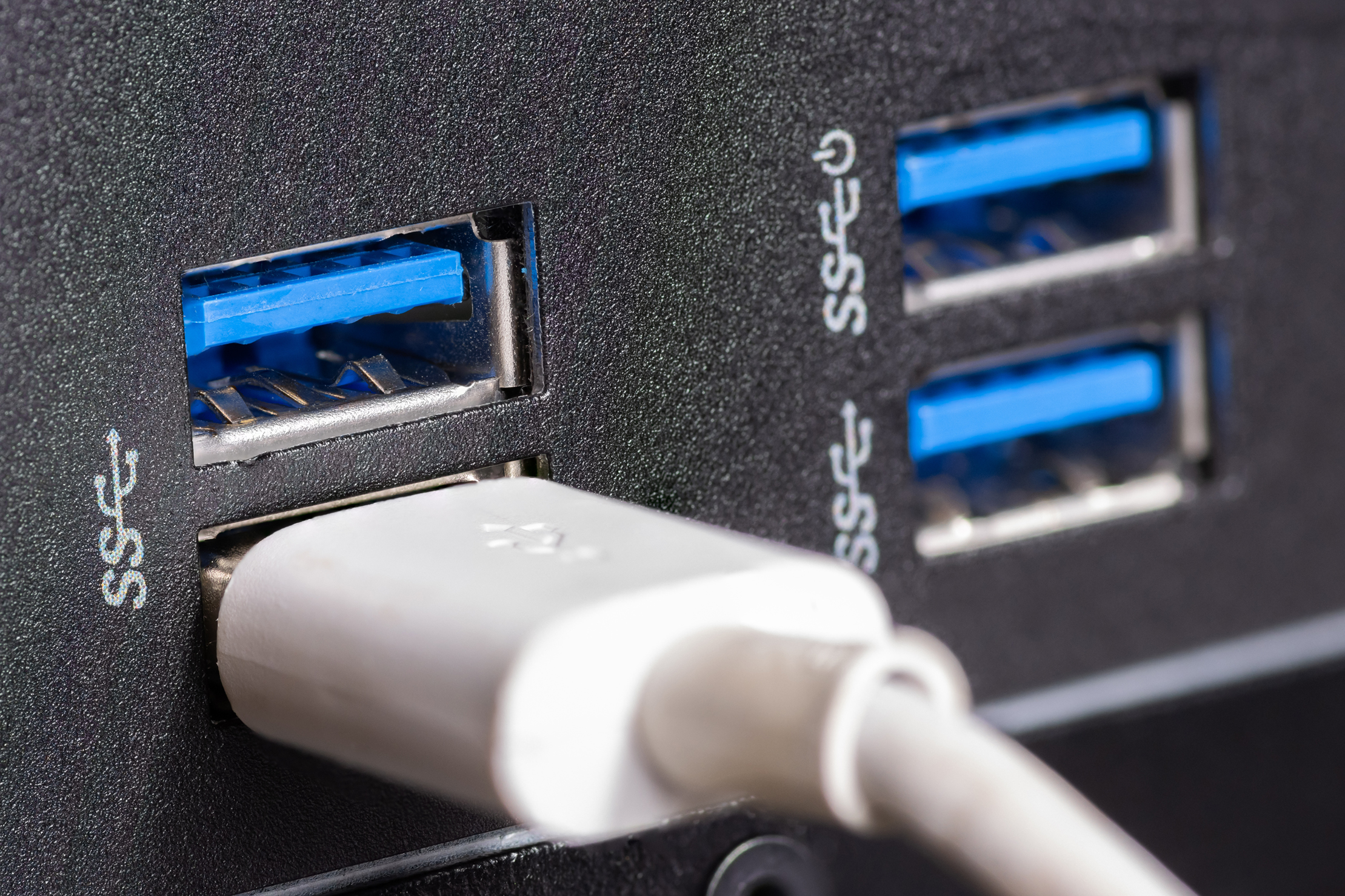
If you have ever looked at a USB port or cable and noticed a small logo with what looks like a lightning bolt and the letters SS, you were looking at the USB SuperSpeed designation. It is one of those things that gets overlooked constantly, even by people who work around technology every day. But it actually matters quite a bit, especially when you are moving large files, connecting external drives, or building out a workstation setup where speed and reliability are non-negotiable. So let us break this down properly, because the USB landscape has gotten a lot more complicated over the years and the SuperSpeed standard is worth understanding.
What Does USB SS Actually Mean?
USB SS stands for USB SuperSpeed, which is a performance tier within the broader USB specification developed and maintained by the USB Implementers Forum. When USB 3.0 launched, it introduced a substantial leap in data transfer capability over the older USB 2.0 standard, and the SS logo was created to visually distinguish ports and cables that supported this higher-speed tier. At its baseline, USB SuperSpeed supports transfer rates of up to 5 gigabits per second, which is often written as 5 Gbps. For context, USB 2.0 tops out at 480 megabits per second, so the jump is significant. The SS designation is basically the industry's shorthand for telling you that a port or cable is operating in a much faster class.
The Evolution of the USB SuperSpeed Standard
Here is where it gets a little layered, and honestly, this is where most of the confusion lives. The USB SuperSpeed branding has expanded alongside the USB specification itself. USB 3.0 introduced 5 Gbps speeds and the original SS logo. Then USB 3.1 arrived and pushed speeds to 10 Gbps, which led to the SS with a 10 label. USB 3.2 took things further with 20 Gbps capability across dual-lane connections. And then there is USB4, which can reach 40 Gbps and is closely tied to Thunderbolt 3 technology. The USB-IF also went through a naming overhaul, rebranding these tiers as USB 3.2 Gen 1, Gen 2, and Gen 2x2, which has not exactly simplified the conversation for everyday buyers. The core point is that SS on a port or cable is always signaling SuperSpeed capability, but the specific generation determines exactly how fast you are working with.
How USB SuperSpeed Technology Works
USB SuperSpeed operates on a different physical layer than USB 2.0. It uses dedicated SuperSpeed data lanes that are separate from the standard USB 2.0 data lines, which means a USB 3.0 cable actually contains more internal wiring than its predecessor. The standard uses 8b/10b encoding at 5 Gbps speeds, meaning for every 10 bits transmitted, 8 are actual data and 2 handle error correction. At the 10 Gbps tier, the encoding improves to 128b/132b, which is more efficient and reduces overhead. SuperSpeed also introduced full-duplex communication, meaning data can flow in both directions simultaneously rather than alternating, which significantly improves real-world performance. This is why an external SSD connected via USB 3.2 Gen 2 feels noticeably snappier during simultaneous read and write operations.
Key Advantages of USB SuperSpeed Connections
The benefits of USB SuperSpeed go well beyond raw transfer numbers. Here is what actually changes when you move from USB 2.0 to USB SuperSpeed in a real working environment:
- Dramatically faster file transfers for large video, audio, and data files
- Improved power delivery capacity, especially on newer USB-C implementations
- Full-duplex data transmission that benefits simultaneous read and write tasks
- Backward compatibility with USB 2.0 devices and ports
- Reduced transfer time for system backups and large external storage operations
- Better throughput for USB docking stations and multi-device hubs
- Support for higher-resolution display output when combined with DisplayPort Alternate Mode
These are not just spec sheet talking points. If you are working with 4K video files or syncing large project folders, the difference between USB 2.0 and USB SuperSpeed is the difference between a two-minute wait and a fifteen-minute one. That compounds across a workday fast.
Common Drawbacks and Limitations to Know
USB SuperSpeed is not without its complications. Cable quality matters significantly at higher speeds, and not all cables marketed as USB 3.0 or SuperSpeed actually deliver reliable performance at their rated speeds over longer distances or with lower-quality shielding. There is also the ongoing naming confusion that makes it genuinely difficult for buyers to know exactly which generation they are purchasing. A cable labeled USB 3.0 and a cable labeled USB 3.2 Gen 1 are technically the same thing, but that is not obvious from packaging alone. Additionally, achieving maximum SuperSpeed throughput requires that both the port, the cable, and the connected device all support the same generation. A USB 3.2 Gen 2 drive connected through a Gen 1 hub will be capped at 5 Gbps regardless of what the drive is capable of. Host controller limitations on some motherboards and laptops can also create bandwidth sharing issues when multiple USB SuperSpeed devices are connected simultaneously.
USB SuperSpeed vs USB 2.0: A Practical Comparison
Most computers still include a mix of USB 2.0 and USB SuperSpeed ports, so knowing which is which makes a real difference in how you set up your workspace. USB 2.0 ports are perfectly adequate for keyboards, mice, webcams, and low-bandwidth peripherals. They are not where you want to connect external drives, high-speed hubs, or any device where throughput matters. USB SuperSpeed ports are identifiable by the SS logo, often with a blue color coding on the port interior, though this varies by manufacturer. When setting up a workstation or sourcing cables for a professional deployment, matching the right device to the right port tier is a basic but often overlooked step that directly affects performance outcomes.
Practical Tips for Getting the Most Out of USB SuperSpeed
Getting full performance out of USB SuperSpeed connections comes down to a few consistent habits. Always verify the generation of your ports using your device specifications rather than relying on color coding alone, since not all manufacturers follow the blue-port convention. Use certified cables that clearly state the USB generation and rated speed on the packaging. Avoid unpowered hubs for high-bandwidth applications, since power and signal quality both degrade across cheap passive hubs. For USB-C SuperSpeed connections, confirm that your cable supports the full data speed and is not a charge-only cable, which is a surprisingly common point of failure in otherwise solid setups. Keeping drivers and firmware updated on USB host controllers also makes a measurable difference in sustained transfer performance.
Who Needs USB SuperSpeed Technology?
The straightforward answer is: more people than realize it. Creative professionals working with high-resolution media files, IT administrators managing data migrations, AV integrators running multi-device setups through a single hub, and anyone using an external SSD as a working drive rather than just occasional storage should all be prioritizing SuperSpeed connections. Even in home office environments, the difference becomes apparent when docking stations are involved. A USB SuperSpeed dock that handles display output, Ethernet, and storage simultaneously behaves very differently than one bottlenecked by USB 2.0 bandwidth. The technology is accessible, widely supported, and increasingly necessary as file sizes and peripheral complexity continue to grow.
Why Monoprice Is a Smart Choice for USB SuperSpeed Cables and Accessories
When it comes to sourcing USB SuperSpeed cables, hubs, and adapters that actually perform at their rated speeds, the quality of the hardware you choose is everything. Monoprice has built a well-established reputation for delivering precisely engineered connectivity products at pricing that makes sense for both individual users and large-scale deployments. Whether you are outfitting a home office, spec-ing cables for a professional AV installation, or sourcing inventory for an IT department rollout, you will find that USB SuperSpeed cables and high-performance USB accessories from Monoprice deliver the build quality and reliable throughput that demanding environments require. Every product is backed by straightforward warranty coverage and tested to meet the specifications listed, which is the kind of confidence that matters when you are making purchasing decisions that affect productivity and uptime. The combination of engineering precision and honest pricing is what makes Monoprice a trusted source for connectivity professionals and everyday users alike.
Frequently Asked Questions About USB SuperSpeed
What does the SS logo on a USB port mean?
The SS logo stands for SuperSpeed and indicates that the port supports USB 3.0 or higher data transfer speeds, starting at 5 Gbps. It is used to visually differentiate faster USB ports from the older USB 2.0 standard.
Is USB 3.0 the same as USB SuperSpeed?
Yes. USB 3.0 is the original SuperSpeed standard operating at 5 Gbps. It was later rebranded by the USB-IF as USB 3.2 Gen 1 to bring naming consistency across the full USB 3.x family.
How do I know if my USB cable supports SuperSpeed?
Look for the SS logo on the cable connector or check the packaging for explicit mention of USB 3.0, USB 3.1, or USB 3.2 with a corresponding speed rating. Charge-only USB-C cables do not support SuperSpeed data transfer even if they use the same connector shape.
Will a USB SuperSpeed device work in a USB 2.0 port?
Yes. USB SuperSpeed devices are backward compatible with USB 2.0 ports. However, data transfer speeds will be capped at the USB 2.0 maximum of 480 Mbps, not the SuperSpeed rate the device is capable of.
What is the difference between USB SS and USB SS with a 10 label?
The standard SS logo indicates 5 Gbps SuperSpeed operation. The SS with a 10 label indicates USB 3.1 Gen 2 or USB 3.2 Gen 2 operation at 10 Gbps. The number suffix identifies the maximum throughput tier of that specific port or cable.
Does cable length affect USB SuperSpeed performance?
Yes. USB SuperSpeed signal quality degrades over longer cable runs, particularly at 10 Gbps and above. For lengths beyond approximately 3 meters, active cables or signal repeaters are recommended to maintain reliable high-speed data transfer.
Can USB SuperSpeed cables carry video signals?
USB SuperSpeed cables used with USB-C connectors can carry DisplayPort or HDMI signals through Alternate Mode, depending on the host device and cable certification. Not all USB-C SuperSpeed cables support Alternate Mode, so confirming specifications before purchase is important.
What is the fastest USB SuperSpeed standard currently available?
USB4 Gen 3x2 currently reaches 40 Gbps and represents the highest tier of SuperSpeed-class USB performance. It shares the same connector and cable type as Thunderbolt 3 and Thunderbolt 4, though feature compatibility varies by device.
Why do some USB ports have a blue color but no SS logo?
Blue port coloring has traditionally been used by manufacturers to indicate USB 3.0 compatibility, but it is not an official USB-IF standard. Some manufacturers use different colors or no color coding at all, which is why checking device specifications directly is always more reliable than relying on port color alone.
Is USB SuperSpeed fast enough for external SSD storage?
USB SuperSpeed at 10 Gbps and above is well-suited for external SSDs and provides a noticeable improvement over USB 2.0 for large file transfers, video editing workflows, and system backup operations. For the highest SSD read and write speeds, USB 3.2 Gen 2 or USB4 connections are the preferred options.


