

USB Connector Types: Every Plug and Standard Explained
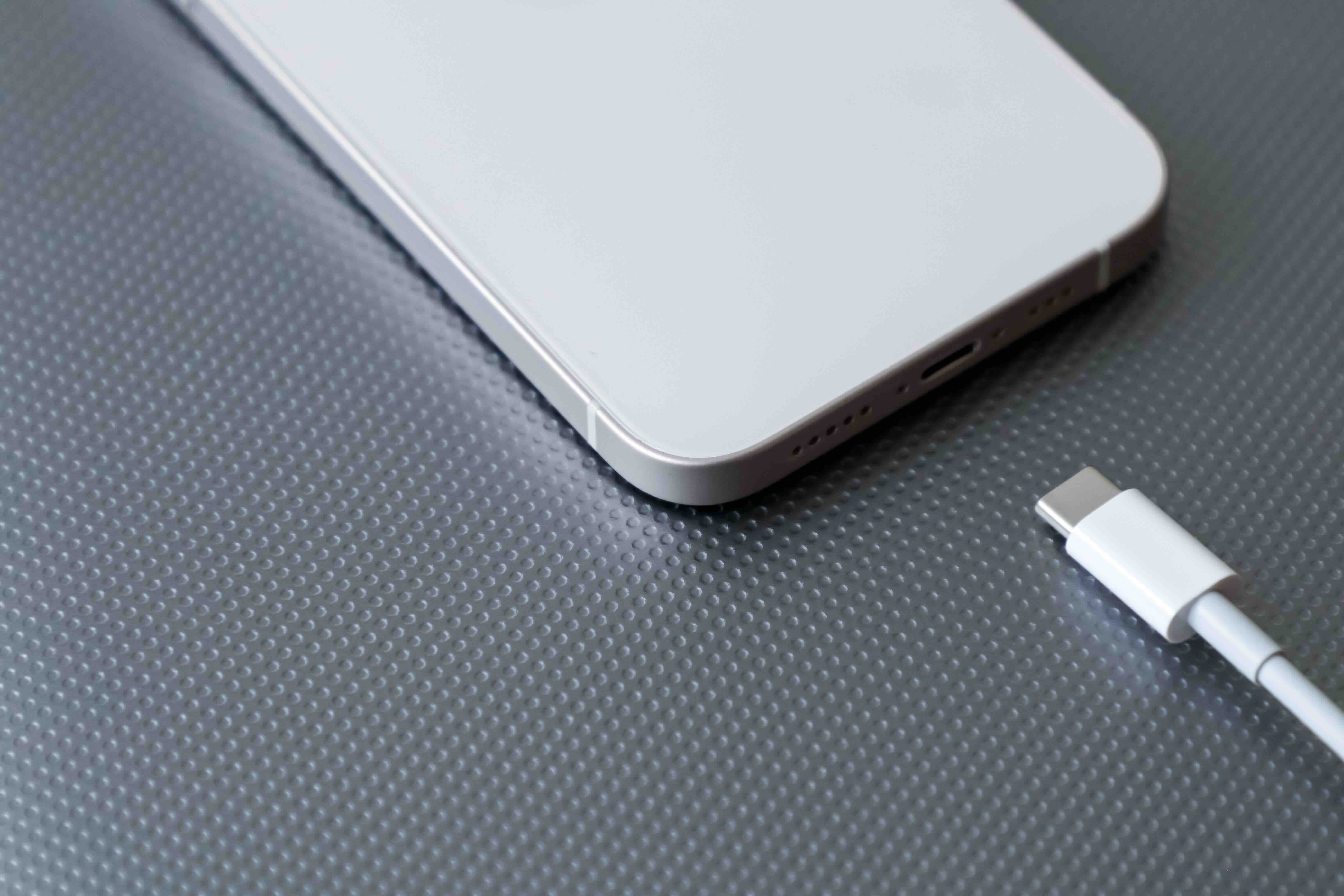
USB Connector Types Explained: A Complete Guide to Every Plug, Port, and Standard
If you have ever looked at the back of a laptop, a phone charger, or an external hard drive and thought, wait, which cable is this again -- you are not alone. USB connectors have multiplied over the decades to the point where even tech-savvy users occasionally grab the wrong cable. There is USB-A, USB-B, USB-C, Micro-USB, Mini-USB, and then there are the speed standards layered on top of all that. It is a lot. This guide is designed to sort through all of it clearly, so you can actually understand what you are working with and make smarter decisions for your home, office, or project setup.
What Is USB and Why Does It Matter
USB stands for Universal Serial Bus, and the name is supposed to imply exactly what it does -- provide a universal way to connect devices. It was introduced in 1996 as a way to replace the chaotic mess of serial ports, parallel ports, and proprietary connectors that existed before it. The idea was to standardize data transfer and power delivery across consumer electronics. That worked, mostly, though the sheer variety of connector types that followed created its own kind of confusion. USB is now the backbone of how billions of devices communicate -- from keyboards and mice to external storage and smartphones. Understanding the connector landscape is genuinely practical knowledge.
USB-A: The Connector Everyone Recognizes
USB-A is the rectangular plug that you have probably used thousands of times without thinking about it. It is the standard host connector, the one you find on computers, wall chargers, and power banks. USB-A has stayed largely consistent in its physical shape since the beginning, which is part of its staying power. It is not reversible, meaning you have to orient it correctly before inserting it, which leads to the universal experience of flipping it once, then again, then somehow getting it wrong a third time. Despite that minor frustration, USB-A remains incredibly common and is supported across USB 1.1, USB 2.0, USB 3.0, and USB 3.1 Gen 1 speed standards. Most desktop computers still have multiple USB-A ports, and it is not going anywhere soon.
USB-B, Mini-USB, and Micro-USB: The Device-Side Connectors
These three connector types are typically found on the device end of a cable rather than on host hardware like computers or chargers. USB-B is the squarish connector used historically on printers and older external hard drives. It is bulky and not particularly elegant, but it is durable and still present in plenty of office and studio environments. Mini-USB came next, smaller and more suitable for early digital cameras and MP3 players -- though it has largely been replaced by now. Micro-USB was the dominant smartphone connector for roughly a decade and is still present on a wide range of budget devices, wireless accessories, and older hardware. Micro-USB supports up to USB 2.0 speeds in most implementations and can handle moderate charging wattages, though it has real limitations compared to what came after it.
USB-C: The Connector That Changes Everything
USB-C is where things get significantly more capable -- and, admittedly, a little more complex. The physical connector is small, oval-shaped, and reversible, meaning orientation does not matter. That alone is a meaningful quality-of-life improvement. But USB-C is really about what the standard enables underneath the physical connector. A USB-C cable can carry data at USB 3.2 Gen 2x2 speeds, it can deliver up to 240 watts of power through USB Power Delivery, and with the right cable and device, it can carry DisplayPort or HDMI signals through Thunderbolt or Alt Mode protocols. That is data, power, and video all through one port. USB-C is now standard on modern laptops, smartphones, tablets, monitors, and peripherals. It is the direction the entire industry has moved, and for good reason.
USB Speed Standards: Understanding the Version Numbers
Here is where many buyers get genuinely tripped up. The physical connector type and the USB speed standard are separate things. A USB-C port can support anywhere from USB 2.0 to USB4, depending on the device. And USB 3.0 has been renamed multiple times, which has made reading spec sheets unnecessarily painful. Here is a quick breakdown of the key speed tiers:
- USB 2.0 -- Up to 480 Mbps, used in keyboards, mice, basic peripherals
- USB 3.2 Gen 1 (formerly USB 3.0) -- Up to 5 Gbps
- USB 3.2 Gen 2 (formerly USB 3.1) -- Up to 10 Gbps
- USB 3.2 Gen 2x2 -- Up to 20 Gbps, requires USB-C
- USB4 Gen 3x2 -- Up to 40 Gbps, Thunderbolt 4 compatible
When you are buying a cable or a hub, pay attention to both the connector type and the rated speed. A USB-C cable that only supports USB 2.0 speeds will not move files fast and will not charge a laptop efficiently. The spec sheet is your friend here.
USB Power Delivery and Charging Standards
Charging has become one of the most important functions of USB connectors, and USB Power Delivery (USB PD) is the protocol that makes high-wattage charging possible through USB-C. USB PD allows for negotiated power delivery, meaning the charger and device communicate to determine the appropriate voltage and current. This is what enables a single USB-C charger to safely power everything from a small Bluetooth speaker to a high-performance laptop. Standard USB-A ports cap out at 5V/0.9A without proprietary fast-charge protocols, while USB PD over USB-C can reach 48V/5A for a maximum of 240 watts under the extended power range specification introduced in USB PD 3.1. If you are building out a workspace or speccing a charging station for a team environment, understanding this matters.
Common Drawbacks and Things to Watch For
No standard is without its complications. USB-C in particular suffers from a branding and specification problem -- not all USB-C cables are created equal, and a cable that looks identical to another might support completely different speeds and power levels. Cheap or uncertified cables can cause slow charging, data errors, or in rare cases, hardware damage. Thunderbolt 4 cables and USB4 cables look exactly like standard USB-C cables but perform very differently. Always check whether cables are certified and rated for the transfer speeds and wattage your application requires. For high-stakes setups -- multi-display workstations, fast external NVMe storage, video production pipelines -- this is not a detail you want to skip.
Choosing the Right USB Connector for Your Setup
The right connector depends entirely on what you are trying to do. General peripheral use like keyboards, mice, and webcams works perfectly well with USB-A at USB 2.0 speeds. External storage, especially SSDs, benefits significantly from USB 3.2 Gen 1 or faster. Charging a modern smartphone or laptop efficiently requires USB-C with USB PD support. Running a monitor off a single cable connection to a laptop requires USB-C with DisplayPort Alt Mode or Thunderbolt support. And if you are working in a content production environment where you need maximum throughput for large file transfers, USB4 or Thunderbolt 4 is the path to take. Think about the outcome first, then match the connector and spec to that requirement.
Why Monoprice Is the Right Source for USB Cables and Connectivity Solutions
When you are navigating this many options, having a reliable source for quality cables and connectivity hardware is not a luxury -- it is a practical necessity. Monoprice has spent years building a reputation as a trusted supplier for both individual users and IT procurement teams, offering certified cables across every USB connector type at pricing that does not require a budget justification meeting. Whether you need a high-speed USB-C cable rated for USB4, a multi-port USB hub for a shared workstation, or Micro-USB cables in bulk for a device deployment, the selection is there and the specs are transparent. Explore the full range of USB cables, hubs, and connectivity solutions at Monoprice to find exactly what your setup requires, without overpaying for a brand name that does not add performance. The quality is real, the pricing is fair, and the specs are clear -- which is exactly what you need when the connector landscape is this dense.
Frequently Asked Questions About USB Connector Types
What is the difference between USB-A and USB-C?
USB-A is the older rectangular connector found on most computers and chargers. USB-C is a newer, smaller, oval-shaped, reversible connector that supports faster data speeds, higher power delivery, and additional protocols like DisplayPort and Thunderbolt. USB-C is the current industry standard direction for most devices.
Are all USB-C cables the same?
No. USB-C describes the physical connector shape, not the performance capability. Two USB-C cables can look identical but support very different data transfer speeds and charging wattages. Always verify that a USB-C cable is certified and rated for your specific use case, especially for laptop charging or high-speed data transfer.
What is USB Power Delivery?
USB Power Delivery, or USB PD, is a charging protocol that allows USB-C devices to negotiate voltage and current levels dynamically. It enables significantly higher charging wattages than standard USB charging, making it possible to charge laptops, tablets, and phones through a single USB-C port.
What does USB 3.2 Gen 2 mean?
USB 3.2 Gen 2 refers to a USB speed standard that supports data transfer rates up to 10 Gbps. It was previously marketed as USB 3.1. The USB Implementers Forum has renamed these standards multiple times, which has created widespread confusion among consumers and buyers.
Can I use a USB-C cable for video output?
Yes, but only if both your cable and your devices support DisplayPort Alt Mode or Thunderbolt. A standard USB-C cable may not carry video signals. Verify the specifications of both the source device and the cable before assuming video output is supported.
Is Micro-USB still relevant in 2024?
Micro-USB is still present on many budget devices, wireless accessories, and older hardware, so it has not entirely disappeared. However, it is largely being phased out in favor of USB-C across new consumer electronics. It supports USB 2.0 speeds and limited charging wattage, which makes it less suitable for modern performance requirements.
What is the fastest USB connector type available?
Currently, USB4 Gen 3x2 supports speeds up to 40 Gbps and uses a USB-C connector. Thunderbolt 4, which is compatible with USB4, also operates at up to 40 Gbps. These are the highest performance tiers available for consumer and professional USB-based connectivity.
What is the difference between USB4 and Thunderbolt 4?
USB4 is the open USB standard with speeds up to 40 Gbps. Thunderbolt 4 is Intel's specification built on USB4 that adds additional requirements including mandatory 40 Gbps minimum speeds, support for two 4K displays or one 8K display, and specific security certifications. Thunderbolt 4 devices and cables are backward compatible with USB4.
How do I know which USB version my port supports?
You can check your device's official specifications page, the documentation that came with it, or the system information tool on your operating system. USB 3.0 and newer ports are often marked with a blue color or a specific logo, but the most reliable method is always checking the manufacturer's spec sheet.
Do USB-A to USB-C cables limit performance?
Yes. A USB-A to USB-C cable is limited by the maximum capability of the USB-A port on the host side, which typically caps at USB 3.2 Gen 1 speeds and standard charging wattage. For full USB-C performance including USB PD high-wattage charging and high-speed data transfer, a USB-C to USB-C cable connected to a USB-C port is required.


