

USB Cable Wiring: What Every Wire Inside Does
USB Cable Wiring Explained: What You Need to Know Before You Buy
USB cables are everywhere. You probably have a dozen of them in a drawer right now, tangled up with phone chargers and old headphones. But here's the thing most people never think about: not all USB cables are wired the same way, and the differences actually matter quite a bit depending on what you are trying to do. Whether you are charging a device, transferring files, or connecting peripherals in a professional setup, understanding how USB cables are wired helps you choose the right one, avoid compatibility headaches, and get the performance you are actually paying for.
What Is USB Cable Wiring and Why Does It Matter
At its core, a USB cable is a bundle of individual wires, each assigned a specific role in how data and power are transmitted. The term "USB cable wiring" refers to how those internal wires are configured and connected to the pins inside the connector housing. Different USB standards like USB 2.0, USB 3.0, USB 3.1, and USB4 use different wiring configurations because they carry different amounts of data and power. Get the wiring wrong or buy a cheaply manufactured cable that cuts corners inside, and you end up with a cable that charges slowly, drops data connections, or simply does not work at all with certain devices.
The Anatomy of a USB Cable: Inside the Wires
A standard USB 2.0 cable contains four wires internally. Each wire has a specific function and is color-coded to help with identification during manufacturing and repair.
- Red wire: carries 5V positive power (VBUS)
- Black wire: ground (GND)
- White wire: carries data negative (D-)
- Green wire: carries data positive (D+)
That four-wire layout is the foundation of USB wiring and it has been in place since the original USB 1.0 specification. When USB 3.0 came along, the wire count went up significantly. USB 3.0 cables add five more wires to support SuperSpeed data transfer, bringing the total to nine. Those additional conductors handle the separate SuperSpeed transmit and receive channels, which is how USB 3.0 achieves its much higher transfer rates compared to USB 2.0. USB4 cables, which leverage the USB-C connector format, are even more complex and include additional shielding and high-frequency signal pairs to support 40 Gbps transfer rates and video output alongside power delivery.
USB Connector Types and How Wiring Differs Between Them
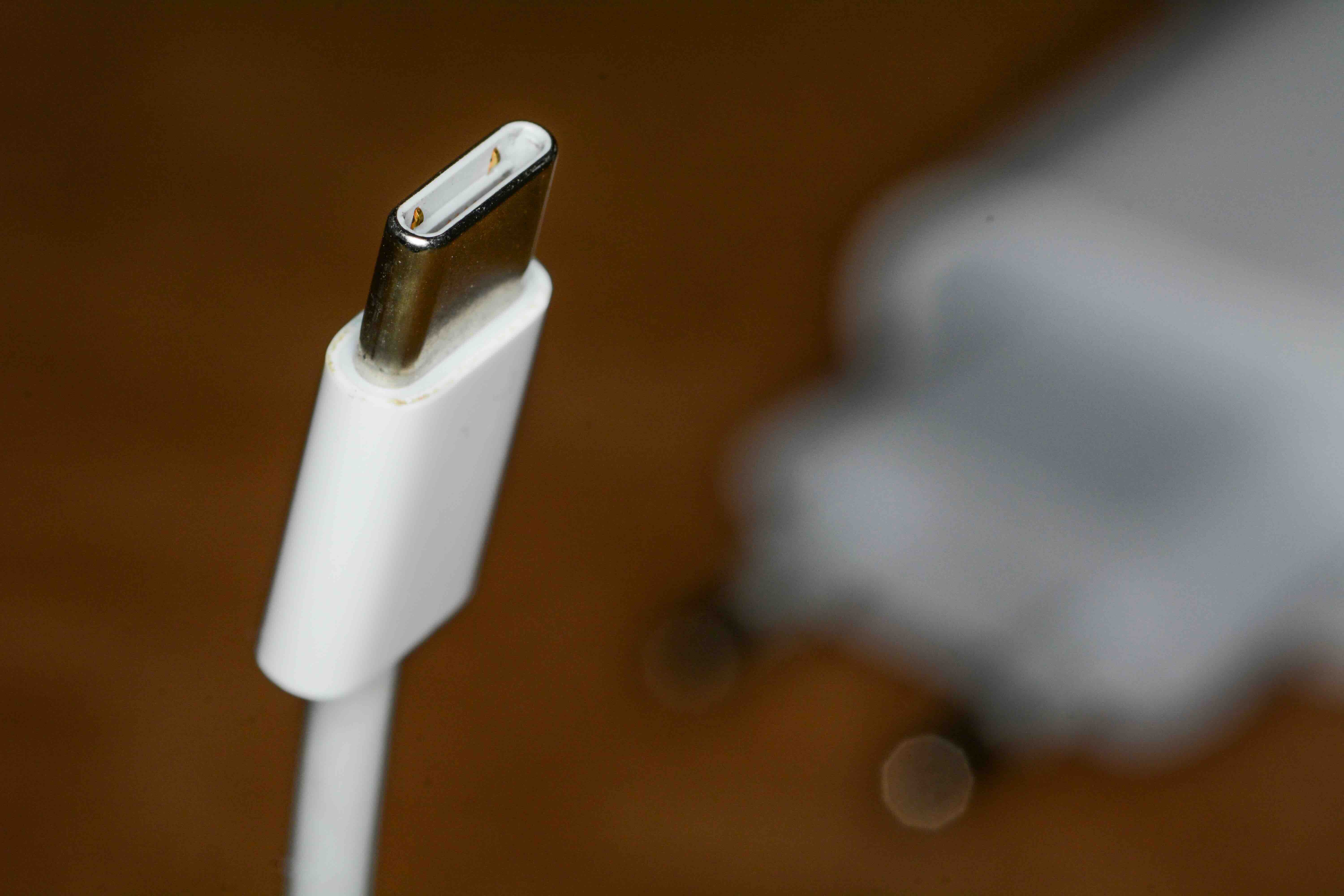
The connector type on each end of the cable is directly tied to the wiring configuration inside. USB-A connectors, the flat rectangular ones most people are familiar with, use a four-pin layout for USB 2.0. USB-B connectors, which are the square-shaped ones typically found on printers, follow the same four-pin setup. Micro-USB and Mini-USB connectors also follow similar wiring structures but add an ID pin in some versions to support On-The-Go functionality. USB-C is where things get genuinely more sophisticated. The USB-C connector has 24 pins, and a fully wired USB-C cable uses all of them to support alternate modes like DisplayPort and Thunderbolt, USB Power Delivery at up to 240W, and bidirectional data transfer. Not every USB-C cable is fully wired though, which is a common source of confusion. Some USB-C cables are passive cables wired only for USB 2.0 speeds despite having the modern connector format, which is why connector type alone does not tell the whole story.
Key Advantages of Understanding USB Wiring
Knowing how USB cables are wired gives you real, practical advantages when making purchasing decisions.
- You can identify why a cable is not performing as expected even before testing it
- You can select cables appropriate for the data transfer speeds your devices support
- You avoid spending money on fully specced cables for applications that only need basic charging
- You can properly plan cable infrastructure for workstations, AV setups, or IT deployments
- You understand why certain cables carry e-marker chips to communicate their capability to host devices
That last point is worth pausing on. Active USB cables and high-wattage USB-C cables often include an embedded e-marker chip inside the connector. This chip communicates the cable's rated current, voltage, and speed capabilities directly to the connected devices, which is a key part of how USB Power Delivery negotiation works. Without it, devices may not recognize the cable as capable of higher power delivery rates.
Common Drawbacks and Pitfalls in USB Cable Wiring
There is a frustrating reality in the USB cable market, and that is the sheer number of cables sold with incomplete or misleading wiring. A cable might carry a USB 3.1 label on the packaging but be internally wired only for USB 2.0 speeds. This happens because the USB-C connector itself is backwards compatible, meaning it still functions for basic charging and data transfer even when the internal wiring is stripped back. Poorly shielded cables are another issue, especially in environments with significant electromagnetic interference like server rooms, broadcast booths, or dense consumer electronics setups. Inadequate shielding results in signal degradation, intermittent disconnections, and corrupted data transfers. Thin gauge wiring is also a factor when it comes to power delivery. A cable with undersized conductors will heat up during high-wattage charging sessions and may not reliably deliver the rated wattage your device needs. These are not hypothetical concerns. They show up in real-world performance and are exactly why sourcing cables from reputable manufacturers matters.
How to Read USB Cable Specifications Like a Pro
When you are evaluating a USB cable purchase, a few key specifications will tell you most of what you need to know. The USB version or standard tells you the maximum data transfer rate the cable supports. The amperage and voltage ratings tell you how much power it can carry. The AWG rating, or American Wire Gauge, tells you the thickness of the internal conductors, with lower numbers indicating thicker and more capable wiring. For power delivery cables, look for the wattage rating directly. A 240W USB-C cable is explicitly rated for the full Extended Power Range defined in the USB Power Delivery 3.1 specification. For data cables in demanding applications, look for labeling that confirms the full SuperSpeed or SuperSpeed Plus wiring configuration rather than relying on the connector type alone.
USB Wiring for Professional and Enterprise Applications
In professional environments, cable quality and wiring integrity take on a different level of importance. IT deployments, AV integrations, medical equipment connections, and industrial automation setups all depend on cables that perform consistently over time and across varying conditions. In these scenarios, shielding becomes non-negotiable. Twisted pair wiring inside the cable reduces crosstalk and noise, which is critical for maintaining signal integrity over longer cable runs. For USB 3.0 and above, the additional SuperSpeed pairs need careful attention to impedance matching during manufacturing, which separates well-engineered cables from budget alternatives that technically meet spec on paper but fall apart under sustained use.
Practical Tips for Choosing the Right USB Cable
Buying the right USB cable does not have to be complicated once you know what to look for. Match the cable standard to what your devices actually support. If your device only outputs USB 2.0 speeds, a USB4 cable will not make data transfers faster. Check the wattage rating if charging speed matters to you. For USB-C fast charging setups, a cable rated for at least 60W is generally the minimum, and for laptop charging you likely want 100W or higher. Verify the cable length is appropriate for your use case. Longer cables in USB 2.0 implementations can suffer signal degradation past five meters without active electronics inside. Buy from brands that provide verified specifications and clear internal wiring documentation, because a cable is only as good as the engineering behind it.
Why Monoprice Is the Right Source for USB Cables
When it comes to USB cables that are built to spec and priced fairly, the choice is straightforward. Monoprice engineers its cable lineup with transparent specifications, proper internal wiring, and quality materials that hold up in both consumer and professional environments. Whether you need a basic USB-A to Micro-B cable for a printer or a fully rated USB-C cable for 240W power delivery and 40 Gbps data transfer, Monoprice delivers without the inflated price tags you find elsewhere. For IT professionals, AV integrators, and everyday users who want reliable performance from their connections, exploring the full range of high-performance USB cables and connectivity solutions from Monoprice is a genuinely smart move. The performance is there. The value is undeniable. And the specifications are exactly what they say they are.
Frequently Asked Questions About USB Cable Wiring
How many wires are inside a standard USB 2.0 cable?
A standard USB 2.0 cable contains four internal wires: a red wire for 5V power, a black wire for ground, a white wire for data negative, and a green wire for data positive.
Why does a USB-C cable sometimes charge slowly even though it has a modern connector?
Many USB-C cables are wired internally for only USB 2.0 speeds and basic power delivery despite having the USB-C connector format. If the cable lacks proper wiring and an e-marker chip for Power Delivery negotiation, it will default to lower charging speeds.
What is an e-marker chip in a USB cable and what does it do?
An e-marker chip is an embedded component inside certain USB-C cable connectors that communicates the cable's power and data capabilities to the connected devices. It enables proper USB Power Delivery negotiation and is required for cables rated at 60W or above.
How many wires does a USB 3.0 cable have compared to USB 2.0?
A USB 3.0 cable contains nine internal wires. It retains the four wires from USB 2.0 and adds five additional conductors to support the separate SuperSpeed transmit and receive channels required for higher data transfer rates.
Does a longer USB cable affect performance?
Yes. USB 2.0 has a maximum recommended cable length of five meters, and signal degradation can occur beyond that point without active signal boosters. USB 3.0 and higher are more sensitive to cable length limitations due to the higher frequencies involved in SuperSpeed data transfer.
What does AWG mean on a USB cable specification sheet?
AWG stands for American Wire Gauge and indicates the thickness of the internal conductors. Lower AWG numbers mean thicker wires that can carry more current with less resistance, which is important for high-wattage charging applications.
Can I use any USB-C cable for Thunderbolt 4 or USB4?
No. Thunderbolt 4 and USB4 require cables that are specifically designed and certified for those standards, including fully wired high-frequency signal pairs and proper shielding. Standard USB-C cables may physically connect but will not support the full performance of those protocols.
What causes a USB cable to overheat during charging?
Overheating during charging is typically caused by undersized internal conductors that cannot handle the current being drawn through the cable. This is more common in low-quality cables that are not rated for high-wattage power delivery scenarios.
Is shielding important in a USB cable?
Shielding is important, particularly in environments with electromagnetic interference or when running longer cable lengths. Proper shielding reduces signal noise, prevents data corruption, and maintains stable connections in professional or densely packed electronics setups.
How do I know if a USB-C cable supports video output like DisplayPort?
USB-C cables that support DisplayPort alternate mode must be specifically rated for that function. Look for cables that explicitly list DisplayPort alt mode or Thunderbolt compatibility in their specifications, as standard USB-C cables typically do not carry the video signal pairs required for this functionality.


