

USB Cable Types Explained: Find the Right One Fast
What Is a USB Cable and Why Does the Type You Choose Actually Matter
So you've got a drawer full of cables. Maybe a box. Maybe an entire bin that you've been meaning to sort through for the last two years. Sound familiar? The thing is, not all USB cables are created equal, and if you've ever plugged something in and wondered why it charges so slowly or why your data transfer is crawling, there's a good chance the cable itself is the problem. USB technology has evolved considerably over the past two decades, and understanding the different types available today is genuinely useful, whether you're setting up a home office, managing IT infrastructure, or just trying to figure out which cable works with your new laptop. This guide breaks down each USB type clearly, explains how they work, and helps you pick the right one for your actual situation.
USB Type-A: The Original Standard That Everyone Recognizes
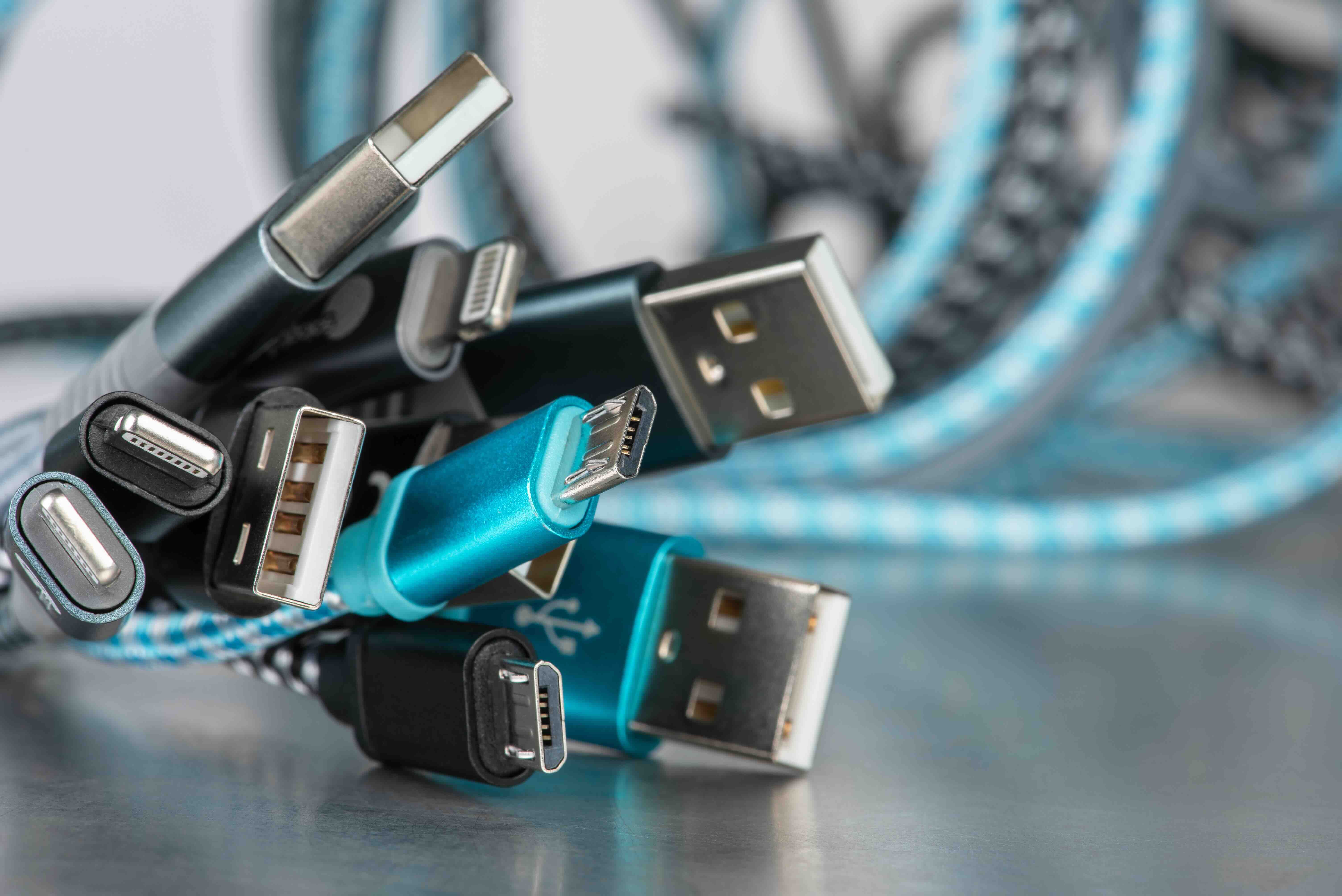
USB Type-A is probably what most people picture when they think of a USB cable. That flat, rectangular connector has been around since USB 1.0 launched in the mid-1990s, and it's still on almost every desktop, laptop, and wall charger sold today. Type-A ports are typically the host-side connector, meaning they live on the device providing power or data, like your computer or a USB hub. They're durable, widely compatible, and easy to use. The limitation is that Type-A is directional, meaning you can only plug it in one way, which... everyone has fumbled with at least once. In terms of data speeds, a USB 3.0 Type-A port can handle up to 5 Gbps, while USB 3.1 pushes that to 10 Gbps. It's a solid, proven standard, but it's not the future.
USB Type-B and Mini USB: Older Formats Still Worth Knowing
USB Type-B connectors are the squarish plugs you see on printers, external hard drives, and older audio interfaces. They were designed to be the device-side connector in USB setups, pairing with Type-A on the host end. Mini USB came next, shrinking the form factor for early digital cameras and MP3 players. Both formats have mostly been phased out in consumer electronics, but they still appear in industrial equipment, professional audio gear, and legacy setups. If you're managing older hardware or working in AV integration environments where equipment might be a decade old, understanding these connectors remains relevant. They're not going to win any speed records by modern standards, but they're functional, widely documented, and often still the right answer for specific use cases.
Micro USB: The Transition Standard That Stuck Around Longer Than Expected
Micro USB was the dominant smartphone charging standard for a long time, and it's still around. It supported USB 2.0 and later USB 3.0 with an extended connector variant, and it became so widespread that the European Union actually pushed for it as a universal charging standard before USB-C took over that role. Micro USB is physically smaller than Mini USB and designed for thinner devices. The drawback is the same directional insertion issue as Type-A, and the connectors are known to wear out after repeated use. Data speeds top out at 480 Mbps for USB 2.0 versions and up to 5 Gbps for USB 3.0 Micro-B. If you have devices from roughly 2010 to 2018, there's a high probability they use Micro USB, so keeping a few reliable cables around still makes sense.
USB Type-C: The Current Standard Changing Everything
USB-C is where things get genuinely exciting, and also a little confusing if you don't know what to look for. The connector itself is small, oval-shaped, and reversible, so no more fumbling with orientation. USB-C supports a wide range of protocols depending on the version and cable quality, including USB 3.2, USB4, Thunderbolt 3, and Thunderbolt 4. The same physical port can handle data transfer, video output, and power delivery simultaneously. That last point matters a lot: USB Power Delivery over USB-C can push up to 240 watts with the right cable and charger, which is enough to fast-charge a laptop. Video output support means a single USB-C cable can run a 4K monitor, handle your laptop's power, and transfer files at the same time. It's a genuinely versatile standard, and it's now required on most new laptops, tablets, and smartphones. The caveat is that not every USB-C cable supports every feature, so checking specifications before buying is important.
USB4 and Thunderbolt: The High-Performance End of the Spectrum
USB4 represents the current top tier of USB performance, using the USB-C connector and supporting data transfer speeds up to 40 Gbps. It's backward compatible with USB 3.2 and USB 2.0 devices, and it also supports Thunderbolt 3 functionality. Thunderbolt itself, developed by Intel, uses the USB-C physical connector on modern versions but operates on its own protocol with dedicated certification requirements. Thunderbolt 4 maintains 40 Gbps speeds, supports dual 4K displays or a single 8K display, and provides consistent performance guarantees that aren't always present with generic USB4 cables. These standards are particularly relevant for creative professionals, AV integrators, and IT environments where high-throughput data transfer and multi-display setups are standard. The cables are typically more expensive and require certification, but the performance difference in demanding workloads is measurable and real.
Key Differences Between USB Versions at a Glance
It helps to see the version differences laid out simply. Here's a quick reference for the major USB standards and what they actually deliver in practical terms:
- USB 2.0 -- Up to 480 Mbps, suitable for keyboards, mice, basic charging
- USB 3.0 / USB 3.1 Gen 1 -- Up to 5 Gbps, good for external drives and mid-speed transfers
- USB 3.1 Gen 2 -- Up to 10 Gbps, strong for video capture and fast storage
- USB 3.2 Gen 2x2 -- Up to 20 Gbps, excellent for professional workflows
- USB4 -- Up to 40 Gbps, ideal for high-resolution video and large file transfers
- Thunderbolt 4 -- Up to 40 Gbps with stricter performance guarantees and daisy-chaining support
Knowing where your devices land on that list helps you avoid overspending on cables your hardware can't take advantage of, or underspending and creating a bottleneck in a performance-sensitive setup.
Common Mistakes When Buying USB Cables and How to Avoid Them
Here's something that doesn't get discussed enough: cable quality matters as much as cable type. A cheap USB-C cable might physically fit your device but fail to deliver the power or data speeds it's supposed to support. Some uncertified cables have caused device damage by delivering incorrect voltage. Look for cables that explicitly list their supported USB version, maximum power delivery wattage, and data transfer rating. For Thunderbolt cables, check for Intel certification. Cable length also affects performance, particularly for high-speed protocols like USB 3.2 and USB4, where longer cables can introduce signal degradation. Active cables with built-in signal boosters solve this for longer runs but come at a higher price point. Buying from established, reliable sources with clear product specifications is the simplest way to avoid these issues.
Choosing the Right USB Cable for Your Setup
The right USB cable depends entirely on what you're trying to accomplish. For basic peripherals like keyboards, mice, and low-speed flash drives, USB 2.0 is completely adequate and widely available. For external SSDs, webcams, or regular charging use, USB 3.0 or 3.1 with a reliable Type-A or Type-C connector handles most scenarios well. If you're running a creative workstation, a video production suite, or an enterprise environment with demanding data transfer needs, USB4 or Thunderbolt 4 cables connected to compatible devices will give you the throughput and reliability you need. For charging-focused applications, prioritize USB-C cables with Power Delivery support rated to match your charger's output. And if you're managing multi-device AV setups or IT infrastructure, standardizing on USB-C where possible simplifies your cable inventory and future-proofs your purchases.
Why Monoprice Delivers the USB Cable Solutions Professionals and Everyday Users Trust
When it comes to sourcing USB cables that actually perform as advertised, Monoprice has built a well-earned reputation for delivering high-quality connectivity solutions at pricing that makes sense for both individual buyers and large-scale procurement teams. Whether you need USB 2.0 cables for basic peripheral connections, USB 3.1 cables for external storage, or certified USB-C Power Delivery cables for fast-charging laptops across a corporate fleet, the selection is deep, the specs are clearly listed, and the quality holds up under real-world conditions. For integrators and IT professionals who need consistency across installations, that transparency is not a small thing. Monoprice products are built to meet the performance and budget expectations of today's technology environments without asking you to compromise on either. If you're ready to stop guessing and start buying cables that do exactly what they should, exploring the full range of high-performance USB cables and connectivity solutions at Monoprice is a practical next step that pays off across every device in your setup.
Frequently Asked Questions About USB Cable Types
What is the difference between USB-A and USB-C?
USB-A is the older, rectangular connector found on most computers and chargers, while USB-C is a newer, smaller, reversible connector that supports faster data speeds, higher power delivery, and video output depending on the cable and device specifications.
Can I use a USB-C cable for charging and data transfer at the same time?
Yes. USB-C supports simultaneous charging, data transfer, and in many cases video output, provided the cable and connected devices support those features. Always verify the cable's rated specifications before assuming full functionality.
What does USB 3.0 mean and is it still relevant?
USB 3.0 refers to the third major generation of USB technology, offering data transfer speeds up to 5 Gbps. It remains highly relevant for everyday use including external hard drives, webcams, and general-purpose data transfer.
Is Thunderbolt the same as USB-C?
Thunderbolt 3 and 4 use the USB-C physical connector, but they are not the same protocol. Thunderbolt offers stricter performance guarantees and additional features like daisy-chaining multiple devices. Not all USB-C cables or ports support Thunderbolt.
How do I know if my USB-C cable supports Power Delivery?
Check the cable's listed specifications for Power Delivery support and the maximum wattage rating. Cables rated for USB Power Delivery will explicitly state their supported wattage, such as 60W, 100W, or 240W.
Will a USB 3.0 cable work in a USB 2.0 port?
Yes. USB is backward compatible, so a USB 3.0 cable will function in a USB 2.0 port but will operate at USB 2.0 speeds. The physical connectors must still match between cable and port for this to work.
What is the maximum length for a USB cable before signal quality degrades?
For USB 2.0, the standard maximum passive cable length is 5 meters. For USB 3.0 and higher, signal degradation can occur at shorter distances, often around 3 meters. Active cables with signal boosters can extend usable lengths significantly.
What is the difference between USB 3.1 Gen 1 and Gen 2?
USB 3.1 Gen 1 offers speeds up to 5 Gbps and is essentially the same as the original USB 3.0 specification. USB 3.1 Gen 2 doubles that to 10 Gbps, making it better suited for high-speed storage and professional data transfer applications.
Do all USB-C ports support video output?
No. Video output over USB-C requires the port to support DisplayPort Alternate Mode or Thunderbolt, which is not universal. Check your device's documentation to confirm whether its USB-C port supports video output before purchasing a display adapter or cable.
Why do some USB cables charge slowly even though they fit the port?
Cable quality, wire gauge, and supported power delivery specifications all affect charging speed. A cable that physically fits a port may only support USB 2.0 power levels, limiting charge rates regardless of what the charger is capable of delivering.


