

USB-C Wiring: Pins, Power, and What It All Means
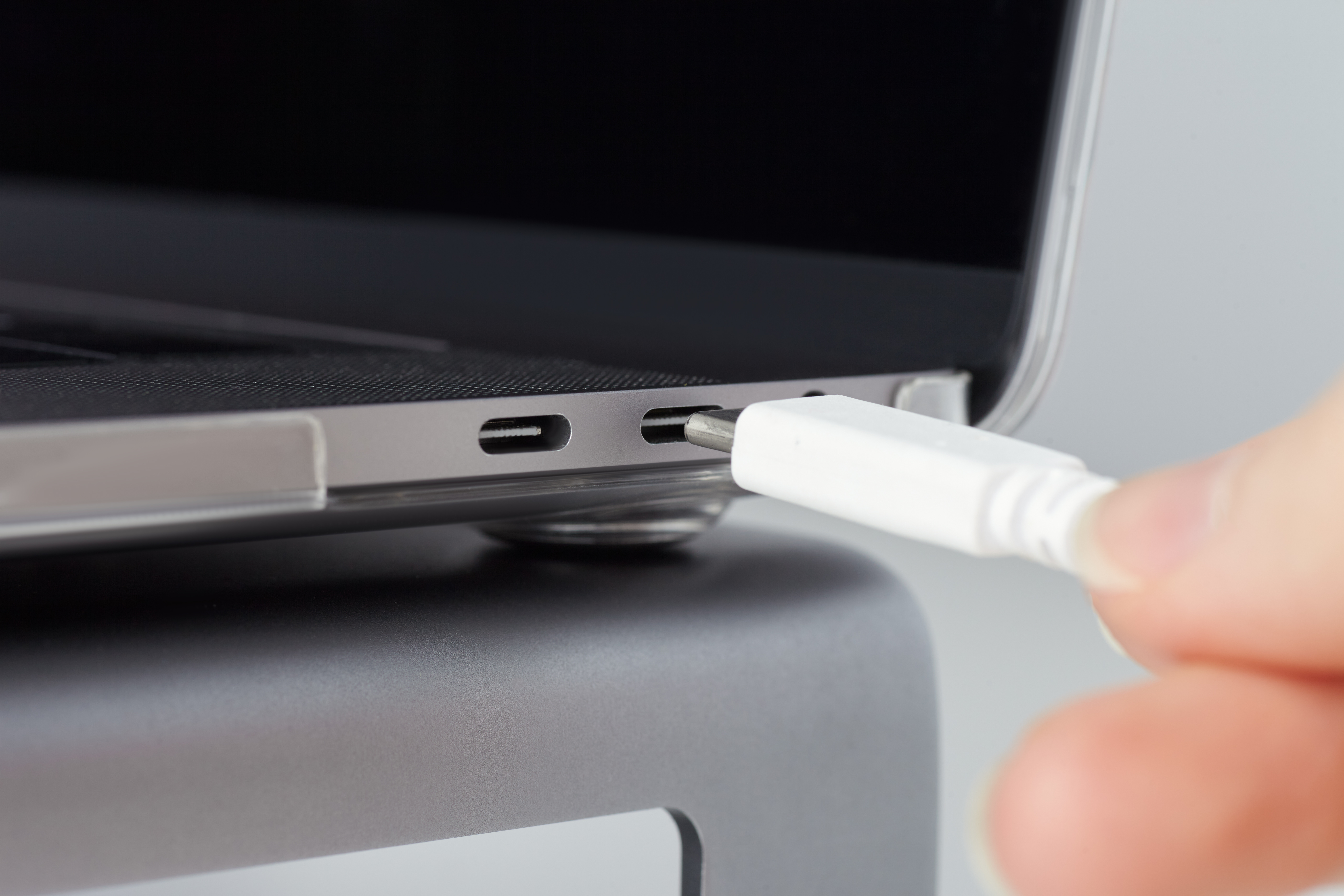
USB-C Wiring Explained: What It Is, How It Works, and Why It Matters
If you have bought a laptop, smartphone, or tablet in the last few years, there is a good chance USB-C is already part of your daily life. The connector is everywhere now, and yet a lot of people still feel confused about what exactly makes it different, why some cables charge faster than others, and why that bargain cable from a gas station stopped working after two days. Honestly, fair questions. USB-C sounds simple on the surface, but the wiring and internal pin layout tell a much more complex story. Understanding what is actually going on inside that small connector helps you make smarter purchasing decisions and avoid a lot of frustrating compatibility issues down the line.
What Is USB-C and How Is It Different from Previous Connectors
USB-C refers to the physical connector shape, not the data or power protocol running through it. That is a distinction worth slowing down on. The connector itself is a 24-pin, fully symmetrical design, meaning it plugs in the same way regardless of orientation. No more flipping the cable three times before it fits. Compared to USB-A and USB-B connectors, which have been around since the late 1990s, USB-C is smaller, more durable by design, and built to carry significantly more data and power. The older Micro-USB and Mini-USB formats were directional and limited in capability. USB-C was designed from the ground up to serve as a universal connector for everything from charging to video output to high-speed data transfer.
Breaking Down the USB-C Pin Layout and Internal Wiring
This is where things get genuinely interesting and also where most of the confusion starts. The USB-C connector contains 24 pins total, arranged across two rows of 12. Because the connector is reversible, the pin layout mirrors itself on each side. Here is what those pins actually do:
- VBUS pins supply power to the connected device
- GND pins are the ground connections that complete the electrical circuit
- TX and RX pairs handle the high-speed data transmission in both directions
- CC pins, or Configuration Channel pins, manage cable orientation detection and USB Power Delivery negotiation
- SBU pins, or Sideband Use pins, support alternate modes like DisplayPort or audio adapter accessories
- D+ and D- pins maintain backward compatibility with USB 2.0 signals
The CC pins are arguably the most important innovation in USB-C wiring. They allow the cable and device to communicate about what they are capable of before any significant power or data transfer begins. That negotiation process is what enables USB Power Delivery, the protocol that allows up to 240 watts of power delivery under the USB PD 3.1 specification.
USB-C vs USB Protocol Versions: Understanding the Difference
Here is something that trips people up constantly. USB-C is the connector. USB 3.2, USB4, and Thunderbolt 4 are the protocols. A cable can have USB-C connectors on both ends and still only support USB 2.0 speeds if the internal wiring does not include the SuperSpeed lanes. This is why two cables that look identical on the outside can perform completely differently. A passive USB-C cable built for charging might skip the high-frequency differential pairs entirely, which is totally fine for power but useless for transferring a 4K video file quickly. Always check whether a cable is rated for the data protocol you actually need, not just whether it has the right connector shape.
How USB Power Delivery Works Through USB-C Wiring
USB Power Delivery, commonly called USB PD, runs over the CC pins and allows devices to negotiate voltage and current levels dynamically. Instead of a fixed 5V output like older USB standards, USB PD can deliver power at 5V, 9V, 15V, or 20V depending on what both the charger and device support. USB PD 3.1 extended that range even further with Extended Power Range, or EPR, supporting up to 48V and enabling up to 240W of power delivery through a single cable. For context, that is enough to charge a high-performance laptop, a gaming handheld, or professional audio equipment. The wiring inside a USB PD cable needs to handle that power safely, which is why cable quality and construction matter far more than most people realize.
Alternate Modes and What They Mean for USB-C Capability
One of the most underappreciated aspects of USB-C wiring is Alternate Mode support. Because USB-C includes those SBU and reconfigurable SuperSpeed pins, it can carry non-USB signals entirely. DisplayPort Alternate Mode, for example, repurposes the high-speed lanes to carry a DisplayPort signal, enabling video output directly from a USB-C port to a monitor without any adapter protocol conversion. Thunderbolt 3 and Thunderbolt 4 also use the USB-C connector and layer an Intel-developed protocol on top that combines USB4 data speeds with DisplayPort and PCIe tunneling. Not every USB-C port supports every Alternate Mode. The port on the device and the cable both need to be built for it. This is why checking device specifications before buying a cable or dock is so important.
Key Advantages of USB-C Wiring and Connector Design
There are real, measurable reasons the industry moved to USB-C as quickly as it did. The advantages go well beyond the reversible plug, though that alone has saved millions of people from a lot of late-night frustration.
- Single connector for power, data, and video output
- Reversible design eliminates incorrect insertion
- Supports up to 240W power delivery under USB PD 3.1
- Compact form factor fits thinner devices without compromising capability
- Backward compatibility with USB 2.0 through internal wiring
- Alternate Mode support enables DisplayPort, HDMI, and Thunderbolt over the same connector
Common Drawbacks and Limitations to Know Before You Buy
USB-C is not without its complications, and being upfront about that matters. The biggest issue is the lack of visual differentiation between cables and ports with wildly different capabilities. A USB-C cable rated for USB 2.0 at 60W looks nearly identical to one rated for USB4 at 240W from the outside. Without reading specifications carefully, it is easy to buy the wrong cable for the job. Thunderbolt 4 cables are also significantly more expensive than standard USB-C cables because of the additional internal wiring, shielding, and certification requirements. Additionally, not all USB-C chargers support USB PD, meaning a device that could fast-charge may not do so with every compatible-looking charger. Legacy devices still require adapters, which adds cost and one more thing to keep track of.
Practical Tips for Choosing the Right USB-C Cable
Buying the right USB-C cable is not complicated once you know what to look for. Match the cable rating to the actual task. If you need to transfer large files or run a display, look for USB 3.2 Gen 2 or USB4 certification. If you are charging a laptop at 100W or more, verify the cable is rated for the wattage, not just the connector type. Look for cables with clearly marked specifications on the packaging and buy from brands that back their products with testing and certification documentation. Cable length also matters for performance, especially at higher data rates where signal integrity over longer runs becomes a real engineering challenge. Shorter, well-shielded cables will consistently outperform long, cheaply built ones at the limits of the specification.
Why Monoprice Is the Right Source for USB-C Cables and Accessories
When it comes to sourcing USB-C cables that actually perform the way the spec promises, Monoprice has built a reputation that holds up under scrutiny. The product lineup is designed with real-world use cases in mind, from basic charging cables to certified Thunderbolt solutions for professional AV and IT environments. Every specification is clearly documented so buyers know exactly what they are getting before the order ships. For anyone equipping a home office, a commercial installation, or an enterprise environment, finding reliable high-performance USB-C cables and accessories for every application through a trusted supplier makes a measurable difference in both performance and total cost of ownership. The combination of certified products, transparent specifications, and value-focused pricing is what separates Monoprice from generic alternatives that look similar on the shelf but underperform in the field.
Frequently Asked Questions About USB-C Wiring
What does USB-C mean exactly?
USB-C refers specifically to the physical connector shape, a 24-pin reversible design that supports multiple data, power, and video protocols depending on the cable and device specifications.
Are all USB-C cables the same inside?
No. USB-C cables vary significantly in internal wiring. Some only carry USB 2.0 signals and basic power, while others include full SuperSpeed lanes, active electronics, and shielding for Thunderbolt 4 or USB4 operation.
How many watts can a USB-C cable carry?
Standard USB-C cables support up to 60W without a full-featured cable design. USB Power Delivery cables can support up to 100W, and USB PD 3.1 Extended Power Range cables support up to 240W.
Can USB-C carry video output?
Yes, but only if the port and cable support an Alternate Mode such as DisplayPort Alt Mode or Thunderbolt. Not every USB-C port supports video output, so checking device specifications is necessary.
What is the difference between USB-C and Thunderbolt 4?
Thunderbolt 4 uses the USB-C connector but adds Intel-certified performance requirements including a minimum of 40Gbps bandwidth, PCIe tunneling, and guaranteed DisplayPort support. Not all USB-C cables are Thunderbolt capable.
Why does my USB-C cable charge slowly?
Slow charging through USB-C typically means the cable does not support USB Power Delivery, the charger does not support USB PD, or the device is not receiving a proper voltage negotiation through the CC pins.
Can I use any USB-C cable with my laptop?
You can use any USB-C cable to attempt a connection, but only cables rated for the correct power and data specifications will deliver full performance. Using an underpowered cable for a high-wattage laptop charger can be a safety concern.
What are the CC pins in USB-C?
The Configuration Channel pins detect cable orientation and facilitate USB Power Delivery negotiations between connected devices, determining the appropriate voltage and current levels for power transfer.
Is USB4 the same as USB-C?
No. USB4 is a data transfer protocol that uses the USB-C connector. USB-C is the physical interface. USB4 requires specific internal wiring and is not supported by all USB-C cables or ports.
How do I know if my USB-C cable supports fast charging?
Look for cables labeled with USB Power Delivery support and a wattage rating. A cable marked USB PD 100W or higher will support fast charging for most laptops and mobile devices that also support USB PD charging.


