

USB-C vs USB-A: Which Cable Do You Actually Need?
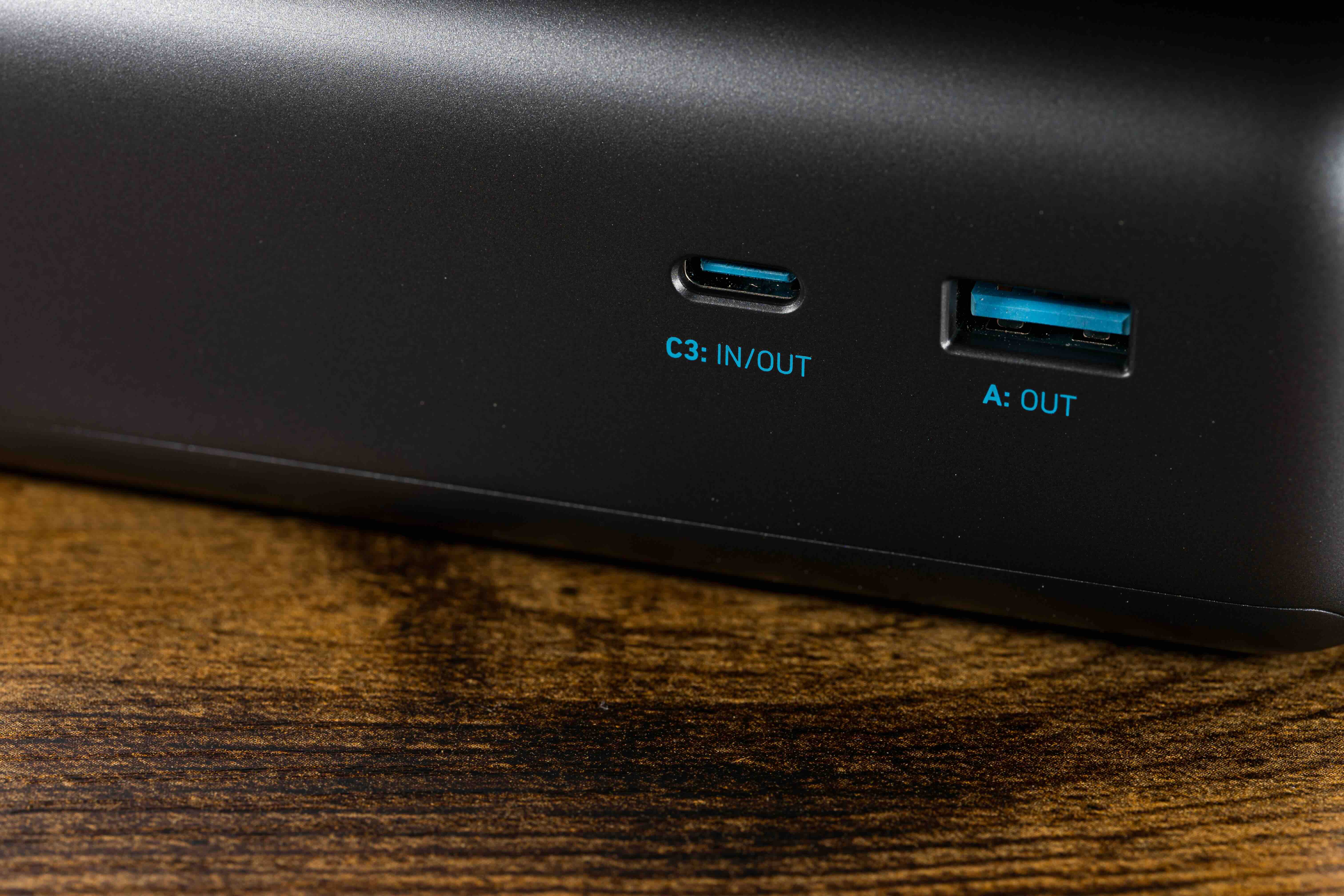
USB-C vs. USB-A: Understanding the Difference and Why It Matters
If you have ever stared at a drawer full of cables and wondered why nothing ever just fits the first time, you are not alone. USB cables have gone through a lot of changes over the years, and today two versions dominate the conversation: USB-C and USB-A. They look different, they behave differently, and choosing the wrong one for your setup can cause real headaches. This guide breaks down both connector types clearly, explains what each one does well, where each one falls short, and helps you figure out which one belongs in your cable kit. It is not that complicated once you see it laid out properly.
What Is USB-A and How Has It Shaped Modern Computing
USB-A is the rectangular connector that practically everyone recognizes immediately. It has been the dominant USB form factor since the original USB specification launched in the mid-1990s, and it is still everywhere. Laptops, desktop computers, wall chargers, car adapters, gaming consoles -- USB-A ports show up constantly. The connector is designed to only insert one way, which, honestly, has caused more frustration than most people care to admit. Despite that, USB-A has earned its place in tech history by providing a universal, durable, and widely supported connection standard. It supports USB 2.0, USB 3.0, USB 3.1, and USB 3.2 Gen 1 speeds depending on the specific cable and port generation involved. For everyday file transfers, keyboard and mouse connections, and basic charging, USB-A still does its job reliably.
What Is USB-C and Why Is the Industry Moving Toward It
USB-C is the newer, smaller, oval-shaped connector that has been gaining serious momentum across the tech industry. Unlike USB-A, it is reversible, meaning you can plug it in either direction without any fuss. That alone was enough to make a lot of people very happy. But USB-C goes far beyond convenience. It supports significantly faster data transfer speeds, higher power delivery capacities, and in many configurations it can carry video signals as well. USB-C can support USB 3.2, USB4, and Thunderbolt 3 and 4 protocols depending on the host device and cable rating. It can charge laptops, transfer 4K and even 8K video, and move large files at speeds that USB-A simply cannot match in most scenarios. Smartphones, tablets, modern laptops, and even some monitors now use USB-C as their primary or sole connection port.
Speed and Performance: USB-C vs. USB-A Side by Side
Speed is one of the biggest practical differences between these two connector types, and it is worth understanding clearly before you buy. USB-A maxes out at USB 3.2 Gen 2 in its fastest configurations, which delivers up to 10 Gbps. That is respectable for most consumer use cases. USB-C, on the other hand, can reach USB 3.2 Gen 2x2 at 20 Gbps, and when paired with USB4 or Thunderbolt 4, it can hit 40 Gbps or higher. For video editors, IT professionals, and anyone moving large data sets regularly, that gap is not trivial. It is a real, measurable difference in workflow efficiency. Beyond raw speed, USB-C also supports Power Delivery up to 240 watts under the USB PD 3.1 specification, which means it can charge high-powered laptops and peripherals through a single cable. USB-A charging is generally capped at lower wattages and is not designed for laptop-level power delivery.
Key Advantages of USB-C Cables
USB-C has several strengths that make it the preferred choice for modern setups and future-facing installations. Here is a clear summary of what makes it stand out:
- Reversible connector design eliminates fumbling and mismating
- Supports high-speed data transfer up to 40 Gbps with USB4
- Capable of delivering up to 240W of power for laptops and demanding devices
- Can transmit video and audio signals including DisplayPort and HDMI Alt Mode
- Compact form factor fits thinner devices where USB-A cannot
- One cable can handle power, data, and display simultaneously
Common Drawbacks You Should Know About
Neither cable type is without its limitations. USB-A still dominates legacy infrastructure, which means USB-C adoption requires adapters or new equipment in many environments. USB-C, despite its advantages, comes with its own frustrations. Not all USB-C cables are built to the same specification. A cable that looks identical to another might only support USB 2.0 speeds or basic charging, with no support for video output or high-speed transfer. This is where things get confusing fast. Labeling and packaging are not always clear, and budget cables from unknown sources often underperform or fail entirely. On the USB-A side, the lack of reversibility and the power ceiling are genuine limitations for modern use cases. Neither connector is perfect in all situations, which is why understanding your specific requirements before purchasing matters so much.
USB-C Compatibility: Devices, Adapters, and What to Watch Out For
USB-C compatibility is broad but nuanced. The connector appears across smartphones, tablets, laptops, docking stations, monitors, and external storage drives. However, the protocol supported by any given USB-C port varies by device. A USB-C port on a budget smartphone may only support USB 2.0 speeds. A Thunderbolt 4 port on a high-end laptop looks identical but operates at an entirely different performance tier. Before buying a USB-C cable, verify what the port on your device actually supports. Adapters and hubs help bridge USB-A and USB-C worlds, which is useful when transitioning infrastructure or working with older peripherals. USB-C to USB-A adapters are inexpensive and widely available, making backward compatibility manageable. Still, every adapter adds a potential point of failure and sometimes imposes speed limitations, so direct connections are always preferable when the option exists.
Practical Tips for Choosing the Right USB Cable
Buying the wrong cable wastes money and causes real problems. These guidelines help narrow it down quickly:
- Match the cable specification to the task, not just the connector shape
- Check the port generation on your device before purchasing any cable
- For laptop charging, confirm the cable supports USB Power Delivery at the required wattage
- For video output via USB-C, verify the cable supports DisplayPort or HDMI Alt Mode
- For Thunderbolt devices, use only certified Thunderbolt cables
- Avoid unlabeled or spec-ambiguous cables, especially for high-power or high-speed applications
- Invest in quality cables with clear spec labeling to avoid compatibility frustration
USB-A Still Has a Role in Modern Infrastructure
It would be shortsighted to write off USB-A entirely. Plenty of enterprise environments, home setups, and production workflows still rely on USB-A devices, and that is not changing overnight. Keyboards, mice, USB hubs, flash drives, and countless peripherals still ship with USB-A connectors as the default. In managed IT environments, where standardization and bulk procurement matter, USB-A cables and ports remain relevant and cost-effective. The key is understanding that USB-A serves a defined role rather than treating it as a universal solution. For high-bandwidth tasks, power delivery to modern devices, or single-cable docking setups, USB-C is the better path. For legacy peripherals and lower-demand applications, USB-A continues to deliver solid, dependable performance without unnecessary complexity.
Why Monoprice Is the Smart Choice for USB Cables and Beyond
When you are building out a cable setup that actually performs, the source matters as much as the spec. Monoprice has spent years earning the trust of IT professionals, AV integrators, home office builders, and enterprise procurement teams by delivering cables and connectivity solutions that meet real-world performance standards without inflated pricing. Whether you need a high-speed USB-C cable for a docking station, a USB-A to USB-B cable for a peripheral connection, or an adapter that bridges both worlds cleanly, Monoprice has it covered. The catalog is thorough, the specs are clear, and the build quality is consistent. For anyone serious about their connectivity infrastructure, high-performance USB-C and USB-A cables from Monoprice represent exactly the kind of value-driven, specification-accurate solution that professionals and everyday users alike can rely on. No guesswork, no hidden limitations, no overpaying for a name on the box.
Frequently Asked Questions About USB-C and USB-A Cables
What is the main difference between USB-C and USB-A connectors?
USB-A is the traditional rectangular connector found on most legacy devices and older computers, while USB-C is a newer, smaller, oval-shaped reversible connector that supports faster data speeds, higher power delivery, and video signal transmission depending on the cable and device specifications.
Can I use a USB-C cable with a USB-A port?
Not directly without an adapter. A USB-C to USB-A adapter allows you to connect USB-C cables or devices to USB-A ports, though the connection will be limited to the capabilities of the USB-A port and may not support the full speed or power delivery of the USB-C specification.
Are all USB-C cables the same?
No. USB-C is a connector shape, not a single specification. A USB-C cable can support USB 2.0, USB 3.2, USB4, or Thunderbolt depending on how it is built and rated. Always check the cable's listed specification to confirm it matches your performance requirements.
What USB cable do I need to charge a laptop?
You need a USB-C cable that supports USB Power Delivery at the appropriate wattage for your laptop. Many modern laptops require 65W, 90W, or more. Confirm the cable's power delivery rating matches or exceeds what the laptop requires before purchasing.
Does USB-C support video output?
Yes, in many cases. USB-C supports DisplayPort Alt Mode and HDMI Alt Mode, which allows compatible cables and devices to transmit video signals. However, the device port and the cable both need to support the appropriate Alt Mode for video output to work.
How fast is USB-C compared to USB-A for file transfers?
USB-A maxes out at around 10 Gbps with USB 3.2 Gen 2. USB-C can reach 20 Gbps with USB 3.2 Gen 2x2, 40 Gbps with USB4, and even higher with Thunderbolt 4. For large file transfers, USB-C offers a measurable speed advantage in compatible configurations.
Is Thunderbolt the same as USB-C?
Thunderbolt uses the USB-C connector shape but is not the same as USB-C. Thunderbolt 3 and Thunderbolt 4 ports look identical to USB-C ports but support higher performance levels, including 40 Gbps data transfer and daisy-chaining of devices. Thunderbolt cables are backward compatible with USB-C devices, but standard USB-C cables cannot access Thunderbolt performance.
Why does my USB-C cable only charge slowly even though my device supports fast charging?
The cable itself may not support USB Power Delivery or the required wattage for fast charging. Even if the charger and device are both capable of fast charging, a cable rated only for basic charging will create a bottleneck. Use a cable that is explicitly rated for USB Power Delivery at the appropriate wattage.
Are USB-A cables becoming obsolete?
Not yet. USB-A remains widely used across peripherals, legacy devices, and enterprise infrastructure. While USB-C is the direction the industry is moving, USB-A will continue to serve a practical role for years, particularly in environments where older hardware and standardized deployments are involved.
How do I know which USB cable to buy for my specific device?
Check your device's specification sheet or manufacturer documentation for the port type, supported USB generation, power delivery requirements, and any video output capabilities. Match those requirements to a cable with clearly labeled specifications from a reputable supplier to ensure full compatibility and performance.


