USB-C vs Type C Explained: Connector vs Capability Guide
USB-C vs Type C: Why So Many People Get This Wrong
Here is something that trips up a surprising number of people -- including some who work in tech. USB-C and Type C are not exactly the same thing, even though those terms get used interchangeably all the time. It happens constantly in product listings, forum threads, casual conversations. And honestly? The confusion is understandable. But once you see the actual distinction, it sticks with you. USB-C describes the physical connector shape. Type C is the broader category that connector belongs to within the USB connector standard. One is about capability and protocol. The other is about form. That gap -- small as it sounds -- matters a lot when you are buying cables, docks, or adapters for your laptop, phone, or monitor setup.
Understanding the USB Connector Standard and Where Type C Fits
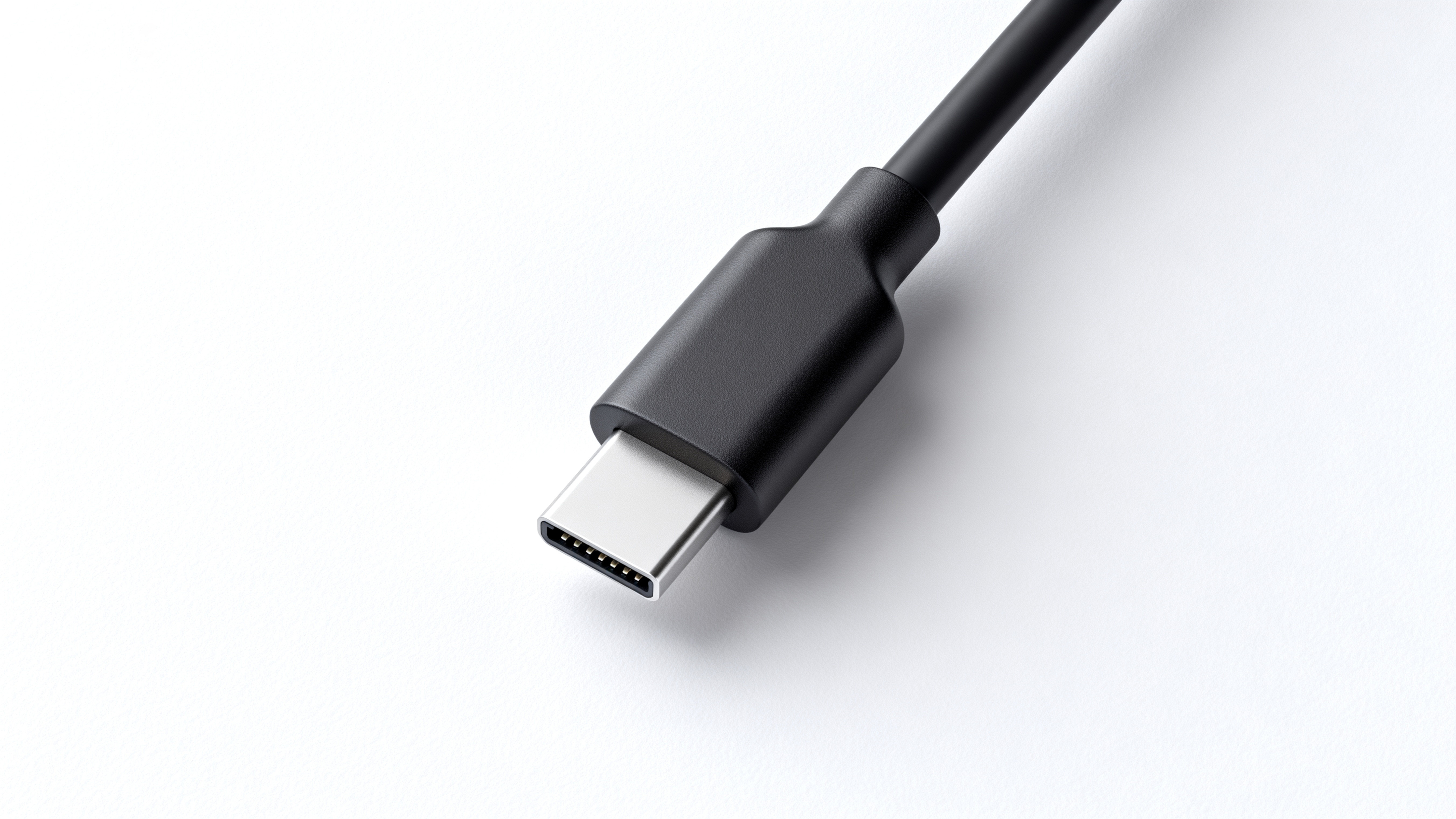
The USB standard has gone through several physical connector shapes over the years. Type A is the rectangular one you have seen on basically every device since the late 1990s. Type B is that squarish connector used on older printers. Mini and Micro USB followed. Then came Type C, which introduced a symmetrical, oval-shaped design that can be inserted either way. That reversibility alone was a massive quality-of-life improvement. Type C is the connector shape. USB-C, however, refers to the full specification -- including data transfer protocols, power delivery standards, and video output capabilities -- built around that Type C form factor. So when a cable is labeled USB-C, it means the connector is Type C and the cable is designed to carry USB signaling under that spec. But not all Type C connectors carry the same USB protocol version. That is where things get layered.
The Physical Connector: What Makes Type C Distinct
Type C connectors are small, durable, and reversible. Those three qualities alone drove rapid adoption across smartphones, laptops, tablets, and peripherals. The connector uses a 24-pin configuration that supports a wide range of signals -- USB data, power, DisplayPort, Thunderbolt, HDMI Alt Mode, and more -- all through the same port. That flexibility is genuinely impressive. One port can theoretically handle charging, 4K video output, and high-speed data transfer simultaneously. The physical design also supports higher current delivery than older connector types, which is why USB Power Delivery charging became viable through Type C. Worth noting: the connector shape alone does not guarantee any of those capabilities. Two cables can look identical and perform completely differently depending on what protocols they are certified to carry.
USB-C Versions and Why the Version Number Matters
This is the part that actually changes your buying decision. USB-C cables are not all built the same. A cable might use a Type C connector but only support USB 2.0 speeds -- meaning you get 480 Mbps transfer rates, which is fine for charging but painfully slow for moving large files. A USB 3.2 Gen 2 cable with a Type C connector pushes up to 10 Gbps. USB4 cables go further, supporting up to 40 Gbps and full Thunderbolt 4 compatibility on supported hardware. Then there is USB Power Delivery, which defines how much wattage a cable can safely carry -- ranging from around 18W all the way up to 240W under the latest Extended Power Range spec. None of that capability is visible just by looking at the connector. You have to read the spec sheet. Always read the spec sheet.
Common Misconceptions That Lead to Real Problems
The biggest mistake people make is assuming all USB-C cables are equal because the connector fits. A cheap unbranded cable with a Type C plug might charge your device slowly, fail to output video to an external monitor, or in rare worst cases damage your hardware if it does not properly regulate power delivery. Another misconception is that Thunderbolt 3 and Thunderbolt 4 are the same as USB-C. They use the same connector shape, but Thunderbolt is Intel's proprietary protocol layered on top of USB-C hardware. A Thunderbolt cable works in USB-C ports, but a standard USB-C cable does not always work in Thunderbolt ports for full functionality. Understanding that relationship saves a lot of frustration when setting up a workstation, an eGPU, or a multi-display configuration.
Key Capabilities You Should Know Before Buying
When shopping for USB-C cables or adapters, these are the capability tiers worth understanding before making a purchase decision:
USB 2.0 via Type C connector -- basic charging and low-speed data, often found in budget cables USB 3.2 Gen 1 -- up to 5 Gbps data transfer, suitable for external drives and peripherals USB 3.2 Gen 2 -- up to 10 Gbps, better for frequent large file transfers USB4 Gen 2x2 -- up to 20 Gbps with broader device compatibility USB4 Gen 3x2 -- up to 40 Gbps, Thunderbolt 4 compatible USB Power Delivery 3.0 and 3.1 -- supports fast charging from 18W up to 240W DisplayPort Alt Mode and HDMI Alt Mode -- video output over Type C without adaptersEach tier serves a different use case. Matching the cable spec to your actual hardware and workflow keeps you from overpaying for capability you do not need or underbuying and creating bottlenecks.
Compatibility Considerations Across Devices
One of the ongoing realities of USB-C adoption is that device manufacturers do not always implement the full spec. A smartphone might include a Type C port that only supports USB 2.0 data rates, even though the port looks identical to a laptop port running USB4. This is a deliberate cost decision, not a defect. Knowing your device's supported spec prevents you from paying a premium for a high-bandwidth cable when your phone's port will never use those capabilities. On the other hand, skimping on cable quality for a laptop that supports 100W USB Power Delivery charging can slow your workflow significantly. Check the device documentation. Manufacturer spec sheets are not glamorous reading, but they are genuinely useful here.
Practical Tips for Choosing the Right USB-C Cable
Buying the right cable comes down to a few consistent habits. First, identify what you actually need the cable to do -- is it just charging, or does it need to carry data or video? Second, check your device's maximum supported wattage and data spec before buying. Third, look for cables that carry third-party certifications such as USB-IF certification, which confirms the cable has been tested against the published standard. Fourth, pay attention to cable length, especially for high-speed data applications -- longer cables can degrade signal integrity at higher speeds. Fifth, do not confuse branding with spec compliance. A cable marketed as premium is not necessarily certified to any standard unless that certification is explicitly stated.
Why Monoprice Is the Right Source for USB-C and Type C Cables
When you are dealing with the kind of spec complexity that USB-C and Type C connectors introduce, cable quality and accurate product information are not optional -- they are the whole point. Monoprice has built its reputation on exactly that: delivering performance-rated cables and connectivity products at prices that make sense for both individual buyers and procurement teams. Whether you are outfitting a home office, a production studio, or a full enterprise deployment, the product line covers every tier of USB-C capability with clear specs and certified construction. If you are ready to stop guessing and start buying cables that actually match your device requirements, explore the full range of USB-C and Type C cables built for performance and value to find exactly what your setup needs. The combination of transparent specifications, rigorous quality standards, and straightforward pricing makes Monoprice the practical choice for anyone serious about getting connectivity right the first time.
Frequently Asked Questions About USB-C vs Type C
Is USB-C the same thing as Type C?
Not exactly. Type C refers to the physical connector shape, while USB-C refers to the full specification, including data protocols and power delivery standards, built around that connector. The connector shape is one component of the broader USB-C standard.
Can I use any USB-C cable with any USB-C port?
Physically, yes -- the connector fits. Functionally, no. Different USB-C cables support different data speeds, power delivery wattages, and video output capabilities. A cable that does not match your device's requirements will either underperform or not deliver the feature you need at all.
What does USB Power Delivery mean on a Type C cable?
USB Power Delivery is a charging protocol that allows higher wattage to pass through a USB-C cable safely. It enables fast charging for laptops, tablets, and phones. The wattage supported depends on both the cable rating and the device's PD compatibility.
Is Thunderbolt 4 the same as USB-C?
Thunderbolt 4 uses the USB-C connector shape but runs Intel's proprietary protocol on top of the USB4 standard. A Thunderbolt 4 port accepts standard USB-C cables, but full Thunderbolt functionality requires a certified Thunderbolt cable.
How do I know what version of USB-C my device supports?
Check the device's official specification sheet or the manufacturer's product page. The port may be labeled on the device itself, or the documentation will list the supported USB generation and power delivery wattage.
Does cable length affect USB-C performance?
Yes. Longer cables can degrade signal integrity at higher data transfer speeds. For USB 3.2 Gen 2 and USB4 applications, shorter cables generally maintain better performance. For basic charging, cable length has minimal impact.
Can a USB-C cable carry video output?
Yes, but only if it supports DisplayPort Alt Mode or HDMI Alt Mode and is connected to a device with a port that enables those protocols. Not all USB-C cables and ports support video output, so verifying compatibility before purchase is necessary.
Why do some USB-C cables charge slowly even with a fast charger?
Slow charging over a USB-C connection usually means the cable does not support USB Power Delivery at the wattage your charger and device can handle. Low-rated cables cap the power flow regardless of what the charger is capable of delivering.
What is USB-IF certification and why does it matter?
USB-IF is the USB Implementers Forum, the organization that maintains the USB standard. Cables with USB-IF certification have been independently tested to confirm they meet published performance and safety specifications, reducing the risk of damage or underperformance.
Are all USB-C ports on laptops the same?
No. Laptop manufacturers often include multiple USB-C ports with different capabilities on the same device -- one port may support full USB4 and Power Delivery while another only handles USB 3.2 data. Always check which port on your specific laptop supports the feature you need.