

USB-C Types and Standards Explained: The Complete Guide
USB-C Explained: What It Is, How It Works, and Why Every Device Seems to Have One Now
If you have bought a laptop, phone, tablet, or just about any piece of modern tech in the last few years, you have probably noticed that nearly everything ships with a USB-C port. And yet, despite how common the connector has become, there is still a lot of confusion around what it actually does, why there are so many versions, and why two cables that look identical can perform completely differently. This guide breaks all of that down in plain terms, so you can stop guessing and start making smarter decisions about the cables and devices you buy.
What Is USB-C and Why Did It Replace Everything Else
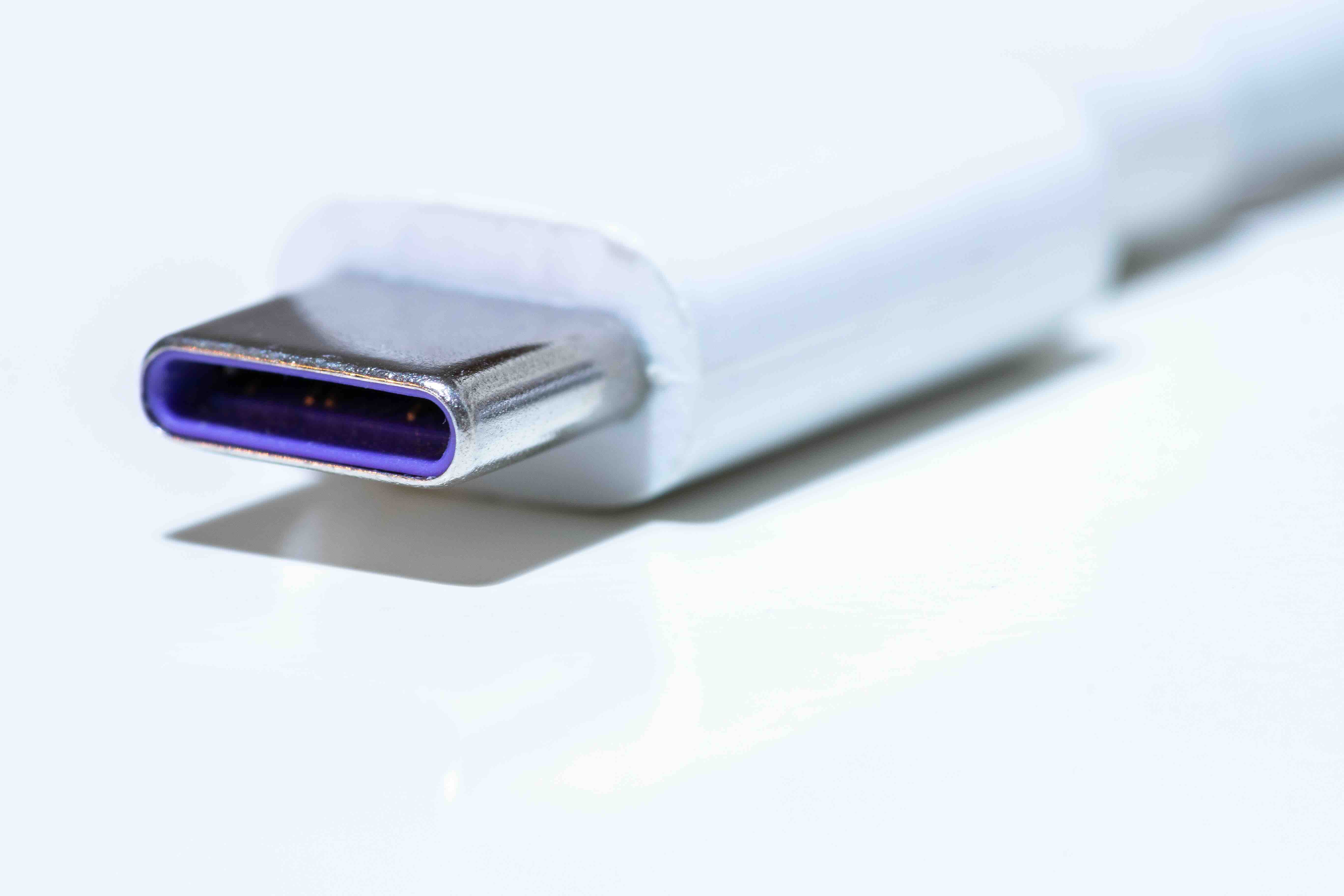
USB-C is a connector standard developed by the USB Implementers Forum, and it was introduced around 2014. The connector itself is small, oval-shaped, and reversible, meaning there is no wrong way to plug it in. That alone was a massive quality-of-life improvement over the older USB-A and USB-B connectors that came before it. The physical design is technically called USB Type-C, and it is worth understanding that the shape of the connector does not automatically tell you what the cable is capable of. The port is just the housing. The actual performance depends on which USB protocol is running underneath.
The Different USB-C Standards You Actually Need to Know About
This is where it gets a little layered, so bear with it for a moment. USB-C is the physical connector, but the data and power specifications that run through it vary significantly depending on the version. Here is a breakdown of the most relevant standards in use today:
- USB 2.0 via USB-C -- up to 480 Mbps transfer speeds, basic charging only
- USB 3.2 Gen 1 -- up to 5 Gbps, suitable for everyday file transfers
- USB 3.2 Gen 2 -- up to 10 Gbps, noticeably faster for large files
- USB 3.2 Gen 2x2 -- up to 20 Gbps, dual-lane architecture
- USB4 Gen 2x2 -- up to 20 Gbps, compatible with Thunderbolt 3
- USB4 Gen 3x2 -- up to 40 Gbps, matches Thunderbolt 4 performance
- Thunderbolt 3 and 4 -- also use the USB-C connector, up to 40 Gbps with video and daisy-chaining support
That list is not exhaustive, but it covers the versions most people will encounter. The key takeaway is this: not all USB-C cables and ports are equal, and the spec matters enormously depending on what you are trying to do.
USB Power Delivery and What It Means for Charging
Charging through USB-C is handled by a spec called USB Power Delivery, commonly abbreviated as USB PD. This protocol allows for negotiated power delivery between a charger and a device, which is a technical way of saying the cable and charger can communicate to determine how much power is safe and appropriate to transfer. Earlier USB connections were limited to around 2.5 watts, which was barely enough to top off a phone overnight. USB PD changes that significantly, supporting up to 240 watts under the USB PD 3.1 specification. That kind of output is enough to fast-charge laptops, monitors, and other high-demand devices. For users managing multiple devices at a desk or on the road, this is a practical and meaningful advantage.
DisplayPort Alt Mode and Video Output Through USB-C
One capability that often surprises people is that USB-C can carry video signals. This is done through what is called Alternate Mode, or Alt Mode, and the most common implementation is DisplayPort Alt Mode. When a device and cable both support it, you can connect a USB-C port directly to an external monitor and transmit high-resolution video without a separate adapter. Some implementations support up to 8K resolution, though that depends on both the port and the cable being rated for it. Thunderbolt ports, which also use the USB-C connector, support DisplayPort Alt Mode as well and can drive two 4K displays simultaneously in certain configurations. This is the kind of versatility that makes USB-C genuinely useful as a single-cable docking solution.
Common Drawbacks and Frustrations with USB-C
Honestly, for all its strengths, USB-C causes real frustration for a lot of people, and most of it comes down to the lack of visual differentiation between cables. Two USB-C cables sitting next to each other can look absolutely identical while offering completely different performance levels. One might support only USB 2.0 speeds and 15 watts of charging. The other might support USB4 and 100 watts of USB PD. Without checking the packaging or spec sheet, there is no way to tell them apart by looking at them. This has led to widespread confusion and, frankly, some poor purchasing decisions. A cable used for basic phone charging should not cost the same as a full-featured cable rated for laptop charging and 4K video output, but consumers who do not know to look for the difference often overpay or underbuy.
Thunderbolt 3 vs Thunderbolt 4 vs USB4: What Is Actually Different
These three standards get conflated constantly, and it is worth clearing up. Thunderbolt 3 and Thunderbolt 4 both use the USB-C connector and support 40 Gbps bandwidth. The difference between them is primarily in minimum certification requirements. Thunderbolt 4 mandates support for two 4K displays or one 8K display, PCIe data transfer, and USB4 compatibility, whereas Thunderbolt 3 had more variable requirements depending on the host device. USB4 was actually designed to unify the USB and Thunderbolt ecosystems. USB4 Gen 3x2 matches Thunderbolt 4 in raw throughput, and all Thunderbolt 4 cables are USB4-compatible. However, USB4 cables are not always Thunderbolt 4 certified. For most users, USB4 Gen 3x2 cables will be more than sufficient and more accessible in terms of price.
How to Choose the Right USB-C Cable for Your Needs
Choosing the right cable comes down to a few practical questions. What are you using it for? Charging only, data transfer, video output, or all three? Here is a simple framework for making the right call:
- For charging only -- look for USB PD support and check the wattage rating
- For data transfers -- match the cable spec to your device port (USB 3.2 Gen 2 at minimum for speed)
- For video output -- confirm DisplayPort Alt Mode support or opt for a Thunderbolt 4 cable
- For docking stations -- a Thunderbolt 4 or USB4 Gen 3x2 cable gives you the most reliable, versatile performance
- For travel and daily carry -- look for reinforced connectors, braided jackets, and cables rated for at least 60W
Do not buy a cable based on its physical appearance. Read the spec label, check the box, and match the cable to what your port and device actually support.
USB-C in the Workplace: Docking Stations, Monitors, and Enterprise Use
For IT professionals and AV integrators, USB-C has become a critical part of modern infrastructure. A single Thunderbolt 4 dock connected to a laptop can extend displays, provide Ethernet, charge the device, and connect peripherals, all through one cable. That simplicity reduces cable clutter, speeds up desk setup and teardown, and makes hot-desking environments dramatically more efficient. Conference room setups benefit equally, as a single USB-C connection can handle display output, audio, and device charging for a presenter walking in with any compatible laptop. The efficiency gains in enterprise environments where dozens or hundreds of workstations need consistent, low-maintenance connectivity are measurable and real.
Why Monoprice Is the Right Source for USB-C Cables and Accessories
When it comes to sourcing USB-C cables, hubs, docking stations, and adapters, the brand you choose matters more than most people realize. Cheap, uncertified cables can damage devices, fail under load, or simply underperform relative to what the packaging claims. Monoprice has built a well-earned reputation for producing rigorously tested, certified cables and accessories that deliver genuine performance at prices that do not require compromise. Whether you are outfitting a home office or speccing out an enterprise deployment, finding reliable USB-C cables and connectivity solutions from a trusted source is not optional. It is the baseline. Monoprice offers a full range of USB-C products, including USB4, Thunderbolt-compatible cables, and USB PD-rated charging cables, all backed by real specifications and a brand that has spent years proving its reliability to integrators and consumers alike. If you are looking for high-performance USB-C cables and accessories for home and professional use, Monoprice delivers the kind of value and technical credibility that justifies the choice every time.
Frequently Asked Questions About USB-C Types and Standards
What is the difference between USB-C and USB 3.0?
USB-C refers to the physical connector shape. USB 3.0 is a data transfer standard. A USB-C port can run USB 3.0 speeds, but the two terms describe different things. The connector and the protocol are separate specifications.
Can I use any USB-C cable to charge my laptop?
Not reliably. Laptop charging through USB-C requires a cable rated for USB Power Delivery at an appropriate wattage, typically 60W or higher for most laptops. A basic USB-C cable may charge slowly or not at all.
Why does my USB-C cable not support video output?
Video output through USB-C requires DisplayPort Alt Mode or Thunderbolt support. If your cable or port does not support Alt Mode, video will not transmit. Check the device and cable specifications before assuming video output is available.
Is Thunderbolt 4 the same as USB-C?
Thunderbolt 4 uses the USB-C connector but is not the same as USB-C. Thunderbolt 4 is a higher-performance protocol with stricter certification requirements. Not every USB-C port supports Thunderbolt 4.
What does USB4 mean and is it better than USB 3.2?
USB4 is a newer specification that supports up to 40 Gbps at its highest tier, which is significantly faster than USB 3.2 Gen 2 at 10 Gbps. USB4 also integrates Thunderbolt 3 compatibility and supports DisplayPort and PCIe tunneling.
How do I know if my USB-C port supports Power Delivery?
Check the device manual or manufacturer specifications. Some ports are labeled with a lightning bolt symbol to indicate USB PD support. Not all USB-C ports on a device may support Power Delivery even if other ports do.
Can a USB-C cable damage my device?
A poorly made or uncertified USB-C cable can potentially cause damage, especially if it misreports its power capabilities and allows overcurrent. Always use cables that are certified or sourced from reputable manufacturers.
What is the maximum wattage USB-C can deliver?
Under the USB Power Delivery 3.1 specification, USB-C can deliver up to 240 watts. This is sufficient for high-performance laptops and many other demanding devices. Earlier USB PD versions cap at 100 watts.
Does cable length affect USB-C performance?
Yes. Longer USB-C cables, particularly those supporting USB 3.2 or higher speeds, may require active electronics to maintain signal integrity. Passive cables longer than roughly one meter may experience reduced data transfer performance at high speeds.
Are all USB-C ports on a laptop the same?
Not necessarily. Many laptops include USB-C ports with different capabilities. One port might support Thunderbolt 4 and charging while another only supports USB 3.2 and data transfer. Always refer to the device specifications to understand what each port supports.


