

USB-C Types and Specs: What You Need to Know
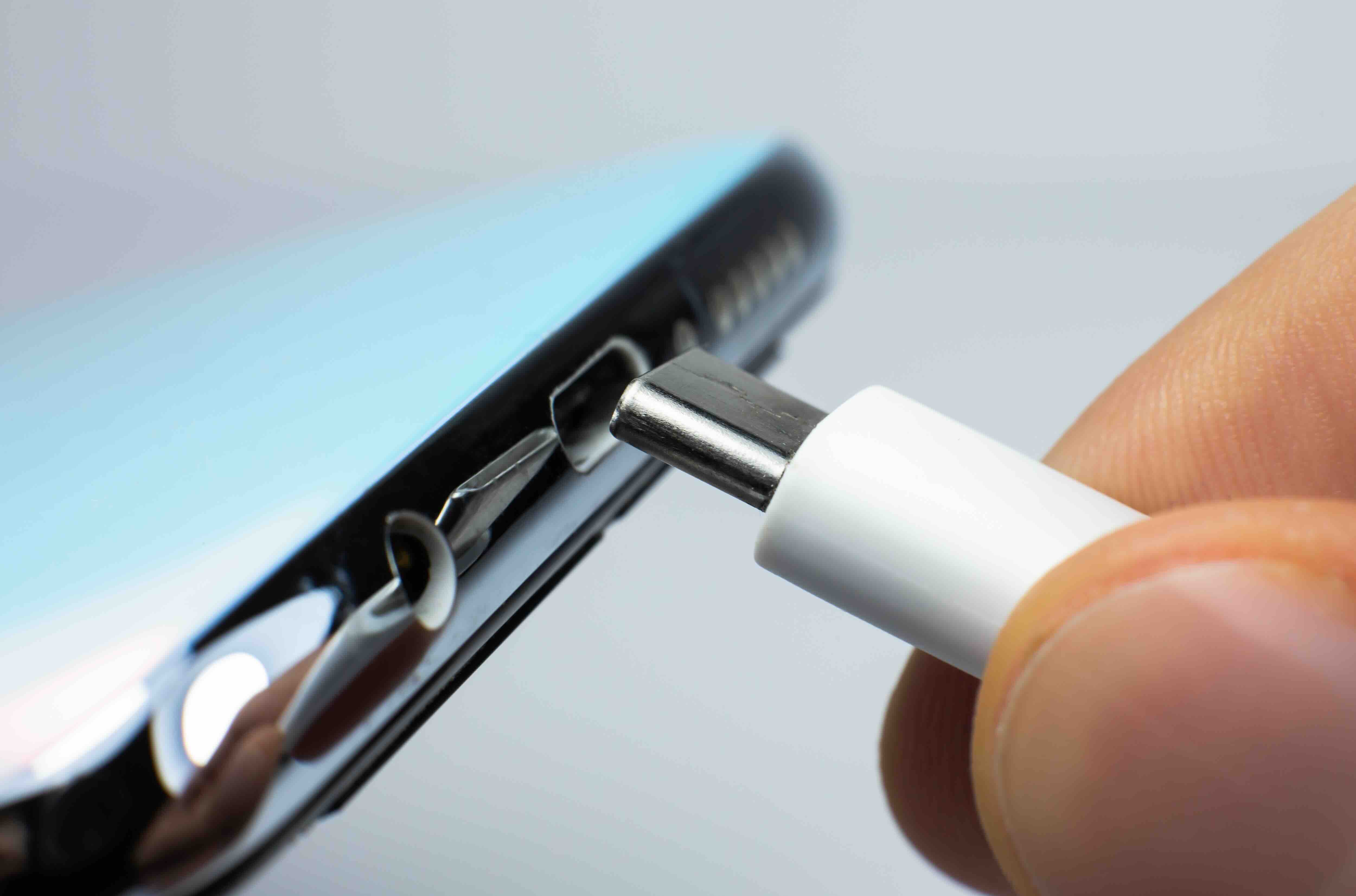
USB-C Explained: What Every User Should Know Before Buying Another Cable
So you picked up a new laptop, a phone, maybe a monitor, and suddenly you have a drawer full of cables that all look the same but somehow none of them do what you need. That is the USB-C experience for a lot of people. The connector itself is genuinely impressive technology, but the ecosystem around it is confusing enough to make anyone second-guess a purchase. Let's break it all down in plain terms, because once you understand what is actually going on with USB-C types and specs, the whole thing starts to make a lot more sense.
What Is USB-C and Why Does It Look the Same on Everything
USB-C refers specifically to the physical connector shape, not the underlying technology or speed. That oval, reversible plug you see on modern laptops, smartphones, tablets, and even monitors is a USB Type-C connector. It replaced the older rectangular USB-A and the awkward micro-USB connectors that most people dealt with for years. The reversible design alone was a massive improvement. You no longer have to flip the cable three times before it fits. However, just because two devices have the same port shape does not mean they support the same features. That distinction matters enormously when you are buying cables or accessories.
The Real Difference Between USB-C Versions and Standards
Here is where things get layered. USB-C is the connector. The protocol running through it can be USB 2.0, USB 3.2, USB4, or even Thunderbolt 3 or 4. Each of these defines the actual data transfer speed, power delivery capacity, and display output capability of that cable or port. A USB-C cable that supports USB 2.0 will charge your phone fine but will transfer files at a painfully slow rate. A USB4 cable using the same connector shape can push data at 40 Gbps and drive a 4K display simultaneously. The physical appearance gives you zero indication of which one you are holding.
Breaking Down USB-C Types by Use Case
It helps to think about USB-C cables and ports in terms of what you actually need them to do. There are a few primary categories worth understanding before you buy anything.
- Charging-only USB-C cables handle power delivery but have no data transfer capability worth mentioning. These are typically lower-cost options fine for a bedside charger.
- USB 3.2 Gen 1 cables support up to 5 Gbps transfer speeds and basic charging. Solid for everyday file transfers and peripheral connections.
- USB 3.2 Gen 2 cables push up to 10 Gbps and support faster charging with USB Power Delivery. A reliable mid-range option.
- USB4 Gen 2x2 cables offer 20 Gbps and extended display and charging support, useful for modern workstation setups.
- USB4 Gen 3x2 and Thunderbolt 4 cables deliver 40 Gbps data speeds, support dual 4K or single 8K display output, and provide up to 100W or more of power delivery depending on the host device.
Thunderbolt 4, developed by Intel and licensed by Apple and others, uses the USB-C connector and is backward compatible with USB4. It is the highest-performance option available in the USB-C form factor and is increasingly common on premium laptops and workstations.
USB Power Delivery: Charging Through USB-C
USB Power Delivery, or USB PD, is the charging standard that makes USB-C useful as a universal power solution. Older USB standards could only deliver a few watts, enough to trickle-charge a phone over several hours. USB PD changed that significantly. Depending on the cable and charger, USB PD can deliver anywhere from 18W up to 240W with the USB PD 3.1 specification. That means USB-C can now legitimately power high-performance laptops, gaming devices, and even certain monitors. The key requirement is that both the cable and the charger need to support the higher wattage ratings. A cable rated for only 60W will not deliver 100W regardless of what the charger is capable of.
DisplayPort Alt Mode and HDMI Alt Mode
One of the most useful features of USB-C that often goes undiscovered is Alternate Mode, which allows the port to carry non-USB signals. DisplayPort Alt Mode lets a USB-C port output video directly to a monitor without any active adapter required. HDMI Alt Mode does the same for HDMI-equipped displays. This is why USB-C docking stations are so capable: a single cable from a laptop can simultaneously carry data, video, and power in multiple directions. Not every USB-C port supports Alt Mode, though. Budget devices often omit it to cut costs, which is why checking your device specs before buying a dock or adapter matters more than most people realize.
Common USB-C Drawbacks You Should Know About
The biggest frustration with USB-C is the lack of visual differentiation. Two cables sitting side by side can look completely identical while having wildly different capabilities. Manufacturers are not required to label cables clearly, and many do not. This leads to situations where a cable that came in the box with a cheap peripheral gets used to connect a high-performance SSD, resulting in dramatically underperforming transfer speeds that the user cannot explain. Cable quality also matters for signal integrity at higher speeds. Poor shielding or substandard materials in a USB4 or Thunderbolt cable can cause dropped connections or data errors. Buying from reputable sources with clearly documented specifications is one of the most practical things you can do to avoid these issues.
How to Choose the Right USB-C Cable for Your Setup
Start by identifying the highest-performance use case you need to cover. If you are connecting a NAS for large file transfers, you need at least USB 3.2 Gen 2. If you are running a high-refresh-rate 4K monitor from your laptop while also charging it, you need USB4 or Thunderbolt 4. For straightforward phone charging, a certified USB PD cable in the 18W to 65W range is usually sufficient. Always look for cables that specify their transfer speed, power delivery wattage, and whether they support video output. Certifications like the Thunderbolt logo or the USB-IF certification mark are reliable indicators of quality. Length also matters: longer cables can degrade signal quality at higher speeds, so stick to shorter runs when pushing maximum bandwidth.
USB-C in Professional and Enterprise Environments
In business and AV integration contexts, USB-C has become a backbone technology. A single Thunderbolt 4 or USB4 connection from a workstation can drive a daisy chain of monitors, high-speed storage, and networking peripherals simultaneously. This dramatically simplifies desk setups and reduces cable sprawl. USB-C docking stations have become standard equipment in hybrid work environments, allowing users to connect an entire workstation peripheral array through a single port on their laptop. For integrators and IT managers, standardizing on USB-C infrastructure with clearly rated cables and hubs reduces compatibility issues and support overhead over time.
Why Monoprice Is a Smart Choice for USB-C Cables and Accessories
If you have read this far, you already know that cable quality and specification accuracy make a real difference in performance. That is exactly why sourcing from a trusted, specification-focused brand matters. Monoprice has spent years building a reputation for delivering high-performance cables and accessories at prices that make sense for both individual buyers and procurement teams. Whether you need a certified Thunderbolt 4 cable, a USB PD-capable charging cable, or a full USB-C docking solution, Monoprice documents specifications clearly so you are not guessing at what you are buying. For anyone serious about building a reliable, high-performance USB-C setup without overpaying, exploring high-speed USB-C cables and accessories from Monoprice is a straightforward, cost-effective place to start. The confidence comes not from marketing language but from verified specs, consistent quality, and a product catalog built around what users actually need.
Frequently Asked Questions About USB-C Types
What is the difference between USB-C and USB4?
USB-C is the physical connector shape. USB4 is a data transfer protocol that uses the USB-C connector. A USB-C port can run many different protocols including USB 2.0, USB 3.2, USB4, and Thunderbolt. USB4 specifically refers to the version of the protocol that supports up to 40 Gbps transfer speeds in its Gen 3x2 configuration.
Can I use any USB-C cable for fast charging?
No. Fast charging via USB Power Delivery requires a cable rated for the appropriate wattage. A basic USB-C cable may only support standard charging speeds. Look for cables that explicitly state USB PD support and list a maximum wattage rating, such as 60W, 100W, or 240W for newer USB PD 3.1 cables.
Is Thunderbolt 4 the same as USB-C?
They use the same physical connector, but Thunderbolt 4 is a specific high-performance protocol developed by Intel. It supports 40 Gbps data speeds, dual 4K display output, and up to 100W charging. Not all USB-C cables or ports are Thunderbolt 4 compatible. Thunderbolt 4 ports are typically identified by a lightning bolt icon.
Why does my USB-C cable charge slowly even with a fast charger?
The cable itself is likely the limiting factor. USB Power Delivery speed depends on the capabilities of both the charger and the cable. If your cable only supports standard USB-C charging without PD negotiation, it will bottleneck the wattage regardless of the charger rating. Replace the cable with one certified for your required wattage.
Can a USB-C cable carry a video signal to a monitor?
Yes, but only if the port on your device supports DisplayPort Alt Mode or HDMI Alt Mode, and the cable is rated to carry video. Many budget devices and lower-spec USB-C ports do not support video output. Check your device specifications before purchasing a cable or adapter for display use.
What does USB 3.2 Gen 2x2 mean?
The "2x2" notation means the connection uses two lanes of USB 3.2 Gen 2, each capable of 10 Gbps, for a combined bandwidth of 20 Gbps. It requires a cable and both host and device ports that support this configuration. It is a mid-tier option between standard USB 3.2 Gen 2 and the full USB4 specification.
How do I know if my USB-C port supports data transfer or just charging?
Check your device documentation or the manufacturer's website for port specifications. Some devices, particularly budget smartphones and accessories, include USB-C ports that only support charging and USB 2.0 data speeds. Ports that support USB 3.2 or higher are usually marked with speed icons or listed explicitly in the product specs.
Are all USB-C cables the same length performance-wise?
No. Longer USB-C cables can experience signal degradation at higher data speeds. For Thunderbolt 4 and USB4 passive cables, the maximum recommended length is typically around 0.8 meters to 1 meter for peak performance. Active cables include signal amplification to support longer runs but cost more.
What is USB PD 3.1 and why does it matter?
USB PD 3.1 is the latest major revision to the USB Power Delivery standard, raising the maximum power delivery from 100W to 240W. This opens USB-C charging to higher-draw devices like gaming laptops and larger monitors. Both the charger and the cable must be USB PD 3.1 certified to achieve these higher wattage levels.
Do I need a special cable for a USB-C docking station?
It depends on what you need the dock to do. For full functionality including high-speed data, video output, and power delivery simultaneously, you need a cable that supports all those features, typically a USB4 or Thunderbolt 4 rated cable. A standard USB-C cable may limit the dock's capabilities, particularly for video and high-bandwidth transfers.


