

USB-C Explained: Cables, Hubs, and What You Need
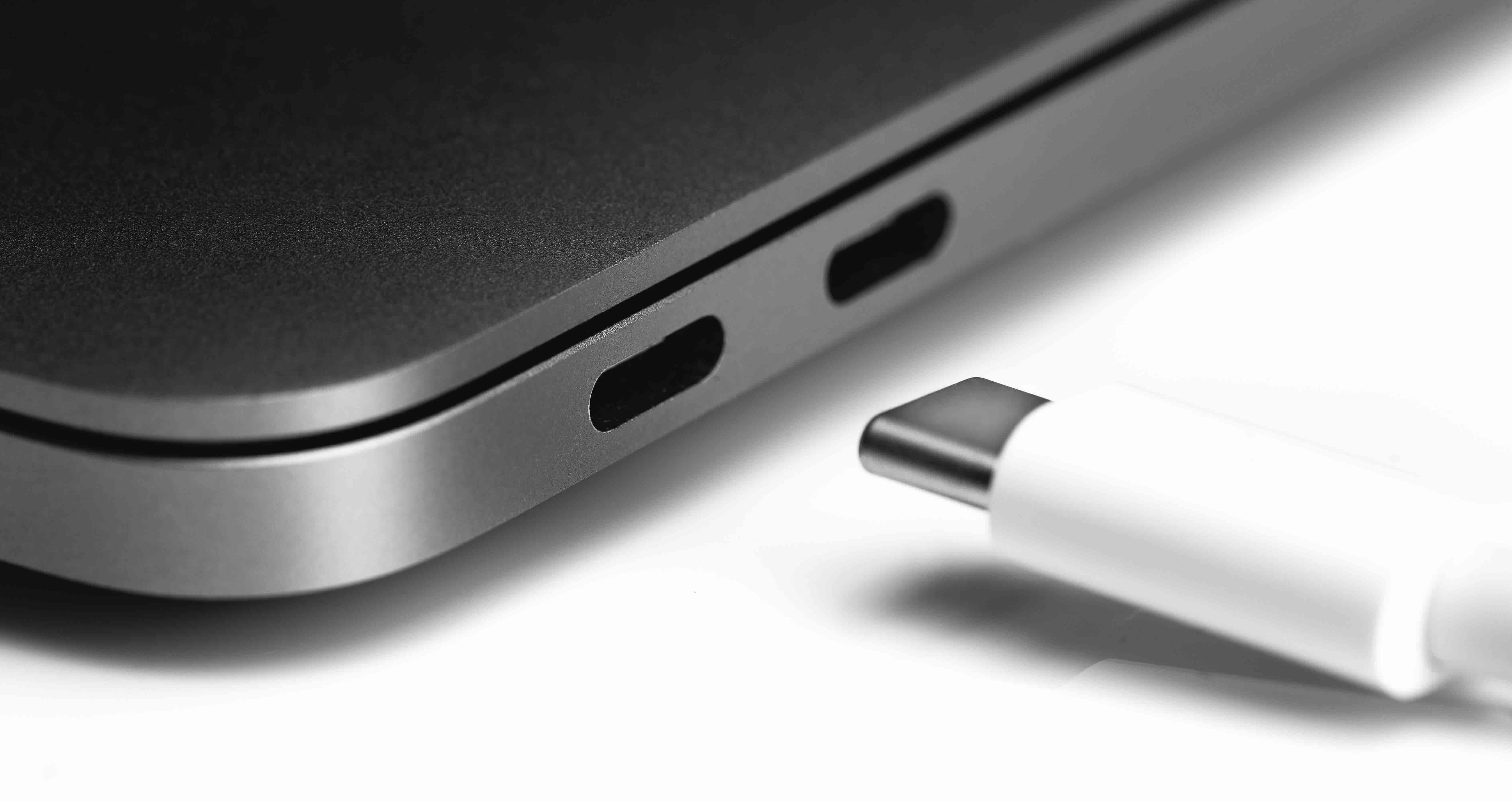
What Is USB-C and Why Does It Matter for Your Devices?
USB-C has become one of the most talked-about connector standards in consumer electronics, and honestly, for good reason. It shows up on laptops, phones, tablets, monitors, docking stations, and even some audio gear now. But a lot of people still aren't entirely sure what it actually is or why manufacturers keep pushing it so hard. So let's break it down in plain terms. USB-C refers to the physical shape of the connector itself -- it's oval, symmetrical, and small. That reversible design alone was kind of a game changer when it launched, because flipping a cable around trying to plug it in the right way was a universal frustration. USB-C eliminated that. It's a universal connector standard developed by the USB Implementers Forum, and it's designed to handle data, video, audio, and power delivery all through a single port. That's the short version. The longer version is a little more nuanced, and worth understanding if you're buying cables, hubs, or docking stations any time soon.
How USB-C Works: The Technology Behind the Connector
Here's where it gets a bit technical, but bear with it -- it's actually useful knowledge. The USB-C connector itself is just the physical interface. What runs through that connector depends on the protocol or standard being used. USB-C can carry USB 3.2, USB4, Thunderbolt 3, Thunderbolt 4, DisplayPort, HDMI Alt Mode, and Power Delivery -- sometimes simultaneously. That's the part people miss when they assume all USB-C cables are the same. They're not. A cable rated for USB 2.0 speeds looks identical to one supporting 40Gbps Thunderbolt 4, but the performance difference is massive. The USB Power Delivery spec allows USB-C ports to deliver up to 240 watts of power, which is more than enough to charge most laptops. The Alt Mode feature lets the port output video signals directly to a monitor. And when a port supports USB4 or Thunderbolt, you're looking at data transfer speeds that can hit 40Gbps -- which is useful if you're moving large files or connecting high-resolution displays. Understanding what version of USB-C you're working with is critical before you invest in a setup.
USB-C vs. USB-A: What Changed and What Did Not
USB-A is the rectangular connector that's been around since the late 1990s. It works, and it works well, but it has real limitations -- it's not reversible, the maximum power output is relatively modest, and the latest high-speed protocols don't use it. USB-C was designed to replace it over time. That transition is still in progress though, which is why adapters and cables with both connector types are so common right now. For most people managing a mix of older and newer devices, having USB-C to USB-A cables in your kit is just practical. The important thing to know is that USB-C is where the standard is heading, and device manufacturers across the board are moving in that direction. The European Union has even mandated USB-C as a common charging standard for consumer electronics sold in the region. That kind of regulatory pressure is a signal -- this connector isn't going anywhere.
Key Advantages of USB-C Technology
It's worth laying out what actually makes USB-C beneficial rather than just listing specs. Here are the core advantages that matter most for everyday users and professionals alike.
- Universal compatibility across data, video, and power in a single port
- Reversible design eliminates incorrect insertion
- Supports Power Delivery up to 240W for charging laptops and high-demand devices
- Alt Mode support allows direct video output to monitors and displays
- Compact form factor fits in slim devices without sacrificing performance
- USB4 and Thunderbolt variants support data transfers up to 40Gbps
- Single-cable desk setups become possible with a capable USB-C hub or dock
That last point is worth emphasizing. If your laptop has a Thunderbolt 4 or USB4 port, a good docking station can give you power, multiple displays, USB-A ports, ethernet, and audio -- all from a single cable connection to your laptop. That's a meaningful quality-of-life improvement for anyone working at a desk regularly.
Common Drawbacks and Limitations to Know
USB-C is genuinely impressive technology, but it's not without its frustrations. The biggest issue is the lack of transparency around versioning. Because every USB-C cable looks the same physically, users frequently buy cables that don't support the speeds or wattage they need. A cable that ships with a budget charger might only support USB 2.0 speeds even though it has a USB-C connector on both ends. That's technically not false advertising, but it's definitely misleading in practice. Beyond that, not all USB-C ports are created equal. A port labeled USB-C might only support charging and basic data transfer, while another might support Thunderbolt 4 and 8K video output. Checking device specifications before assuming capability is essential. Adapter fatigue is real too -- if you have older peripherals, you'll likely need several adapters in transition. And while 240W Power Delivery exists, not all chargers support it, so matching the charger to the device still requires some homework.
How to Choose the Right USB-C Cable or Accessory
Buying USB-C gear doesn't have to be complicated if you know what to look for. Start by identifying what you actually need the cable or accessory to do. Charging only? Data transfer? Video output? All three? Once you know that, you can match the product to the spec. For high-speed data transfers, look for cables explicitly rated for USB 3.2 Gen 2 or USB4. For video output, confirm Alt Mode support. For charging a laptop, verify the wattage rating on both the cable and the charger. USB-IF certified cables are a safer bet in general because they've been tested against official standards. Also look at build quality -- connector housing, strain relief at the cable ends, and cable shielding all affect longevity, especially for cables that get unplugged and replugged regularly. Cheap construction shows up quickly in high-use environments.
USB-C in Professional and Enterprise Environments
For IT professionals, AV integrators, and procurement teams, USB-C has shifted how workstations and conference rooms are built out. A single Thunderbolt 4 docking station can support a full multi-monitor workstation setup while charging a laptop, offloading data to external storage, and maintaining a wired network connection simultaneously. That consolidation reduces cable clutter, simplifies deployments, and lowers total cost of ownership over time. In AV environments, USB-C with DisplayPort Alt Mode has become common for connecting presentation laptops to projectors and displays without needing separate adapters. Managed environments benefit from standardized USB-C docking solutions that create consistent setups across teams. The key in professional deployments is selecting accessories that are certified, rated correctly, and built to handle the wear of daily use over extended periods.
Practical Tips for Getting the Most Out of USB-C
A few straightforward practices can make a real difference in how well USB-C works in your setup. First, label your cables if you have multiple types in one space -- it saves time troubleshooting. Second, don't use a cable rated below what your device supports; you're leaving performance on the table. Third, invest in a quality USB-C hub or dock rather than stacking individual adapters -- it's cleaner and more reliable. Fourth, when charging a laptop, use a charger and cable that both support the wattage your device requires. Under-powering a laptop while it's under load can result in it drawing down the battery even while plugged in. Fifth, check firmware on docking stations periodically -- manufacturers release updates that improve compatibility and performance, especially for newer operating systems.
Why Monoprice Is a Smart Choice for USB-C Cables, Hubs, and Accessories
When you're building out a reliable USB-C ecosystem -- whether for a home office, a professional workstation, or an enterprise deployment -- the quality and value of the accessories you choose matters more than most people realize. Monoprice has spent years earning the trust of IT professionals, integrators, and everyday users by delivering high-performance connectivity products at prices that don't require a budget justification meeting. The USB-C lineup covers everything from basic charging cables to full-featured docking stations with multi-monitor support, Power Delivery passthrough, and high-speed data transfer -- all built to certified standards. If you've been overpaying for branded accessories or settling for uncertified cables that underperform, it's worth exploring what Monoprice USB-C cables and accessories can do for your setup at a fraction of the cost. The confidence behind every product is backed by real specs, real certifications, and a track record that speaks for itself across millions of customers.
Frequently Asked Questions About USB-C
Is USB-C the same as Thunderbolt?
No. USB-C is the connector type, while Thunderbolt is a protocol that can use the USB-C connector. Not all USB-C ports support Thunderbolt. Check your device specifications to confirm whether your port supports Thunderbolt 3 or Thunderbolt 4.
Can I use any USB-C cable to charge my laptop?
Not always. The cable must be rated for the wattage your laptop requires. A cable rated for 60W may not charge a laptop that needs 100W efficiently or at all under heavy load. Always verify the wattage rating on both the cable and charger.
Why is my USB-C cable not transferring data at full speed?
The cable may be rated for USB 2.0 speeds despite having a USB-C connector. Check the cable's specification label or product listing for the supported USB version. For high-speed transfers, you need a cable rated for USB 3.2 Gen 2 or higher.
Can USB-C output video to a monitor?
Yes, but only if the port supports Alt Mode, such as DisplayPort Alt Mode or HDMI Alt Mode. Not all USB-C ports support video output. Thunderbolt-equipped USB-C ports also support video output natively.
What is USB Power Delivery?
USB Power Delivery is a charging specification that allows USB-C ports and cables to deliver higher wattage than standard USB connections. It supports up to 240W under the latest revision, enabling USB-C to charge everything from small devices to full laptops.
Are all USB-C cables reversible?
Yes. The USB-C connector shape is symmetrical, meaning it can be inserted in either orientation. This applies to all USB-C cables regardless of the protocol or speed rating they support.
What is the difference between USB 3.2 and USB4 on a USB-C port?
USB 3.2 supports up to 20Gbps in its fastest configuration. USB4 supports up to 40Gbps and is also backward compatible with Thunderbolt 3. USB4 is the newer and more capable standard for high-performance applications.
Can I connect two monitors using a single USB-C port?
Yes, in many cases. Thunderbolt 3 and Thunderbolt 4 ports support multi-monitor output, and USB-C docking stations can split the signal to drive multiple displays. The exact configuration depends on your laptop's port capability and the dock's specifications.
Do USB-C hubs and docking stations reduce performance?
They can if the hub or dock is not properly rated or if total bandwidth is being shared across too many high-demand devices simultaneously. A quality dock connected to a Thunderbolt 4 port provides enough bandwidth to run multiple monitors, storage, and peripherals without significant degradation.
How do I know if a USB-C cable is certified?
Look for USB-IF certification on the product listing or packaging. Certified cables have been tested to meet official USB standards for performance and safety. Purchasing from reputable brands that clearly disclose certification status is the safest approach.


