

USB-C Cables Explained: What They Are and Why It Matters
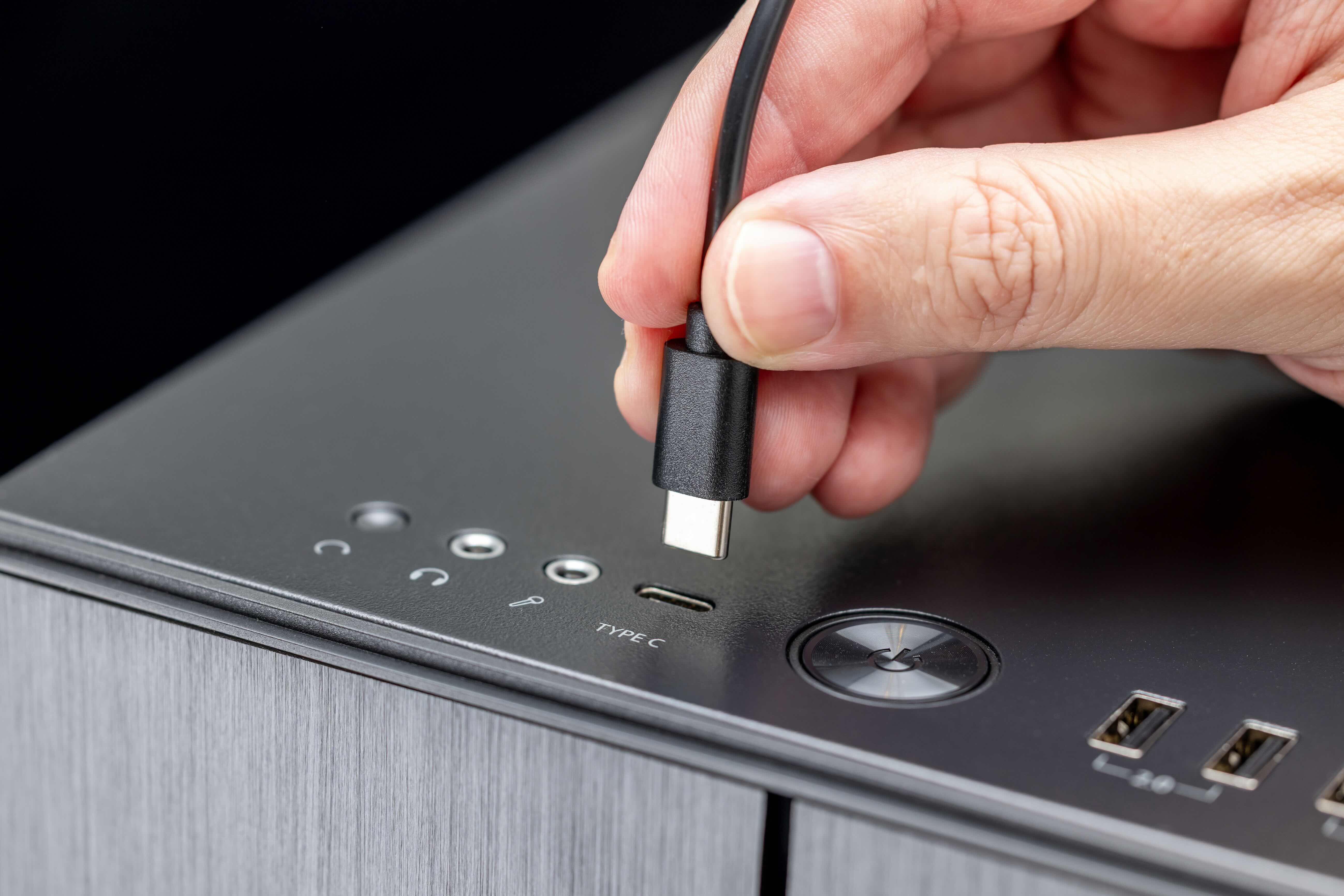
What Are USB-C Cables and Why Does Everyone Keep Talking About Them
If you have bought a laptop, smartphone, or tablet in the last few years, you have almost certainly encountered a USB-C port. Maybe you noticed that your new device came with a different cable than what you were used to, or you found yourself wondering why there are so many cable options that all look identical on the outside but behave completely differently. That confusion is completely valid, and it is more common than most people realize. USB-C has become the dominant connector standard across consumer electronics and professional equipment alike, but understanding what it actually is, what it can do, and what to look for when buying one takes a little more than a quick glance at the packaging. This guide breaks it all down in plain terms.
The Basics: What Is a USB-C Cable
USB-C refers to the physical connector shape and pin configuration introduced as part of the USB 3.1 specification, though it has since been adopted across USB 2.0, USB 3.2, USB4, and Thunderbolt implementations. The connector itself is small, oval-shaped, and reversible, meaning there is no wrong way to plug it in. That last detail alone was a significant leap forward from the older USB-A and USB-B connectors that required you to flip them around at least twice before getting the orientation right. USB-C is now found on Android phones, MacBooks, Windows laptops, tablets, gaming controllers, monitors, docking stations, portable chargers, and a growing number of accessories. It is also the connector mandated by the European Union for standardized charging across consumer electronics, which means its adoption is only going to accelerate.
How USB-C Cables Actually Work
The USB-C connector contains 24 pins, which is significantly more than older USB formats. These pins handle data transfer, power delivery, video output, and audio signaling, sometimes all at once depending on the cable and device involved. The actual performance of a USB-C cable depends on two things: the internal wire construction and the protocol the cable is certified to support. A cable built for USB 2.0 speeds will transfer data at up to 480 Mbps and may support basic charging. A cable built for USB 3.2 Gen 2 can push up to 20 Gbps. A Thunderbolt 4 cable, which also uses the USB-C connector shape, can deliver up to 40 Gbps, support dual 4K displays, and carry up to 100W of power simultaneously. That is a massive range of capability packed into cables that look nearly identical from the outside, which is exactly why reading specifications carefully before purchasing matters so much.
USB Power Delivery: Charging That Actually Makes Sense
One of the most practical features associated with USB-C is USB Power Delivery, commonly abbreviated as USB PD. Traditional USB charging topped out at around 5 watts. USB PD changes that dramatically, supporting up to 240 watts under the most current specification revision. This means a single USB-C cable can charge a smartphone quickly, power a thin-and-light laptop, or even supply power to some smaller monitors and displays. The power negotiation happens automatically between the cable, charger, and device, so the connected device draws only what it needs safely. Not every USB-C cable supports high-wattage power delivery, however. A cable rated for 60W charging will not reliably handle 100W without potential safety risks or simply failing to charge at the expected rate. Always verify the wattage rating on the cable itself, not just the charger.
Key Advantages of USB-C Cables
There are several reasons why USB-C has earned its place as the universal connector of choice across modern devices, and most of them come back to versatility and efficiency.
- Reversible design eliminates orientation frustration
- Single cable can handle data, video, and power simultaneously
- Supports a wide range of protocols from USB 2.0 to Thunderbolt 4
- Smaller connector footprint enables thinner device designs
- USB Power Delivery supports fast charging for phones, laptops, and accessories
- Becoming a global standard, increasing long-term usability across devices
- Compatible with adapters for legacy USB-A and HDMI connections
Common Drawbacks and Frustrations to Know About
USB-C is not without its complications, and it is worth being honest about them. The biggest issue is the lack of visual differentiation between cable tiers. A cable that supports only USB 2.0 speeds looks physically identical to one that supports Thunderbolt 4, which creates a lot of confusion at the point of purchase and even more frustration when a cable does not perform as expected. Additionally, not all USB-C ports are equal. A device may have a USB-C port that only supports charging and basic data transfer, while another port on the same device supports full video output and high-speed data. Counterfeit or poorly manufactured cables are also a genuine concern, particularly for high-wattage charging applications where substandard internal wiring can pose safety risks. Buying from reputable sources with certified, clearly labeled cables is not optional when performance and safety are on the line.
USB-C vs Thunderbolt: What Is the Difference
This is one of the most frequently misunderstood areas in the USB-C landscape. Thunderbolt 3 and Thunderbolt 4 both use the USB-C physical connector, which is why the confusion is so persistent. The key difference is protocol. Thunderbolt cables are developed in collaboration with Intel and carry additional certification requirements that guarantee higher bandwidth, lower latency, and stricter power delivery standards. A Thunderbolt 4 cable will work in a standard USB-C port, but a standard USB-C cable will not unlock Thunderbolt speeds in a Thunderbolt-enabled port. If you are connecting a high-resolution display, an external GPU enclosure, or a professional docking station that requires maximum throughput, you need a cable that is explicitly certified for Thunderbolt, not just USB-C. The certification marking on the cable and its packaging is the only reliable way to know what you are getting.
Practical Tips for Choosing the Right USB-C Cable
Selecting the right USB-C cable does not need to be overwhelming, but it does require paying attention to a few specific details before making a purchase.
- Identify your primary use case: charging only, data transfer, video output, or all three
- Check the wattage rating if using for laptop or device charging, and match it to your charger output
- Look for USB-IF certification for validated performance and safety compliance
- Verify Thunderbolt certification if connecting to Thunderbolt-enabled docking stations or displays
- Check cable length, as longer cables can affect power delivery and signal integrity at higher speeds
- Buy from brands that clearly label cable specifications on the packaging rather than using vague marketing terms
- Consider braided or reinforced cables for high-use environments where durability is a priority
USB-C in Professional and Business Environments
In enterprise and professional AV settings, USB-C cables are not just a convenience feature. They are load-bearing infrastructure. A single USB-C or Thunderbolt cable connecting a laptop to a docking station can simultaneously handle network connectivity, dual monitor output, peripheral access, and laptop charging. That consolidation reduces cable clutter, simplifies workspace setup, and cuts down on the number of adapters required across a deployment. For IT managers and AV integrators specifying equipment for offices, conference rooms, or hybrid work environments, the quality and certification level of USB-C cables directly impacts system reliability. Using uncertified or incorrectly rated cables in these environments leads to dropped connections, charging failures, and display instability, all of which translate into avoidable support tickets and downtime.
Why Monoprice Is the Smart Choice for USB-C Cables
When you are navigating a product category this technical, the brand and source of your cables matters more than most people expect. Monoprice has built a reputation over many years as a trusted supplier of high-performance cables and connectivity solutions for both everyday consumers and demanding professional environments. Every cable in the Monoprice lineup is clearly specified, properly certified where applicable, and priced to deliver genuine value without cutting corners on materials or construction. Whether you need a basic USB-C charging cable for a home office setup or a full Thunderbolt 4 cable for a multi-display docking station configuration, the range is there and the specs are transparent. For anyone looking to simplify their connectivity stack without overpaying, browsing the full selection of USB-C cables and high-performance connectivity solutions at Monoprice is the most practical next step. This is the kind of product category where buying smart from the start saves real time and money down the line, and Monoprice makes that easy.
Frequently Asked Questions About USB-C Cables
Are all USB-C cables the same?
No. USB-C refers only to the connector shape. The internal construction and protocol support vary widely between cables, affecting data transfer speeds, charging wattage, and video output capability. Always check the specification label before purchasing.
Can I use a USB-C cable to charge my laptop?
Yes, if the cable and charger both support USB Power Delivery at the required wattage for your laptop. Most modern laptops that charge via USB-C require at least 45W to 100W depending on the model. Verify the cable's wattage rating before use.
What is the difference between USB-C and Thunderbolt 4?
Thunderbolt 4 uses the same USB-C connector but operates on a higher-performance protocol developed with Intel. Thunderbolt 4 cables support up to 40 Gbps data transfer, dual 4K display output, and up to 100W power delivery, compared to the lower capabilities of standard USB-C cables.
How do I know if my USB-C cable supports video output?
The cable must explicitly state support for DisplayPort Alternate Mode or Thunderbolt in its specifications. Not all USB-C cables carry video signals. Check the product description or packaging for display or video output compatibility.
Is it safe to use any USB-C cable for fast charging?
No. Using a cable with a lower wattage rating than your charger outputs can result in slow charging or potential heat buildup. For safety and performance, use a cable rated for the specific wattage your charger delivers, and look for USB-IF certified options.
Can a USB-C cable replace HDMI for monitor connections?
In many cases, yes. A USB-C cable that supports DisplayPort Alt Mode or Thunderbolt can output video to compatible monitors. For monitors with only HDMI inputs, a USB-C to HDMI adapter or cable may be required depending on the source device.
Why does my USB-C cable charge slowly even with a fast charger?
The cable itself is likely the limiting factor. A USB-C cable rated for only 5W or basic charging will restrict the power flow regardless of how capable the charger is. Upgrade to a cable that matches the full output wattage of your charger.
How long can a USB-C cable be before it loses performance?
For passive USB-C cables, lengths beyond one meter can reduce data transfer speeds and power delivery reliability at higher specifications. Active cables with built-in signal boosting are available for longer runs where full performance must be maintained.
What does USB-IF certification mean on a USB-C cable?
USB-IF is the USB Implementers Forum, the industry body that sets and enforces USB standards. A USB-IF certified cable has been independently tested to confirm it meets the performance, safety, and compatibility requirements for its rated specification level.
Do USB-C cables work with older USB-A ports?
A standard USB-C cable does not physically fit into a USB-A port. However, USB-C to USB-A adapter cables are widely available and allow connectivity between newer USB-C devices and older USB-A ports, though the data and power performance will be limited to USB-A specifications.


