

USB-C and Home Networking: Setup Tips That Actually Work
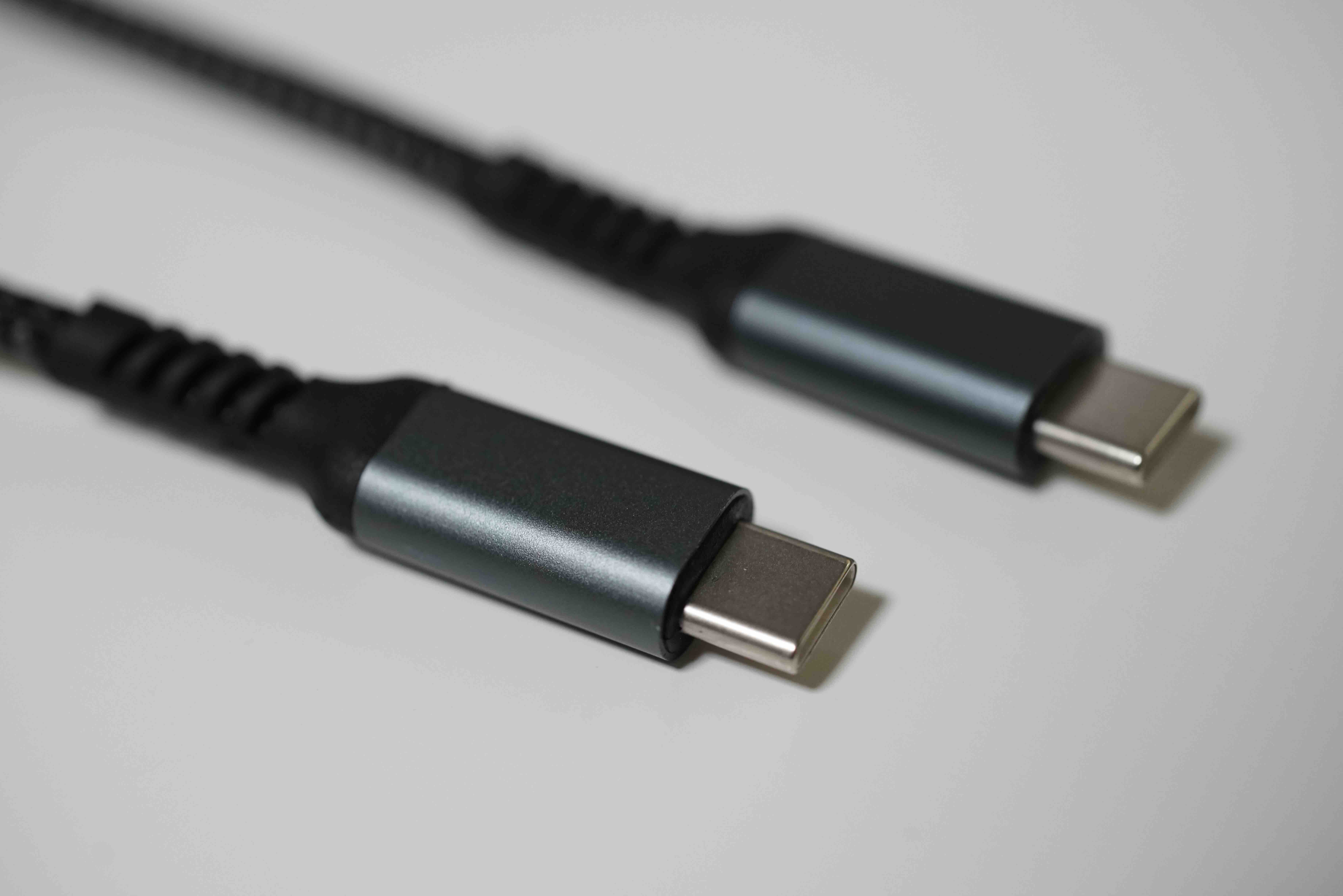
USB-C at Home: What It Is, How It Works, and Why Your Network Setup Needs to Know About It
So you just got a new laptop and noticed there are no traditional USB-A ports on it. Or maybe you picked up a monitor and realized it has this small oval-shaped port labeled USB-C and you are not entirely sure what to do with it. Either way, you are not alone. USB-C has been rolling out across consumer and professional tech for years now, and while a lot of people have the cable in hand, the actual understanding of what it does and how it fits into a home network setup is still pretty fuzzy for most. Let us sort that out properly.
What Exactly Is USB-C and Why Does the Shape Matter
USB-C is a connector standard, meaning it defines the physical shape and pin configuration of the plug and port. The previous generation gave us USB-A, the flat rectangular plug most people recognize, and USB-B, Micro-USB, and Mini-USB for various devices. USB-C replaced a lot of that with a single symmetrical oval design that works regardless of which direction you insert it. That alone is a genuine quality-of-life upgrade. But the shape is really just the beginning. What USB-C supports underneath the connector varies quite a bit depending on the cable, device, and protocol involved, and that is where things get interesting and sometimes confusing.
USB-C Versus USB 3.2 Versus Thunderbolt: What Is the Difference
This is where people get tripped up constantly. USB-C is the connector. USB 3.2, USB4, and Thunderbolt 3 or 4 are the underlying protocols or specifications that a USB-C port might support. A USB-C port on a budget device might only support USB 2.0 speeds. A Thunderbolt 4 port, also using a USB-C connector, can push up to 40 Gbps and support multiple 4K displays simultaneously. So two cables that look completely identical can perform very differently. Always check the spec sheet for the device, not just the port shape. This distinction matters a lot in home networking contexts, especially when routing data or connecting to network attached storage or docking stations.
How USB-C Fits Into a Home Network Setup
Here is where the technology gets genuinely practical. Modern home networks increasingly rely on USB-C as a connectivity bridge between devices and infrastructure. Compact USB-C to Ethernet adapters let laptops with no built-in LAN port connect directly to a router or switch with a wired connection, which is almost always more stable and faster than Wi-Fi for video conferencing or large file transfers. USB-C docking stations bring this further, allowing a single cable to carry power, display output, USB-A peripherals, and an Ethernet connection simultaneously. If you are setting up a home office or a hybrid work environment, a quality USB-C dock can simplify the entire cable management situation considerably.
Power Delivery Through USB-C: The Charging Side of the Equation
USB-C supports a protocol called USB Power Delivery, or USB-PD, which allows devices to negotiate how much power flows through the connection. Earlier USB standards capped out around 2.5 to 15 watts. USB-PD over USB-C can handle up to 240 watts with the latest revision, which is enough to charge laptops, tablets, monitors, and even some lightweight workstations. For home networking setups, this matters when choosing a dock or hub. A dock that supports USB-PD passthrough can charge your laptop while simultaneously connecting it to your network, external display, and peripherals, all from one port. That kind of consolidation is efficient and worth prioritizing when shopping.
Key Advantages of USB-C for Home and Office Connectivity
The reasons to embrace USB-C in a home network environment are pretty compelling once you see the full picture laid out clearly.
- Universal connector compatibility across modern laptops, tablets, phones, and monitors
- Single cable that carries data, video, and power simultaneously
- Reversible connector design that eliminates insertion frustration
- Supports high-speed data transfer for network attached storage access
- Enables compact docking solutions that reduce desk clutter significantly
- Wide compatibility with USB-PD for streamlined device charging
- Future-proof connector standard supported by major manufacturers globally
Common Drawbacks and Limitations You Should Know About
It is not all seamless. There are real gotchas with USB-C that can trip people up, and it is worth being honest about them upfront.
- Not all USB-C cables support the same speeds or power levels despite looking identical
- Cables rated for USB 2.0 will bottleneck performance even on fast ports
- Thunderbolt compatibility requires specific certified cables and devices
- Some hubs and docks reduce bandwidth when multiple high-demand peripherals are connected
- Cable quality inconsistency across cheap third-party manufacturers is a genuine problem
- Device charging wattage may not match expectations if the cable is not rated properly
The cable quality issue is probably the most frustrating one in practice. A poorly made USB-C cable can cause slow charging, intermittent connectivity, or even damage to devices in rare cases. Buying from reputable manufacturers with clear spec labeling makes a real difference here.
Practical Tips for Getting USB-C Right in Your Home Network
A few things worth keeping in mind if you are building out or upgrading a home network that involves USB-C connectivity. First, invest in a USB-C hub or dock that explicitly lists its Ethernet port speed, either 100 Mbps or Gigabit, because that detail alone determines whether your wired connection is actually faster than Wi-Fi or not. Second, match your cable to the task. If you need to transfer large files to a NAS device, use a cable rated for USB 3.2 Gen 2 or higher. If you are just charging, a basic USB-PD cable is fine. Third, verify Thunderbolt compatibility before assuming it. Not every USB-C port supports Thunderbolt, and daisy-chaining displays or high-bandwidth peripherals requires that specific certification. Labels and spec sheets are your friends here.
USB-C and the Broader Smart Home Network Picture
Looking at where home networking is headed, USB-C is increasingly central to how devices connect to both local networks and power sources. As more routers, switches, and NAS enclosures adopt USB-C for management or peripheral connectivity, understanding the standard becomes less optional and more essential. Smart home hubs, streaming devices, and even some Wi-Fi access points now incorporate USB-C ports for either power input or data. Getting fluent with what USB-C can and cannot do is genuinely useful knowledge for anyone managing a home network, whether that is a casual setup or a more intentional home lab environment.
Why Monoprice Belongs in Your USB-C Home Network Setup
When you are outfitting a home network with reliable USB-C cables, hubs, docks, and adapters, the quality of the components you choose directly affects how well everything performs. Monoprice has built a strong reputation delivering high-performance connectivity solutions at prices that do not require a second thought. Whether you need a clearly rated USB-C to Ethernet adapter, a USB-PD capable charging cable, or a full docking solution that consolidates your entire desk setup, Monoprice backs everything with transparent specs, honest labeling, and dependable build quality. If you are ready to stop guessing about cable performance and start building a home network setup that actually works the way it should, explore USB-C cables, hubs, and home network accessories from Monoprice and see how much further your dollar goes when quality and value are both part of the same product line.
Frequently Asked Questions About USB-C and Home Networking
What is the difference between USB-C and Thunderbolt 4?
USB-C is the connector shape. Thunderbolt 4 is a specific high-performance protocol that uses the USB-C connector but offers up to 40 Gbps data transfer, dual 4K display support, and daisy-chaining capabilities. Not all USB-C ports support Thunderbolt 4, so checking device specifications is essential.
Can I use a USB-C hub to connect my laptop to a wired home network?
Yes. Most USB-C hubs include an Ethernet port that provides a wired network connection. For best performance, choose a hub with a Gigabit Ethernet port rather than a 100 Mbps port, especially if your router and internet plan support higher speeds.
Do all USB-C cables support fast charging?
No. USB-C cables must be rated for USB Power Delivery to support fast charging. Basic USB-C cables may only support standard 5V charging. Always check the wattage rating on the cable packaging before assuming charging speed.
Why does my USB-C connection feel slow even though I have a fast port?
The cable itself may be limiting performance. A USB-C cable rated only for USB 2.0 speeds will bottleneck even a USB 3.2 or USB4 port. Replace the cable with one that matches the speed rating of your port for full performance.
Is USB-C the same as USB4?
No. USB4 is a protocol specification while USB-C is the connector type. USB4 uses the USB-C connector, but not every USB-C port supports USB4. USB4 requires compatible hardware on both ends of the connection.
Can USB-C replace HDMI for monitor connections at home?
In many cases, yes. USB-C ports that support DisplayPort Alt Mode or Thunderbolt can output video directly to a compatible monitor using a USB-C to HDMI or USB-C to DisplayPort cable. Always verify that the USB-C port on your device supports video output before purchasing cables or adapters.
What wattage do I need for USB-C laptop charging?
Most laptops require between 45 and 100 watts of USB Power Delivery for reliable charging under load. Thin and light laptops often charge well at 45 to 65 watts, while performance laptops may need 90 to 100 watts. Check your laptop manufacturer specifications for the recommended wattage.
Are USB-C docking stations worth it for home office setups?
For anyone using a single cable to connect a laptop to a monitor, wired network, keyboard, and mouse, a USB-C docking station is a very practical investment. It reduces desk clutter, simplifies cable management, and enables one-cable connectivity when sitting down to work.
How do I know if a USB-C cable is high quality and safe to use?
Look for cables that clearly list their USB specification rating, maximum wattage support, and certification details on the packaging. Cables from manufacturers with transparent spec documentation and established reputations carry significantly less risk of performance issues or device damage.
Can USB-C connect to older USB-A devices?
Yes, with an adapter or a USB-C to USB-A cable. This allows newer devices with only USB-C ports to connect to older USB-A peripherals like flash drives, keyboards, or mice. The connection speed will be limited to whatever the USB-A device supports.


