

USB Adapters Explained: Find the Right Fit for Any Setup
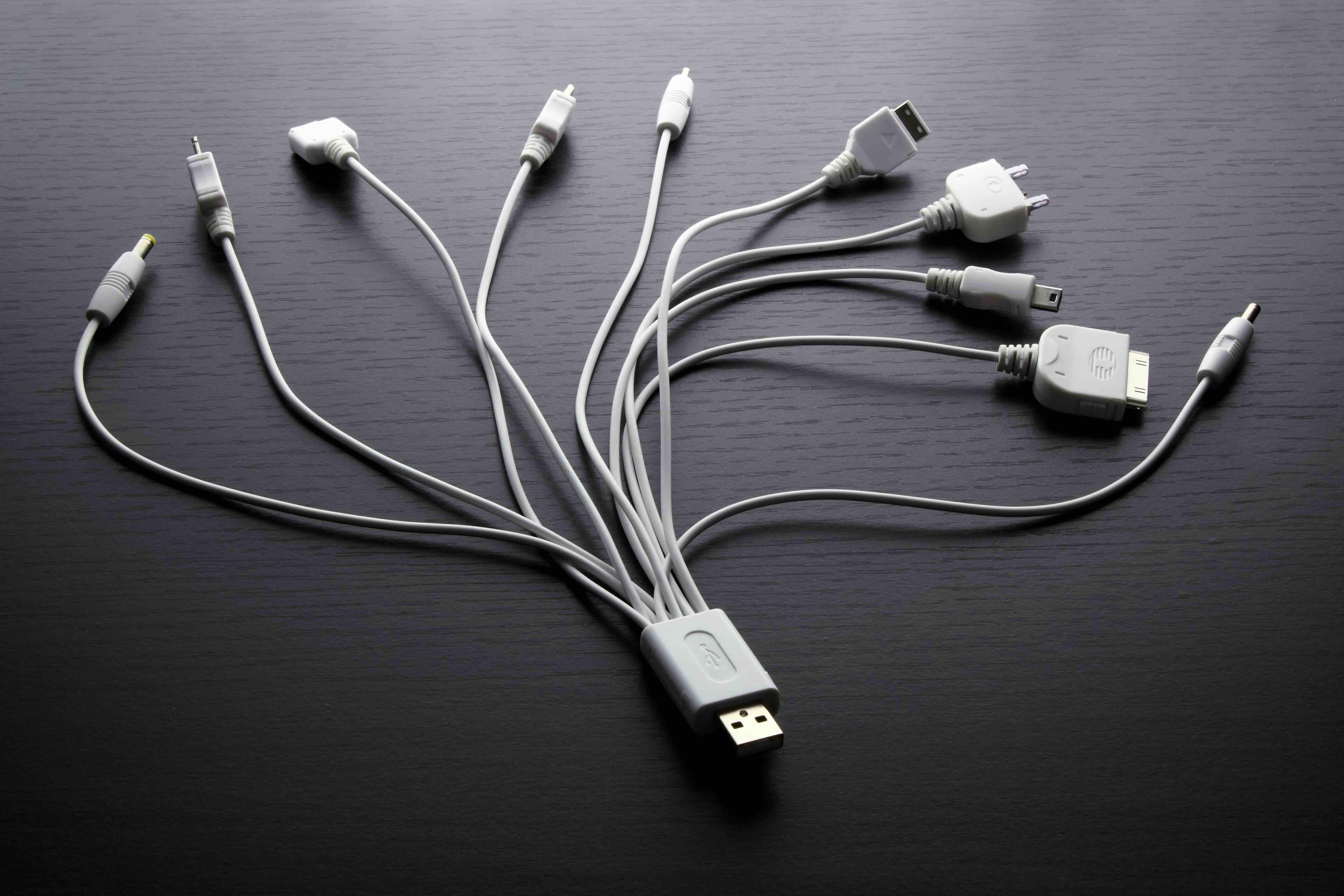
What Is a USB Adapter and Why Does It Matter for Your Tech Setup
So you just got a new laptop and realize half your accessories do not plug into it. Or maybe you are trying to connect a wired keyboard to a tablet that only has USB-C ports. Either way, you are not alone. USB adapters are one of those small, easy-to-overlook pieces of tech that quietly hold a lot of setups together. They bridge the gap between older peripherals and newer devices, and honestly, once you understand how they work and what to look for, buying the right one becomes a lot less frustrating. This guide breaks all of that down in plain terms so you can make a smarter call before spending anything.
Understanding USB Standards and Why They Keep Changing
USB stands for Universal Serial Bus, and it has gone through quite a few generations since it first showed up in the late 1990s. Each version brought faster data transfer speeds, better power delivery, and different connector shapes. USB 1.1 was slow by today's standards. USB 2.0 became the workhorse for years. USB 3.0 and its follow-up revisions pushed speeds dramatically higher. Then USB-C arrived and basically scrambled everything because it works with multiple protocols depending on the device. Understanding which standard you are working with matters a lot when choosing an adapter, because not every adapter supports every speed tier even if it physically fits. A USB-C to USB-A adapter might only support USB 2.0 speeds depending on how it is built, and that can mean sluggish file transfers if you are not paying attention.
The Main Types of USB Adapters You Will Actually Encounter
There are a few categories that come up over and over, and knowing what each one does saves a lot of guesswork at the checkout.
- USB-A to USB-B adapters are common for connecting printers and older external hard drives.
- USB-A to Micro-USB adapters are used for older Android phones, game controllers, and accessories.
- USB-A to USB-C adapters handle the growing number of newer devices that have dropped the older port entirely.
- USB-C to USB-A adapters are sometimes called reverse adapters and are helpful when the host device only has USB-C ports.
- USB-C to USB-C adapters may seem redundant, but they can step up or step down power delivery specs depending on the cable's rating.
- USB-C multiport hubs are technically in adapter territory and let you add multiple port types to a single USB-C connection.
- OTG adapters, which stands for On-The-Go, allow smartphones and tablets to host USB devices like flash drives or keyboards.
Knowing which category fits your situation before shopping prevents buying something that looks right but works wrong.
How USB Adapters Actually Work
At a basic level, a USB adapter is a passive converter that changes the physical connector shape so that two devices can establish a connection. The electrical signals pass through the adapter without being altered in most cases. Where things get more nuanced is when you start dealing with protocol translation. A USB-C port can carry Thunderbolt, DisplayPort, HDMI, power delivery, and USB data all through the same port, but whether any of that actually comes through depends entirely on the adapter and what the source device supports. A cheap adapter that says USB-C to HDMI might work fine for display output at basic resolutions, but it might not support higher refresh rates or HDR passthrough that a better-built adapter would handle. The physical shape is just the beginning of the conversation.
Key Advantages of Using a Quality USB Adapter
The most obvious benefit is compatibility. You get to keep using hardware you already own instead of replacing it just because your new device has different ports. That is a real cost saving, especially in professional or enterprise environments where peripherals represent significant capital investment. Beyond that, the right adapter can extend the functionality of a device, letting a laptop become a workstation hub with a few well-chosen accessories. USB-C adapters with power delivery passthrough let you charge your device while also connecting peripherals, which keeps cables cleaner. For travelers and mobile workers, a compact adapter means one bag holds everything needed to work from any desk with any monitor or docking setup.
Common Drawbacks to Watch Out For
Not everything about adapters is straightforward, and there are some real pitfalls worth knowing ahead of time. The biggest issue is mismatched specs. Buying a USB 3.0 device and connecting it through a USB 2.0 adapter bottlenecks your speeds to the slower standard. Some adapters also do not support charging at full wattage even if they claim to handle power delivery. Cheap adapters can run warm under sustained load, which is not ideal for anything left plugged in for long periods. Compatibility gaps between operating systems and adapter firmware are another occasional nuisance, particularly with display adapters on certain platforms. None of these issues are dealbreakers, but they underscore why build quality and accurate spec labeling matter more than most people think when buying adapters.
Practical Tips for Choosing the Right USB Adapter
First, identify the port types on both the source device and the peripheral or display you are trying to connect. That narrows the category immediately. Then look at what you actually need the connection to do. If it is just for charging a phone, speed specs matter less. If it is for transferring large files or outputting video, you want USB 3.2 or USB4 compatibility and confirmed display protocol support. Check whether your device's USB-C port is Thunderbolt-compatible if you are planning to connect high-bandwidth peripherals, since not all USB-C ports carry that protocol. Also verify power delivery wattage if you want to charge through the adapter while working. Reading the actual specifications rather than just the marketing label on the front of the packaging makes a meaningful difference in long-term satisfaction.
USB Adapters in Professional and Business Environments
IT teams and AV integrators deal with USB adapter questions constantly because the hardware landscape in a workplace is rarely uniform. Some machines are a generation old with USB-A ports, others are brand new with only USB-C. Standardizing on the right adapter types for each workstation profile reduces helpdesk tickets and user frustration. In conference room setups, USB-C to HDMI or DisplayPort adapters enable reliable screen sharing from any laptop without fumbling with cables. For remote and hybrid work environments, ensuring employees have the right adapter kit at home eliminates a surprisingly common productivity obstacle. Buying in volume from a reliable source with consistent specs across units matters more than it might seem, because mixed batches from inconsistent suppliers create support headaches at scale.
Why Monoprice Is a Smart Source for USB Adapters and Connectivity Solutions
When you need reliable connectivity hardware that actually performs the way the specs claim, sourcing from a brand with a proven track record changes the experience considerably. Monoprice has built a reputation over many years for delivering performance-grade cables, adapters, and connectivity accessories at prices that make sense for both individual users and procurement teams equipping entire departments. Every adapter is built to spec, labeled accurately, and backed by support that does not disappear after the sale. Whether you are outfitting a home office, managing an IT rollout, or upgrading a conference room, browsing the full range of high-performance USB adapters and connectivity accessories at Monoprice gives you access to solutions designed for real-world use at a price that respects your budget. It is not about choosing cheap. It is about choosing smart.
Frequently Asked Questions About USB Adapters
What is the difference between a USB-A and USB-C adapter?
USB-A is the rectangular connector most people recognize from older devices and computers. USB-C is the smaller, oval-shaped connector found on newer laptops, phones, and tablets. Adapters between the two allow devices with different port types to connect to each other.
Will a USB adapter slow down my data transfer speeds?
It depends on the adapter's rated standard. An adapter rated for USB 3.0 or higher will not reduce speeds if both the device and peripheral also support that standard. An adapter rated only for USB 2.0 will bottleneck faster devices to 2.0 speeds regardless of what is connected to it.
Can a USB-C adapter charge my laptop while I use it?
Yes, if the adapter supports USB Power Delivery passthrough and is rated at a high enough wattage for your laptop's charging requirements. Always check the power delivery wattage listed in the adapter's specifications before purchasing.
What does OTG mean on a USB adapter?
OTG stands for On-The-Go. It is a feature that allows devices like smartphones and tablets to act as a USB host, meaning they can connect to and power accessories like flash drives, keyboards, and mice directly through a compatible OTG adapter.
Are all USB-C adapters compatible with Thunderbolt ports?
No. While Thunderbolt 3 and 4 ports use the USB-C connector shape, not all USB-C adapters support the Thunderbolt protocol. You need an adapter explicitly rated for Thunderbolt compatibility to take advantage of those higher bandwidth and display capabilities.
Can I use a USB adapter to connect a monitor to my laptop?
Yes, provided the adapter supports video output protocols such as DisplayPort Alt Mode or HDMI Alt Mode over USB-C. Passive USB-A to HDMI adapters do not exist without an active chipset, so make sure the adapter is specifically rated for display output.
Is it safe to leave a USB adapter plugged in all the time?
Generally yes, but quality matters. Well-built adapters from reputable brands handle sustained use without issue. Lower-quality adapters can run warm over time, which is a sign of inefficiency and a potential long-term concern for connected devices.
Do USB adapters work across all operating systems?
Most passive USB adapters are plug-and-play and do not require drivers on Windows, macOS, or Linux. Some active adapters, particularly display or audio adapters, may require driver support that varies by platform. Checking compatibility notes before purchasing is a good habit.
What should I look for when buying a USB adapter for video output?
Look for the supported resolution, refresh rate, and color depth in the specifications. Confirm whether the adapter supports HDR if that matters to your display. Also verify that your laptop's USB-C port actually supports DisplayPort Alt Mode, since not every USB-C port does.
How do I know which USB standard my device supports?
Check the manufacturer's documentation or the device's specifications page. USB 3.0 ports are often marked with a blue color or a small SS label. USB-C ports may carry additional labels indicating Thunderbolt support. When in doubt, the device brand's support documentation will confirm the port capabilities.


