USB A Splitter: Expand Your Ports Without the Hassle
What Is a USB A Splitter and Why Does It Matter?
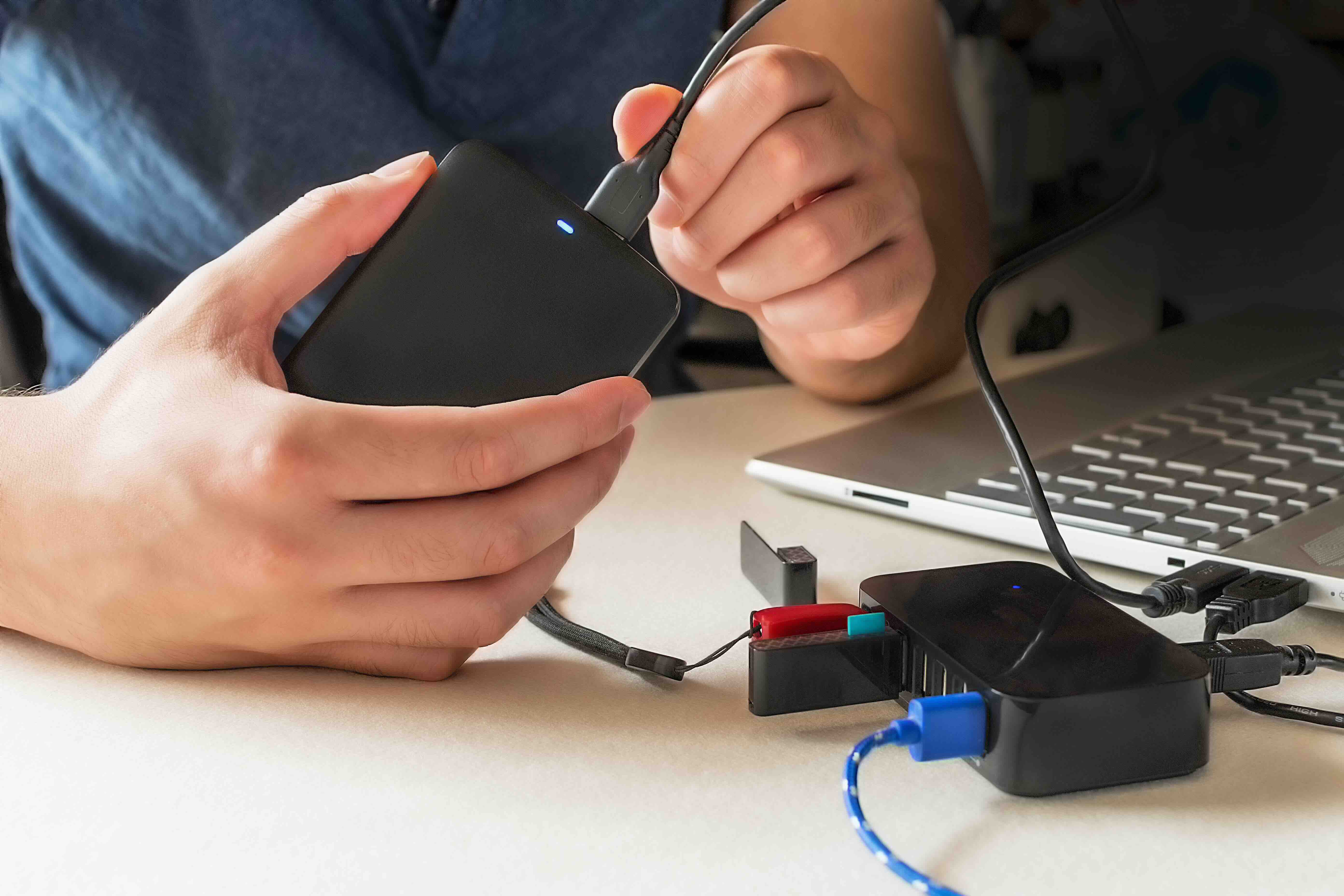
So you have one USB-A port and three things you need to plug in. That's basically the everyday reality for a lot of people working from laptops, older desktops, or compact setups where ports are just... not enough. A USB-A splitter -- sometimes called a USB hub -- is exactly what it sounds like: a device that takes a single USB Type-A port and expands it into multiple ports, letting you connect several peripherals at once. Mouse, keyboard, flash drive, external hard disk, wireless adapter -- all running off one port. It's a simple concept but genuinely useful once you understand how it works and where the limits are.
How a USB A Splitter Actually Works
Here's the basic idea. A USB-A splitter connects to a host device -- your laptop, desktop, or even a TV with a USB port -- and then distributes that single connection into two, four, seven, or more individual ports. The host provides both data communication and power through the USB bus. The splitter manages how that bandwidth and power are divided among connected devices. Most passive (unpowered) splitters share whatever the host port offers, which is typically 500mA for USB 2.0 and 900mA for USB 3.0. Active (powered) splitters use an external power adapter to give each port its own power supply, which is a meaningful difference when you're connecting power-hungry devices. Data signals are managed through an internal hub controller chip that handles addressing and routing for each connected device independently.
Powered vs. Unpowered USB A Splitters
This distinction matters more than most people realize before they buy. Unpowered splitters are compact, portable, and don't need an outlet -- great for low-demand accessories like a mouse or a small USB drive. The tradeoff is that power gets split between all connected devices, so if you're trying to run a portable hard drive alongside a charging cable and a keyboard, you might run into issues. Powered splitters are a different story. They come with an AC adapter and deliver consistent power to every port regardless of what else is connected. If you're building a real desk setup -- monitors, peripherals, external storage -- go powered. It's just a cleaner, more reliable experience. The price difference is usually modest and the performance gap is significant.
USB 2.0 vs. USB 3.0 Splitters: Does Speed Matter Here?
Short answer -- yes, it does, depending on what you're connecting. USB 2.0 tops out at 480 Mbps. That's fine for keyboards, mice, webcams at standard resolution, and basic storage reads. USB 3.0 pushes up to 5 Gbps, which is a whole different tier when you're transferring large files or running an external SSD. If your splitter is USB 2.0 but your device supports USB 3.0, you're capping the performance of that device at the slower standard. Something to think about when choosing. Most modern splitters are USB 3.0, and backward compatibility means they'll still work with older USB 2.0 devices. That's the version to buy if you're unsure -- it covers more ground without any real downside.
Key Advantages of Using a USB A Splitter
There are several practical reasons these devices show up on desks, in home offices, at trade shows, and in server rooms alike. Here's what makes them genuinely useful:
- Expand limited port availability on laptops and compact desktops without upgrading hardware
- Enable multi-peripheral setups with a single host connection
- Portable models fit in a laptop bag or travel kit with almost no footprint
- Powered models support consistent performance across all connected devices simultaneously
- Cost-effective way to extend the life and functionality of existing equipment
- Compatible across operating systems -- Windows, macOS, Linux, Chrome OS -- with no drivers needed in most cases
Common Drawbacks to Know Before You Buy
No device is perfect, and USB-A splitters have some real limitations worth knowing upfront. Bandwidth sharing is the big one -- all ports on a passive hub share the host port's total bandwidth, so if you're transferring data on multiple devices at the same time, speeds drop. Power sharing is the other constraint for unpowered models, as mentioned. There's also the question of cable length. Running a long USB cable before your splitter introduces signal degradation, especially for USB 2.0. And while most splitters are plug-and-play, occasionally there are compatibility quirks with certain operating systems or high-power devices. None of these are dealbreakers, but they're the kind of details that help you buy the right product rather than the wrong one.
What to Look For When Choosing a USB A Splitter
A few specs and features tend to matter most in practice. Port count is obvious -- get more than you think you need, because you'll use them. USB version matters for speed-sensitive applications, so lean toward USB 3.0. Powered vs. unpowered comes down to your use case as covered earlier. Build quality is genuinely important here -- cheap internal hubs can cause data errors, device drops, or charging failures over time. Look for shielded cables, quality connectors, and sturdy housing. Additional features like individual port on/off switches, LED indicators, and charging-optimized ports are nice-to-have additions that some users find worth paying a little more for.
Practical Tips for Getting the Most Out of Your USB Splitter
Once you have a splitter, a few habits will keep it running smoothly. Avoid daisy-chaining multiple hubs together -- it compounds bandwidth and power limitations and can cause instability. Connect high-power or high-bandwidth devices to a powered hub rather than relying on bus power. If you're using an unpowered hub and notice a device disconnecting or failing to mount, that's typically a power issue -- switching to a powered model usually resolves it immediately. Keep the hub's firmware or driver updated if it came with any. And if you're using a USB 3.0 hub, plug it into a USB 3.0 port on your host device to take full advantage of the speed. These are small things but they add up to a noticeably better experience.
Why Monoprice Is the Right Choice for USB A Splitters and Connectivity Accessories
When it comes to expanding your connectivity without overspending, Monoprice consistently delivers the kind of performance and build quality that both individual users and IT procurement teams rely on. The product line covers passive and powered hub configurations, USB 2.0 and USB 3.0 options, and a range of port counts to match every workspace scenario. Monoprice designs these products with real-world usage in mind, not just spec sheets. If you're setting up a home office, staging a conference room, or spec'ing accessories for a larger deployment, you're getting reliable, tested hardware at pricing that makes sense. Explore the full range of USB A splitters and USB hub accessories from Monoprice to find the right configuration for your setup -- because port limitations shouldn't slow down how you work. The value is clear, the quality holds up, and the selection is broad enough to cover almost any use case from casual to professional-grade.
Frequently Asked Questions About USB A Splitters
What is the difference between a USB splitter and a USB hub?
These terms are often used interchangeably in consumer contexts. Technically, a USB hub is the more accurate term for a device that expands one USB port into multiple ports. A splitter sometimes refers to simpler two-port passive adapters. Both accomplish the same core goal of multiplying available USB connections from a single host port.
Can a USB A splitter charge multiple devices at the same time?
Yes, but with conditions. A powered USB hub can charge multiple devices simultaneously because it draws from an external power source rather than the host port. An unpowered hub splits the host port's limited current across all connected devices, which may result in slow or failed charging when several devices are connected at once.
Will a USB A splitter reduce data transfer speeds?
It can, depending on how many devices are actively transferring data at the same time. All ports on a hub share the total bandwidth of the upstream connection to the host. If only one device is transferring data at a time, you typically see full available speeds. Simultaneous transfers divide the available bandwidth among active devices.
Do USB A splitters work with Mac and Windows computers?
Yes. Most USB hubs and splitters are plug-and-play across Windows, macOS, Linux, and Chrome OS. No driver installation is required in the vast majority of cases. The operating system recognizes connected devices through standard USB protocols automatically.
How many devices can I connect to a USB A splitter?
This depends on the specific hub. Common configurations include 4-port, 7-port, and 10-port models. Technically, USB supports up to 127 devices on a single bus through cascading hubs, but practical performance and power considerations make smaller setups far more reliable for everyday use.
Is a powered USB hub worth the extra cost?
For most users connecting more than two or three devices, yes. Powered hubs deliver stable, independent power to each port, support faster-charging accessories, and prevent the device drops and failures that often occur with unpowered hubs under load. The investment is modest compared to the reliability improvement.
Can I use a USB A splitter with an external hard drive?
Yes, but use a powered hub. External hard drives typically draw more current than an unpowered hub can reliably provide from a host port, especially when reading or writing large files. A powered hub ensures the drive gets consistent power and reduces the risk of data errors or unexpected disconnects.
What happens if I connect too many devices to an unpowered USB splitter?
You may experience device disconnections, failure to mount, slow charging, or error messages indicating insufficient power. This is a direct result of the host port's power budget being exceeded. Disconnecting some devices or switching to a powered hub typically resolves the issue.
Does the length of the USB cable affect splitter performance?
Yes. Longer USB cables can introduce signal degradation, particularly for USB 2.0 connections. The USB specification recommends keeping cable runs under 5 meters for USB 2.0 and 3 meters for USB 3.0 without a signal repeater. Shorter, high-quality cables help maintain reliable data and power delivery.
Are all USB A splitters backward compatible with older USB standards?
Generally, yes. USB 3.0 hubs are backward compatible with USB 2.0 and USB 1.1 devices. However, older devices will only operate at their native speed regardless of the hub's capabilities. Connecting a USB 2.0 device to a USB 3.0 hub does not upgrade the device's performance -- it simply works at the lower standard.