

USB 3.0 Type-A Connector: Speed, Design, and Real Use
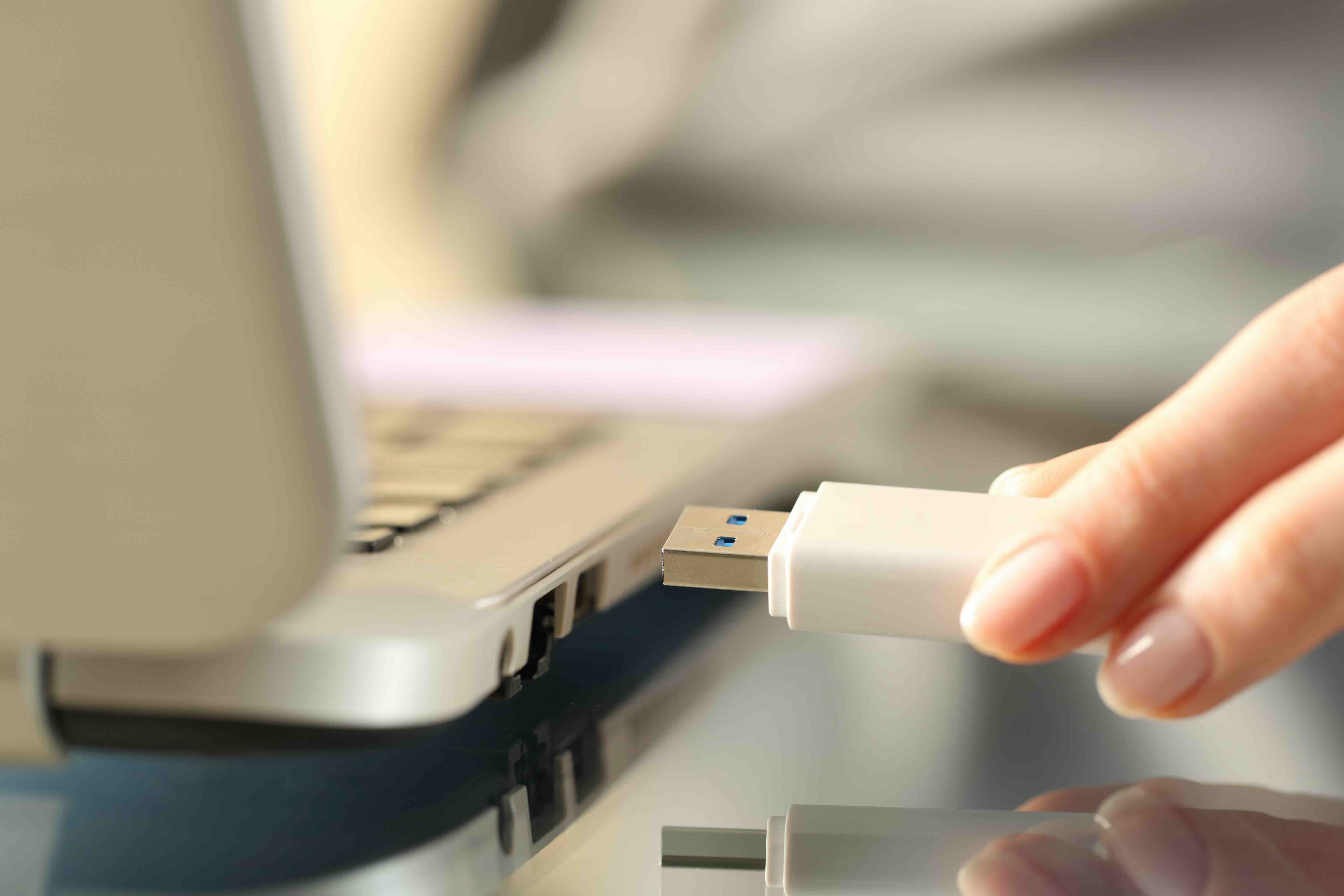
What Is a USB 3.0 Type-A Connector and Why Does It Still Matter?
If you have ever plugged a flash drive into a laptop or connected an external hard drive to a desktop, you have almost certainly used a USB Type-A connector. It is probably the most recognized connector in consumer electronics history. But here is the thing -- a lot of people do not actually know the difference between USB 2.0 and USB 3.0 Type-A, and that distinction genuinely matters depending on what you are trying to do. USB 3.0 Type-A specifically refers to the rectangular connector standard that supports data transfer rates up to 5 Gbps, which is a massive leap from the 480 Mbps ceiling of USB 2.0. Same shape, very different performance. Worth paying attention to.
The Physical Design: Familiar Shape, Upgraded Internals
One of the most practical things about USB 3.0 Type-A is that it maintained backward compatibility with older USB 2.0 ports. Physically, the connectors look nearly identical -- same rectangular housing, same insertion orientation. The internal difference is what sets them apart. USB 3.0 Type-A connectors contain additional pins beyond the original four that USB 2.0 used. Specifically, there are nine pins total in a USB 3.0 Type-A connector, with the extra five pins handling the SuperSpeed data lanes. You can usually identify a USB 3.0 Type-A port by the blue plastic insert inside the connector housing, which has become something of an industry-standard visual cue. Not every manufacturer follows that convention strictly, but it is common enough to rely on as a quick reference.
How USB 3.0 Type-A Actually Works
USB 3.0 Type-A operates on what the USB Implementers Forum originally branded as SuperSpeed USB. The architecture supports full-duplex data transfer, meaning data can travel in both directions simultaneously rather than taking turns. That is a significant structural improvement over USB 2.0, which used half-duplex communication. The theoretical maximum transfer rate of 5 Gbps is often cited, though real-world performance is typically lower depending on the device, cable quality, and host controller capabilities. USB 3.0 also introduced improved power delivery -- up to 900 mA compared to USB 2.0's 500 mA -- which means faster charging for compatible devices. The protocol also handles error detection more efficiently, which contributes to more reliable transfers over longer cable runs.
Key Advantages of USB 3.0 Type-A Connectors
There are several reasons this connector type remains widely deployed across consumer and professional environments alike. Understanding the actual benefits helps you make better purchasing decisions rather than just chasing spec numbers.
- SuperSpeed data transfer up to 5 Gbps for fast file movement
- Full-duplex communication for simultaneous send and receive operations
- Backward compatibility with USB 2.0 devices and ports
- Higher power output supporting up to 900 mA for connected devices
- Widespread adoption across laptops, desktops, hubs, docking stations, and peripherals
- Reliable error correction built into the protocol architecture
- Long-established ecosystem of cables, adapters, and accessories
Common Limitations You Should Know About
No connector standard is without its trade-offs. USB 3.0 Type-A is not reversible -- you have to orient the connector correctly before inserting it, which is a minor but consistent friction point. Cable length is also a factor; USB 3.0 Type-A passive cables are generally limited to around three meters before signal degradation becomes an issue. Active cables can extend that range, but they add cost. Another consideration is that USB 3.0 has largely been superseded by USB 3.1, 3.2, and USB4 in terms of raw throughput, so if you are working with applications that demand maximum data bandwidth -- think high-resolution video capture or professional storage arrays -- the 5 Gbps ceiling may start to feel limiting. For most everyday use cases, though, it is more than sufficient.
USB 3.0 Type-A vs. USB-C: Understanding the Difference
This comparison comes up constantly, and it is worth addressing clearly. USB-C is a connector form factor, while USB 3.0 refers to a transfer protocol. These are two different categories, which is part of why the USB naming landscape can feel frustrating to navigate. A USB-C port can support USB 3.2 or USB4 speeds, but simply having a USB-C port does not guarantee faster performance than a quality USB 3.0 Type-A setup. The practical difference for most users comes down to physical reversibility and future-proofing. USB-C wins on form factor flexibility and is clearly the direction the industry is heading. USB 3.0 Type-A wins on current ubiquity -- it is still on the vast majority of devices shipped today, and it is not going anywhere soon.
Practical Use Cases Where USB 3.0 Type-A Delivers Real Value
It is easy to get lost in specs. Here is where USB 3.0 Type-A actually earns its place in a real-world setup. External solid-state and spinning hard drives benefit significantly from the 5 Gbps ceiling compared to USB 2.0. Flash drives optimized for USB 3.0 can transfer large batches of files in a fraction of the time. Webcams, audio interfaces, and document scanners all leverage the improved power delivery and bandwidth for more stable, consistent operation. In enterprise environments, USB 3.0 Type-A hubs and docking stations allow workers to connect multiple peripherals through a single port without the performance bottlenecking that plagued older USB 2.0 hubs. For AV integrators and IT professionals building out workstations or conference room setups, having reliable USB 3.0 Type-A cabling and hub infrastructure is genuinely foundational.
Tips for Getting the Most Out of USB 3.0 Type-A Cables and Ports
Cable quality matters more than people realize. A poorly shielded or cheaply constructed USB 3.0 cable can bottleneck an otherwise capable device, so investing in quality cables is not overkill -- it is just practical. Keep cable runs under three meters for passive cables when possible. When connecting USB 3.0 devices to a hub, use a hub that has its own dedicated power supply rather than drawing entirely from the host port, especially if you are connecting storage drives or other power-hungry peripherals. Check that your host controller actually supports USB 3.0 on the port you are using -- some older systems have a mix of USB 2.0 and 3.0 ports, and the performance difference is significant. Keeping drivers and firmware updated on both the host system and connected devices also helps ensure you are getting the rated performance.
Why Monoprice Is the Right Source for USB 3.0 Type-A Cables and Accessories
When you are building out a workspace, a server room, or even just trying to get reliable peripherals without overpaying, sourcing from a trusted supplier with a strong track record matters. Monoprice has built a well-earned reputation as a go-to resource for IT professionals, AV integrators, and tech-savvy consumers who want performance without being penalized on price. The USB cable and accessory lineup reflects that same philosophy -- engineered to spec, priced fairly, and available in the configurations that actually match real installation needs. Whether you need a single USB 3.0 Type-A cable for a desktop workstation or a bulk order of cables for a commercial deployment, the depth of product availability makes the sourcing process straightforward. If you are looking for high-performance USB 3.0 Type-A cables and connectivity solutions that hold up in professional environments without inflating your budget, Monoprice is a consistent, reliable choice backed by years of delivering quality technology products across both consumer and enterprise markets.
Frequently Asked Questions About USB 3.0 Type-A Connectors
What is the maximum data transfer speed of a USB 3.0 Type-A connector?
USB 3.0 Type-A supports a theoretical maximum transfer rate of 5 Gbps, marketed under the SuperSpeed USB designation. Real-world performance will vary based on cable quality, device capability, and host controller support.
Is USB 3.0 Type-A backward compatible with USB 2.0?
Yes. USB 3.0 Type-A connectors are backward compatible with USB 2.0 ports and devices. When a USB 3.0 device is connected to a USB 2.0 port, it will operate at USB 2.0 speeds, which cap at 480 Mbps.
How do I identify a USB 3.0 Type-A port?
Most USB 3.0 Type-A ports have a blue plastic insert inside the connector housing. Some manufacturers label the port with "SS" for SuperSpeed or include a small USB 3.0 designation near the port itself.
What is the difference between USB 3.0 and USB 3.1 Type-A?
USB 3.1 Gen 2 doubles the transfer speed to 10 Gbps compared to USB 3.0's 5 Gbps. Both can use the Type-A form factor, though USB 3.1 Gen 2 requires compatible cables and devices to achieve the higher speeds.
Can I use a USB 3.0 Type-A cable with a USB-C device?
Not directly without an adapter. USB Type-A and USB-C are different physical form factors. You would need a USB Type-A to USB-C adapter or cable to connect the two, and the performance will be governed by the lower-rated specification in the connection chain.
What is the maximum recommended cable length for USB 3.0 Type-A?
The USB 3.0 specification recommends a maximum passive cable length of approximately three meters. Beyond that, signal integrity can degrade. Active USB 3.0 cables can extend this range but introduce additional cost.
How many pins does a USB 3.0 Type-A connector have?
A USB 3.0 Type-A connector has nine pins total. Four of those are the original USB 2.0 pins, and the additional five pins support the SuperSpeed data transfer lanes introduced with USB 3.0.
Does USB 3.0 Type-A support faster charging than USB 2.0?
Yes. USB 3.0 Type-A supports up to 900 mA of current output, compared to USB 2.0's 500 mA. This allows for faster charging of compatible devices connected through a USB 3.0 port.
Is USB 3.0 Type-A still relevant in 2024 and beyond?
Yes. Despite the rise of USB-C and newer protocols, USB 3.0 Type-A remains widely deployed across desktops, laptops, hubs, and peripherals. It continues to meet the needs of the majority of everyday computing and professional use cases without requiring connector adapters or converters.
What should I look for when buying a USB 3.0 Type-A cable?
Look for cables that are certified to meet USB 3.0 specifications, feature proper shielding to reduce interference, use quality connectors with durable strain relief, and come from a supplier with a reputation for consistent build standards. Cable length and intended use case should also factor into your selection.


