USB 2.0 vs USB 3.0: What You Need to Know
USB 2.0 vs USB 3.0: What You Actually Need to Know Before You Buy
So you're staring at a product page, maybe a hub or an external drive or some kind of adapter, and you see "USB 2.0" or "USB 3.0" listed in the specs. You kind of know one is faster, but past that it gets fuzzy. That's honestly fair. USB versioning has gotten messy over the years, and the naming conventions have not exactly helped. This guide breaks it all down in plain terms so you can make a real decision without having to wade through a technical whitepaper to do it.
What Is USB 2.0 and How Does It Work
USB 2.0, also called Hi-Speed USB, was introduced back in 2000 and was a significant step up from the original USB 1.1 standard. It operates at a maximum theoretical data transfer rate of 480 megabits per second. In real-world use, that usually lands somewhere between 25 and 40 megabytes per second depending on the device and the cable. It uses a half-duplex communication method, meaning data travels in only one direction at a time. The connector itself is familiar to most people, that flat rectangular Type-A plug or the smaller Micro-B you still see on older phones and peripherals. USB 2.0 also delivers up to 500 milliamps of power, which is enough for keyboards, mice, and similar low-draw accessories.
What Is USB 3.0 and What Makes It Different
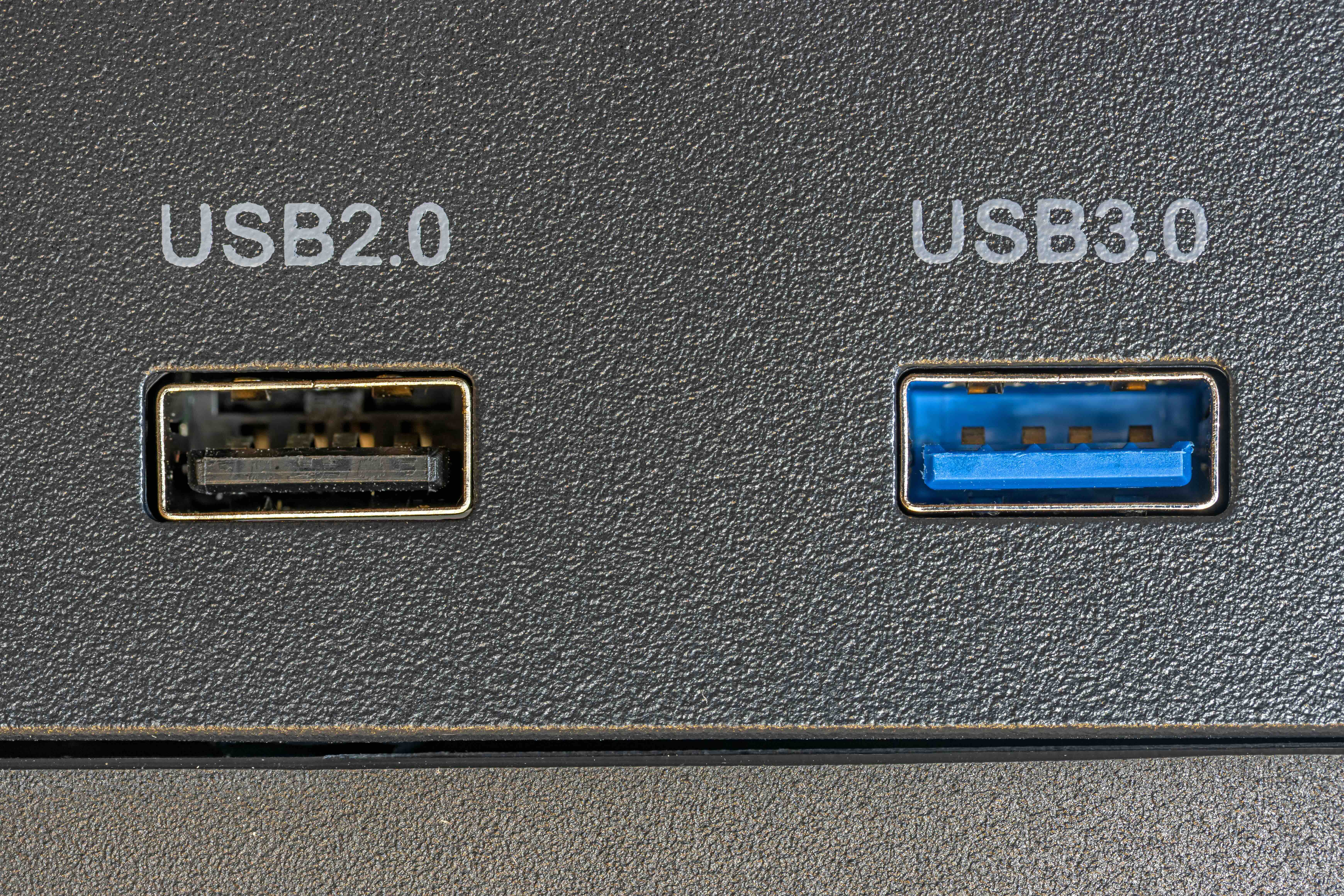
USB 3.0, originally released in 2008 and rebranded by the USB Implementers Forum as USB 3.2 Gen 1, operates at a maximum theoretical transfer rate of 5 gigabits per second. That is over ten times faster than USB 2.0 on paper. In practice you're looking at real-world speeds of around 400 megabytes per second under good conditions. One of the bigger architectural differences is that USB 3.0 uses full-duplex communication, meaning data can move in both directions simultaneously. That alone changes how devices interact with a host system. USB 3.0 ports are typically identified by a blue color on the port interior, and the standard also bumps power delivery up to 900 milliamps, which is meaningful if you're powering an external drive or charging a device.
Speed Comparison: The Numbers That Matter
Here is where it gets practical. If you're transferring a 10 GB video file from an external drive to your laptop, the difference between these two standards becomes very obvious very fast.
- USB 2.0: 10 GB file takes roughly 4 to 7 minutes depending on drive and system conditions
- USB 3.0: Same file takes under 30 seconds in many cases
- USB 2.0 max theoretical: 480 Mbps
- USB 3.0 max theoretical: 5 Gbps
- USB 3.0 real-world sustained write: typically 150 to 400 MB/s
- USB 2.0 real-world sustained write: typically 25 to 40 MB/s
For casual use cases like plugging in a keyboard or syncing a small folder of documents, USB 2.0 is genuinely fine. The gap only becomes a problem when you start moving large amounts of data regularly or connecting storage devices that are capable of faster throughput than USB 2.0 can deliver.
Backward Compatibility: Can You Mix and Match
Yes, and that is one of the more practical aspects of the USB ecosystem. USB 3.0 devices are backward compatible with USB 2.0 ports and vice versa. If you plug a USB 3.0 drive into a USB 2.0 port, it will work, but it will only operate at USB 2.0 speeds. The reverse is also true. A USB 2.0 device in a USB 3.0 port will function normally but will not benefit from the higher bandwidth. This matters when you are buying a hub or a docking station. If the hub itself is USB 2.0 internally, every device connected to it is throttled to USB 2.0 speeds regardless of the device capability. That is a detail worth checking before purchasing.
Power Delivery Differences and Why They Matter
This does not always get the attention it deserves. USB 2.0 supplies up to 500 mA at 5V, which is 2.5 watts total. USB 3.0 bumps that to 900 mA at 5V, or 4.5 watts. That might not sound dramatic, but it makes a real difference for bus-powered hard drives, which often need that extra headroom to spin up reliably. Some USB 2.0 ports struggle to deliver consistent power to larger mechanical drives, resulting in connection failures or sluggish performance. USB 3.0 resolves that in most cases. If you're building out a workstation with multiple external drives or accessories, USB 3.0 ports give you more usable headroom without needing a separately powered hub.
Common Use Cases for USB 2.0 vs USB 3.0
Knowing the specs is one thing but knowing when each standard actually makes sense is more useful in day-to-day decisions.
- USB 2.0 works well for: keyboards, mice, webcams at standard resolutions, USB headsets, card readers with small files, barcode scanners
- USB 3.0 is better for: external SSDs and HDDs, high-resolution webcams and capture devices, flash drives used for frequent file transfers, video editing workflows, NAS connections, docking stations
If you are in a production environment where multiple users are accessing shared storage or where data transfer times directly affect output, USB 3.0 is not optional, it is the baseline. For a basic office setup handling documents and web traffic, USB 2.0 peripherals are still perfectly capable and often more cost-effective.
Common Drawbacks to Know Before You Commit
USB 3.0 is faster, but it does come with some trade-offs. The cables are slightly more complex internally, using additional conductors to support the higher speeds, which means lower-quality USB 3.0 cables can introduce signal issues over longer runs. USB 3.0 has also been documented to cause interference with 2.4 GHz wireless signals, including Wi-Fi and Bluetooth, particularly when using USB 3.0 devices near wireless receivers. This is a real issue in densely packed workspaces. USB 2.0 does not carry that same risk profile. USB 3.0 devices and hubs also tend to cost more, and in scenarios where speed is irrelevant, that premium does not translate to better outcomes.
How to Identify USB Ports and Cables on Your Devices
Blue port interiors on a desktop or laptop almost always indicate USB 3.0. Some manufacturers also print a small "SS" logo near the port, standing for SuperSpeed, which is USB 3.0 terminology. On cables, USB 3.0 Type-A plugs are often the same form factor as USB 2.0 but may have internal blue coloring. USB 3.0 also introduced new connector types like the Type-B SuperSpeed and the Micro-B SuperSpeed, which have additional pins and are not physically interchangeable with their USB 2.0 equivalents. USB-C connectors are a different physical standard entirely but can carry USB 3.0 and higher protocols. Checking the spec sheet on any device is the most reliable confirmation before assuming a port's capability.
Why Monoprice Is a Smart Choice for USB Cables, Hubs, and Accessories
When you are building out a reliable USB infrastructure, whether for a home office, a production suite, or a commercial deployment, the quality of the cables and hubs in that chain matters more than most people realize. A weak link, literally, can throttle performance and cause frustrating intermittent failures that are difficult to diagnose. That is where Monoprice delivers real value. With decades of experience supplying performance-grade connectivity products at accessible price points, Monoprice offers USB 2.0 and USB 3.0 cables, hubs, and adapters that are built to spec and tested to perform. Whether you need a short patch cable or a multi-port hub for a shared workstation, you can find high-performance USB 3.0 cables and hubs built for professional and home use that hold up in real-world conditions without inflated pricing. The focus has always been on giving users the performance they need at a cost that makes sense, and that is exactly what you want when outfitting a workspace where reliability is not negotiable.
Frequently Asked Questions About USB 2.0 and USB 3.0
Is USB 3.0 backward compatible with USB 2.0 ports?
Yes. USB 3.0 devices work in USB 2.0 ports and USB 2.0 devices work in USB 3.0 ports. The connection will function at the speed of whichever standard is slower in the pairing.
How can I tell if my computer has USB 3.0 ports?
Look for a blue-colored port interior or an "SS" label printed near the port. You can also check your device specifications or system information for confirmation.
Does USB 3.0 charge devices faster than USB 2.0?
USB 3.0 provides more power output at 900 mA compared to USB 2.0 at 500 mA, which can support faster charging for compatible devices, though maximum charging speed also depends on the device and charger specifications.
Can a USB 2.0 hub slow down a USB 3.0 device?
Yes. If a USB 3.0 device is connected through a USB 2.0 hub, the hub becomes the bottleneck and the device will only operate at USB 2.0 speeds regardless of its capability.
What does the "SS" label on a USB port mean?
SS stands for SuperSpeed, which is the designation for USB 3.0 and its variants. It confirms the port supports a minimum of 5 Gbps transfer rates.
Does USB 3.0 really interfere with Wi-Fi signals?
It can. USB 3.0 is known to generate electromagnetic interference that affects 2.4 GHz wireless signals. Keeping USB 3.0 devices and their cables away from wireless receivers or switching to 5 GHz Wi-Fi can reduce the issue.
Is USB 3.0 worth it for everyday peripherals like a keyboard or mouse?
Not really. Low-bandwidth devices like keyboards and mice do not benefit from USB 3.0 speeds and work perfectly well on USB 2.0 ports, which frees up USB 3.0 ports for devices that actually need the bandwidth.
What is the difference between USB 3.0, USB 3.1, and USB 3.2?
These are updated naming conventions for the same family of standards. USB 3.0 was renamed USB 3.2 Gen 1 by the USB Implementers Forum. USB 3.1 introduced 10 Gbps speeds and is now called USB 3.2 Gen 2. USB 3.2 Gen 2x2 reaches 20 Gbps. The core architecture began with USB 3.0.
Do USB 3.0 cables look different from USB 2.0 cables?
They can. USB 3.0 Type-A connectors sometimes have blue internal plastic, and some USB 3.0 connector types like Micro-B SuperSpeed have a distinctly different physical shape that is not interchangeable with USB 2.0 versions. USB-C connectors are a different physical form entirely.
How long can a USB 3.0 cable be without signal degradation?
The USB 3.0 specification supports cables up to about 3 meters or roughly 9 feet before signal quality begins to degrade. Active USB 3.0 cables can extend that range but should be matched to devices that support them.