

Type-C to USB Cables: What You Need to Know
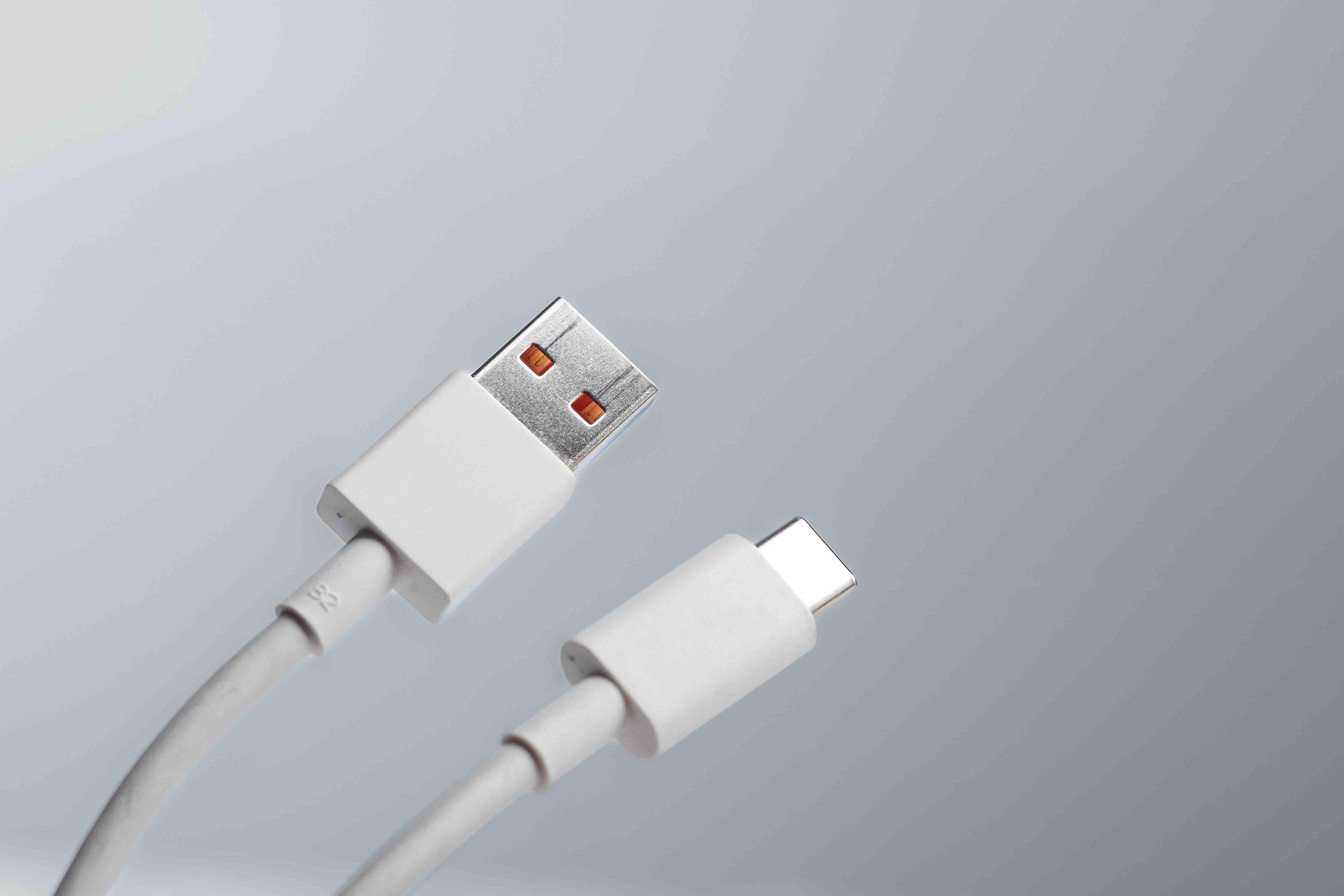
Type-C to USB Cables Explained: What They Are and Why They Matter
So you have a new laptop, a phone, maybe some kind of hub situation happening on your desk, and suddenly you are staring at a cable that does not quite fit where you need it to. That is probably where the Type-C to USB question starts for most people. USB-C, or USB Type-C, is the newer, oval-shaped connector that has been showing up on pretty much everything in the last several years. Traditional USB -- Type-A, specifically -- is that flat rectangular port that has been around since the late 1990s. A Type-C to USB cable bridges those two worlds. One end plugs into your modern USB-C device, the other end connects to a standard USB-A port or peripheral. Simple concept, but there is a lot happening underneath the surface that is worth understanding before you just grab whatever cable is closest.
Understanding the Connectors: USB-C vs. USB-A at a Glance
USB-C is designed to be universal. It is smaller, symmetrical -- meaning you can plug it in either way, no flipping required -- and it supports a wide range of protocols depending on the cable and device. USB-A is the older standard. It is asymmetrical, so it only plugs in one way, and it is limited in terms of the speeds and power delivery it can handle compared to USB-C. When you are using a Type-C to USB cable, you are essentially creating a compatibility bridge. The USB-C end connects to a device like a laptop, tablet, or smartphone, and the USB-A end connects to a legacy port on a hub, charger, or peripheral. The actual performance of that cable depends on the specific USB version it supports -- USB 2.0, USB 3.0, USB 3.1, and so on. That distinction matters a lot more than people typically realize at first.
How a Type-C to USB Cable Actually Works
At a functional level, these cables carry data and sometimes power between two devices with different connector types. The USB-C connector on one end handles communication with the newer device, translating signals into whatever the USB-A side can carry. If the cable is rated for USB 3.0, you are looking at data transfer speeds up to 5 Gbps. USB 3.1 Gen 2 pushes that to 10 Gbps. A USB 2.0 cable, which you might grab by accident from a drawer somewhere, maxes out at 480 Mbps -- fine for basic charging or a mouse, not great if you are transferring files or running a storage drive. Power delivery through a standard USB-A port is typically capped around 5V at 0.9A, so these cables are not going to fast-charge your laptop. They are useful for powering small peripherals or providing a modest charge to a phone. The physical connection on both ends has to be solid and properly rated for the cable to do its job reliably.
Key Advantages of Using a Type-C to USB Cable
There are a few situations where these cables are genuinely the right tool for the job, and it is worth being clear about what those are.
- Backward compatibility with existing USB-A ports, hubs, and chargers
- Connects modern USB-C devices to legacy equipment without needing an adapter
- Wide availability and generally affordable pricing
- Works reliably for data syncing and standard peripheral connections
- Useful for travel when you may encounter older USB-A ports in hotels or rental spaces
- Lighter and more portable than carrying multiple adapters
That backward compatibility is probably the biggest draw. Not every port in a home, office, or public space has been upgraded to USB-C, and that is just the reality of where things stand in most environments. Having a quality Type-C to USB cable means you stay connected regardless of what port is available on the other end. For IT teams managing mixed hardware environments, this is a practical necessity, not just a convenience.
Common Drawbacks and Limitations to Know
The limitations here are real and worth being upfront about. The USB-A end of the cable creates a performance ceiling. Because USB-A cannot support the full bandwidth potential of USB-C, you are not unlocking Thunderbolt speeds, USB4, or high-wattage power delivery through these cables. They are a compatibility solution, not a performance upgrade. Another issue is cable quality variation, which is unfortunately significant in this product category. Poorly made cables can cause slower-than-rated speeds, unreliable connections, or in rare cases with power delivery, damage to devices. Stick with cables that are clearly rated and tested. Also worth noting: these cables do not support video output. If you need to run a display from a USB-C port, you need a different cable or adapter entirely -- one that supports DisplayPort Alt Mode, which USB-A simply cannot carry.
USB Version Numbers and Why They Actually Matter
This is where a lot of people get tripped up, and honestly, the naming conventions have not made it easier. USB 2.0 is the baseline -- it works, it is slow by modern standards, and it is fine for keyboards, mice, or slow charging. USB 3.0, also called USB 3.1 Gen 1 or USB 3.2 Gen 1, hits 5 Gbps. USB 3.1 Gen 2 or USB 3.2 Gen 2 goes to 10 Gbps. The cable you are buying needs to match what you actually need. If you are syncing photos from a camera or moving files from a flash drive, USB 3.0 is a reasonable minimum. For anything involving sustained data transfer from an SSD or other high-speed storage, you want the faster spec. Check the cable packaging or product description carefully. The connector type -- USB-C on one end, USB-A on the other -- does not automatically tell you the speed rating. Those are two separate things.
Practical Tips for Choosing the Right Type-C to USB Cable
When you are shopping for one of these cables, a few things should guide your decision. Length matters more than people expect -- a 3-foot cable is fine for a desk setup, but if you are trying to reach a USB hub tucked behind a monitor or under a desk, you might need 6 feet. Signal quality can degrade at longer lengths for higher-speed cables, so do not go longer than necessary. Check the amperage rating if you plan on using the cable for charging. A cable rated at 2A or 3A will charge faster than one rated at 0.5A, assuming your charger and device support it. Also, look for cables that mention being made from quality materials -- braided nylon sleeves and reinforced connector housings hold up significantly better over time than basic PVC-coated cables. And always buy from a source that clearly specifies the USB version and performance ratings. Vague labeling is a red flag.
Where Type-C to USB Cables Fit in Modern Workflows
For IT departments, office setups, and hybrid work environments, these cables fill a very specific and persistent gap. You might have a user on a newer laptop with only USB-C ports connecting to a shared printer that has a USB-A cable. Or a technician who needs to access a device with a USB-C port using a desktop that only has USB-A slots. These are not edge cases -- they come up constantly. The same applies at home. Older monitors, gaming peripherals, external hard drives, and power bricks may all have USB-A connections. A reliable Type-C to USB cable means those devices stay useful even as your primary hardware modernizes. Think of these cables as infrastructure, not accessories. Having a few well-made ones on hand eliminates a surprising number of workflow interruptions.
Why Monoprice Is the Smart Choice for Type-C to USB Cables
When it comes to sourcing cables that actually perform as advertised without inflating your budget, Monoprice has built a reputation that speaks for itself across both consumer and professional markets. The product lineup is clearly specified, the materials hold up to real-world daily use, and the pricing reflects genuine value rather than a markup built on branding alone. Whether you are outfitting a single home office or sourcing cables for an enterprise deployment, you are getting cables that are tested, rated accurately, and backed by a company that takes product integrity seriously. For anyone navigating the USB compatibility landscape and looking for reliable, clearly labeled, high-quality options, exploring USB Type-C to USB-A cables from Monoprice is a practical next step that will likely save you time and money compared to guessing at lesser-known alternatives.
Frequently Asked Questions About Type-C to USB Cables
What is a Type-C to USB cable used for?
A Type-C to USB cable connects devices with a USB-C port to equipment that has a USB-A port. Common uses include data transfer, syncing files, and charging compatible devices using older USB-A chargers or hubs.
Can I use a Type-C to USB cable to charge my phone?
Yes, you can charge a phone using a Type-C to USB cable connected to a USB-A charger or port. However, the charging speed will be limited by the USB-A port's power output, so fast charging may not be supported.
Is there a speed difference between USB 2.0 and USB 3.0 Type-C to USB cables?
Yes. USB 2.0 cables max out at 480 Mbps, while USB 3.0 cables reach up to 5 Gbps. For transferring large files or using high-speed storage devices, USB 3.0 or faster is the better choice.
Can a Type-C to USB cable transfer video signals?
No. USB-A does not support video output protocols like DisplayPort Alt Mode. If you need to connect a display through a USB-C port, you need a cable or adapter specifically designed for that purpose.
Are all Type-C to USB cables the same?
No. They vary significantly in USB version, data transfer speed, power delivery capacity, and build quality. Always check the spec rating on the cable before purchasing.
How do I know which USB version my Type-C to USB cable supports?
The USB version should be printed on the packaging or listed in the product specifications. If that information is not clearly stated, treat the cable as USB 2.0 at best until confirmed otherwise.
Will a Type-C to USB cable work with any USB-C device?
In most cases, yes. The cable will establish a basic connection for data or charging. However, some USB-C features like Thunderbolt or high-wattage power delivery will not function through a USB-A connection.
What cable length is best for a Type-C to USB cable?
For most desk setups, a 3-foot cable is sufficient. If you need more reach, 6 feet works for most use cases, though signal quality may decrease at longer lengths for high-speed cables.
Can I use a Type-C to USB cable for external hard drives?
Yes, but performance will depend on the cable's USB version. For reliable speeds with external storage, use a cable rated for USB 3.0 or higher to avoid slow transfer rates.
Is a braided Type-C to USB cable better than a standard one?
Generally, yes. Braided cables tend to be more durable and resistant to wear and fraying over time, especially with frequent plugging and unplugging. They are a better long-term investment for daily use.


