

Thunderbolt vs Mini DisplayPort: Key Differences Explained Clearly
Thunderbolt vs Mini DisplayPort: What Is the Difference and Why Does It Matter?
So you're staring at the back of your laptop or monitor, and there it is -- this tiny, almost identical-looking port with a lightning bolt icon or a little screen symbol, and you're genuinely not sure which is which. Fair. This specific question trips up a lot of people, even folks who consider themselves pretty tech-savvy. Thunderbolt and Mini DisplayPort look nearly identical on the surface, and that's not an accident -- they share the same physical connector shape. But what they actually do, how fast they run, and what devices they support are completely different stories. Understanding the distinction between these two technologies is more than trivia. It affects which cables you buy, which monitors you can connect, and how much bandwidth you're actually getting out of your setup.
The Physical Connector: Why They Look So Similar
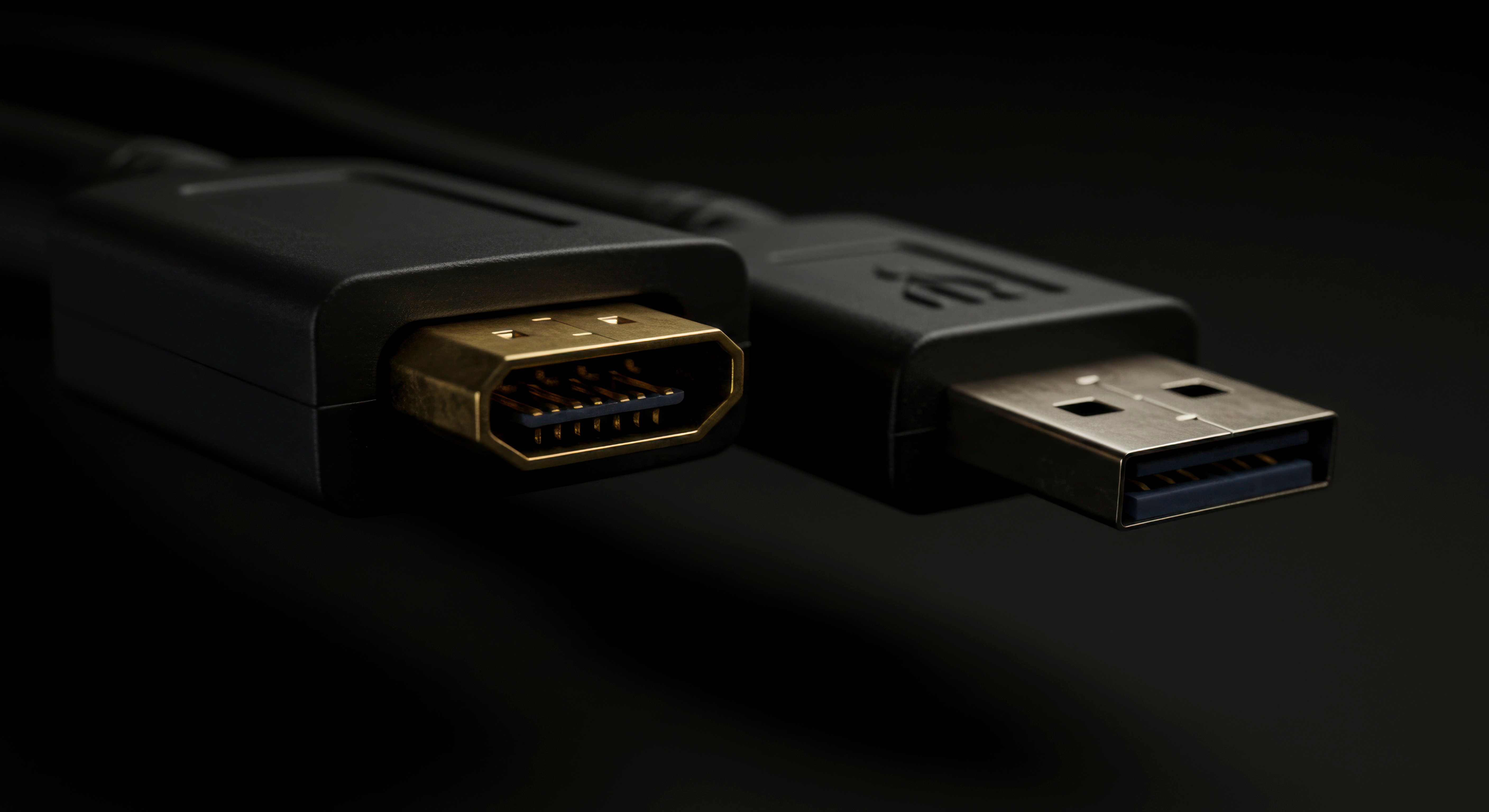
Both Thunderbolt (versions 1 and 2) and Mini DisplayPort use the exact same physical port shape. Same dimensions, same pin layout, same connector form factor. That's why cables made for one will physically plug into the other. Apple actually developed the Mini DisplayPort standard and later worked with Intel to create Thunderbolt, layering additional functionality right on top of that same connector design. So in a very literal sense, Thunderbolt is a superset of Mini DisplayPort -- it includes all the display capabilities of Mini DisplayPort while adding a whole layer of high-speed data transfer and device chaining on top. This design decision made things easier from a manufacturing standpoint but has caused real confusion for consumers ever since. Just because the cable fits does not mean you're getting full Thunderbolt performance.
What Is Mini DisplayPort and How Does It Work?
Mini DisplayPort, introduced by Apple in 2008, is a video and audio output standard. That's essentially it -- its job is to carry display signals from your computer to a monitor, projector, or other display device. It supports resolutions up to 4K depending on the version and monitor, and it can handle audio as well. It became popular on MacBooks, certain Windows laptops, and various desktop graphics cards before HDMI and USB-C began taking over the space. The protocol itself is based on DisplayPort, just in a smaller form factor connector. If you only need to connect a monitor and your device has a Mini DisplayPort, it works well for that specific task. But that is the ceiling. Mini DisplayPort does not transfer data, it does not charge devices, and it does not support daisy-chaining peripheral devices like hard drives or docking stations.
What Is Thunderbolt and What Makes It More Powerful?
Thunderbolt is an interface developed jointly by Apple and Intel, first released in 2011. It combines PCI Express data transfer and DisplayPort video output into a single physical connector. The result is a port that can handle video, data, power delivery, and device daisy-chaining all at once. Thunderbolt 1 delivered 10 Gbps. Thunderbolt 2 pushed that to 20 Gbps. Thunderbolt 3 moved to a USB-C connector and hit 40 Gbps. Thunderbolt 4, also on USB-C, maintains 40 Gbps while improving certification requirements and compatibility. The practical impact here is significant. You can connect an external SSD at full speed, run a 4K monitor, and daisy-chain up to six Thunderbolt devices from a single port. For creative professionals, AV integrators, and power users, that kind of throughput changes how a workstation actually functions day to day.
Key Differences Between Thunderbolt and Mini DisplayPort
Let's be direct about the core distinctions so they're easy to reference and understand before you buy anything or spec out a setup.
- Data transfer support -- Thunderbolt yes, Mini DisplayPort no
- Bandwidth -- Thunderbolt up to 40 Gbps, Mini DisplayPort display-only
- Device daisy-chaining -- Thunderbolt supports up to six devices, Mini DisplayPort does not
- Power delivery -- Thunderbolt supports charging, Mini DisplayPort does not
- Connector compatibility -- both use the same physical Mini DisplayPort connector for Thunderbolt 1 and 2
- Cost of cables and adapters -- Mini DisplayPort accessories are generally less expensive
- Use case range -- Thunderbolt is multi-functional, Mini DisplayPort is display-only
The takeaway is that if your only goal is connecting a monitor, a Mini DisplayPort cable works perfectly fine in many cases. But if you want data speed, device expansion, or docking station functionality, you need Thunderbolt -- and you need to make sure both the cable and port are actually Thunderbolt-certified.
Compatibility Considerations You Need to Know Before Buying
Here is where things get genuinely confusing in practice. A Mini DisplayPort cable will fit into a Thunderbolt port and vice versa. But plugging a Mini DisplayPort cable into a Thunderbolt port will only give you display output. You will not get the data transfer or device-chaining features of Thunderbolt through a standard Mini DisplayPort cable. Thunderbolt cables have active electronics inside them that Mini DisplayPort cables do not. So the cable matters just as much as the port. Additionally, not all monitors labeled as Thunderbolt-compatible are actually receiving full Thunderbolt throughput. Always verify that both ends of the connection -- the device port and the display or peripheral -- are certified for the same standard. This is especially relevant when purchasing adapters, docking stations, or third-party cables. Checking product specifications carefully before purchase saves time and frustration down the line.
Common Use Cases: When to Use Which Standard
Choosing between the two really comes down to what you're trying to accomplish. Mini DisplayPort is a solid, straightforward choice for connecting a monitor in an office or home setup where display output is the only requirement. It's cost-effective and widely supported across older hardware. Thunderbolt is the better option for professionals running high-demand workflows -- video editors transferring large files, photographers working with external storage arrays, or AV integrators building out complex multi-device setups. If you're deploying a docking station solution for a hybrid office environment, Thunderbolt enables one cable to handle power, display, and peripheral devices simultaneously. From a total-cost-of-ownership perspective, the initial premium on Thunderbolt hardware often pays off when you account for the reduction in cables, adapters, and infrastructure overhead.
Drawbacks and Limitations Worth Acknowledging
Thunderbolt has real advantages, but it is not without trade-offs. Thunderbolt cables and certified peripherals tend to cost more than their Mini DisplayPort equivalents. Thunderbolt 3 and 4 moved to USB-C connectors, which means older Thunderbolt 1 and 2 devices require adapters to connect to newer hardware. Not all USB-C ports support Thunderbolt, even when they look identical, which adds another layer of confusion for buyers. Mini DisplayPort, on the other hand, has a more limited shelf life going forward as the industry shifts toward USB-C and HDMI as dominant standards on newer devices. Finding Mini DisplayPort ports on newly manufactured laptops is increasingly rare. Understanding these limitations helps set realistic expectations and informs smarter purchasing decisions regardless of which direction your setup takes you.
Why Thunderbolt and Mini DisplayPort Still Matter for Today's Setups
Even with USB-C, Thunderbolt 4, and HDMI 2.1 now occupying center stage in most modern devices, Mini DisplayPort and the earlier Thunderbolt standards remain relevant in enterprise and professional environments where legacy hardware is still actively deployed. Plenty of high-performance workstations, conference room displays, and signal routing equipment still operate on these interfaces. Knowing how they work -- and how to connect them properly -- is still a practical skill for IT managers, AV integrators, and anyone maintaining a mixed hardware environment. Adapters bridging Mini DisplayPort to HDMI, DisplayPort, or USB-C are widely available and remain useful tools for day-to-day connectivity challenges. The connector may be shrinking in prevalence on new devices, but understanding it is still worth your time if you're working across a varied installed base of technology.
Why Monoprice Is the Right Source for Your Thunderbolt and Display Connectivity Needs
When you need reliable cables, adapters, and connectivity solutions across Thunderbolt, Mini DisplayPort, and every standard in between, the source matters as much as the product itself. Monoprice has built a trusted reputation in the technology industry by delivering high-performance cables and connectivity hardware at fair prices, without cutting corners on quality or certification. Whether you're outfitting a home office, a production environment, or a multi-site enterprise AV deployment, the product lineup is built to perform across all of it. If you're ready to find the right display cable, adapter, or dock for your exact setup, browsing the full selection at Monoprice Thunderbolt and Mini DisplayPort cables and adapters gives you access to products that are spec-accurate, well-priced, and backed by a brand that understands how professionals actually work. No premium brand markup, no compromise on performance -- just the connectivity hardware that gets the job done right the first time.
Frequently Asked Questions About Thunderbolt vs Mini DisplayPort
Is Thunderbolt the same as Mini DisplayPort?
No, they are not the same. Thunderbolt versions 1 and 2 use the same physical connector as Mini DisplayPort, but Thunderbolt supports high-speed data transfer, device daisy-chaining, and power delivery in addition to video output. Mini DisplayPort only handles display signals.
Can I plug a Mini DisplayPort cable into a Thunderbolt port?
Yes, physically a Mini DisplayPort cable will fit into a Thunderbolt port. However, you will only receive display output through that connection. You will not access the data transfer or peripheral-chaining capabilities that Thunderbolt provides without a proper Thunderbolt-certified cable.
Can I plug a Thunderbolt cable into a Mini DisplayPort?
A Thunderbolt cable can physically connect to a Mini DisplayPort, and it may carry the display signal. However, the Thunderbolt-specific features will not function on a port that only supports Mini DisplayPort.
How do I know if my port is Thunderbolt or Mini DisplayPort?
Look for a small lightning bolt symbol next to the port. That indicates Thunderbolt. A monitor or screen icon indicates Mini DisplayPort. If there is no symbol, check your device's specifications from the manufacturer.
Does Thunderbolt support 4K monitors?
Yes. Thunderbolt supports 4K video output and, depending on the version, can handle multiple 4K displays simultaneously. Thunderbolt 3 and 4 support up to 8K display output on compatible monitors.
Is Mini DisplayPort still relevant in 2024 and beyond?
Mini DisplayPort is less common on new devices but remains relevant in professional and enterprise environments where legacy hardware is still in use. Adapters connecting Mini DisplayPort to HDMI, USB-C, or full-size DisplayPort remain widely available and practical.
What is the maximum data transfer speed of Thunderbolt?
Thunderbolt 1 supports 10 Gbps, Thunderbolt 2 supports 20 Gbps, and both Thunderbolt 3 and 4 support 40 Gbps. Mini DisplayPort does not support data transfer at all.
Do I need a special cable for Thunderbolt?
Yes. To take advantage of Thunderbolt's full capabilities, including data transfer and device chaining, you need a Thunderbolt-certified cable. Standard Mini DisplayPort cables will only carry the video signal even when connected to a Thunderbolt port.
Can Thunderbolt charge my laptop or device?
Thunderbolt 3 and Thunderbolt 4 support power delivery and can charge compatible laptops and devices. Thunderbolt 1 and 2, which use the Mini DisplayPort connector, do not include power delivery as part of the standard.
Are Thunderbolt and USB-C the same connector?
Thunderbolt 3 and 4 use the USB-C physical connector, but not all USB-C ports support Thunderbolt. Thunderbolt over USB-C requires specific hardware certification on both the device and the cable. Always verify that a port is Thunderbolt-certified before expecting full Thunderbolt functionality.


