

Thunderbolt Cable Types Explained: Find the Right One
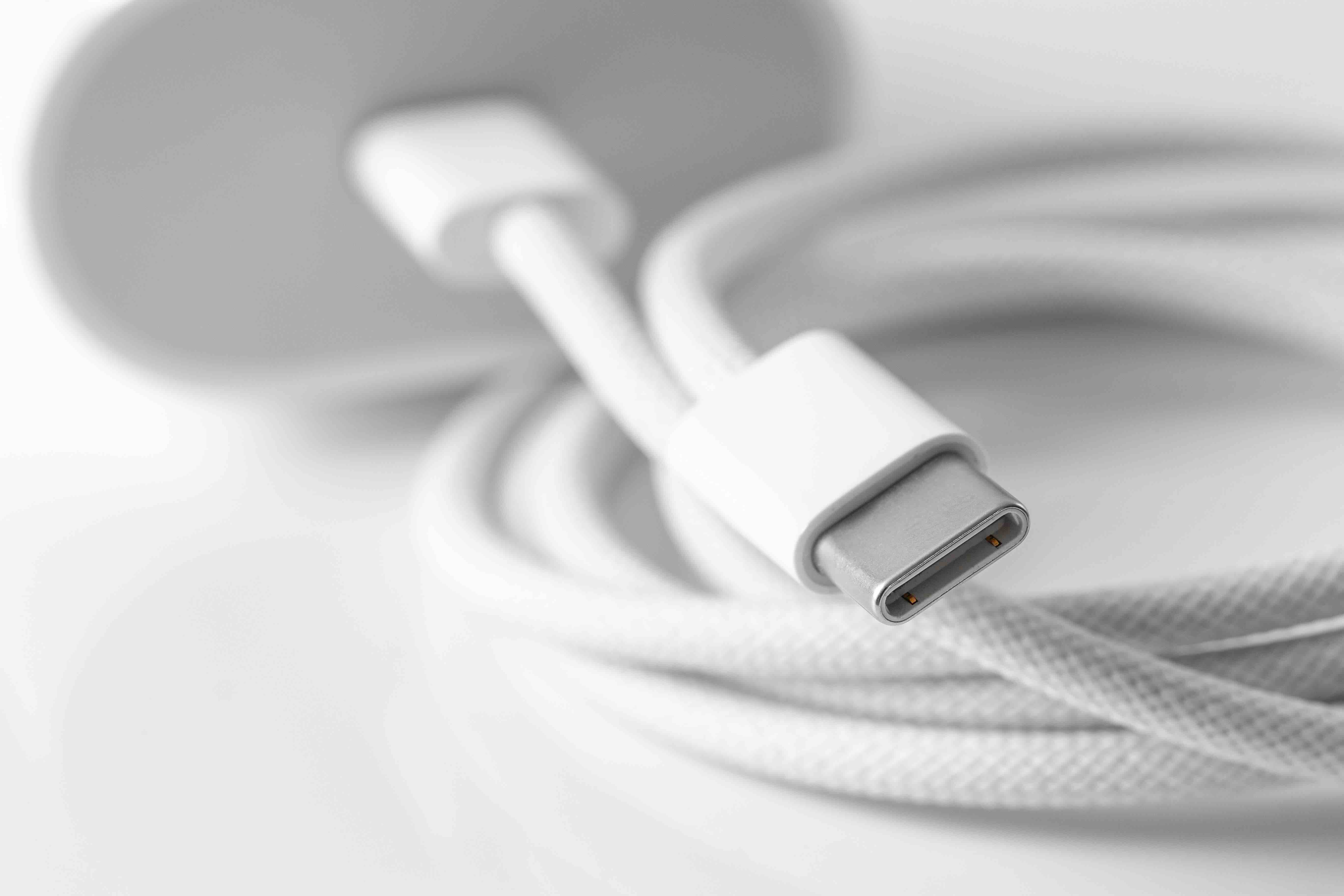
Understanding Thunderbolt Cables: A Complete Guide to Types, Uses, and What to Buy
Thunderbolt cables are one of those things that look deceptively simple on the outside but carry a lot of nuance once you start digging in. If you have ever plugged something into your laptop and wondered why your transfer speeds were slower than expected, or why your monitor would not display at full resolution, there is a decent chance the cable is the culprit. Thunderbolt technology has evolved significantly over the years, and the differences between generations and cable types matter more than most people realize. This guide breaks it all down in plain terms so you can make confident, informed decisions.
What Is Thunderbolt Technology and How Does It Work
Thunderbolt is a hardware interface developed by Intel in collaboration with Apple and later standardized across the broader tech industry. It uses the same physical connector as USB-C in its more recent generations, which is part of why things get confusing fast. At its core, Thunderbolt combines PCI Express and DisplayPort into a single serial signal, then runs that signal through a cable to deliver exceptionally fast data transfer speeds, video output, and power delivery all at once. The protocol operates over dedicated controller chips on both ends of the connection, which is part of what separates genuine Thunderbolt cables from standard USB-C cables even when they look identical.
Thunderbolt 1 and Thunderbolt 2: The Legacy Generations
Thunderbolt 1 launched in 2011 and used the Mini DisplayPort connector, offering up to 10 Gbps of bandwidth split across two channels. It was a serious leap for professional workflows at the time, particularly in video editing and high-speed storage. Thunderbolt 2 arrived in 2013 and doubled down by aggregating those two channels into a single 20 Gbps pipe, making it far more useful for high-resolution video and demanding peripherals. Both generations used the same physical Mini DisplayPort form factor, so cables from one generation were compatible with the other. You will mostly encounter these in legacy Apple setups and older professional workstations. They are not common in new hardware, but replacement cables still matter for those environments.
Thunderbolt 3: The Game-Changer That Changed the Connector
This is where the shift happened. Thunderbolt 3 moved to the USB-C connector and dramatically expanded performance. It delivers up to 40 Gbps of bandwidth, supports dual 4K displays or a single 5K display, handles up to 100W of power delivery, and is backward compatible with USB 3.1 and DisplayPort. That versatility made it the go-to standard for professional laptops, external GPU enclosures, NAS devices, and docking stations. The catch is that not all USB-C cables support Thunderbolt 3 speeds. A cable has to be specifically certified for Thunderbolt 3 to unlock full performance, and passive Thunderbolt 3 cables max out at 40 Gbps only up to 0.5 meters. Go longer than that with a passive cable and you drop to 20 Gbps. Active cables solve that problem at longer lengths but add cost.
Thunderbolt 4: Refinement Over Revolution
Thunderbolt 4 keeps the same 40 Gbps ceiling as Thunderbolt 3 but tightens up the certification requirements significantly. Where Thunderbolt 3 had some flexibility in what manufacturers could include or omit, Thunderbolt 4 mandates a consistent baseline. Every certified Thunderbolt 4 connection must support at least two 4K displays or one 8K display, PCIe bandwidth of at least 32 Gbps, USB4 compatibility, and Intel VT-d based direct memory access protection. The cables themselves look identical to Thunderbolt 3 cables, and that is exactly the kind of detail that trips people up. Thunderbolt 4 cables are interoperable with Thunderbolt 3 ports and vice versa, but performance may be limited by the host device rather than the cable itself.
Thunderbolt 5: The Next Frontier
Thunderbolt 5 is the most recent generation and it is a substantial jump. Bandwidth scales up to 120 Gbps under Bandwidth Boost mode, making it capable of driving 8K displays, supporting external GPUs with far less bottleneck, and handling next-generation storage arrays that push the ceiling of what previous versions could manage. It still uses the USB-C connector and maintains backward compatibility. Adoption is still rolling out across devices, but if you are building a workstation or home studio around content creation at the highest level, Thunderbolt 5 is worth planning for now rather than retrofitting later.
Passive vs. Active Thunderbolt Cables: What the Difference Actually Means
This distinction matters a lot and does not get explained clearly enough in most buying guides. Passive cables contain no active components; they rely entirely on the signal strength from the host and device. They are less expensive and work fine at shorter lengths, typically 0.5 to 1 meter. Active cables include signal conditioning chips within the cable assembly itself, which amplifies and stabilizes the signal across longer runs, sometimes up to 2 meters for copper and much longer for optical Thunderbolt cables. Optical Thunderbolt cables are a category worth knowing about for longer runs in AV installations, broadcast environments, or any setup where you need to span real distance without signal loss. They are significantly more expensive but deliver full bandwidth at lengths that copper simply cannot match.
Common Mistakes When Buying Thunderbolt Cables
There are a few consistent errors that buyers run into, and being aware of them upfront saves time and money. The Thunderbolt logo on a cable is the most reliable indicator of certification, but some manufacturers misrepresent their products. Buying from reputable sources with clear certification details matters. Here are the most frequent missteps:
- Assuming any USB-C cable is a Thunderbolt cable
- Buying a passive cable for a 1.5-meter or longer run without checking bandwidth limitations
- Ignoring power delivery ratings when the cable is also used for laptop charging
- Overlooking backward compatibility requirements for older Thunderbolt ports
- Purchasing uncertified cables and expecting consistent 40 Gbps performance
The other thing worth flagging is that Thunderbolt cables are directional in terms of performance expectations. Always check the specifications of both the host device and the peripheral to confirm you are not leaving bandwidth on the table due to a mismatch in what each end supports.
Choosing the Right Thunderbolt Cable for Your Setup
The decision ultimately comes down to your specific use case. For simple laptop-to-dock connections at a desk, a certified Thunderbolt 3 or Thunderbolt 4 passive cable at 0.5 to 1 meter is usually all you need. For external GPU setups, confirmed Thunderbolt 3 or 4 certification and the shortest practical cable length will minimize latency. For display daisy-chaining or driving high-resolution monitors, check that the cable explicitly supports DisplayPort Alt Mode at the resolution you need. For AV installations or longer runs in commercial settings, optical Thunderbolt cables are worth the premium investment. Aligning the cable generation to your device generation, and not paying for more than you need, is the practical approach every time.
Why Monoprice Belongs in Your Thunderbolt Cable Setup
When it comes to sourcing cables that actually perform as advertised, value and reliability have to coexist. Monoprice has built a well-earned reputation for delivering certified, high-performance connectivity products without the markup that other brands attach to their packaging. Whether you are equipping a home office, a professional studio, or a full AV integration, the right cable from a trusted source removes variables from the equation. For anyone serious about building a reliable, high-bandwidth Thunderbolt ecosystem, exploring certified Thunderbolt and high-speed USB-C cables from Monoprice is a practical starting point that balances performance with honest pricing. The product lineup spans passive and active configurations, multiple lengths, and multiple generations, so matching cable specs to your actual setup is straightforward rather than a guessing game.
Frequently Asked Questions About Thunderbolt Cable Types
What is the difference between a Thunderbolt cable and a USB-C cable?
Thunderbolt cables use the USB-C connector but include additional controller technology and certification that enables higher bandwidth, display output, and PCIe functionality. A standard USB-C cable does not support Thunderbolt protocols even if it fits the same port.
Can I use a Thunderbolt 4 cable with a Thunderbolt 3 port?
Yes. Thunderbolt 4 cables are backward compatible with Thunderbolt 3 ports. The connection will operate at Thunderbolt 3 speeds, and performance will be determined by the host device and peripheral rather than the cable itself.
What does the Thunderbolt logo on a cable mean?
The Thunderbolt logo indicates that the cable has been certified by Intel to meet the performance and safety requirements of the specified Thunderbolt generation. It is the most reliable indicator of genuine Thunderbolt capability.
How long can a Thunderbolt cable be before performance degrades?
Passive Thunderbolt cables maintain full 40 Gbps bandwidth up to 0.5 meters and typically drop to 20 Gbps beyond that. Active copper cables extend full performance to around 2 meters. Optical Thunderbolt cables can maintain full bandwidth at much longer distances.
Is Thunderbolt 5 backward compatible with older Thunderbolt devices?
Yes. Thunderbolt 5 maintains backward compatibility with Thunderbolt 4, 3, and USB4 devices. Performance will be limited to the specifications supported by the older device in the connection.
Can Thunderbolt cables charge laptops?
Many Thunderbolt cables support USB Power Delivery, with Thunderbolt 3 and 4 cables commonly supporting up to 100W of charging. Always verify the power delivery rating of the specific cable before relying on it for laptop charging.
What is an active Thunderbolt cable and when do I need one?
An active Thunderbolt cable contains signal-boosting circuitry within the cable housing that maintains full bandwidth at longer lengths. You need an active cable when your required cable length exceeds what a passive cable can support without bandwidth loss, typically beyond 0.5 to 1 meter.
Do Thunderbolt cables support 8K video output?
Thunderbolt 4 supports a single 8K display under certain configurations, and Thunderbolt 5 is specifically designed to support 8K output more reliably. The display, cable, and host device must all support the resolution for it to function.
Why does my Thunderbolt device run slower than expected?
Slower-than-expected performance is usually caused by using an uncertified or passive cable beyond its optimal length, a mismatch between device and cable generations, or a host port that does not fully implement the Thunderbolt specification. Replacing the cable with a certified option matching your device generation is the first step to diagnose the issue.
Are Thunderbolt cables compatible with USB4?
Thunderbolt 4 and 5 cables are compatible with USB4 devices and vice versa, since both use the USB-C connector and share overlapping protocol support. However, performance will default to the highest common specification supported by both devices in the connection.


