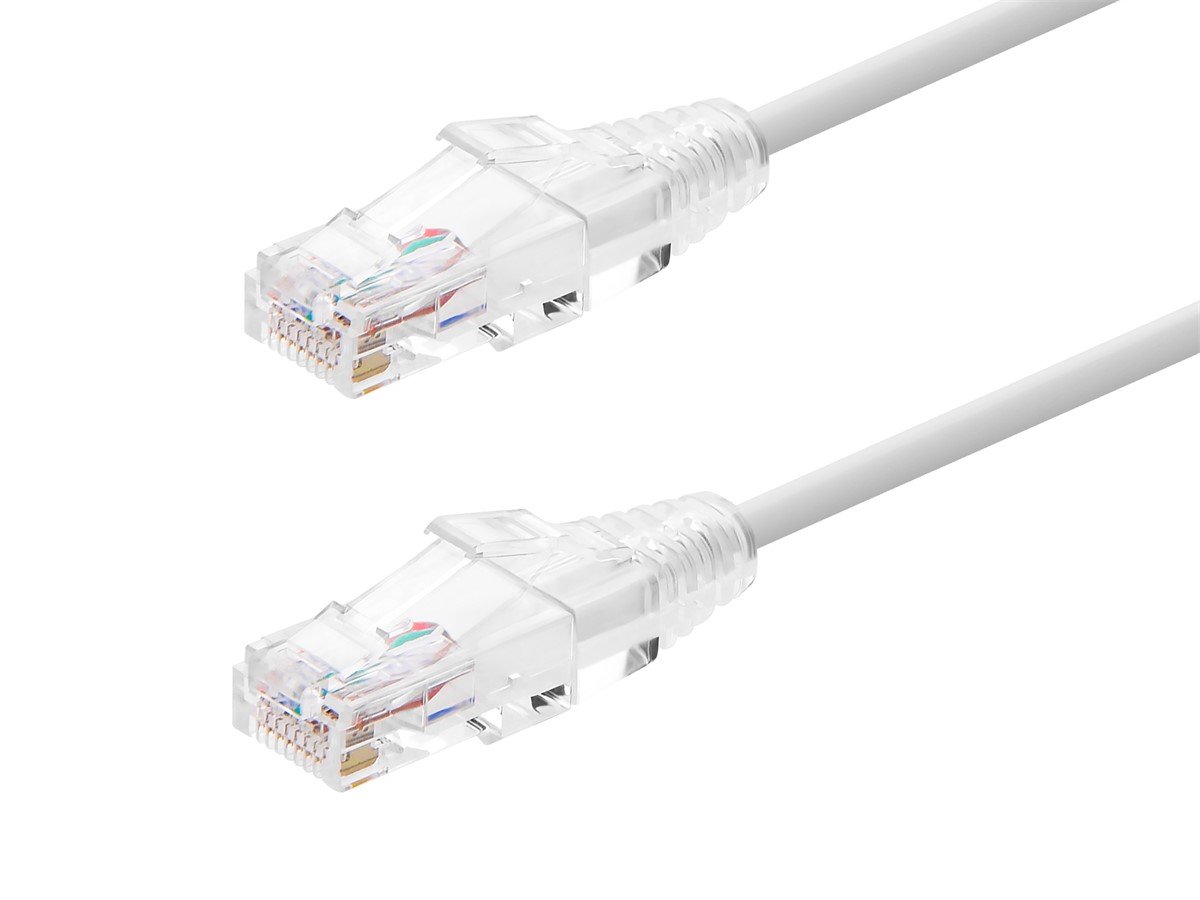
The Evolution of Computer Cables and Their Lasting Impact

The Evolution of Computer Cables: From VGA to USB-C and Everything Between
It is easy to overlook cables. They sit behind desks, run through walls, and generally do their job without asking for attention. But if you pause for a second and actually think about it, the history of computer cables is genuinely fascinating — and it tells you a lot about how computing itself has changed. From chunky VGA connectors bolted into monitor ports to the slim, reversible USB-C plugs powering today's laptops and displays, the cable has quietly evolved alongside every major shift in the industry. Understanding that evolution helps you make smarter decisions about what you buy today, what works for your setup, and what might already be holding you back.
Where It All Started: Serial, Parallel, and the Early Days of Computer Connectivity
Before HDMI and USB became household words, computers relied on serial and parallel ports. Serial ports — those D-shaped DB-9 and DB-25 connectors — were used for mice, modems, and basic peripherals. They were slow by modern standards, transferring data one bit at a time, but they were reliable and widely adopted across the industry. Parallel ports came along for printers, pushing multiple bits simultaneously through a wider cable. Neither format was particularly elegant. The connectors were large, the cables were stiff, and the process of plugging something in correctly often involved more force than felt appropriate. Still, these standards dominated personal computing through the 1980s and into the 1990s, setting the groundwork for what came next.
VGA and the Rise of Visual Standards
Video Graphics Array — VGA — was introduced by IBM in 1987, and it became one of the most enduring connector standards in computing history. That blue, 15-pin D-sub connector showed up on virtually every monitor and computer for more than two decades. VGA transmitted analog video signals, which worked reasonably well for the CRT monitors of its era. As display technology improved and resolutions climbed, VGA started to show its limits. Analog signal transmission introduced noise and degradation, especially over longer cable runs. Sharp, high-resolution images became harder to maintain. By the time flat panel displays were mainstream, VGA was already aging out — but adoption was so widespread that it lingered in conference rooms and legacy setups well into the 2010s. That is the nature of widely adopted standards: they outlive their prime by years, sometimes decades.
DVI, HDMI, and the Push Toward Digital Video
Digital Visual Interface, or DVI, arrived in 1999 as a direct response to VGA's analog limitations. DVI could carry digital signals, which meant cleaner image quality and better support for the LCD monitors becoming common at the time. It also maintained backward compatibility with VGA through adapters, which helped smooth the transition. Then came HDMI in 2002 — and that changed everything for consumer electronics. High-Definition Multimedia Interface combined video and audio into a single cable, simplified home theater and desktop setups alike, and delivered the kind of image quality that DVI was only partially positioned to offer. HDMI iterated quickly. Version 1.4 introduced 4K support. Version 2.0 pushed higher frame rates. Version 2.1 now supports 8K resolution at 60Hz and 4K at 120Hz with HDR passthrough, making it the current backbone of high-performance display connectivity. DisplayPort emerged in parallel as a strong alternative, especially among PC users and professionals needing multi-monitor support, higher refresh rates, and daisy-chaining capability. Both formats remain essential today depending on your setup.
USB: The Universal Connector That Actually Lived Up to Its Name
Universal Serial Bus launched in 1996 with a simple goal: replace the tangle of proprietary connectors cluttering every computer. It delivered. USB became the most successful connector standard ever developed for personal computing, going through multiple generations that dramatically increased speed and capability. USB 1.1 topped out at 12 Mbps. USB 2.0 hit 480 Mbps. USB 3.0 pushed past 5 Gbps. Each generation kept the same basic promise — plug something in, have it work — while expanding what that something could actually be. Keyboards, mice, storage drives, webcams, audio interfaces, charging cables: USB absorbed them all. The physical connectors evolved too, from the original Type-A rectangles to Type-B squares, then Mini and Micro variants for mobile devices, each filling a role in the expanding ecosystem of connected hardware.
USB-C and Thunderbolt: The Modern Standard Emerging from Complexity
USB-C arrived in 2014 and represented a genuine rethinking of what a connector could do. The reversible, oval-shaped plug eliminated the frustrating orientation problem every USB-A user knew too well. More importantly, USB-C became a multi-protocol connector capable of carrying USB data, DisplayPort video, power delivery up to 240 watts, and Thunderbolt 3 and 4 signals — all through the same physical port. That flexibility created some real confusion, admittedly. Not every USB-C cable supports every function. A cable rated for charging may not carry video. A cable built for USB 2.0 speeds looks identical to one supporting 40 Gbps Thunderbolt transfer. Specification labeling matters more than ever, and buying from a reliable source becomes critical to actually getting the performance you expect. Thunderbolt 4, built on the USB-C form factor, delivers consistent 40 Gbps throughput, dual 4K display support, and 100-watt charging — it is the pro-grade option for demanding workstations, video editing rigs, and high-throughput data setups.
Key Advantages of Modern Cable Standards Worth Understanding
Modern cable standards have raised the bar considerably across several dimensions that matter to real users. Here is a quick breakdown of what today's best cable technologies actually deliver:
Higher bandwidth means faster data transfers and sharper video signals without compression artifacts Power delivery through a single cable reduces desktop clutter and simplifies mobile workstation setups Backward compatibility across generations protects existing hardware investments Daisy-chaining support on DisplayPort and Thunderbolt enables clean multi-monitor configurations Standardized form factors across brands reduce the need for proprietary accessoriesThese advantages are not theoretical. They show up in everyday workflows — in the speed of a file transfer, the clarity of a 4K display, the simplicity of a one-cable laptop dock connection. The right cable genuinely changes how a workstation feels to use.
Common Drawbacks and What to Watch Out For
For all the progress, the modern cable landscape does have real friction points. USB-C's versatility created a labeling problem that the industry is still sorting out. Budget cables often fail to meet the specs printed on their packaging, delivering degraded performance or inconsistent charging. Cable length limitations are more restrictive at higher speeds — active cables and signal boosters sometimes become necessary for longer runs. Legacy compatibility requires adapter chains that can introduce their own failure points. And Thunderbolt cables, while exceptional, carry a premium that not every application justifies. The lesson here is straightforward: know what your specific use case demands, verify certifications where they exist, and buy from manufacturers who stand behind their specs with clear documentation and warranties.
How to Choose the Right Cable for Your Setup
Matching a cable to a task does not need to be complicated once you understand the core variables. Start with the devices you are connecting and confirm which standards each supports. Check the required bandwidth for your display resolution and refresh rate — a 4K 144Hz monitor needs a cable that can actually carry that signal. Verify power delivery ratings if you are using USB-C to charge a laptop. Consider cable length relative to the signal standard, since higher-speed connections have shorter reliable run distances without active components. Look for cables with clear certification markings, especially for HDMI 2.1, USB4, and Thunderbolt 4. These details sound technical, but they translate directly into whether your monitor runs at full resolution, your data transfers at full speed, and your devices charge reliably from a single cable.
Why Monoprice Belongs in Your Cable Setup
When you actually understand what separates a quality cable from a problematic one, the case for Monoprice becomes obvious. Monoprice has built its reputation on delivering certified, performance-verified cables across every major standard — HDMI 2.1, USB-C with Power Delivery, Thunderbolt-compatible options, DisplayPort, and legacy formats for existing hardware. The products are engineered to spec, not just labeled to spec, and that distinction matters when you are building a workstation or deploying infrastructure at scale. Whether you are outfitting a home office, configuring a production studio, or sourcing cables for a commercial AV installation, you can count on finding options that perform without the inflated price tags attached to some competing brands. For anyone who wants high-performance computer cables for professional and home use without overpaying, Monoprice delivers the kind of value that holds up under real-world scrutiny. The range is wide, the quality is consistent, and the pricing reflects what cables should actually cost when a company is focused on delivering value rather than extracting it.
Frequently Asked Questions About Computer Cable Types and Evolution
What is the difference between HDMI 2.0 and HDMI 2.1?
HDMI 2.0 supports 4K video at up to 60Hz. HDMI 2.1 significantly expands bandwidth to support 4K at 120Hz, 8K at 60Hz, and advanced features like Variable Refresh Rate and Enhanced Audio Return Channel. For high-refresh gaming or 8K displays, HDMI 2.1 is the required standard.
Can any USB-C cable be used for Thunderbolt 4?
No. Thunderbolt 4 requires cables specifically certified for that standard. A generic USB-C cable may handle charging or basic data transfer but will not support 40 Gbps speeds, dual 4K display output, or the full power delivery capability that Thunderbolt 4 enables.
Is VGA still worth using in 2024?
VGA transmits analog video and is limited in resolution and signal quality compared to modern digital standards. It can still function for legacy setups or low-demand applications, but for any display running at 1080p or higher, a digital connection like HDMI or DisplayPort will deliver noticeably better results.
What does USB Power Delivery mean?
USB Power Delivery is a charging specification that allows USB-C cables to transfer higher wattage than standard USB connections, up to 240 watts under the latest revision. It enables a single USB-C cable to charge laptops, tablets, and other high-draw devices efficiently.
What is the maximum cable length for HDMI without signal loss?
Passive HDMI cables typically maintain reliable performance up to about 25 feet for standard resolutions. At higher resolutions and refresh rates, shorter runs are more reliable. For longer distances, active HDMI cables or signal extenders are recommended to maintain full signal integrity.
Does DisplayPort work better than HDMI for gaming monitors?
DisplayPort generally offers advantages for PC gaming, including higher refresh rate support, native multi-monitor daisy chaining, and Adaptive Sync compatibility across a broader range of monitors. HDMI 2.1 has closed much of that gap for console and home theater setups, but DisplayPort remains preferred for high-performance PC gaming configurations.
Why do some USB-C cables charge slowly even though they look identical?
USB-C cables vary significantly in internal construction. A cable not rated for high-wattage Power Delivery will limit charging speed regardless of the charger. Always verify that the cable's power delivery rating matches or exceeds the wattage your device and charger support.
What is the difference between USB 3.2 and USB4?
USB 3.2 tops out at 20 Gbps and uses the USB-C physical connector. USB4 supports up to 40 Gbps, incorporates Thunderbolt 3 compatibility, and enables more robust video and data capabilities. USB4 represents the current top tier of USB specification performance for consumer and professional use.
Are expensive HDMI cables worth the price premium over standard options?
HDMI is a digital signal standard, meaning a cable either meets the specification or it does not — there is no analog degradation gradient the way there was with VGA. A certified, well-constructed HDMI 2.1 cable at a fair price will perform identically to a much more expensive alternative. Certification and build quality matter; brand markup does not translate to better signal quality.
When should I use an active cable versus a passive cable?
Passive cables rely entirely on the signal strength from connected devices and are reliable within standard length limits. Active cables incorporate signal-boosting electronics within the cable itself, making them necessary for longer runs or for maintaining full bandwidth over distances that would degrade a passive connection. Active cables are commonly used in professional AV installations, long-run HDMI setups, and fiber optic configurations for high-resolution displays.