

Surface Mini DisplayPort to HDMI Adapter Guide & Tips
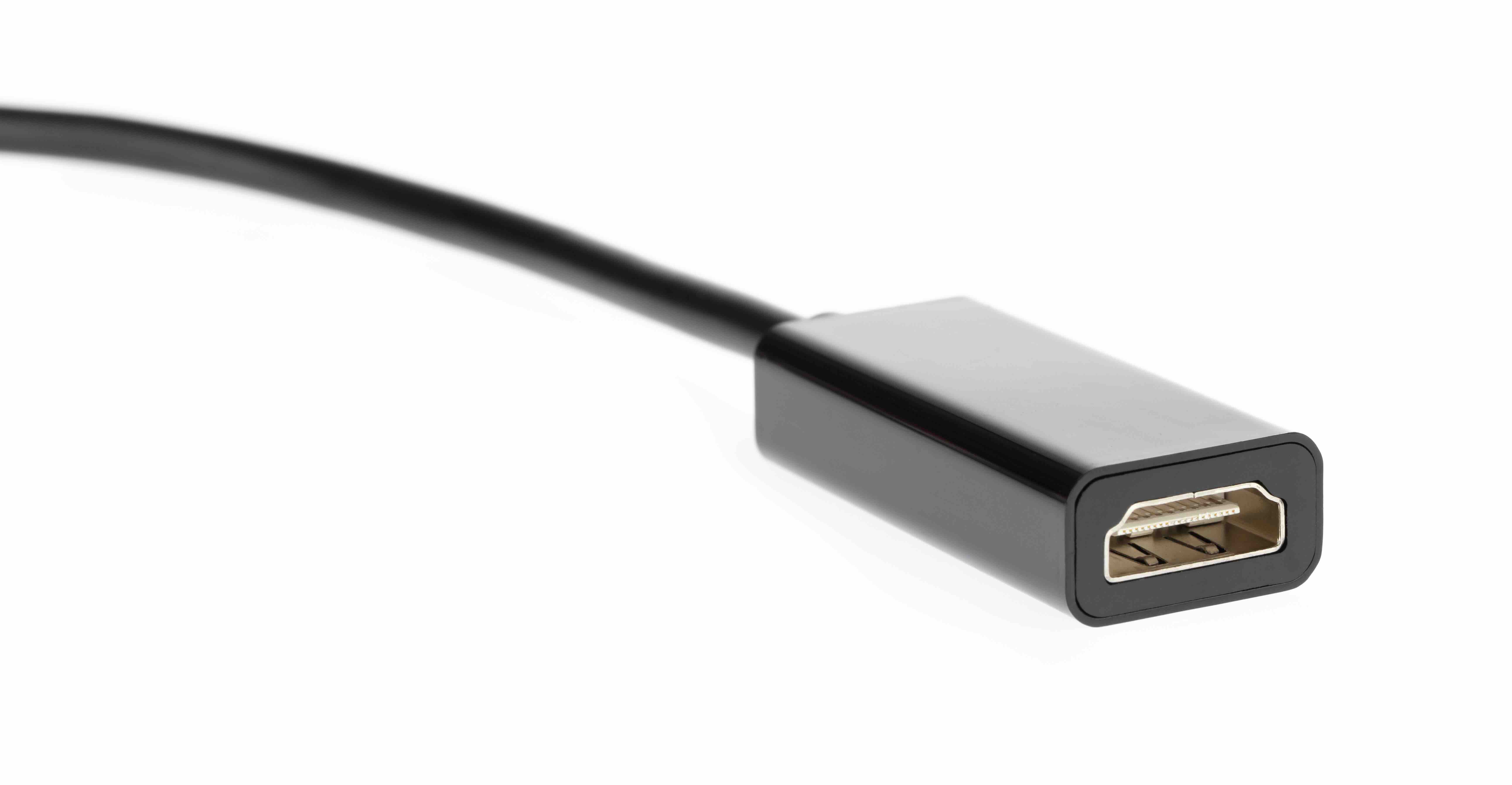
What Is a Surface Mini DisplayPort to HDMI Adapter and Why Does It Matter
If you own a Microsoft Surface device, you have probably noticed that it does not come equipped with a standard HDMI port. Instead, it ships with a Mini DisplayPort, which is a smaller, more compact video output connector originally developed by Apple and later adopted across a wide range of laptops and ultrabooks. That is where the Surface Mini DisplayPort to HDMI adapter comes in. This small but essential piece of hardware bridges the gap between your Surface device and any HDMI-compatible display, whether that is a monitor, projector, television, or conference room screen. It sounds simple, and honestly it kind of is, but there is more going on under the hood than most people realize. Understanding what this adapter does and how to choose the right one can save you a frustrating experience when the presentation starts or the movie night begins.
How a Mini DisplayPort to HDMI Adapter Actually Works
Mini DisplayPort and HDMI are both video and audio transmission standards, but they are built on different protocols. Mini DisplayPort uses DisplayPort signaling, while HDMI uses its own proprietary format. When you plug a Mini DisplayPort to HDMI adapter into your Surface, the adapter performs a passive or active signal conversion depending on its design. Passive adapters work because DisplayPort is natively capable of outputting a signal that can be re-routed to an HDMI connector without processing. Active adapters, on the other hand, include a small chip that handles more complex conversion tasks, which becomes necessary when you are dealing with higher resolutions or refresh rates. For most everyday Surface users connecting to a 1080p or even a 4K display, a well-built passive adapter handles the job without issue. The signal travels from your Surface through the Mini DisplayPort connector, converts within the adapter housing, and then outputs through the HDMI port directly to your display. Audio is carried along with video in the same cable run, so you do not need a separate audio connection for sound output.
What Resolutions and Display Outputs Are Supported
This is where things get a little more specific and worth paying attention to. Not all Mini DisplayPort to HDMI adapters support the same output specifications. Entry-level adapters typically support up to 1080p at 60Hz, which covers the vast majority of external monitors and projectors in use today. Higher-quality adapters support 4K resolution at 30Hz or even 4K at 60Hz, depending on the version of HDMI the adapter outputs. HDMI 1.4 supports 4K at 30Hz, while HDMI 2.0 pushes that to 4K at 60Hz with HDR support included. If you are connecting a Surface Pro or Surface Laptop to a 4K display for professional creative work or detailed content review, checking the adapter's HDMI version before purchasing is not optional. It is the difference between a sharp, smooth image and one that feels slightly sluggish or capped in quality.
Key Advantages of Using a Mini DisplayPort to HDMI Adapter
There are real, practical reasons why this adapter format has remained popular even as USB-C has grown in prominence. Here is what works in its favor:
- Compact and lightweight design that travels easily
- No external power required for standard passive models
- Compatible with a wide range of HDMI displays and projectors
- Plug-and-play setup with no driver installation needed
- Supports both video and audio over a single connection
- Cost-effective compared to docking stations for basic display needs
- Works reliably across Surface Pro, Surface Laptop, and Surface Book generations with Mini DisplayPort outputs
The plug-and-play nature of these adapters is genuinely convenient. There is no software to configure, no firmware to update for basic use, and no compatibility headaches with standard display setups. You connect it, your display recognizes the source, and you move on. For professionals who move between offices, conference rooms, and client sites, that simplicity carries real value.
Common Drawbacks to Know Before You Buy
No adapter is perfect, and this one has some limitations worth knowing upfront. First, if you need to connect multiple displays simultaneously, a simple Mini DisplayPort to HDMI adapter only handles one output at a time. You would need a hub or docking station for multi-monitor configurations. Second, some lower-quality adapters introduce signal degradation, subtle flickering, or audio dropout issues, particularly at higher resolutions. Third, if your Surface is a newer model using only USB-C or Thunderbolt 4 ports, a Mini DisplayPort adapter is not compatible and you will need a different solution. Also worth noting, HDR passthrough performance can vary between adapters, so if HDR accuracy matters to your workflow, verify that the adapter explicitly lists HDR support in its specifications. Choosing a reputable adapter from a manufacturer with documented quality standards helps avoid most of these issues right from the start.
Active vs. Passive Adapters: Which One Do You Need
This distinction trips people up more often than it should. Passive adapters are simpler, less expensive, and work well for most standard display configurations up to 4K at 30Hz. They rely on the fact that DisplayPort signals can be adapted to HDMI without requiring additional processing. Active adapters include internal conversion circuitry, making them the better choice when you are working with multi-stream transport setups, higher refresh rates, or displays that have stricter input requirements. For the typical Surface user connecting to a conference room projector or a desktop monitor at home, a high-quality passive adapter is more than sufficient. For video editors, photographers, or anyone demanding the highest possible output fidelity, investing in an active adapter or a certified HDMI 2.0-capable solution is the smarter route.
Practical Tips for Getting the Best Performance
A few quick things to keep in mind once you have your adapter in hand. Always connect the adapter to your Surface before connecting the HDMI cable to the display. This reduces the chance of a handshake failure between the display and your device. If you experience flickering or no signal, try a different HDMI cable before assuming the adapter is faulty. Poor-quality HDMI cables are often the real culprit. If you are presenting and your display resolution looks off, right-click the desktop and navigate to display settings to manually set the resolution to your preferred output. Keep the adapter connection clean and free from debris, particularly the Mini DisplayPort end, since that connector does not have the same locking mechanism as full-size DisplayPort. And if you are using the adapter in a mobile or travel context, consider a model with a short integrated cable rather than a rigid plug-only design to reduce mechanical stress on your Surface port over time.
Who Should Use a Mini DisplayPort to HDMI Adapter
The honest answer is that this adapter is useful for a pretty broad range of people. Business professionals who carry a Surface to meetings and need to connect to projectors or conference displays will use one constantly. Students presenting from a Surface device in classrooms equipped with HDMI inputs will find it indispensable. Home users who want to mirror or extend their Surface screen to a living room television for media consumption get exactly what they need from this adapter without spending much. IT professionals managing Surface device fleets often keep a small stock of these adapters on hand for user support situations. Essentially, if you own a Surface with a Mini DisplayPort and you ever need to connect to an external display, this adapter belongs in your bag.
Why Monoprice Is the Right Source for Your Mini DisplayPort to HDMI Needs
When it comes to sourcing reliable display adapters without overpaying, Monoprice has built a well-earned reputation as one of the most trusted names in the category. The brand's Mini DisplayPort to HDMI adapters are engineered to deliver consistent signal quality, support the resolutions modern users actually need, and hold up to the wear of daily use. Monoprice approaches every product with the same principle: performance should not require a premium price. For Surface users who want dependable connectivity without guessing about compatibility or quality, exploring the full range of Surface Mini DisplayPort to HDMI adapters and display connectivity solutions at Monoprice is a practical and confident next step. Every adapter is backed by Monoprice's commitment to delivering high-performance electronics that meet the real-world demands of both individual users and enterprise environments. Whether you are equipping a single Surface device or standardizing accessories across a department, Monoprice gives you the quality, value, and reliability your setup deserves.
Frequently Asked Questions About Surface Mini DisplayPort to HDMI Adapters
Will a Mini DisplayPort to HDMI adapter work with all Microsoft Surface models?
It works with Surface models that include a Mini DisplayPort output, such as the Surface Pro 3 through Surface Pro 7, Surface Laptop 1 and 2, and Surface Book. Newer Surface models that use only USB-C or Thunderbolt ports require a different adapter type.
Does the adapter support audio output as well as video?
Yes. HDMI carries both audio and video signals over a single cable, so a Mini DisplayPort to HDMI adapter will pass audio from your Surface to your connected display or receiver, provided the display supports HDMI audio input.
What resolution can I expect from a Mini DisplayPort to HDMI adapter?
Most quality adapters support up to 1080p at 60Hz as a baseline. Higher-end adapters using HDMI 2.0 output can support 4K at 60Hz. Check the product specifications before purchasing if 4K output is a priority for your setup.
Do I need to install drivers to use a Mini DisplayPort to HDMI adapter on a Surface?
No. These adapters are plug-and-play devices that do not require driver installation. Windows will automatically detect the connected display once the adapter is plugged in and the HDMI cable is connected.
What is the difference between a passive and active Mini DisplayPort to HDMI adapter?
A passive adapter relies on the inherent compatibility between DisplayPort and HDMI signals to make the connection work without additional processing. An active adapter includes internal circuitry to handle more complex signal conversion, typically needed for higher resolutions or specific display configurations.
Can I use a Mini DisplayPort to HDMI adapter to connect to a 4K television?
Yes, provided the adapter supports 4K output. An adapter rated for HDMI 1.4 will support 4K at 30Hz, while an HDMI 2.0-rated adapter supports 4K at 60Hz. Make sure your Surface's Mini DisplayPort also supports the desired resolution output.
Why is there no picture on my display after connecting the adapter?
First, verify that the HDMI cable is securely connected to both the adapter and the display. Try switching the display's input source to the correct HDMI channel. If there is still no signal, test with a different HDMI cable, as cable quality is a frequent source of connection failures.
Can I extend my desktop across two screens using a Mini DisplayPort to HDMI adapter?
A single Mini DisplayPort to HDMI adapter supports one external display. To use two external monitors simultaneously, you would need a docking station or a daisy-chaining solution that supports multi-display output from your specific Surface model.
Is there a risk of damaging my Surface's Mini DisplayPort by using an adapter frequently?
Repeated connection and disconnection can cause wear over time on any port. Using an adapter with a flexible cable rather than a rigid plug-only design reduces mechanical stress on the port. Handling the adapter carefully and storing it when not in use also helps extend the life of both the adapter and the port.
Are all Mini DisplayPort to HDMI adapters compatible with each other or are some Surface-specific?
Mini DisplayPort is a standardized connector, so most adapters marketed as Mini DisplayPort to HDMI are compatible with Surface devices that have that port. You do not need a Surface-branded adapter specifically, as long as the adapter meets your resolution and signal requirements.


