

Seamless PC to TV Cables: HDMI & DisplayPort Guide
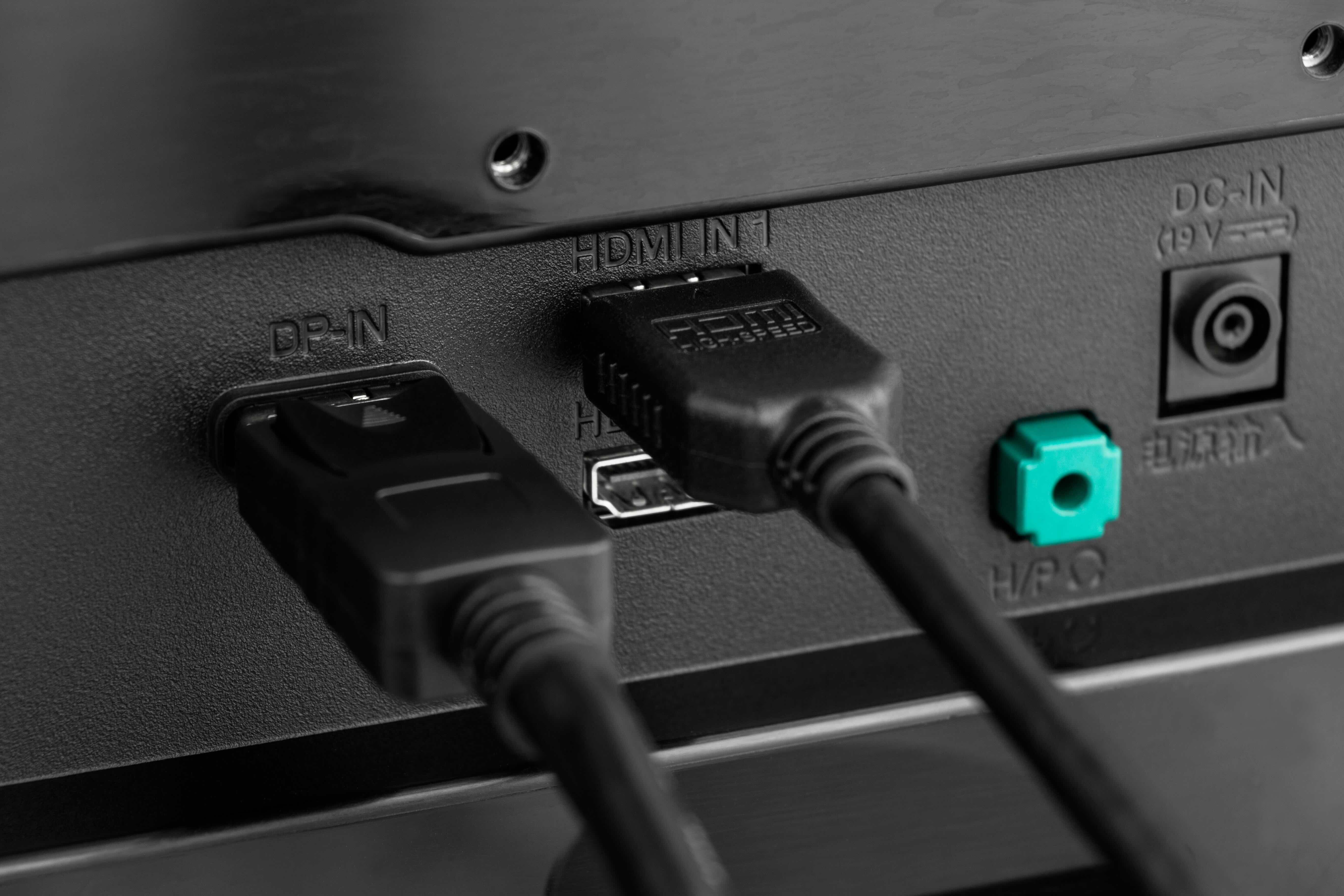
Why Connecting Your PC to Your TV Still Matters in 2024
There is something genuinely satisfying about pulling up a presentation, a game, or a movie on a large display -- and doing it without any lag, signal loss, or compression artifacts. Connecting a computer to a television has been possible for decades, but the cables and standards available today make it cleaner and more capable than ever. Whether you are trying to extend a home office setup, game on a bigger screen, or just watch content from your PC without streaming compression getting in the way, knowing which cable to use -- and why -- makes a real difference. HDMI and DisplayPort are the two dominant options right now, and understanding them is actually more straightforward than most people expect.
What HDMI Is and How It Works
HDMI stands for High-Definition Multimedia Interface. It was designed specifically to carry both audio and video signals over a single cable, and it has become the universal standard for consumer electronics over the past two decades. Almost every television manufactured in the last fifteen years has at least one HDMI port, which is part of what makes it so practical for PC-to-TV connections. On the computer side, many desktops and a good number of laptops include a full-size or micro HDMI output, making the connection straightforward. The signal transmitted over HDMI is digital, which means you are not dealing with analog signal degradation the same way older connection types worked. Modern HDMI versions -- particularly HDMI 2.0 and HDMI 2.1 -- support resolutions up to 4K and even 8K, with refresh rates and HDR support that hold up well for both work and entertainment use cases.
What DisplayPort Is and How It Differs
DisplayPort is the other major player here, and it is worth understanding what separates it from HDMI. Developed by VESA, DisplayPort was built with computer displays in mind rather than consumer televisions. It tends to show up on graphics cards, monitors, and higher-end laptops more than on televisions directly. That said, it is widely supported and in many ways outperforms HDMI at equivalent version numbers -- especially when it comes to refresh rate headroom and bandwidth. DisplayPort 1.4 supports 8K at 60Hz and 4K at 120Hz, which makes it a strong choice for gaming setups in particular. One of DisplayPort's notable features is its support for daisy-chaining monitors, which HDMI does not support natively. If your TV has a DisplayPort input, or if you are using a monitor as your display target, this is worth thinking about seriously.
HDMI vs DisplayPort: Key Differences at a Glance
Choosing between HDMI and DisplayPort comes down to your specific setup and what you need from it. Both are capable and reliable, but they have different strengths depending on context. Here is a quick breakdown of the most relevant differences between the two standards:
- HDMI is more universally available on televisions and consumer devices
- DisplayPort offers higher refresh rates at equivalent resolutions for monitor setups
- HDMI 2.1 supports 4K at 120Hz and 8K at 60Hz with proper cable certification
- DisplayPort supports daisy-chaining multiple displays from a single output
- Both carry audio and video over a single cable
- DisplayPort is more common on graphics cards and PC monitors
- HDMI is the better choice if your primary display is a television
Common Drawbacks to Know Before You Buy
Neither cable type is without limitations, and it helps to go in with realistic expectations. One issue with HDMI cables at longer lengths is signal degradation -- runs over about 25 feet can start to show problems unless the cable is rated for active signal transmission. DisplayPort has similar distance limitations depending on the resolution and refresh rate being pushed. Another common stumbling block is version compatibility; plugging an HDMI 2.0 cable into a port that is only certified for HDMI 1.4 will cap your output at the lower spec regardless of what the cable is rated for. Adapter cables -- like HDMI to DisplayPort or DisplayPort to HDMI -- are also a slightly different situation, since the signal conversion is directional and not always plug-and-play. Always verify the port versions on both the source device and the display before assuming maximum performance.
Practical Tips for Getting the Best Picture and Sound
Once you have identified which cable type fits your setup, a few practical considerations can help you get the most out of the connection. First, check the resolution and refresh rate settings in your operating system after connecting -- Windows and macOS do not always default to the optimal output settings automatically. Second, if you are using the TV as an extended or mirrored display for work, make sure the TV's display mode is set to something close to its native resolution to avoid scaling artifacts. Third, for anyone running audio through the cable rather than through separate speakers, confirm in your audio settings that the output device is switched to the connected display. These are small steps but they come up constantly and they are easy to miss when you are focused on just getting the physical connection right.
Adapter Cables and When to Use Them
Sometimes your PC has one connector type and your TV or monitor has another. That is where adapter cables come in -- and done right, they work reliably. An HDMI-to-DisplayPort adapter cable is a common example, and so is a USB-C to HDMI cable, which is increasingly relevant as more laptops drop traditional video outputs in favor of USB-C ports. The key thing to understand about these adapters is directionality. A cable that converts from DisplayPort out to HDMI in is not the same as one that works in reverse. Always check which end of the signal chain you are working from and buy accordingly. Quality matters here too -- a poorly shielded or incorrectly wired adapter cable will produce instability, signal dropouts, or simply not work at all.
Choosing the Right Cable Length and Build Quality
Cable length is one of those things people underestimate until they are stuck stretching a six-foot cable across a room that needs twelve. Measure the actual run distance before buying, and add some slack for cable management. For lengths up to about 15 feet, a standard passive HDMI or DisplayPort cable should handle 4K signals without issue. Beyond that, especially for 4K at high refresh rates, look for cables that are specifically rated for longer distances or consider active cables that include signal-boosting circuitry. Build quality also matters more than it might seem. Cables with good shielding, durable connectors, and strain relief at the plug ends will outlast cheaper options considerably, especially in setups where the cable gets moved or flexed regularly.
Who Benefits Most from a PC-to-TV Cable Setup
The practical use cases here are broader than most people initially consider. Home office users benefit from plugging into a large-format TV as a secondary display, gaining screen real estate without the cost of a dedicated monitor. Gamers running a desktop can connect to a 65-inch TV and get a genuinely cinematic experience -- assuming their graphics card and cable spec can sustain the resolution and refresh rate. Content creators reviewing video or photo work on a larger panel for color accuracy find real utility in this kind of setup. Even basic users who just want to watch browser-based video on something larger than a laptop screen get clear value. It is a flexible, cost-effective solution and the cables that make it possible are more capable and more affordable than most people assume.
Why Monoprice Is the Smart Choice for PC-to-TV Cables
When it comes to sourcing HDMI and DisplayPort cables that actually deliver on their spec ratings, Monoprice has built a genuinely strong reputation in this space. The brand has been supplying both consumers and professionals for years with cables that are tested, certified, and priced to make sense. If you are setting up a home office, a gaming station, or a media room, there is no reason to overpay for packaging when the signal quality is what actually matters. Monoprice cables are certified through proper industry channels, and the product lineup covers everything from basic 4K HDMI runs to high-bandwidth DisplayPort options for demanding display setups. For anyone who wants reliable performance without absorbing a premium price tag, Monoprice HDMI and DisplayPort cables for PC to TV connections represent a practical, value-driven choice that holds up across real-world use. Whether you are a first-time buyer trying to figure out which cable fits your setup or an integrator sourcing cables for a commercial install, the combination of quality, certification, and price point is hard to argue with.
Frequently Asked Questions
What cable do I need to connect my PC to a TV?
In most cases, an HDMI cable is the most straightforward option since virtually all televisions have HDMI inputs. If your PC's graphics card has a DisplayPort output and your TV supports DisplayPort, that is also a valid and often higher-bandwidth option. Check the ports on both devices before purchasing.
Can I use a DisplayPort to HDMI cable to connect my computer to a TV?
Yes, but directionality matters. A DisplayPort-to-HDMI adapter cable works when the signal is coming out of the DisplayPort source and going into an HDMI input on the TV. The reverse -- HDMI out to DisplayPort in -- requires a different type of adapter and is less commonly supported.
Will connecting my PC to a TV with HDMI give me audio as well?
Yes. HDMI carries both audio and video over a single cable. After connecting, you may need to change the audio output device in your operating system settings to route sound through the TV's speakers.
What HDMI version do I need for 4K resolution?
HDMI 2.0 supports 4K at 60Hz, which is sufficient for most use cases. HDMI 2.1 supports 4K at 120Hz and 8K at 60Hz. Make sure both the cable and the ports on your devices support the same version to get the expected output.
How long can an HDMI cable be before signal quality degrades?
Passive HDMI cables generally work reliably at lengths up to about 25 feet for standard HD signals. For 4K signals at higher refresh rates, shorter runs are more dependable. For longer distances, look for active HDMI cables that include built-in signal amplification.
Is DisplayPort better than HDMI for gaming?
DisplayPort often has an advantage for gaming due to higher available bandwidth, which supports higher refresh rates at 4K and above. It also supports variable refresh rate technologies more broadly. However, if your display is a television rather than a dedicated monitor, HDMI 2.1 is generally the better fit.
Do I need a special cable for 4K HDR content?
Yes, not all HDMI cables are rated to carry the bandwidth needed for 4K HDR. Look for cables labeled as High Speed HDMI or Premium High Speed HDMI, as these are tested and certified to support HDR passthrough at 4K resolutions.
Can I connect a laptop to a TV using a USB-C cable?
Yes, if your laptop supports video output over USB-C or Thunderbolt, you can use a USB-C to HDMI cable or adapter to connect to a TV. Confirm that your specific laptop model supports DisplayPort Alternate Mode over USB-C, as not all USB-C ports carry video signals.
Why does my TV show a lower resolution than expected after connecting my PC?
This often happens because the operating system defaults to a lower resolution or refresh rate rather than the display's native setting. Go into your display settings and manually set the resolution and refresh rate to match what your TV supports.
Are expensive HDMI cables worth it for a basic PC-to-TV connection?
Not necessarily. As long as a cable meets the certification standard for the resolution and refresh rate you need, a reasonably priced, properly rated cable will perform the same as a far more expensive one. Focus on certification and appropriate spec rating rather than price alone.


