

PC Cable Ports: A Practical Guide to Evolution and Uses
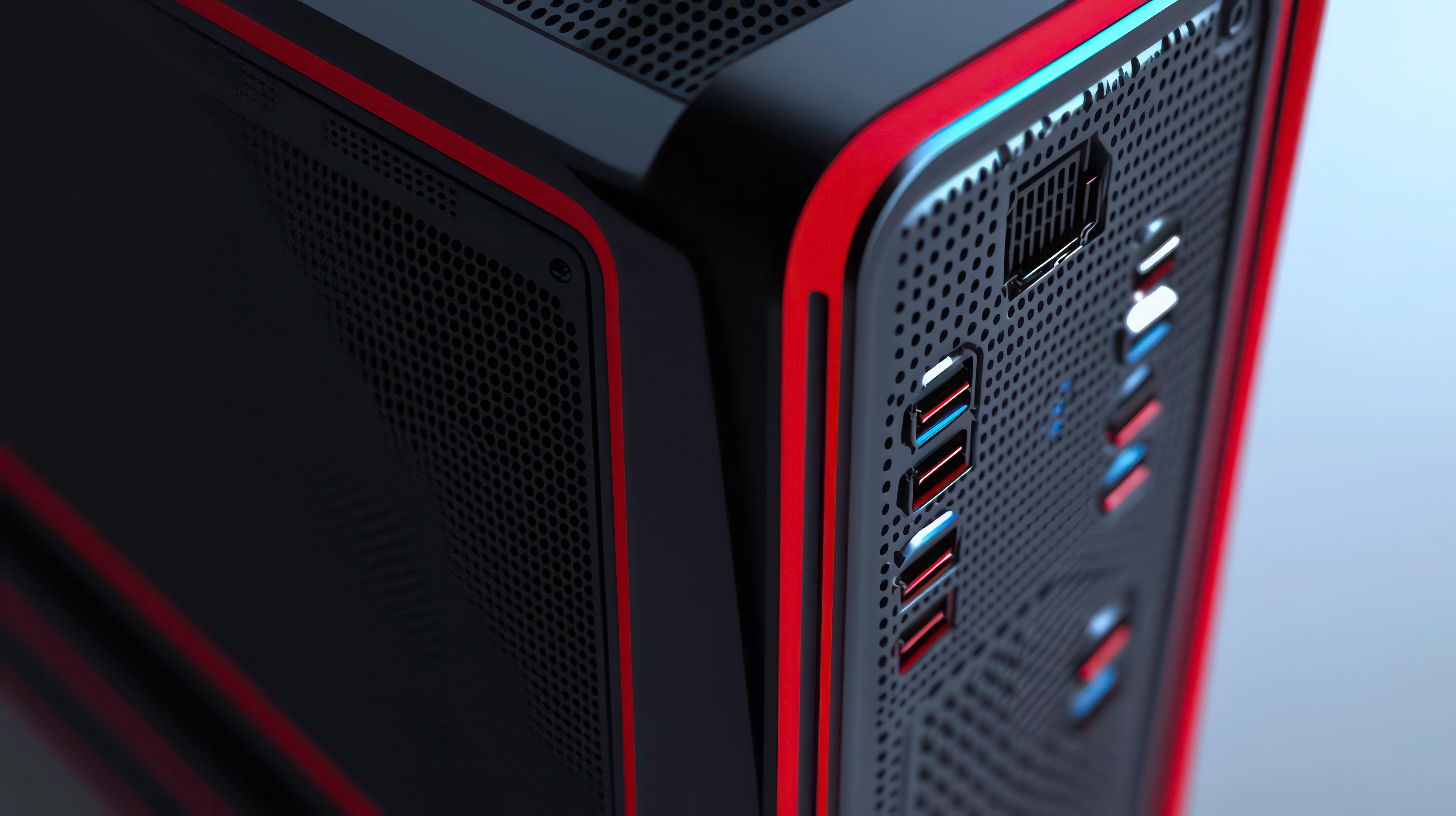
PC Cable Ports Explained: What They Are and Why They Matter
If you have ever stared at the back of a computer or the side of a laptop wondering what port does what, you are not alone. PC cable ports are one of those things most people interact with daily but rarely think about until something does not fit or a device refuses to connect. The truth is, understanding the basic landscape of PC ports is genuinely useful knowledge, whether you are setting up a workstation, upgrading your home office, or trying to figure out why your monitor cable is not cooperating. This guide breaks it down clearly, covering what each port type does, where it came from, and what you actually need to know before buying a cable or adapter.
The Early Days: Serial, Parallel, and PS/2 Ports
PC cable ports have a longer history than most people realize. Before USB became the universal standard we all know today, computers relied on a collection of legacy ports that were purpose-built for specific tasks. Serial ports, those chunky D-shaped connectors with rows of pins, were used for mice, modems, and basic data transfer. They were slow by modern standards but were considered cutting-edge for their era. Parallel ports handled printers primarily and could move data across multiple channels simultaneously, which was a meaningful advantage at the time. Then there were PS/2 ports, the small round connectors that plugged in keyboards and mice. They were color-coded, typically green for mouse and purple for keyboard, which was at least a practical design decision. Most of these ports are obsolete now, but they shaped the philosophy of standardized connectivity that still drives PC port design today.
The USB Revolution: From USB-A to USB-C
USB, or Universal Serial Bus, changed everything. When it arrived in the late 1990s, the goal was straightforward: replace the fragmented mess of legacy ports with one unified connection standard. USB-A is still the most recognized shape, that flat rectangular connector found on virtually every PC, hub, and charger built in the last two decades. USB 2.0 brought reliable data transfer speeds up to 480 Mbps, which was genuinely impressive for its time. USB 3.0 and its successors pushed that to 5 Gbps, then 10 Gbps, and beyond. The blue color coding on USB 3.0 ports became a useful visual shorthand for faster performance. Then came USB-C, and honestly it deserves its own conversation. The connector is smaller, reversible, and capable of handling data, video, power delivery, and audio all through the same port. USB-C with Thunderbolt support pushes bandwidth to 40 Gbps and can drive high-resolution displays while charging a laptop simultaneously. It is the most capable general-purpose port ever put on a consumer PC, full stop.
Display Ports: HDMI, DisplayPort, DVI, and VGA
Video output ports have their own parallel evolutionary track. VGA was the standard for analog video for a very long time, a 15-pin connector that got the job done but had real limitations around resolution and signal clarity. DVI came along to support digital video and offered a meaningful quality improvement, though it was never exactly elegant. HDMI arrived and became the dominant display standard for consumer electronics, supporting both audio and video over a single cable and scaling up through versions that now support 4K, 8K, HDR, and high refresh rates. DisplayPort, developed by VESA, brought additional bandwidth and multi-monitor daisy chaining capability, making it a favorite in professional and gaming setups. Mini DisplayPort and Mini HDMI are smaller versions of both, commonly found on compact laptops and cameras. Each of these ports has distinct use cases, and knowing which one your monitor or display supports is essential before buying a cable.
Audio Ports: 3.5mm, Optical, and Beyond
Audio connectivity on PCs tends to get less attention than it deserves. The 3.5mm headphone jack is practically ubiquitous and has survived longer than many predicted, offering a reliable analog connection for headphones, speakers, and microphones. Many desktop motherboards include color-coded audio jacks, typically green for output and pink for microphone input, with additional jacks for surround sound configurations. Optical audio, or TOSLINK, uses fiber optic light transmission to carry digital audio signals with zero electrical interference, which matters in setups where audio quality is a priority. Some professional audio interfaces connect via USB or Thunderbolt and effectively replace the need for traditional audio jacks entirely. The trend toward USB-C only on modern laptops has also pushed the market toward wireless audio and USB-C audio adapters, which is something worth factoring in when choosing cables and peripherals.
Network and Storage Ports: Ethernet and Beyond
Ethernet, specifically the RJ-45 port, remains the gold standard for wired network connectivity. It is reliable, fast, and immune to the interference issues that can affect wireless connections. Gigabit Ethernet is standard on most modern desktops and many laptops, with 2.5G and 10G options appearing more frequently in high-performance builds and workstations. On the storage side, SATA ports were the dominant internal connection standard for hard drives and SSDs for years. M.2 slots have largely replaced SATA for new solid-state storage, offering dramatically faster speeds through the NVMe protocol. Externally, eSATA offered a direct storage connection that predated modern USB 3.0 speeds, though it has largely been retired in favor of USB and Thunderbolt external drives.
Thunderbolt Ports: The High-Performance Standard
Thunderbolt deserves its own section because it is genuinely in a different performance category. Developed by Intel in collaboration with Apple, Thunderbolt uses the USB-C physical connector but operates on a separate protocol that delivers substantially more bandwidth. Thunderbolt 3 and 4 support up to 40 Gbps data transfer, can drive dual 4K displays or a single 8K display, and support daisy chaining up to six devices from one port. For video editors, engineers, and anyone moving large files regularly, a Thunderbolt-equipped PC is not a luxury, it is a legitimate productivity advantage. The cables are more expensive, but the performance difference is real and measurable.
Common Compatibility Challenges and How to Navigate Them
Not every cable works with every port, and that creates real friction. Here are the most common compatibility issues users run into:
USB-C to USB-A speed differences require checking which USB generation your port supports HDMI version mismatches can limit resolution or refresh rate even with a valid physical connection DisplayPort to HDMI adapters are not always bidirectional, directionality matters Thunderbolt ports look identical to USB-C ports but require Thunderbolt-certified cables for full performance Older monitors with only VGA or DVI inputs need active adapters when connecting to modern digital outputsThe practical fix for most of these issues is to verify the port specifications on both the source device and the destination device before purchasing a cable. Check the version number, not just the connector shape. That single habit eliminates the majority of compatibility headaches.
Tips for Choosing the Right PC Cable Every Time
Buying cables might seem straightforward, but there are a few things worth keeping in mind to avoid wasted money or frustrating setups. Quality matters more than price in certain categories, particularly for long cable runs and high-bandwidth connections like Thunderbolt and HDMI 2.1. Shielding quality affects signal integrity, especially in environments with other electronics nearby. Length also matters: longer cables introduce more signal degradation, and active cables use built-in circuitry to compensate, which is worth the added cost at distances beyond about 15 feet. Always match the cable to the maximum capability of both connected devices for the best result.
Why Monoprice Is the Right Source for PC Cables and Connectivity
When it comes to building out a reliable, high-performance setup without overspending on cables and adapters, Monoprice is a category leader that consistently delivers. The brand has earned a genuine reputation among IT professionals, AV integrators, and everyday users who need quality connectivity hardware at fair prices. From USB-C and Thunderbolt cables to HDMI 2.1 and DisplayPort solutions, the product range covers essentially every port type discussed in this guide. If you are ready to shop with confidence and stop second-guessing cable compatibility, browse the full selection of high-performance PC cables and connectivity solutions at Monoprice and find exactly what your setup needs. The combination of certified performance, transparent specifications, and value pricing makes Monoprice the kind of supplier you come back to rather than one you use once.
Frequently Asked Questions About PC Cable Ports
What is the difference between USB 3.0 and USB-C?
USB 3.0 refers to a data transfer standard that supports speeds up to 5 Gbps and typically uses a USB-A connector. USB-C is a physical connector shape that is smaller and reversible and can support multiple standards including USB 3.1, USB 3.2, and Thunderbolt 3 or 4 depending on the device.
Can I use a DisplayPort cable in an HDMI port?
No, DisplayPort and HDMI connectors are physically different and are not directly interchangeable. You need an adapter or a cable specifically designed with one connector on each end to bridge between the two formats.
Is Thunderbolt the same as USB-C?
Thunderbolt 3 and 4 use the same physical USB-C connector but operate on a separate, higher-bandwidth protocol. A Thunderbolt port can accept standard USB-C cables, but a USB-C port cannot deliver Thunderbolt performance.
What does the blue color on a USB port mean?
A blue USB port typically indicates USB 3.0 or higher, which supports faster data transfer speeds compared to the older black or white USB 2.0 ports. This color coding is a common industry convention but not a universal guarantee across all manufacturers.
Why does my HDMI cable not support 4K even though the TV is 4K?
HDMI cables have version specifications, and older HDMI 1.4 cables may not support the full bandwidth required for 4K at high refresh rates or with HDR. An HDMI 2.0 or 2.1 certified cable is required for full 4K and 8K performance.
What is the best port for connecting an external hard drive?
USB 3.0 or higher is reliable and widely compatible for external storage. For maximum transfer speeds, a Thunderbolt connection is the fastest option available for external drives that support it.
Are longer cables slower than shorter ones?
Signal quality can degrade over longer cable runs, particularly at higher bandwidths. Active cables include built-in circuitry to maintain signal integrity at longer distances and are recommended for runs exceeding 15 feet in demanding applications.
Can I connect VGA to HDMI directly?
VGA is an analog signal format and HDMI is digital, so a direct passive cable will not work. You need an active adapter that converts the analog VGA signal to a digital HDMI signal, and audio will need to be handled separately since VGA carries no audio.
What is the purpose of an Ethernet port on a PC?
An Ethernet port, identified by its RJ-45 connector, provides a wired network connection that is generally faster, more stable, and more secure than wireless Wi-Fi connections, making it preferred for gaming, large file transfers, and professional network environments.
How do I know which USB version my computer supports?
You can check the specifications listed in your computer's documentation or product page. On Windows systems, Device Manager will list USB controller versions. Port color coding, with blue indicating USB 3.0, is also a helpful quick reference though not universally consistent across all devices.


