Monitor Cable Adapters: Find the Right Fit Fast
Monitor Cable Adapters Explained: What They Are and Why You Probably Need One
So you just got a new monitor -- or maybe a new laptop -- and suddenly the port on one does not match the port on the other. It happens constantly. Display technology has evolved faster than most people can keep up with, and the result is a pretty crowded ecosystem of connector types all floating around at the same time. That is exactly where monitor cable adapters come in. They are small, often overlooked, and genuinely essential for anyone working across different devices and display setups. This article breaks down what monitor cable adapters are, how they work, the types available, and how to pick the right one without overcomplicating things.
What Is a Monitor Cable Adapter?
A monitor cable adapter is a hardware device that converts one video signal format or connector type into another, allowing two otherwise incompatible devices to communicate visually. Think of it as a translator -- one end speaks the language of your laptop or graphics card, and the other speaks the language of your display. They come in a wide range of configurations depending on which connector types need to be bridged. Some are simple passive converters that just physically adapt the shape of a plug. Others are active adapters that actually process and convert the signal, which matters more than most people realize when you start working with higher resolutions or refresh rates.
Common Connector Types You Will Run Into
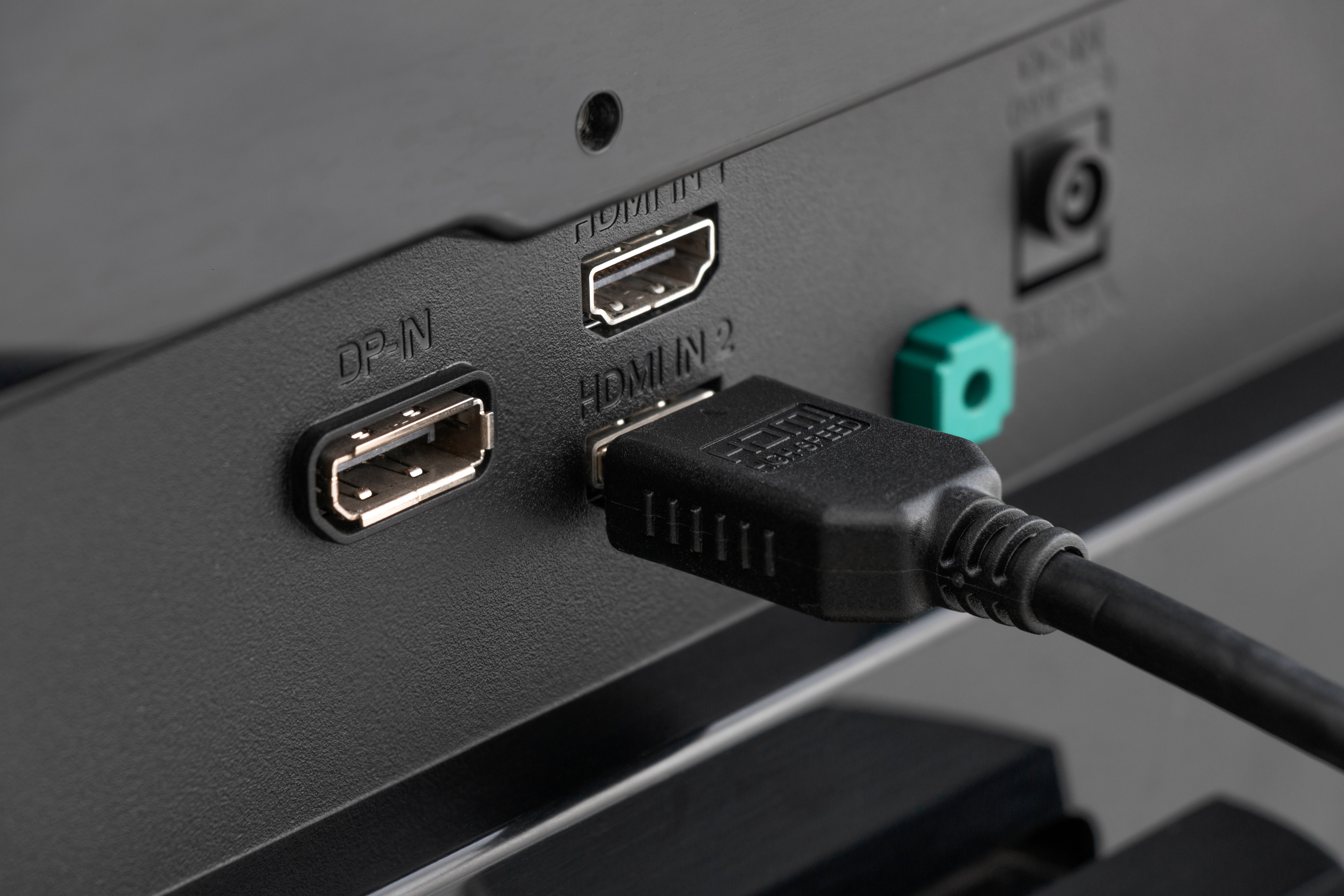
Before selecting any adapter, it helps to know what you are working with. The display connector landscape includes several formats that have dominated different eras of hardware, and many devices still carry ports from older standards right alongside newer ones. Here is a quick rundown of the most common connector types you will encounter when shopping for monitor cable adapters:
- HDMI -- the standard on most consumer TVs, monitors, and laptops for audio and video over a single cable
- DisplayPort -- common on desktop GPUs, gaming monitors, and higher-end business displays
- Mini DisplayPort -- found on older MacBooks and some compact laptops
- USB-C with DisplayPort Alt Mode -- increasingly common on modern laptops and tablets
- VGA -- analog, legacy format still present on older projectors and classroom displays
- DVI -- older digital format that bridges the gap between VGA and modern digital standards
- Thunderbolt 3 and 4 -- physically identical to USB-C but with additional bandwidth and protocol support
Knowing which port your source device outputs and which input your display accepts is the first and most important step. Get that part wrong and no adapter will save you.
Active vs. Passive Adapters: Why the Difference Matters
This is where a lot of buyers get tripped up. Not all adapters are built the same. A passive adapter works when both connectors are carrying the same underlying signal -- just in a different physical form. For example, converting from DisplayPort to HDMI in some configurations can be done passively because DisplayPort natively supports HDMI signals in specific scenarios. But if you are trying to convert from HDMI to DisplayPort, that does not work passively. HDMI does not carry the necessary signal format that DisplayPort expects, so an active adapter with its own signal processing chipset is required. Running the wrong adapter type is one of the most common reasons people end up with a blank screen or degraded output, so it is worth spending a few extra dollars to get the right one.
Resolution and Refresh Rate Limitations to Know Before You Buy
Here is something that catches people off guard: the adapter you choose can become a bottleneck for resolution and refresh rate, even if your cable, monitor, and GPU all support higher specs. This is especially true with active adapters that use older chipsets or with cheap passive converters that are not rated for high bandwidth. If you are targeting 4K at 60Hz or pushing for 1440p at 144Hz, you need an adapter that explicitly supports those specs. It is not safe to assume any adapter handles any resolution. Always check the listed maximum supported resolution and refresh rate before purchasing, and verify it against what your monitor and graphics card can handle together.
Key Advantages of Using Monitor Cable Adapters
Monitor cable adapters solve real problems without requiring you to replace functional hardware. They are cost-effective, portable, and available for nearly every connector combination imaginable. For professionals working across multiple monitors or traveling between different office setups, a well-chosen adapter can mean the difference between a productive day and 45 minutes of troubleshooting. For IT managers deploying mixed hardware environments, adapters allow older displays to stay in rotation longer, which directly reduces procurement costs. And for everyday users, they are simply the quickest path from a new laptop to an existing monitor without rewiring anything.
Common Drawbacks Worth Knowing About
Adapters are not perfect, and being honest about the limitations helps you make better decisions. Signal conversion, especially through lower-quality active adapters, can introduce latency or image quality degradation in edge cases. Some adapters run warm under sustained use, particularly budget units with underpowered chipsets. Compatibility can also be inconsistent across driver versions or operating systems -- something that works flawlessly on Windows may behave differently on macOS or Linux. Additionally, some USB-C to HDMI or DisplayPort adapters require the host device to support DisplayPort Alt Mode, and not all USB-C ports do. Doing the compatibility check upfront is always the smarter move.
Practical Tips for Choosing the Right Monitor Cable Adapter
Picking the right adapter comes down to a few clear checkpoints. Follow these and you will avoid most of the common mistakes people make in this category:
- Identify your source device output port and your monitor input port before anything else
- Determine whether you need an active or passive adapter based on the signal conversion involved
- Confirm the maximum supported resolution and refresh rate matches your display goals
- Check whether the adapter requires external power or draws from the host device
- Verify OS and driver compatibility, especially for Mac users or Linux environments
- Read real user reviews from people using the same source and display hardware combination you have
These steps take about five minutes and can save you from a return shipment. That is time well spent.
When an Adapter Is Not the Right Answer
There are situations where a dedicated cable is the better call. If you are building a permanent desktop setup that will not change, running a direct cable from your GPU to your monitor eliminates a potential failure point and often delivers cleaner signal integrity. Adapters are fantastic for flexibility, but a direct DisplayPort to DisplayPort or HDMI to HDMI connection is always the more reliable long-term option if the ports already match. Similarly, if you are working in a professional AV or broadcast context where signal quality is non-negotiable, dedicated cables with proper shielding will outperform any adapter chain every time. Use adapters where flexibility is the priority. Use direct cables where performance and permanence are.
Why Monoprice Is the Right Source for Monitor Cable Adapters
When it comes to sourcing display connectivity solutions, quality and value have to exist at the same address -- and that is exactly where Monoprice has built its reputation. Whether you need a straightforward DisplayPort to HDMI passive adapter or a high-bandwidth active USB-C to DisplayPort converter rated for 4K output, the product lineup is deep, well-specified, and priced for both individual buyers and procurement teams managing large deployments. Every adapter is built with real-world performance in mind, not just shelf appeal. For anyone who wants reliable, tested connectivity without paying a premium for a brand name that does not add technical value, Monoprice monitor cable adapters and display connectivity solutions represent exactly the kind of smart, spec-driven purchase that holds up over time. The confidence behind that recommendation comes from a product catalog that has served integrators, IT professionals, and everyday users for years -- quietly, reliably, and without the unnecessary markup.
Frequently Asked Questions About Monitor Cable Adapters
What is the difference between an active and passive monitor cable adapter?
A passive adapter simply changes the physical shape of a connector without altering the signal. An active adapter contains a built-in chip that converts the signal from one format to another. Active adapters are required when the source and destination use fundamentally different signal types, such as converting HDMI output to a DisplayPort input.
Can I use a USB-C to HDMI adapter with any USB-C port?
No. The USB-C port on your device must support DisplayPort Alt Mode for a USB-C to HDMI adapter to carry a video signal. Not all USB-C ports provide this functionality, so checking your device specifications before purchasing is essential.
Will a monitor cable adapter reduce image quality?
A properly rated, high-quality adapter should not produce any visible image quality reduction under normal usage. However, low-quality adapters or those using underpowered chipsets for active conversion can introduce artifacts, reduced sharpness, or color inaccuracies in some situations.
Can I run a 4K monitor through a cable adapter?
Yes, but only if the adapter explicitly supports 4K resolution at your desired refresh rate. Always verify the adapter's maximum supported resolution and refresh rate specifications before purchasing to avoid a performance bottleneck.
Is a DisplayPort to HDMI adapter the same as an HDMI to DisplayPort adapter?
No, and this distinction matters significantly. These are directional adapters. DisplayPort to HDMI typically works passively in many cases, while HDMI to DisplayPort requires an active adapter due to how each standard handles signal transmission. Using the wrong direction will result in no output.
Do monitor cable adapters work with dual monitor setups?
Yes, adapters can be used in multi-monitor configurations, provided each adapter is correctly matched to its source port and destination display. The graphics card also needs to support multiple simultaneous outputs at the desired resolutions.
Are monitor cable adapters compatible with Mac computers?
Most monitor cable adapters work with Mac computers, but compatibility can vary depending on the macOS version and the adapter's chipset. It is worth confirming macOS compatibility in the product specifications, particularly for active adapters or USB-C-based solutions.
How do I know if I need a VGA adapter for my setup?
If your display only has a VGA input and your source device does not have a VGA output, you will need a signal-converting active adapter, such as HDMI to VGA or DisplayPort to VGA. Note that VGA is an analog format, so adapters converting from digital sources are always active and require signal processing.
Can a monitor cable adapter support audio as well as video?
Some adapters support both audio and video, particularly HDMI-based adapters, since HDMI carries audio natively. However, adapters converting to or from VGA or DVI do not carry audio, as those are video-only formats. Always check the adapter's listed audio support if sound transmission is a requirement.
What is the lifespan of a monitor cable adapter?
A well-built monitor cable adapter from a reputable manufacturer can last several years under normal use. Factors that reduce lifespan include frequent plugging and unplugging, physical stress on the connector housing, and sustained heat buildup in active adapters. Choosing quality construction upfront significantly extends reliability.