

Mini DisplayPort vs Thunderbolt: Key Differences Explained
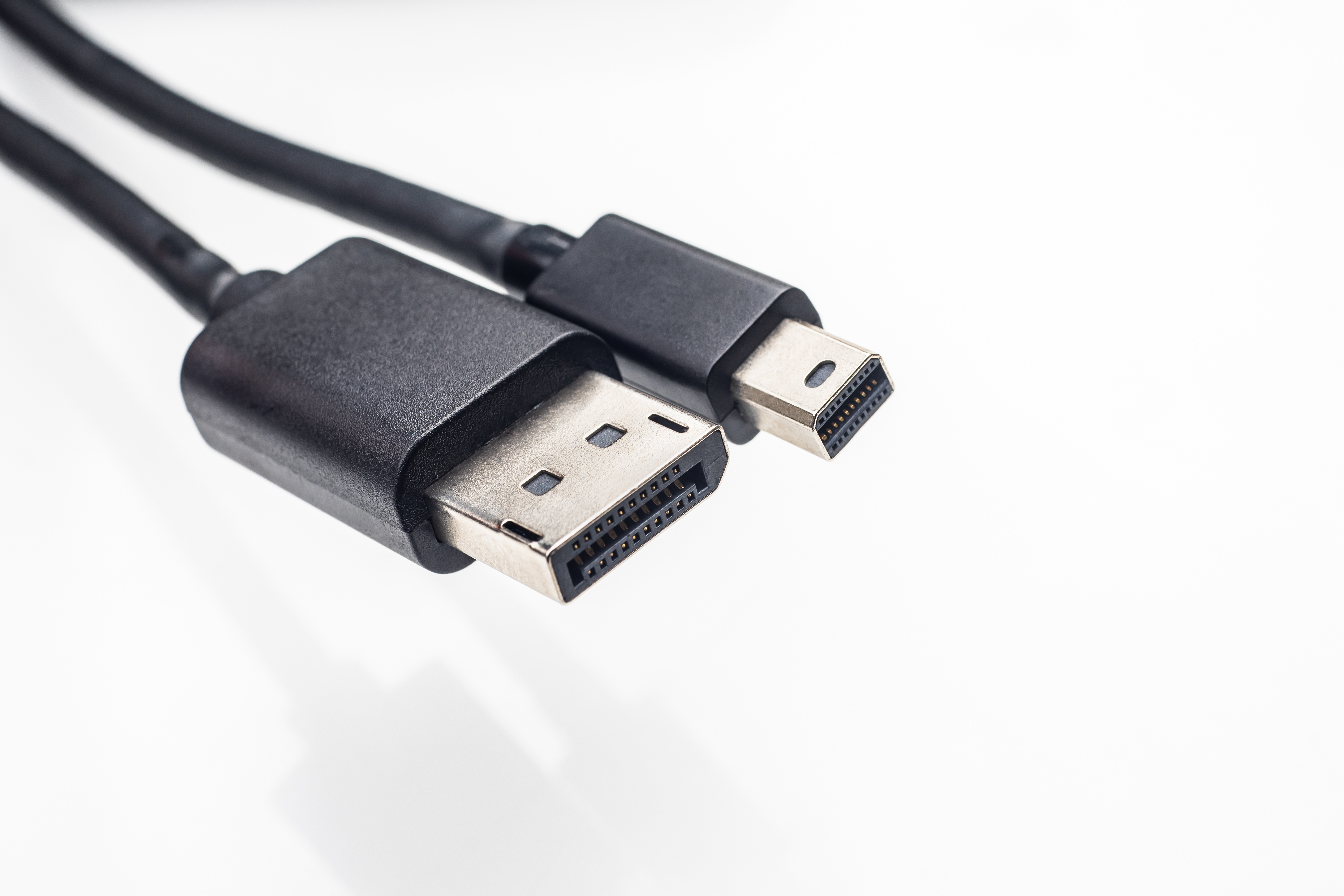
Mini DisplayPort vs. Thunderbolt: What Is the Difference and Why It Matters
So here is a question that comes up constantly, and honestly, it is a fair one because the physical connector looks identical. If you have ever stared at the back of a MacBook or a PC and wondered whether that tiny port is Mini DisplayPort or Thunderbolt, you are not alone. The short answer is that they share the same connector shape but are fundamentally different technologies. The long answer requires a bit more unpacking, and that is exactly what this article is here to do. Understanding the distinction between Mini DisplayPort and Thunderbolt is not just a technical curiosity. It has real consequences for how you connect your displays, transfer files, and build out a reliable workstation setup.
What Is Mini DisplayPort and Where Did It Come From
Mini DisplayPort, often abbreviated as mDP, was introduced by Apple in 2008 and later standardized by VESA. It was designed as a compact alternative to the full-size DisplayPort connector, and it was almost immediately adopted across a wide range of laptops, desktops, and even some graphics cards. The connector is small, rectangular with angled corners on one side, and it handles video and audio signals exceptionally well. Mini DisplayPort supports resolutions up to 4K at 60Hz depending on the version in use, making it a solid choice for connecting monitors, projectors, and other display devices. That is essentially its purpose though. Mini DisplayPort is a display interface, and that is where its functionality ends. It does not carry data for peripherals, it does not charge devices, and it does not support daisy-chaining of non-display devices. It is purpose-built for video and audio output, and it does that job reliably.
What Is Thunderbolt and How Does It Work
Thunderbolt is a different story entirely, and this is where things get interesting. Developed by Intel in collaboration with Apple, Thunderbolt was designed to be a high-speed, multi-purpose interface that could handle data transfer, video output, power delivery, and daisy-chaining of multiple devices all through a single cable and connector. The first two generations of Thunderbolt used the Mini DisplayPort connector form factor, which is precisely why so much confusion exists. Thunderbolt 1 offered 10Gbps of data transfer bandwidth. Thunderbolt 2 doubled that to 20Gbps. Thunderbolt 3 moved to the USB-C connector and pushed bandwidth to 40Gbps, and Thunderbolt 4 maintained that 40Gbps ceiling while tightening certification requirements. When you plug a Thunderbolt cable into a Thunderbolt port, you are not just sending video. You are opening a high-throughput pipeline that can simultaneously drive a 4K or even 8K display, connect to external SSDs, link to docking stations, and pass power. That versatility is what separates it from Mini DisplayPort in a profound way.
The Physical Connector: Why the Confusion Is Completely Understandable
Here is the thing. Thunderbolt 1 and Thunderbolt 2 ports use the exact same physical connector as Mini DisplayPort. They look identical. Without looking at the port label, which often includes a small lightning bolt symbol for Thunderbolt, you genuinely cannot tell them apart visually. That design decision was intentional. Intel and Apple wanted Thunderbolt ports to maintain backward compatibility with Mini DisplayPort accessories. So if you plug a Mini DisplayPort cable into a Thunderbolt 1 or Thunderbolt 2 port, it works for video output. The host device recognizes the connection and treats it accordingly. However, if you plug a Thunderbolt cable into a Mini DisplayPort-only port, you do not get Thunderbolt functionality. You might get video if the signal is compatible, but all the high-speed data capabilities vanish. The port simply cannot support them. This backward compatibility sounds convenient, and it is, but it also creates a lot of misidentification in the field.
Key Differences Between Mini DisplayPort and Thunderbolt at a Glance
Breaking this down clearly helps when you are trying to make a purchasing decision or configure a workspace. Here is what separates the two technologies in practical terms.
- Mini DisplayPort is a video and audio output interface only
- Mini DisplayPort does not support high-speed data transfer to peripherals
- Mini DisplayPort does not deliver power to connected devices
- Thunderbolt supports data transfer at speeds up to 40Gbps on Thunderbolt 3 and 4
- Thunderbolt supports power delivery for compatible devices
- Thunderbolt allows daisy-chaining of up to six devices in a single chain
- Thunderbolt is backward compatible with Mini DisplayPort for video output
- Thunderbolt 3 and later use the USB-C connector, not Mini DisplayPort
That last point is worth emphasizing. If you are shopping for a modern laptop released in the last several years, chances are you are looking at Thunderbolt 3 or 4 over USB-C, not the older Mini DisplayPort form factor. The industry has largely moved on from that connector for Thunderbolt purposes, though Mini DisplayPort itself remains common in monitors and display equipment.
Practical Use Cases: Which One Do You Actually Need
For connecting a monitor or projector in a straightforward display setup, Mini DisplayPort gets the job done cleanly and without fuss. It is cost-effective, widely supported, and delivers quality video signal without complexity. If your only goal is to extend or mirror a display, a Mini DisplayPort cable or adapter is perfectly adequate. Where Thunderbolt earns its place is in professional and power-user environments. Video editors connecting to external GPU enclosures, photographers offloading files from high-resolution cameras at maximum speed, audio producers running complex routing through Thunderbolt audio interfaces, or anyone building a docking station setup with multiple peripherals on a single cable run. Thunderbolt is the right tool for that kind of workflow. For business environments running AV infrastructure, understanding this distinction matters for procurement. Buying Thunderbolt cables and docks for systems that only have Mini DisplayPort outputs results in wasted spend and limited functionality.
Adapters and Compatibility: What Works With What
Adapters exist in abundance for both interfaces, and navigating them does not have to be complicated. A Thunderbolt 1 or 2 port accepts any Mini DisplayPort accessory for video output. A Mini DisplayPort port does not recognize or support Thunderbolt-specific functionality even if you plug in a Thunderbolt cable. For Thunderbolt 3 and 4 over USB-C, you can use adapters to connect to Mini DisplayPort displays, full-size DisplayPort monitors, HDMI screens, and even VGA outputs. Active adapters handle signal conversion where passive ones fall short. Always confirm whether the adapter is active or passive before assuming compatibility with older display hardware or longer cable runs.
How to Identify Whether Your Port Is Mini DisplayPort or Thunderbolt
Checking your port type is straightforward if you know what to look for. Thunderbolt ports on older hardware typically have a small lightning bolt icon printed or engraved next to the port. Mini DisplayPort-only ports usually do not. For Thunderbolt 3 and 4, the USB-C connector itself may carry a lightning bolt symbol or the Thunderbolt logo. You can also check your device specifications in the manufacturer documentation or system information utility. On a Mac, the System Information panel under the Apple menu lists connected bus types. On Windows, Device Manager shows connected controllers, and searching your exact model number online will surface the accurate port specifications quickly. When in doubt, always look at the spec sheet rather than the connector shape alone.
Common Mistakes to Avoid When Working With These Ports
A few missteps show up repeatedly in real-world setups, and they are easy to avoid once you know what to watch for.
- Assuming a Mini DisplayPort connection will support Thunderbolt data speeds
- Purchasing Thunderbolt docking stations for computers that only have Mini DisplayPort outputs
- Using passive adapters in situations that require active signal conversion
- Overlooking port labeling and assuming connector shape determines capability
- Buying Thunderbolt 3 cables expecting them to carry full bandwidth on Thunderbolt 1 ports
The core mistake is treating these two interfaces as interchangeable simply because the connector looks the same. They are not the same, and that distinction directly affects what accessories and peripherals will actually work as expected in your setup.
Why Monoprice Is the Right Source for Mini DisplayPort and Thunderbolt Cables and Adapters
When you are trying to sort out a display setup or piece together a Thunderbolt workflow, the last thing you want is to pay inflated prices for cables and adapters that are not performing any differently than well-built, certified alternatives. Monoprice has built a trusted reputation precisely by delivering that performance without the unnecessary markup. Whether you need a reliable Mini DisplayPort to HDMI adapter for a conference room projector or a certified Thunderbolt cable for a high-throughput editing workstation, the product lineup covers it at a price point that makes sense for both individual buyers and enterprise procurement teams. For anyone sourcing Mini DisplayPort cables, Thunderbolt adapters, and professional AV connectivity solutions, Monoprice delivers consistent quality backed by rigorous standards and genuine value. The product selection is broad, the specs are clearly documented, and the pricing reflects the kind of cost-conscious excellence that both home users and AV integrators can rely on without second-guessing the purchase.
Frequently Asked Questions About Mini DisplayPort and Thunderbolt
Is Mini DisplayPort the same as Thunderbolt?
No. They share the same physical connector shape in Thunderbolt 1 and 2, but Mini DisplayPort is a video and audio interface only, while Thunderbolt is a multi-protocol interface supporting high-speed data transfer, power delivery, and display output simultaneously.
Can I plug a Mini DisplayPort cable into a Thunderbolt port?
Yes. Thunderbolt 1 and Thunderbolt 2 ports are backward compatible with Mini DisplayPort cables and accessories for video output. The connection will function as a standard display connection without Thunderbolt data capabilities.
Can I plug a Thunderbolt cable into a Mini DisplayPort port?
You can insert the cable since the connector is physically identical, but the Mini DisplayPort port cannot support Thunderbolt data functionality. Video output may work if the signals are compatible, but data transfer and power delivery will not function.
How do I know if my port is Thunderbolt or just Mini DisplayPort?
Look for a lightning bolt symbol printed next to the port. Thunderbolt ports are typically labeled with this icon. You can also verify by checking your device manufacturer specifications or running a system information diagnostic on your computer.
What connector does Thunderbolt 3 and Thunderbolt 4 use?
Thunderbolt 3 and Thunderbolt 4 use the USB-C connector, not the Mini DisplayPort form factor. This is a significant departure from the earlier Thunderbolt 1 and 2 standards that used the Mini DisplayPort connector.
Does Mini DisplayPort support 4K resolution?
Yes. Mini DisplayPort can support 4K resolution at 60Hz depending on the DisplayPort version in use. DisplayPort 1.2 and later versions transmitted through Mini DisplayPort connectors are capable of handling 4K output.
Can I daisy-chain monitors using Mini DisplayPort?
Mini DisplayPort does support DisplayPort Multi-Stream Transport for daisy-chaining displays when using compatible monitors and cables. However, this is a DisplayPort feature and is not related to Thunderbolt daisy-chaining capabilities, which extend beyond display devices.
Is Thunderbolt faster than Mini DisplayPort for video?
Both can deliver high-quality video output. The difference is that Thunderbolt simultaneously supports data transfer and video through shared bandwidth management, while Mini DisplayPort dedicates its entire capability to display signal only.
Are Thunderbolt cables and Mini DisplayPort cables interchangeable?
The connectors for Thunderbolt 1 and 2 fit Mini DisplayPort ports physically, but the cables are not functionally interchangeable for all uses. A Thunderbolt cable used in a Mini DisplayPort port will only deliver video, not the full range of Thunderbolt capabilities.
Do I need a special adapter to connect a Thunderbolt 3 port to a Mini DisplayPort monitor?
Yes. Since Thunderbolt 3 uses a USB-C connector, you need a USB-C to Mini DisplayPort adapter or cable to connect to a Mini DisplayPort monitor. Active adapters are recommended for longer cable runs or when connecting to older display hardware.


